Your Browsing History
Meet Your Seller
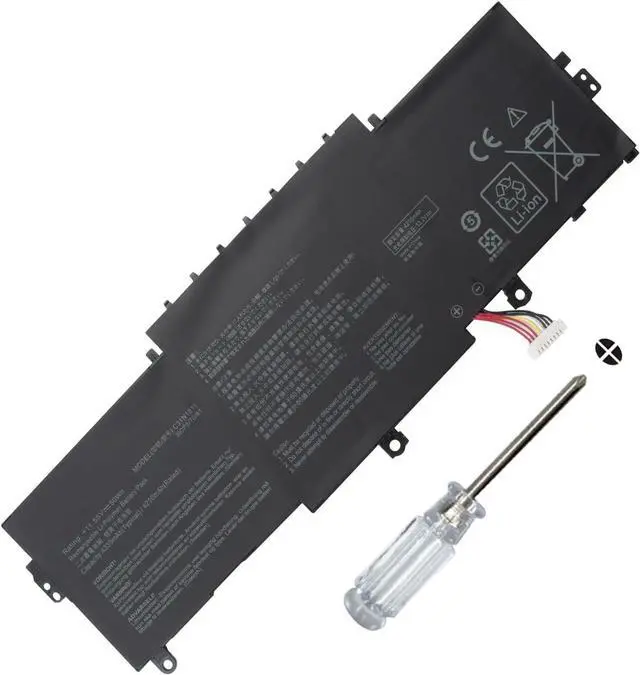
C31N1811 Laptop Battery for ASUS Deluxe14 Deluxe 13 ZenBook 14 UX433 UX433F UX433FA U433FN UX433FN UX433FL BX433FN RX433FN U4300 U4300F U4300FA U4300FN UX433FA-A6018T UX433FN-2B 3B Series 11.55V 50Wh
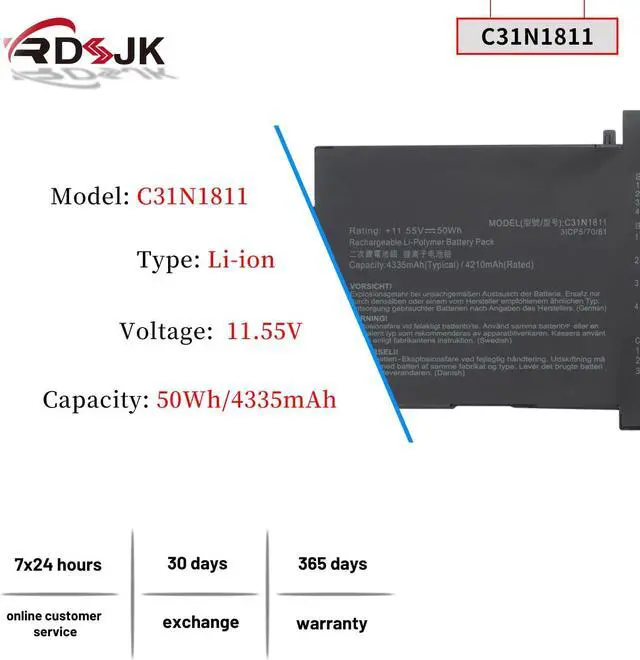
- Battery type: Li-ion; Voltage: 11.55V; Capacity: 50Wh/4335mAh
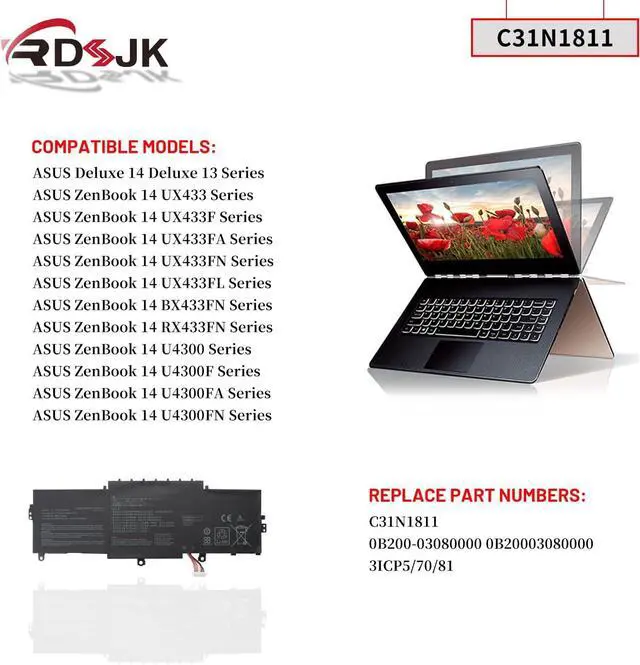
- Compatible Models: Fit for ASUS Deluxe 14 Deluxe 13 Series, Fit for ASUS ZenBook 14 UX433 Series, Fit for ASUS ZenBook 14 UX433F Series, Fit for ASUS ZenBook 14 UX433FA Series, Fit for ASUS ZenBook 14 UX433FN Series, Fit for ASUS ZenBook 14 UX433FL Series, Fit for ASUS ZenBook 14 BX433FN Series, Fit for ASUS ZenBook 14 RX433FN Series, Fit for ASUS ZenBook 14 U4300 U4300F U4300FA U4300FN Series
- Compatible Models: Fit for ASUS ZenBook 14 UX433FA-A6018T UX433FA-A5046R UX433FA-A5090T UX433FA-A5133T UX433FA-A5941T UX433FA-A6102T UX433FA-A6148R UX433FA-A6688T UX433FA-A6019R UX433FA-2B UX433FA-2S UX433FA-3B UX433FA-3S UX433FN-2B UX433FN-2S UX433FN-3B UX433FN-3S UX433FN-A6023T UX433FN-A6024T UX433FN-A6106T UX433FN-A6532T UX433FN-A5084T UX433FN-0072B8565U UX433FN-BP8201T UX433FN-A5037T UX433FN-A6125T UX433FN-A6052T UX433FN-A5104R UX433FN-BP8505T UX433FN-A5021R UX433FN-A6108T UX433FN-A6123T
- Replace Part Numbers: C31N1811 0B200-030
+
+
Overview
Specs
Reviews
Any questions? Our AI mode will help you find out quickly.
Try me now
Specifications:
Battery Type: Li-ion
Voltage: 11.55V
Capacity: 50Wh/4335mAh
Condition: Brand New
Replace Part Numbers:
C31N1811 0B200-03080000 0B20003080000 3ICP5/70/81
How to find your laptop model?
1. Press Windows + R.
2. Type "msinfo32", then click "OK".
3. Find "System Model" in the pop-up window.
Compatible Models: (use "Ctrl+F" to find your model quickly)
ASUS Deluxe 14 Deluxe 13 Series
ASUS ZenBook 14 UX433 Series
ASUS ZenBook 14 UX433F Series
ASUS ZenBook 14 UX433FA Series
ASUS ZenBook 14 UX433FN Series
ASUS ZenBook 14 UX433FL Series
ASUS ZenBook 14 BX433FN Series
ASUS ZenBook 14 RX433FN Series
ASUS ZenBook 14 U4300 U4300F U4300FA U4300FN Series
ASUS ZenBook 14 UX433FA Series
Zenbook 14 UX433FA-A6018T UX433FA-A5046R UX433FA-A5090T UX433FA-A5133T
ZenBook 14 UX433FA-A5941T UX433FA-A6102T UX433FA-A6148R UX433FA-A6688T
ZenBook 14 UX433FA-XH54 UX433FA-DH74 UX433FA-A6025T UX433FA-A5155R
Zenbook 14 UX433FA-A6019R UX433FA-2B UX433FA-2S UX433FA-3B UX433FA-3S
ZenBook 14 UX433FA-A5143T UX433FA-A6024T UX433FA-A5188R UX433FA-A5047R
ZenBook 14 UX433FA-A5082T UX433FA-A5156T UX433FA-A5045T UX433FA-A6043T
ZenBook 14 UX433FA-A6101T UX433FA-A5104R UX433FA-A6024T UX433FA-A6025T
ZenBook 14 UX433FA-A5854T UX433FA-A5045R UX433FA-A5047R UX433FA-A5070T
ASUS ZenBook 14 UX433FN Series
Zenbook 14 UX433FN-2B UX433FN-2S UX433FN-3B UX433FN-3S
Zenbook 14 UX433FN-A6023T UX433FN-A6024T UX433FN-A6106T UX433FN-A6532T
Zenbook 14 UX433FN-A5084T UX433FN-0072B8565U UX433FN-BP8201T UX433FN-A5037T
Zenbook 14 UX433FN-A6125T UX433FN-A6052T UX433FN-A5104R UX433FN-BP8505T
Zenbook 14 UX433FN-A5021R UX433FN-A6108T UX433FN-A6123T UX433FN-A5021T
Zenbook 14 UX433FN-A5079T UX433FN-A6096T UX433FN-A5085T UX433FN-A6032T
Zenbook 14 UX433FN-A6090T UX433FN-A6039T UX433FN-A5080T UX433FN-A6157T
1. Discharge the new battery use to 5%(not to 0%) and then charge to 95%, and cycle 3-5 times.
2. Do not disassemble, crush or puncture. Do not dispose of in fire or water.
3. If you remove battery for a long time, charge more than 80% at least one time within one months.
4. When using the battery, care should be taken to prevent exposure and moisture.
1. Before disassembling your laptop, put the old battery charge below 25%. If a fully charged lithium battery is accidentally punctured, it will have serious consequences.
2. Please keep every screw you removed.
3. Make sure that interface is correctly connected to its socket.
4. Please protect your screen and touchpad.
1. Remove all battery drivers.
2. Remove battery.
3. Connect laptop using AC charger, double check no battery drivers installed
Connect battery.
4. Drivers will install automatically.
5. Full charge the battery by ac adapter.
6. Leave charger and let the battery drain to shut off.
7. Repeat full charge and full discharge about 2 times.
Laptop Battery Instruction: Installing A New Battery: If the battery cannot be recognized by the laptop, it seems like there logic in the BIOS (ACPI) that needs to be reset with the introduction of a new battery.

Battery Type: Li-ion
Voltage: 11.55V
Capacity: 50Wh/4335mAh
Condition: Brand New
Replace Part Numbers:
C31N1811 0B200-03080000 0B20003080000 3ICP5/70/81
How to find your laptop model?
1. Press Windows + R.
2. Type "msinfo32", then click "OK".
3. Find "System Model" in the pop-up window.
Compatible Models: (use "Ctrl+F" to find your model quickly)
ASUS Deluxe 14 Deluxe 13 Series
ASUS ZenBook 14 UX433 Series
ASUS ZenBook 14 UX433F Series
ASUS ZenBook 14 UX433FA Series
ASUS ZenBook 14 UX433FN Series
ASUS ZenBook 14 UX433FL Series
ASUS ZenBook 14 BX433FN Series
ASUS ZenBook 14 RX433FN Series
ASUS ZenBook 14 U4300 U4300F U4300FA U4300FN Series
ASUS ZenBook 14 UX433FA Series
Zenbook 14 UX433FA-A6018T UX433FA-A5046R UX433FA-A5090T UX433FA-A5133T
ZenBook 14 UX433FA-A5941T UX433FA-A6102T UX433FA-A6148R UX433FA-A6688T
ZenBook 14 UX433FA-XH54 UX433FA-DH74 UX433FA-A6025T UX433FA-A5155R
Zenbook 14 UX433FA-A6019R UX433FA-2B UX433FA-2S UX433FA-3B UX433FA-3S
ZenBook 14 UX433FA-A5143T UX433FA-A6024T UX433FA-A5188R UX433FA-A5047R
ZenBook 14 UX433FA-A5082T UX433FA-A5156T UX433FA-A5045T UX433FA-A6043T
ZenBook 14 UX433FA-A6101T UX433FA-A5104R UX433FA-A6024T UX433FA-A6025T
ZenBook 14 UX433FA-A5854T UX433FA-A5045R UX433FA-A5047R UX433FA-A5070T
ASUS ZenBook 14 UX433FN Series
Zenbook 14 UX433FN-2B UX433FN-2S UX433FN-3B UX433FN-3S
Zenbook 14 UX433FN-A6023T UX433FN-A6024T UX433FN-A6106T UX433FN-A6532T
Zenbook 14 UX433FN-A5084T UX433FN-0072B8565U UX433FN-BP8201T UX433FN-A5037T
Zenbook 14 UX433FN-A6125T UX433FN-A6052T UX433FN-A5104R UX433FN-BP8505T
Zenbook 14 UX433FN-A5021R UX433FN-A6108T UX433FN-A6123T UX433FN-A5021T
Zenbook 14 UX433FN-A5079T UX433FN-A6096T UX433FN-A5085T UX433FN-A6032T
Zenbook 14 UX433FN-A6090T UX433FN-A6039T UX433FN-A5080T UX433FN-A6157T
1. Discharge the new battery use to 5%(not to 0%) and then charge to 95%, and cycle 3-5 times.
2. Do not disassemble, crush or puncture. Do not dispose of in fire or water.
3. If you remove battery for a long time, charge more than 80% at least one time within one months.
4. When using the battery, care should be taken to prevent exposure and moisture.
1. Before disassembling your laptop, put the old battery charge below 25%. If a fully charged lithium battery is accidentally punctured, it will have serious consequences.
2. Please keep every screw you removed.
3. Make sure that interface is correctly connected to its socket.
4. Please protect your screen and touchpad.
1. Remove all battery drivers.
2. Remove battery.
3. Connect laptop using AC charger, double check no battery drivers installed
Connect battery.
4. Drivers will install automatically.
5. Full charge the battery by ac adapter.
6. Leave charger and let the battery drain to shut off.
7. Repeat full charge and full discharge about 2 times.
Laptop Battery Instruction: Installing A New Battery: If the battery cannot be recognized by the laptop, it seems like there logic in the BIOS (ACPI) that needs to be reset with the introduction of a new battery.
Warranty & Returns
Warranty, Returns, And Additional Information
Warranty
- Please contact the Seller directly for warranty information. Warranty information may also be found on the Manufacturer's website.
- CONTACT
Return Policies
- Return for refund within: 30 days
- Return for replacement within: 30 days
- This item is covered by LionTech Direct Return Policy
Manufacturer Contact Info
- For a directory of all our manufacturers, please click below.
- Manufacturers Directory
LOADING...