Your Browsing History
Meet Your Seller
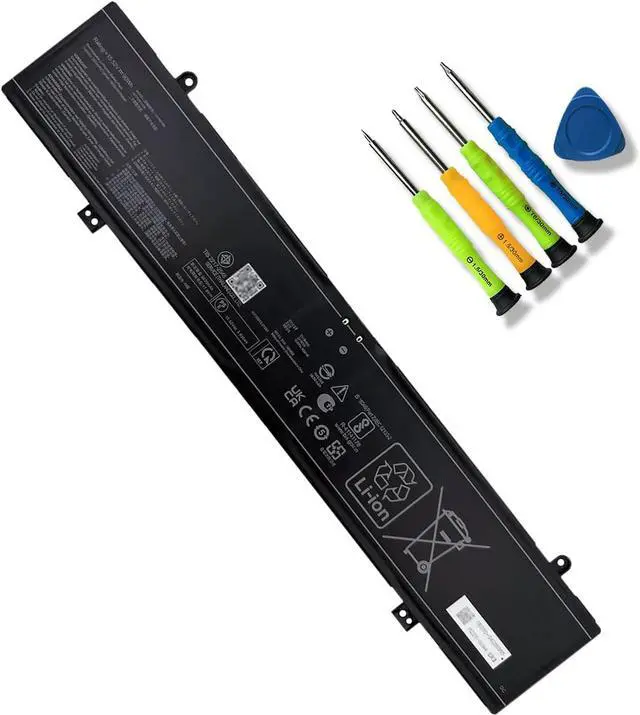
C41N2109 Battery Replacement for ASUS Rog Flow X16 GV601RW GV601RE GV601VI GV601RM Strix G16 G614JV G614J Strix G18 G814J G634JY G814JI G634JZ 18 G834JZ G834JY Zephyrus M16 GU604V G16 GU604VZ 90Wh
- Customer SupportRest assured with 30 days Refund and 12 months Replacement,also get our friendly customer service;(Note: The return window will be closed a month after you received the Battery .If you have any problem with this battery, please Contact us - in "YOUR ORDER" options click the "contact seller")
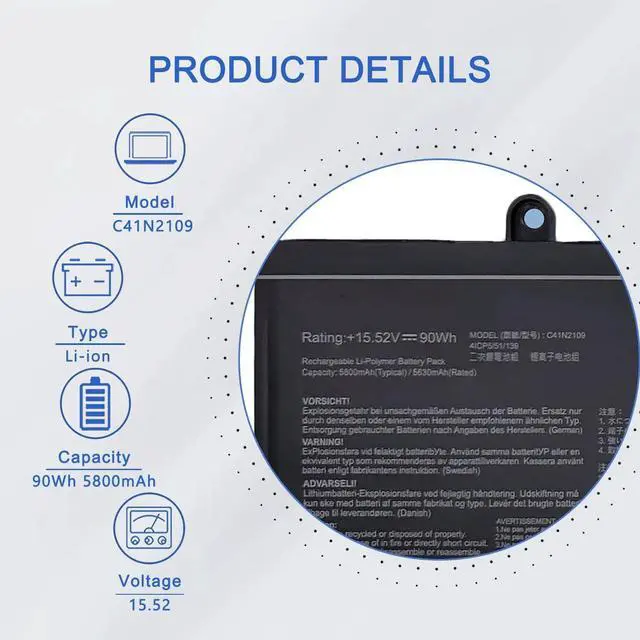
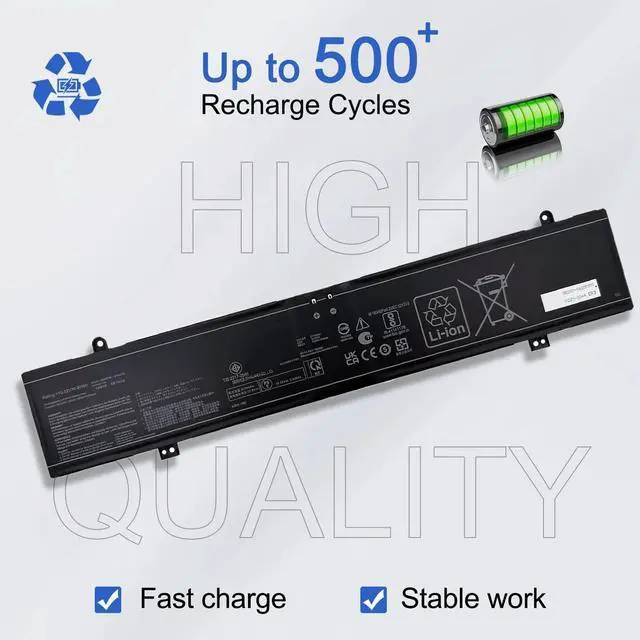
- SpecificationsProduct Type: Replacement battery; Battery Type: Li-ion; Voltage: 15.52 V; Capacity: 90Wh/5800mAh; Battery Life: Up to 500 recharge cycles over the life of the battery
- Compatible original Battery Codes C41N2109 0B20004200000 0B200-04200000 4ICP5/51/139
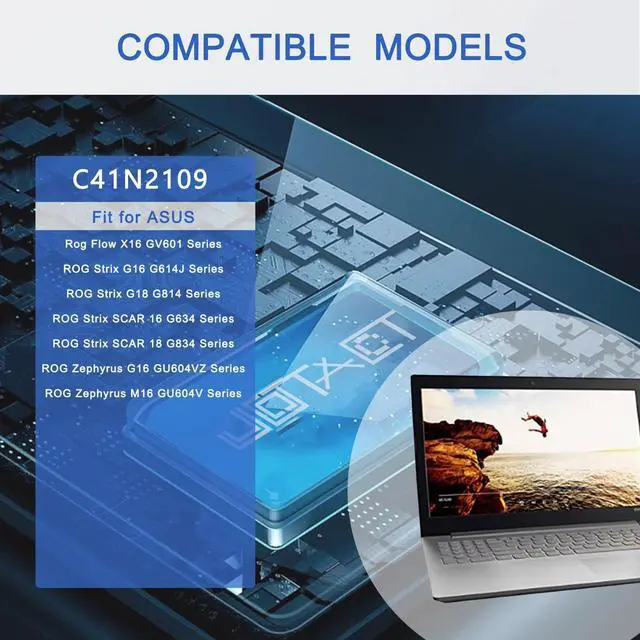
- Compatible Laptop ModelsFit for ASUS Rog Flow X16 GV601 GV601R GV601RE GV601RM GV601RW GV601VI GV601VU GV601VV Series;Fit for ASUS Rog Strix G16 G614J G614JI G614JU G614JV G614JZ Series;Fit for ASUS Rog Strix G18 G814 G814J G814JU G814JI G814JV Series;Fit for ASUS ROG Strix SCAR 16 G634 G634J G634JY G634JZ Series;Fit for ASUS ROG Strix SCAR 18 G834 G834J G834JY G834JZ Series;Fit for ASUS ROG Zephyrus G16 GU60
+
+
Overview
Specs
Reviews
Any questions? Our AI mode will help you find out quickly.
Try me now
Why the laptop does not recognize the battery
Could be caused by battery loose. Please re-install the battery and make sure that the battery cable and the motherboard interface are tightly inserted.
Maybe due to conductive material damaged which the laptop motherboard and battery anode and cathode contact position, you can try to confirm it with your original battery.
Check whether the battery drive is in normal condition, if not, download the corresponding driver software to update.
There is a problem with the computer detection software, which usually just restart the computer.
How to use the new battery correctly
1. When using your new battery for the first time, you need to prime the battery by charging it to 100% and discharging it to 20% for 3 times. If you don't know how to install a new laptop battery, you can search "How to install a new laptop battery?" on website.
2. DO NOT let the battery drain to 0%: If you constantly let it drain to 0%, the battery becomes unstable will be seriously degraded.
3. DO NOT keep your battery always fully charged: Just like emptying your battery to 0%, keeping your battery permanently charged at 100% is very harmful. As time goes by, this will increase its internal resistance and reduce its capacity.
4. Perform regular charging cycles: If you dont use your Laptop battery very often, it is important to cycle it (discharge => charge) regularly, at least once a month. Please store the unused battery fully charged. Do not store at low power to prevent reduce the lifespan of a battery.
5.The battery life depends on how you use your laptop. If you open a lot of software at the same time, in the office, while listening to music, while browsing the Internet, also watching a movie, then the battery will drain fast; If you don't have a lot of software running on your computer, and you're only on standby or browsing the web, the battery will last longer.
Easy Ways To Maximize Battery Life:
1. Change your laptop power plan settings. I would suggest you choose the power saver plan. Then Change advanced power settings, scroll down to find Processor power management. Click the On-battery option and reduce the processor state to 20%.
2. Always keep your laptop neat and clean. The dust easily enters the hardware through the vents which are meant to release the heat generated from various computer components. It then blocks the vents preventing the outflow of the heat. This damages the computer parts including the battery.
3. Close Wi-Fi, Bluetooth, and other settings. You should keep the Bluetooth and WiFi off when youre watching movies or doing other things which dont require network connectivity. This can help your computer save precious battery life.
1.Battery Buckle
The laptop is tightly connected to the buckle, stabilizing the battery to ensure no loosening, solid and safe.
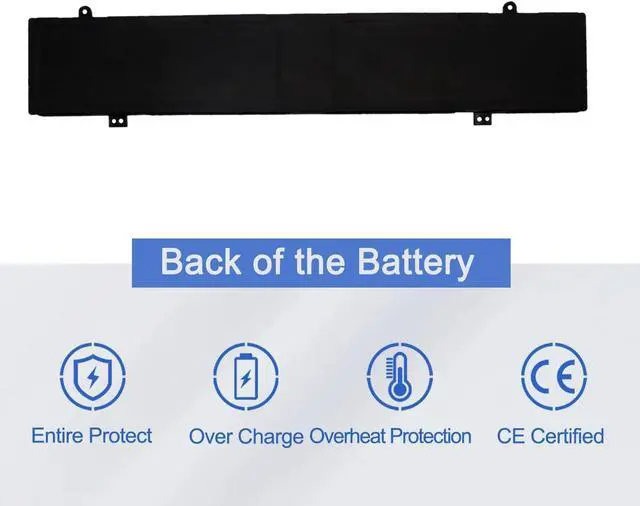
2.Back of the Battery
The shell is made of ABS + PC composite material casting, good heat and flame retardant performance, good resistance to wear and tear, safe to use. Designed same size as original battery, 100% compatible to meet OEM specifications.
Step 1: Press Windows + R to open Run window.
Step 2: Input "msinfo32" in the empty box and click OK to open System Information.
Step 3: Keep in the System Summary section, and you will find the System Model item in the right pane.
Compatible laptop models: Please "Ctrl+F"search your laptop model
For ASUS ROG Zephyrus G16 GU604VZ Series
For ASUS ROG Strix SCAR 16 G634 G634J G634JY G634JZ Serie
For ASUS ROG Strix SCAR 18 G834 G834J G834JY G834JZ Series
For ASUS Rog Strix G18 G814 G814J G814JU G814JI G814JV Serie
For ASUS Rog Strix G16 G614J G614JI G614JU G614JV G614JZ Series
For ASUS ROG Zephyrus M16 GU604V GU604VI GU604VY GU604VZ Series
For ASUS Rog Flow X16 GV601 GV601R GV601RE GV601RM GV601RW GV601VI GV601VU GV601VV Series

Could be caused by battery loose. Please re-install the battery and make sure that the battery cable and the motherboard interface are tightly inserted.
Maybe due to conductive material damaged which the laptop motherboard and battery anode and cathode contact position, you can try to confirm it with your original battery.
Check whether the battery drive is in normal condition, if not, download the corresponding driver software to update.
There is a problem with the computer detection software, which usually just restart the computer.
How to use the new battery correctly
1. When using your new battery for the first time, you need to prime the battery by charging it to 100% and discharging it to 20% for 3 times. If you don't know how to install a new laptop battery, you can search "How to install a new laptop battery?" on website.
2. DO NOT let the battery drain to 0%: If you constantly let it drain to 0%, the battery becomes unstable will be seriously degraded.
3. DO NOT keep your battery always fully charged: Just like emptying your battery to 0%, keeping your battery permanently charged at 100% is very harmful. As time goes by, this will increase its internal resistance and reduce its capacity.
4. Perform regular charging cycles: If you dont use your Laptop battery very often, it is important to cycle it (discharge => charge) regularly, at least once a month. Please store the unused battery fully charged. Do not store at low power to prevent reduce the lifespan of a battery.
5.The battery life depends on how you use your laptop. If you open a lot of software at the same time, in the office, while listening to music, while browsing the Internet, also watching a movie, then the battery will drain fast; If you don't have a lot of software running on your computer, and you're only on standby or browsing the web, the battery will last longer.
Easy Ways To Maximize Battery Life:
1. Change your laptop power plan settings. I would suggest you choose the power saver plan. Then Change advanced power settings, scroll down to find Processor power management. Click the On-battery option and reduce the processor state to 20%.
2. Always keep your laptop neat and clean. The dust easily enters the hardware through the vents which are meant to release the heat generated from various computer components. It then blocks the vents preventing the outflow of the heat. This damages the computer parts including the battery.
3. Close Wi-Fi, Bluetooth, and other settings. You should keep the Bluetooth and WiFi off when youre watching movies or doing other things which dont require network connectivity. This can help your computer save precious battery life.
1.Battery Buckle
The laptop is tightly connected to the buckle, stabilizing the battery to ensure no loosening, solid and safe.
2.Back of the Battery
The shell is made of ABS + PC composite material casting, good heat and flame retardant performance, good resistance to wear and tear, safe to use. Designed same size as original battery, 100% compatible to meet OEM specifications.
Step 1: Press Windows + R to open Run window.
Step 2: Input "msinfo32" in the empty box and click OK to open System Information.
Step 3: Keep in the System Summary section, and you will find the System Model item in the right pane.
Compatible laptop models: Please "Ctrl+F"search your laptop model
For ASUS ROG Zephyrus G16 GU604VZ Series
For ASUS ROG Strix SCAR 16 G634 G634J G634JY G634JZ Serie
For ASUS ROG Strix SCAR 18 G834 G834J G834JY G834JZ Series
For ASUS Rog Strix G18 G814 G814J G814JU G814JI G814JV Serie
For ASUS Rog Strix G16 G614J G614JI G614JU G614JV G614JZ Series
For ASUS ROG Zephyrus M16 GU604V GU604VI GU604VY GU604VZ Series
For ASUS Rog Flow X16 GV601 GV601R GV601RE GV601RM GV601RW GV601VI GV601VU GV601VV Series
Warranty & Returns
Warranty, Returns, And Additional Information
Warranty
- Please contact the Seller directly for warranty information. Warranty information may also be found on the Manufacturer's website.
- CONTACT
Return Policies
- Return for refund within: 30 days
- Return for replacement within: 30 days
- This item is covered by LionTech Direct Return Policy
Manufacturer Contact Info
- For a directory of all our manufacturers, please click below.
- Manufacturers Directory
LOADING...