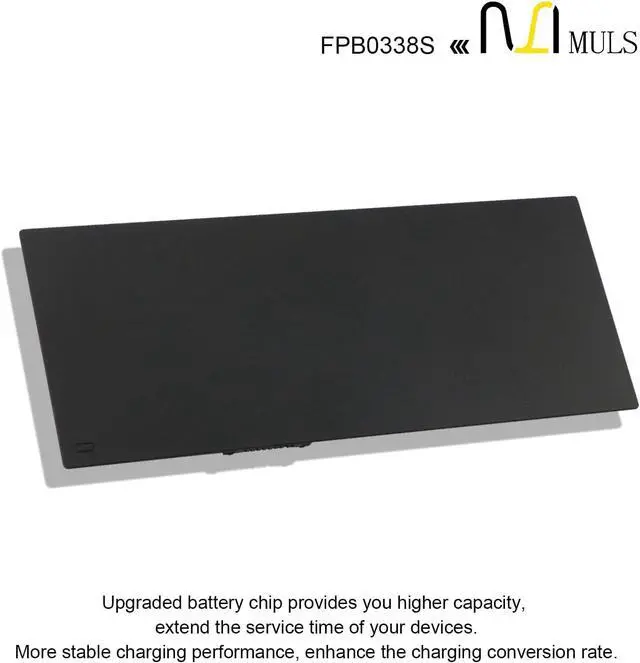
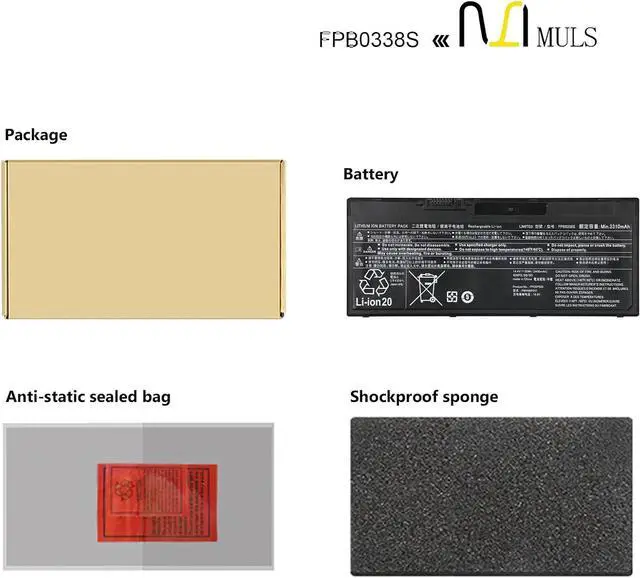
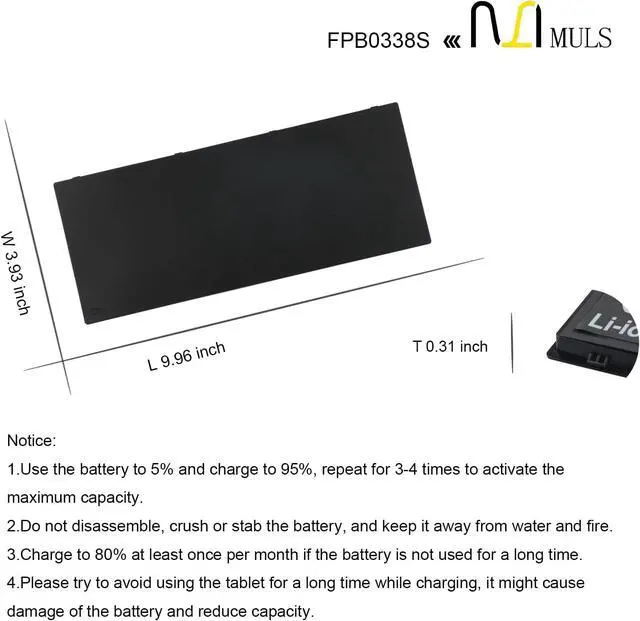
Specification:
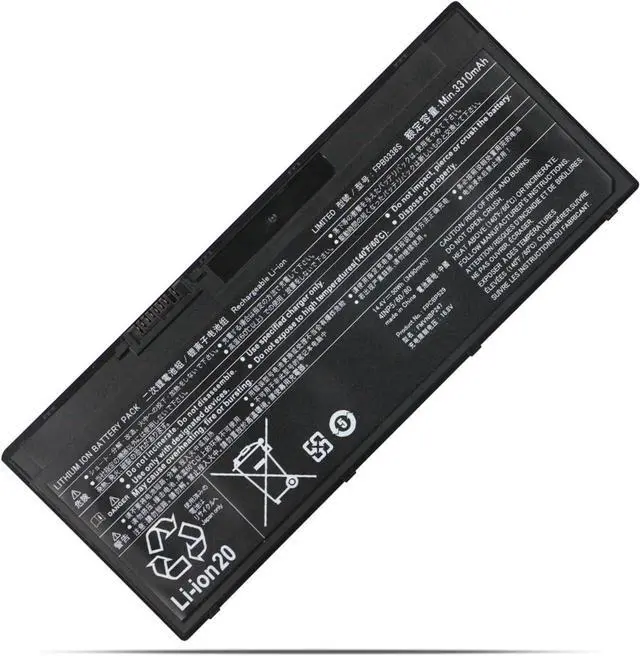
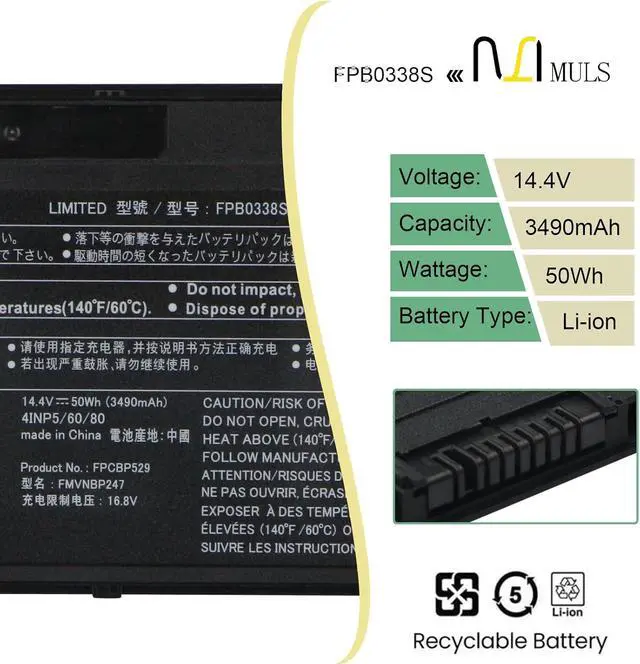
Voltage: 14.4V
Capatity: 50Wh 3490mAh 4-Cell
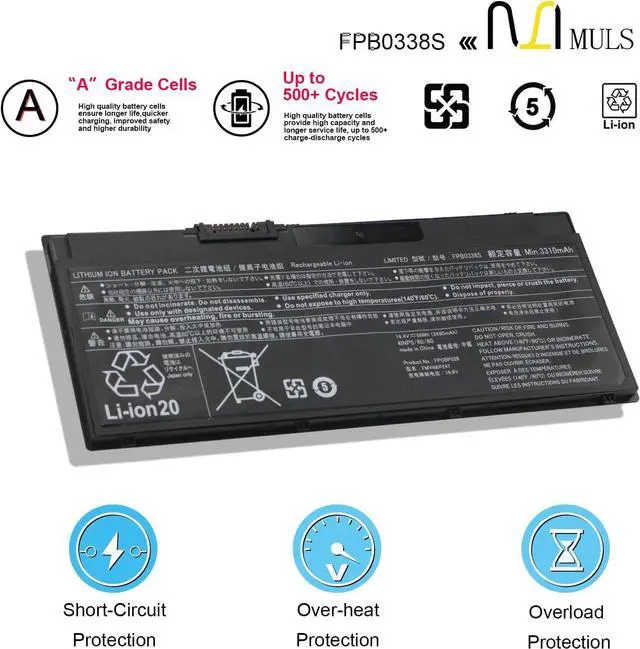
Condition: Brand new from manufacture, Grade A cell
Replacement for Part Number
FPB0338S FPCBP529
FMVNBP247 FMVNBP248
FPBO338S FPCBP529AP
FPCBP531 FPCBP531AP 4INP5/60/80
Compatible Laptop Models:
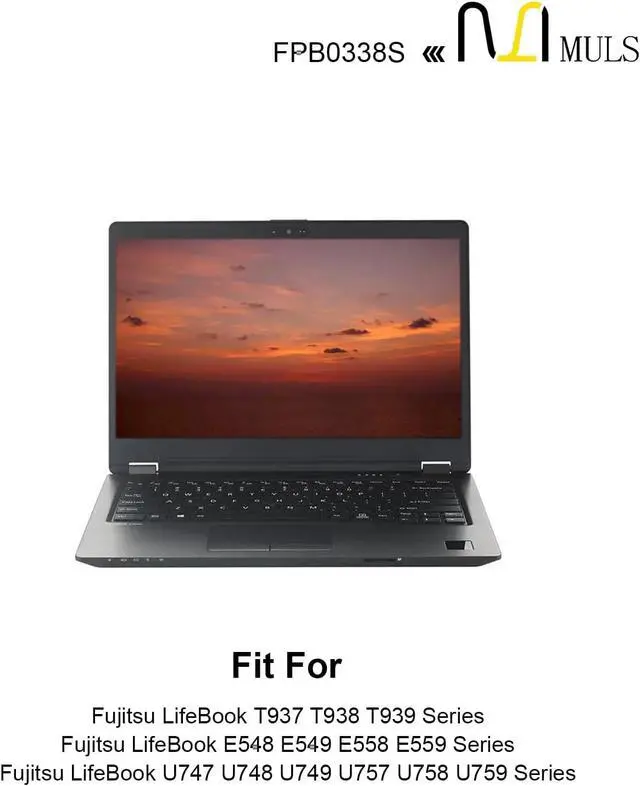
Fujitsu LifeBook T937 T938 T939 Series
Fujitsu LifeBook E548 E549 E558 E559 Series
Fujitsu LifeBook U747 U748 U749 U757 U758 U759 Series
Fujitsu LifeBook U747(CP743229) Series
Fujitsu LifeBook U757(CP743228) Series
1. Turn off your laptop and disconnect the power.
2. Disconnect the connection between the old battery and the motherboard to avoid unnecessary damage caused by disassembling the battery. Then unscrew the old battery screws one by one and carefully save each screw.
3. Remove the old battery, carefully connect the new battery to the mainboard, reinstall all the parts that have been removed earlier, and connect the wiring of the new battery.
4. If you don't understand the above steps, you can search the relevant installation tutorial video on YouTube for help.
1. New battery: Discharge the new battery to 10% (not 0%), then charging up to 95% and repeat 3-4 times to activate the maximum capacity.
2. Overuse: Do not always run out of a battery to 0%, that would damage the battery or shorten the usage life.
3. Charging sequence: when charging, first install the battery, then turn on the power, when fully charged, first cut off the power, then pull the power plug.
4. Fully charge the battery before long-term storage, and keep charging once a month.
Do not store the battery at low power circumstances.
Could be caused by battery loss. Please re-install the battery and make sure that the battery cable and the motherboard interface are tightly inserted.
Maybe due to conductive material damage which the laptop motherboard and battery anode and cathode contact position, you can try to confirm it with your original battery.
Check whether the battery drive is in normal condition, if not, download the corresponding driver software to update.
Laptop Battery Usage & Inspection Guidelines
What should I be mindful of when charging the battery?
1. Use a compatible charger: Always use a charger that matches your laptop's original specifications (same voltage and current parameters).
2. Charging environment requirements: When charging, place your laptop in a well-ventilated, cool area away from direct sunlight and heat sources. Keep it distant from flammable or explosive items (such as paper or alcohol) to prevent battery overheating, swelling, or fire.
3. Charging rhythm management: For new batteries, there is no need to deliberately charge for 12 hours during the first charge. Charge to 100% and then continue charging for 30 minutes. For subsequent charges, unplug the charger promptly after reaching full capacity to avoid prolonged charging while the battery is fully charged.
Note: If the battery exhibits severe heating, unusual odors, bulging, or other abnormalities during charging, immediately unplug the charger, shut down the laptop, and stop using the battery. Do not continue charging or using the battery.
How to extend your laptop battery's lifespan during daily use?
1. Maintain optimal charge levels: Keep battery levels between 20% and 80% during regular use. Avoid prolonged deep discharges (below 10%) or storing at full charge for extended periods. For long-term storage, charge to around 50% and recharge monthly.
2. Minimize Heavy Loads: Avoid running resource-intensive software (e.g., video editing, gaming) or connecting multiple external devices for extended periods while on battery power. This reduces high-power discharge and minimizes wear.
3. Calibrate the battery periodically: Every 1-2 months, drain the battery until the device shuts down automatically (recommended to start around 10% charge





 here!
here!