Your Browsing History
Meet Your Seller
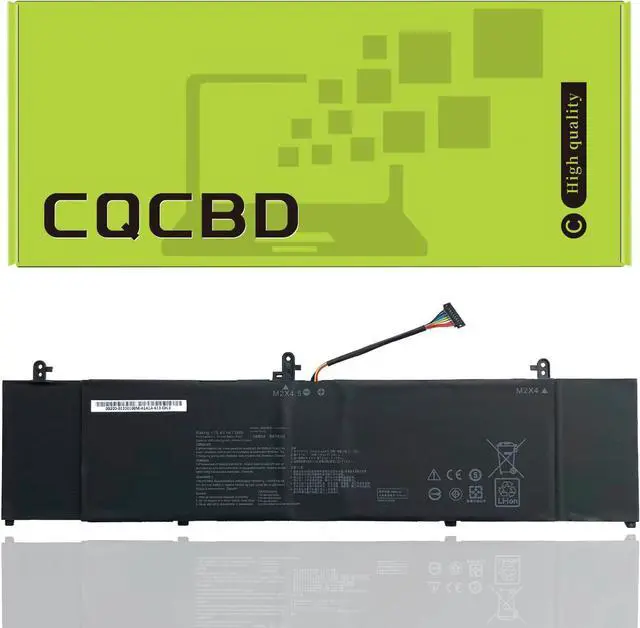
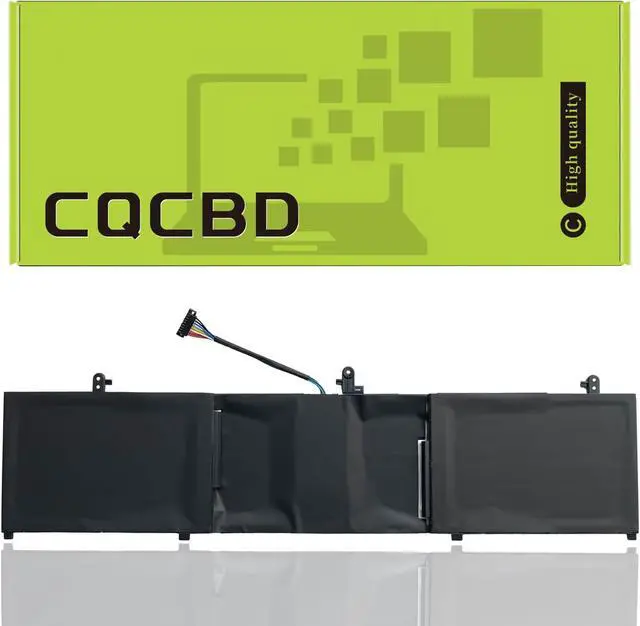
C41N1814 Laptop Battery for ASUS Zenbook 15 BX533FD RX533 RX533FD U5300FD UX533 UX533FD UX533FN Series UX533FN-A8021T UX533FD-0042B8565U UX533FD-A7601T 0B200-03120100 C41PpEH
- Perfect Compatibility: Specifically designed as a replacement battery for ASUS Zenbook 15 series laptops including BX533FD, RX533, RX533FD, U5300FD, UX533, UX533FD, and UX533FN models, ensuring seamless integration with your device for optimal performance
- Precise Model Match: Compatible with specific ASUS laptop models including UX533FN-A8021T, UX533FD-0042B8565U, and UX533FD-A7601T, replacing original battery part numbers C41N1814, 0B200-03120100, and C41PpEH for reliable power delivery
- Reliable Power Source: Engineered to provide consistent and dependable power to your ASUS Zenbook 15 laptop, allowing you to work, browse, and stay productive throughout your day without interruption
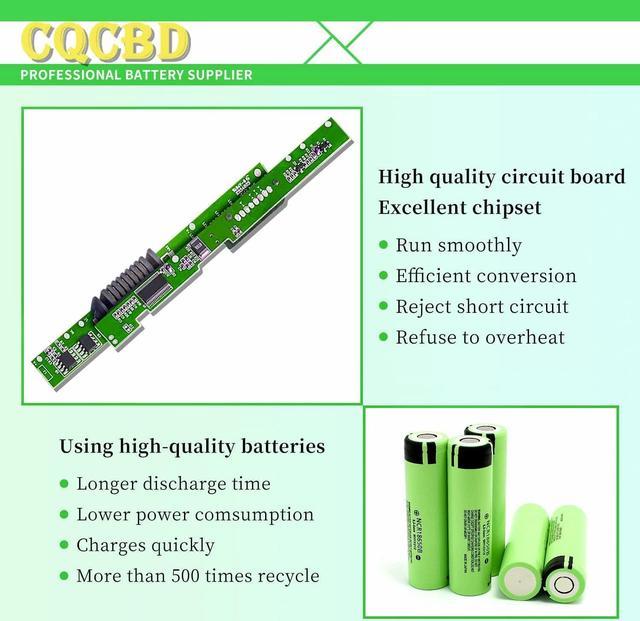
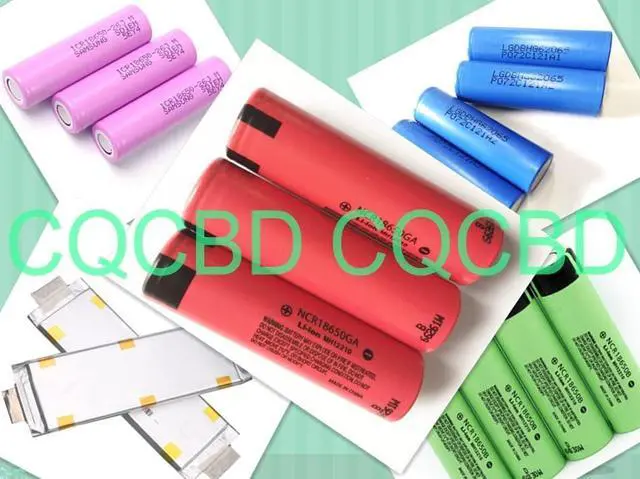
- Quality Construction: Built with high-grade battery cells that meet strict quality standards, delivering stable voltage output and efficient energy storage for your portable computing needs
- Easy Installation: Designed as a direct replacement for your original ASUS laptop battery, making it straightfor
+
+
Overview
Specs
Reviews
Any questions? Our AI mode will help you find out quickly.
Try me now
Efficient and Reliable
Grade A Cells
FCC / CE / RoHS Certified
More Charging Cycles
Long Lasting Performance
Battery Type: Li-ion
Voltage: 15.4V
Capacity: 4800mAh / 73Wh
Battery Condition:100% Brand New
Compatible Part Numbers:
C41N1814,
0B200-03120100,
C41PpEH
Compatible Laptop/Notebook Models:
For ASUS ZenBook BX533FD, RX533, RX533FD, U5300FD, UX533, UX533FD Series
Zenbook 15 UX533FN Series:
Zenbook 15 UX533FN-A8021T,
ZenBook 15 UX533FD Series:
UX533FD-0042B8565U, UX533FD-0052B8265U,
UX533FD-A7601T, UX533FD-A8046T, UX533FD-A8047T, UX533FD-A8067T, UX533FD-A8068T,
UX533FD-A8089T, UX533FD-A8102T, UX533FD-A8105R, UX533FD-A8107T, UX533FD-A8109R,
UX533FD-A8112T, UX533FD-A8136R, UX533FD-A8153T, UX533FD-A8161T, UX533FD-A9027T,
UX533FD-A9028T, UX533FD-A9030T, UX533FD-A9082T, UX533FD-A9083T, UX533FD-A9094T,
UX533FD-A9100T, UX533FD-BP8505T, UX533FD-NS76, UX533FD-DH74.
For Optimal Use battery:
1. New battery received, discharge the battery to 5% (not 0%) for the fist use, then charge and cycle 3-4 times to wake up the new battery.
The important point is to perform a full discharge and charge every other month to extend the battery life.
2. Do not connect adapter for a long time while using the battery. It may damage the battery.
Avoid artificial shocks, disassembly, crush or puncture. Do not dispose of it in fire or water.
How to install a new battery:
1.emove the old battery, carefully install the new battery on the battery box, tighten the screws, and then connect the wires of the new battery.
2. If you have questions about installing a new battery, you can search for the installation of laptop/tablet models on YouTube.
This method may help you.
If the new battery is not recognized during the initial installation
1. please reinstall and check if the interface is fully connected.
Please disconnect the old battery, and hold down the power button for 20 seconds, then connect the new battery. This drains the residual or flea power and once the laptop is reassembled the battery will function properly.
2. Battery cannot be identified by your laptop or it doesn't seem to work. That may be caused by different situations. Please check by yourself first as below steps.
Could be caused by battery loose. Remove the battery and try to reinstall more than once.
May be due to conductive material damaged which the laptop motherboard and battery anode and cathode contact position, you can try to confirm it with your original battery.
Check whether the battery drive is in normal condition, if not, download the corresponding driver software to update.
Take out the battery and press the power button for about 15 seconds to consume the internal residual power (Do not connect the power cord), and then reinstall the battery.
You can try several times.
Within 2years, if the battery has any fault, please feel free to contactUs to replace it :

Grade A Cells
FCC / CE / RoHS Certified
More Charging Cycles
Long Lasting Performance
Battery Type: Li-ion
Voltage: 15.4V
Capacity: 4800mAh / 73Wh
Battery Condition:100% Brand New
Compatible Part Numbers:
C41N1814,
0B200-03120100,
C41PpEH
Compatible Laptop/Notebook Models:
For ASUS ZenBook BX533FD, RX533, RX533FD, U5300FD, UX533, UX533FD Series
Zenbook 15 UX533FN Series:
Zenbook 15 UX533FN-A8021T,
ZenBook 15 UX533FD Series:
UX533FD-0042B8565U, UX533FD-0052B8265U,
UX533FD-A7601T, UX533FD-A8046T, UX533FD-A8047T, UX533FD-A8067T, UX533FD-A8068T,
UX533FD-A8089T, UX533FD-A8102T, UX533FD-A8105R, UX533FD-A8107T, UX533FD-A8109R,
UX533FD-A8112T, UX533FD-A8136R, UX533FD-A8153T, UX533FD-A8161T, UX533FD-A9027T,
UX533FD-A9028T, UX533FD-A9030T, UX533FD-A9082T, UX533FD-A9083T, UX533FD-A9094T,
UX533FD-A9100T, UX533FD-BP8505T, UX533FD-NS76, UX533FD-DH74.
For Optimal Use battery:
1. New battery received, discharge the battery to 5% (not 0%) for the fist use, then charge and cycle 3-4 times to wake up the new battery.
The important point is to perform a full discharge and charge every other month to extend the battery life.
2. Do not connect adapter for a long time while using the battery. It may damage the battery.
Avoid artificial shocks, disassembly, crush or puncture. Do not dispose of it in fire or water.
How to install a new battery:
1.emove the old battery, carefully install the new battery on the battery box, tighten the screws, and then connect the wires of the new battery.
2. If you have questions about installing a new battery, you can search for the installation of laptop/tablet models on YouTube.
This method may help you.
If the new battery is not recognized during the initial installation
1. please reinstall and check if the interface is fully connected.
Please disconnect the old battery, and hold down the power button for 20 seconds, then connect the new battery. This drains the residual or flea power and once the laptop is reassembled the battery will function properly.
2. Battery cannot be identified by your laptop or it doesn't seem to work. That may be caused by different situations. Please check by yourself first as below steps.
Could be caused by battery loose. Remove the battery and try to reinstall more than once.
May be due to conductive material damaged which the laptop motherboard and battery anode and cathode contact position, you can try to confirm it with your original battery.
Check whether the battery drive is in normal condition, if not, download the corresponding driver software to update.
Take out the battery and press the power button for about 15 seconds to consume the internal residual power (Do not connect the power cord), and then reinstall the battery.
You can try several times.
Within 2years, if the battery has any fault, please feel free to contactUs to replace it :
Warranty & Returns
Warranty, Returns, And Additional Information
Warranty
- Please contact the Seller directly for warranty information. Warranty information may also be found on the Manufacturer's website.
- CONTACT
Return Policies
- Return for refund within: 30 days
- Return for replacement within: 30 days
- This item is covered by LionTech Direct Return Policy
Manufacturer Contact Info
- For a directory of all our manufacturers, please click below.
- Manufacturers Directory
LOADING...