Your Browsing History
Meet Your Seller
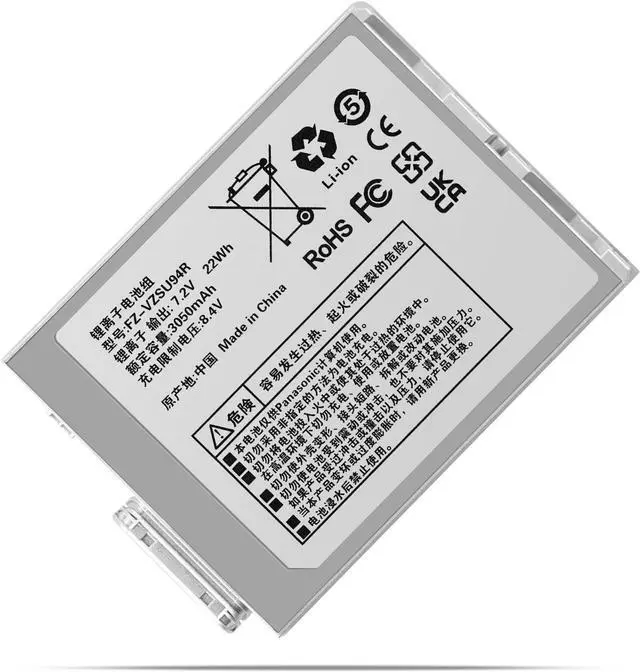
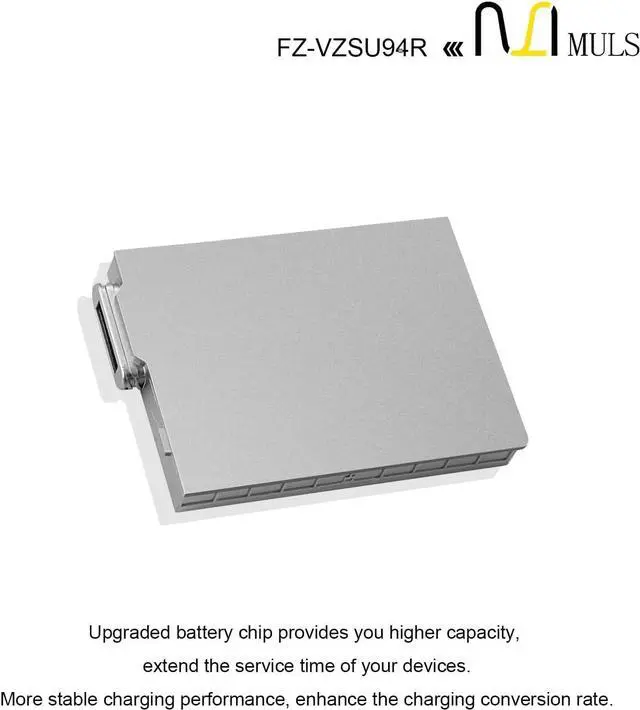
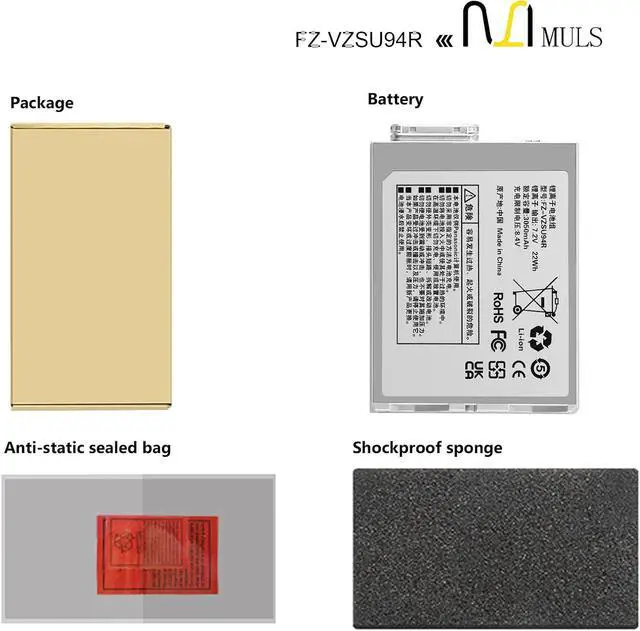
MULS FZ-VZSU94 Battery for Panasonic Toughpad FZ-B1 FZ-B2 FZ-M1 FZ-M1C
- Replacement For Laptop: Fit for Panasonic for Toughpad FZ-B1 FZ-B2 FZ-M1 FZ-M1C Series.
- Compatible with Part Number: FZ-VZSU94 FZ-VZSU94W FZ-VZSU94JS FZ-VZSU94K FZ-VZSU94R FZ-VZSU95 FZ-VZSU95W FZ-VZSU95JS FZ-VZSU0JW FZ-VZSU0HW.
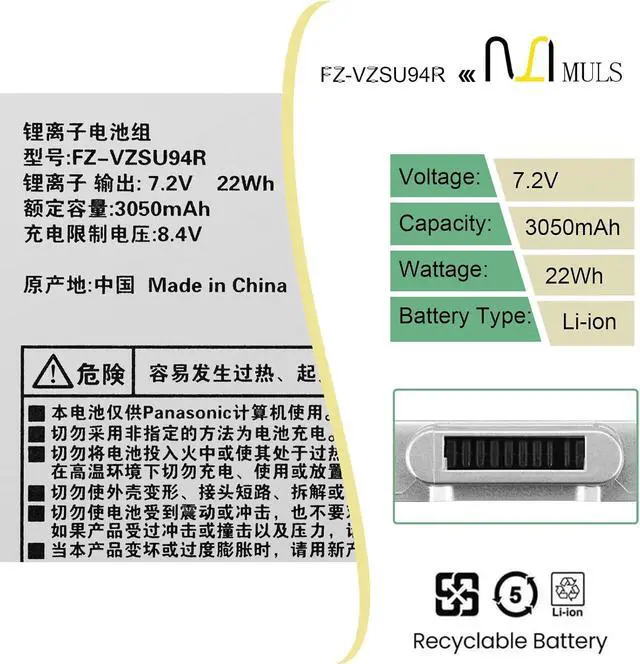
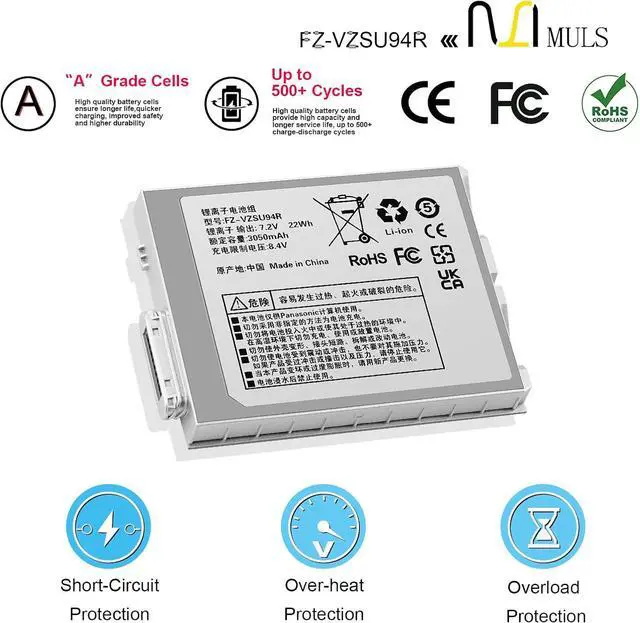
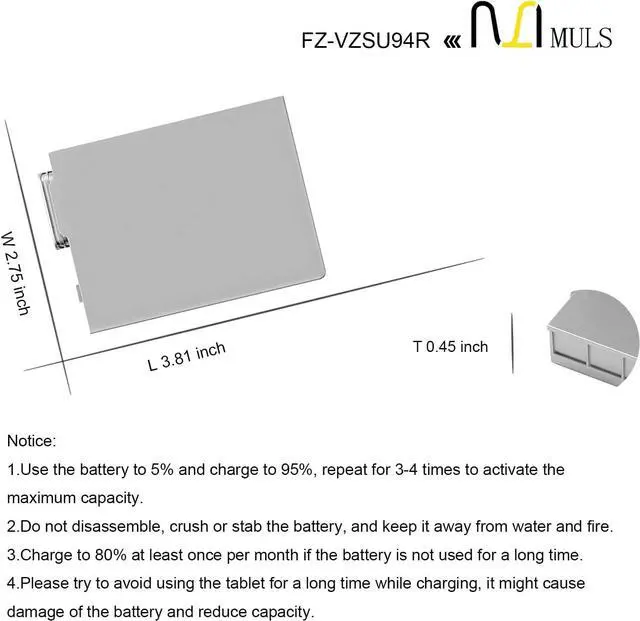
- Battery Specification: Capacity: 22Wh Voltage: 7.2V. Brand new. Up to 500 recharge cycles over the life of the battery. High-quality materials and circuit board.
- Safety Above All: Our batteries are certified by CE, FCC and RoHS to ensure your safety, and packed with prevention measures like short circuit, overheat and overcharge protection.Our laptop batteries are made with premium materials and circuit boards to ensure performance and durability.
- Give Customers the Best Benefit: 30 Days no-questions-asked full money back and 12 Months Exchange Guarantee. (The return window will be closed a month after you received the the product. CONTACT US, we will make it up and solve it more efficiently). We providing you 24/7 email service to support you with any prob
+
+
Overview
Reviews
Any questions? Our AI mode will help you find out quickly.
Try me now
About MULS
1. We have professional battery and adapter experience!
Strictly test before shipment to ensure full capacity and safety without harming the computer!
2. We recommend that the first charge is not less than 5 hours.
3. The new battery cannot be charged, is there a problem with the battery?
Usually not. The computer charges the battery for the first time. Due to the instability of voltage and current, the computer may stop charging the battery when the battery is half charged (sometimes more, sometimes less). If this happens, Don't worry, just take the battery out of the computer and recharge it again. The new battery charged for the first time may require several iterations. Don't worry, this is normal.
4. When the battery is in normal operation, if the battery is discharged to 3%, it must be shut down or recharged. If the battery is discharged to 0%, the battery will be damaged and its life will be attenuated.
5. Avoid falling, heating, and short-circuit, avoid using the battery in an environment where the temperature is too high or too low.
Specification:
Voltage: 7.2V
Capatity: 22Wh 3050mAh
Condition: Brand new from manufacture, Grade A cell
Compatible Laptop Models:
Panasonic FZ-M1
Panasonic FZ-B1
Toughpad FZ-B2
Toughpad FZ-M1
Replacement for Part Number
FZ-VZSU94 FZ-VZSU94W FZ-VZSU94K FZ-VZSU94R FZ-VZSU94JS
FZ-VZSU95 FZ-VZSU95W FZ-VZSU95JS
FZ-VZSU0JW FZ-VZSU0HW
1. Turn off your laptop and disconnect the power.
2. Disconnect the connection between the old battery and the motherboard to avoid unnecessary damage caused by disassembling the battery. Then unscrew the old battery screws one by one and carefully save each screw.
3. Remove the old battery, carefully connect the new battery to the mainboard, reinstall all the parts that have been removed earlier, and connect the wiring of the new battery.
4. If you don't understand the above steps, you can search the relevant installation tutorial video on YouTube for help.
1. New battery: Discharge the new battery to 10% (not 0%), then charging up to 95% and repeat 3-4 times to activate the maximum capacity.
2. Overuse: Do not always run out of a battery to 0%, that would damage the battery or shorten the usage life.
3. Charging sequence: when charging, first install the battery, then turn on the power, when fully charged, first cut off the power, then pull the power plug.
4. Fully charge the battery before long-term storage, and keep charging once a month.
Do not store the battery at low power circumstances.
Could be caused by battery loss. Please re-install the battery and make sure that the battery cable and the motherboard interface are tightly inserted.
Maybe due to conductive material damage which the laptop motherboard and battery anode and cathode contact position, you can try to confirm it with your original battery.
Check whether the battery drive is in normal condition, if not, download the corresponding driver software to update.
Laptop Battery Usage & Inspection Guidelines
What should I be mindful of when charging the battery?
1. Use a compatible charger: Always use a charger that matches your laptop's original specifications (same voltage and current parameters).
2. Charging environment requirements: When charging, place your laptop in a well-ventilated, cool area away from direct sunlight and heat sources. Keep it distant from flammable or explosive items (such as paper or alcohol) to prevent battery overheating, swelling, or fire.
3. Charging rhythm management: For new batteries, there is no need to deliberately charge for 12 hours during the first charge. Charge to 100% and then continue charging for 30 minutes. For subsequent charges, unplug the charger promptly after reaching full capacity to avoid prolonged charging while the battery is fully charged.
Note: If t

1. We have professional battery and adapter experience!
Strictly test before shipment to ensure full capacity and safety without harming the computer!
2. We recommend that the first charge is not less than 5 hours.
3. The new battery cannot be charged, is there a problem with the battery?
Usually not. The computer charges the battery for the first time. Due to the instability of voltage and current, the computer may stop charging the battery when the battery is half charged (sometimes more, sometimes less). If this happens, Don't worry, just take the battery out of the computer and recharge it again. The new battery charged for the first time may require several iterations. Don't worry, this is normal.
4. When the battery is in normal operation, if the battery is discharged to 3%, it must be shut down or recharged. If the battery is discharged to 0%, the battery will be damaged and its life will be attenuated.
5. Avoid falling, heating, and short-circuit, avoid using the battery in an environment where the temperature is too high or too low.
Specification:
Voltage: 7.2V
Capatity: 22Wh 3050mAh
Condition: Brand new from manufacture, Grade A cell
Compatible Laptop Models:
Panasonic FZ-M1
Panasonic FZ-B1
Toughpad FZ-B2
Toughpad FZ-M1
Replacement for Part Number
FZ-VZSU94 FZ-VZSU94W FZ-VZSU94K FZ-VZSU94R FZ-VZSU94JS
FZ-VZSU95 FZ-VZSU95W FZ-VZSU95JS
FZ-VZSU0JW FZ-VZSU0HW
1. Turn off your laptop and disconnect the power.
2. Disconnect the connection between the old battery and the motherboard to avoid unnecessary damage caused by disassembling the battery. Then unscrew the old battery screws one by one and carefully save each screw.
3. Remove the old battery, carefully connect the new battery to the mainboard, reinstall all the parts that have been removed earlier, and connect the wiring of the new battery.
4. If you don't understand the above steps, you can search the relevant installation tutorial video on YouTube for help.
1. New battery: Discharge the new battery to 10% (not 0%), then charging up to 95% and repeat 3-4 times to activate the maximum capacity.
2. Overuse: Do not always run out of a battery to 0%, that would damage the battery or shorten the usage life.
3. Charging sequence: when charging, first install the battery, then turn on the power, when fully charged, first cut off the power, then pull the power plug.
4. Fully charge the battery before long-term storage, and keep charging once a month.
Do not store the battery at low power circumstances.
Could be caused by battery loss. Please re-install the battery and make sure that the battery cable and the motherboard interface are tightly inserted.
Maybe due to conductive material damage which the laptop motherboard and battery anode and cathode contact position, you can try to confirm it with your original battery.
Check whether the battery drive is in normal condition, if not, download the corresponding driver software to update.
Laptop Battery Usage & Inspection Guidelines
What should I be mindful of when charging the battery?
1. Use a compatible charger: Always use a charger that matches your laptop's original specifications (same voltage and current parameters).
2. Charging environment requirements: When charging, place your laptop in a well-ventilated, cool area away from direct sunlight and heat sources. Keep it distant from flammable or explosive items (such as paper or alcohol) to prevent battery overheating, swelling, or fire.
3. Charging rhythm management: For new batteries, there is no need to deliberately charge for 12 hours during the first charge. Charge to 100% and then continue charging for 30 minutes. For subsequent charges, unplug the charger promptly after reaching full capacity to avoid prolonged charging while the battery is fully charged.
Note: If t
Warranty & Returns
Warranty, Returns, And Additional Information
Warranty
- Please contact the Seller directly for warranty information. Warranty information may also be found on the Manufacturer's website.
- CONTACT
Return Policies
- Return for refund within: 30 days
- Return for replacement within: 30 days
- This item is covered by LionTech Direct Return Policy
Manufacturer Contact Info
- For a directory of all our manufacturers, please click below.
- Manufacturers Directory
LOADING...