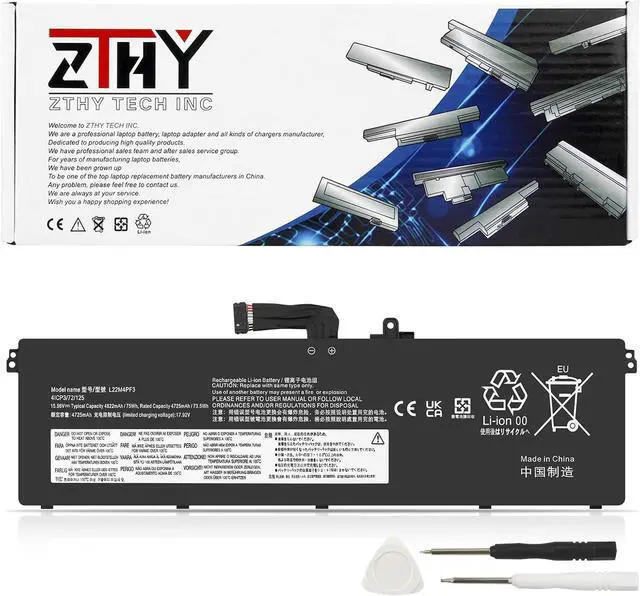
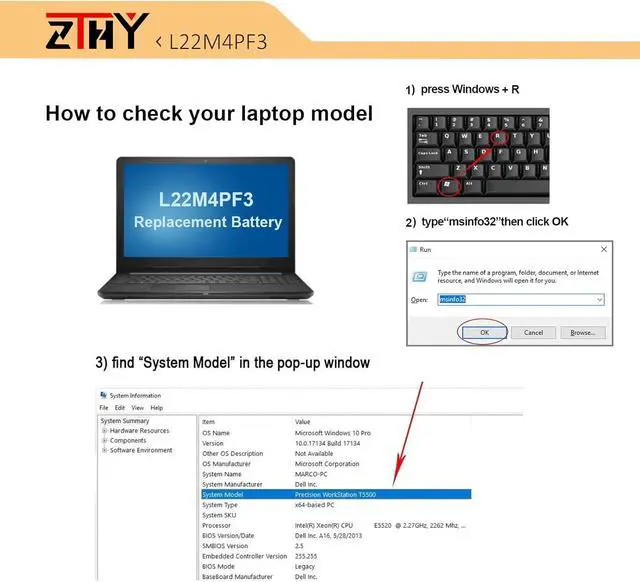
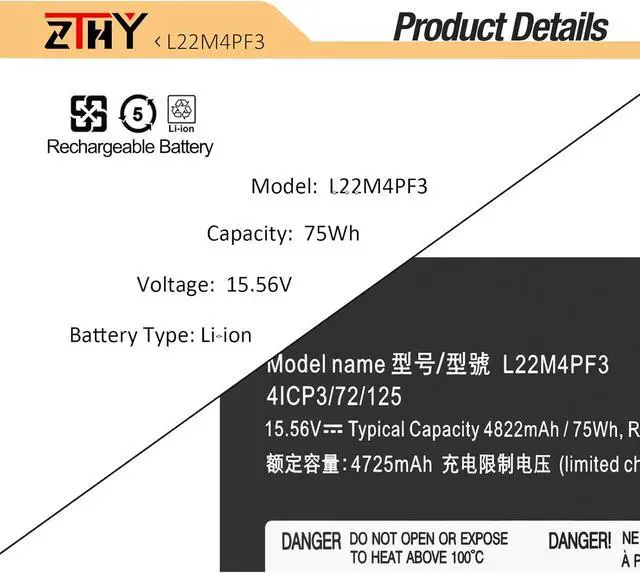
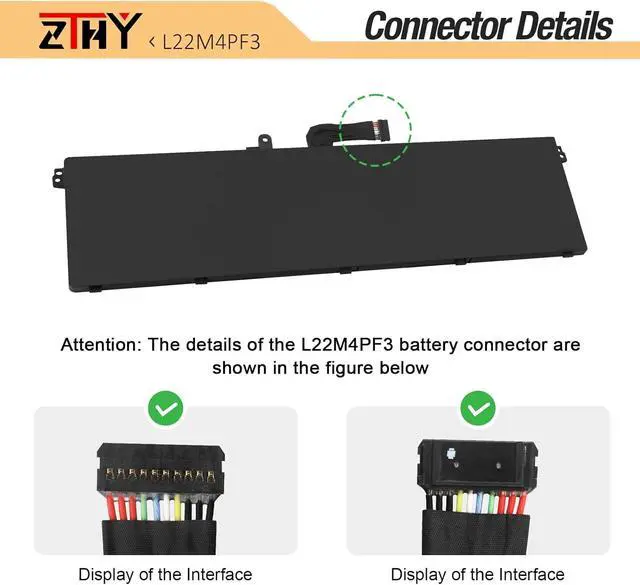
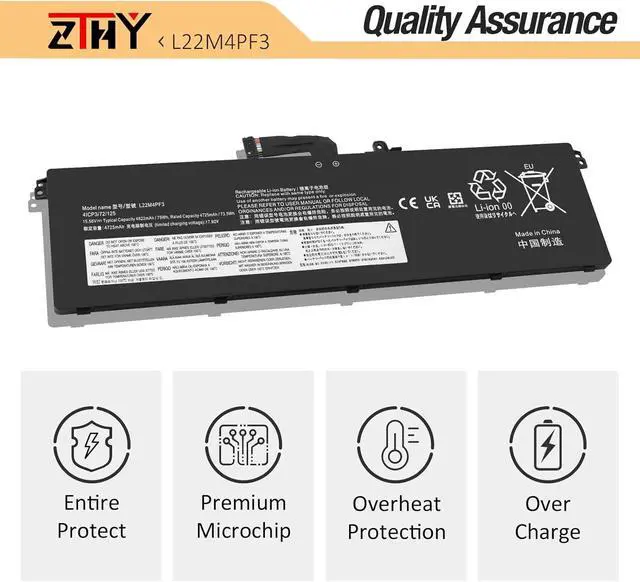
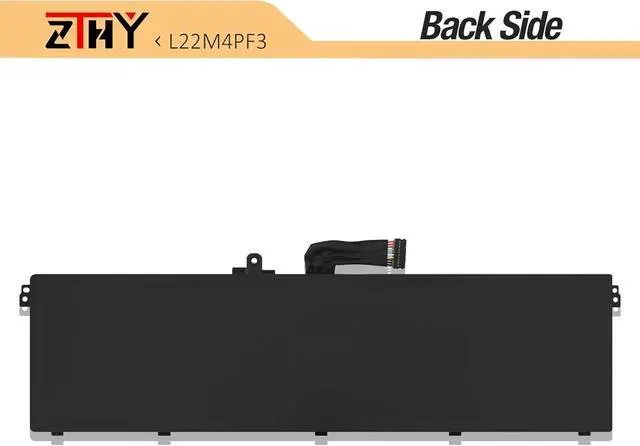
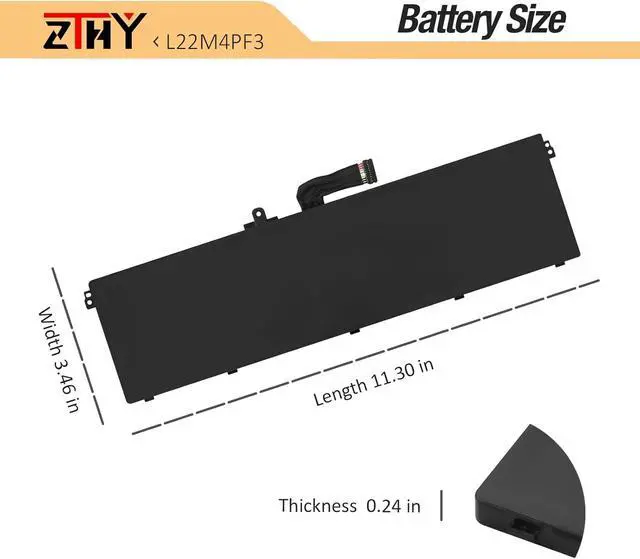
Compatible Part Number L22B4PF3 SB11K24770 5B11K24761 SB11N45295 5B11N45332 L22D4PF3 SB11K24762 5B11K24755 SB11N45333 5B11N45304 L22M4PF3 SB11K24756 5B11K24757 SB11N45325 5B11N45321 L22X4PF3 SB11K24771 5B11K24766 SB11N45317 5B11N45334 Compatible Model Replacement for Lenovo IdeaPad Pro 5-14APH8 (Type: 83AM) Series; Compatible Model Replacement for Lenovo IdeaPad Pro 5-14ARP8 (Type: 83AN) Series; Compatible Model Replacement for Lenovo IdeaPad Pro 5-14IRH8 (Type: 83AL) Series. Attention If you install the battery, you find that the laptop cannot detect the battery or the battery level cannot be displayed normally. Please check whether the battery cable is installed properly. Sometimes the battery cannot be charged because the cable is not fixed properly. What do I need to be aware of when I receive a new laptop battery?
Check appearance, model, manual. Do 5-6 full charge-discharge cycles to activate. Store long-term at 50%-60% in cool dry place; check every 2-3 months & recharge if needed. These steps extend battery life & reliability.
What should I do if laptop won't boot up after installing a new battery?
1. Check battery seated & contacts clean. 2. Run laptop on charger alone (battery out). 3. If charger works, charge new battery 30 mins then boot with battery. 4. Reset BIOS/EC (hold power 30s). 5. Reinstall old battery to verify laptop hardware.
How should I do if the battery is not recognised?
Update BIOS to latest version. Power off, disconnect battery (and adapter), hold power button 20s, reconnect battery and adapter, reboot. If still not recognised, reseat battery and clean contacts.
What should I do if the battery expands?
1. Power off & unplug laptop. 2. Do not charge or use. 3. In ventilated area, remove swollen battery carefully, avoid pressing or puncturing.
What can you do if you are not satisfied with the battery?
Please use Amazon's messaging system with your order details. We are committed to your satisfaction and will do our best to help resolve any issue.
Battery Installation Guidelines
1.Prepare Before Installation: While installing a battery is generally straightforward, it is recommended to watch online installation tutorials for your specific laptop model or seek assistance from a professional.
2.Follow Installation Procedures: Handle all components with care during installation. Be particularly gentle with the battery connector on the laptop motherboard; do not use excessive force. Any damage caused by improper operation is the user's responsibility.
3.If the New Battery Doesn't Charge: If the battery isn't charging after installation, try a power reset: remove the battery, unplug the charger, hold the power button for 15 seconds, and then reinstall the battery. Repeat this process if necessary.
Battery Identification Troubleshooting Guide
1.Check the Connection: A loose battery is a common cause. Remove the battery and reinstall it, ensuring the connector is firmly seated in the motherboard interface.
2.Inspect Conductive Components: The conductive materials on the laptop's battery contact points can become damaged. Compare with an original battery to confirm (if the original battery works, the conductive components are likely the issue).
3.Update the Battery Driver: Check the device's driver status. If the battery driver is malfunctioning, download and install the latest driver for your specific laptop model.
4.Perform a Power Reset: Remove the battery and, with the power adapter unplugged, press and hold the power button for 15 seconds to discharge residual power. Reinstall the battery and attempt to power on. You may need to repeat this process if it is ineffective the first time.
Battery Usage and Maintenance Tips: 1.Activating a New Battery: New batteries often arrive with a partial charge (around 50%). To maximize initial performance, discharge the battery





 here!
here!