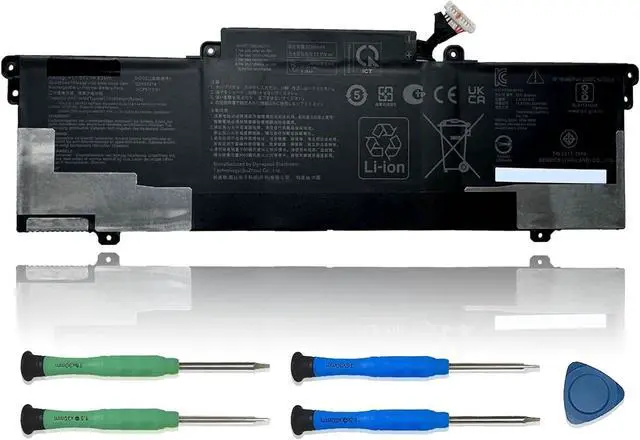
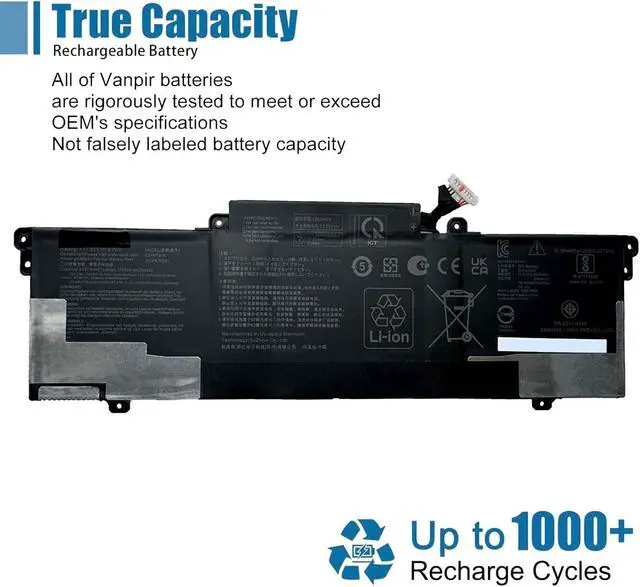
We are a professional laptop battery manufacturer, dedicated to manufacture and provide high-quality different types laptop batteries for our customers and dedicated to serving customers wholeheartedly.
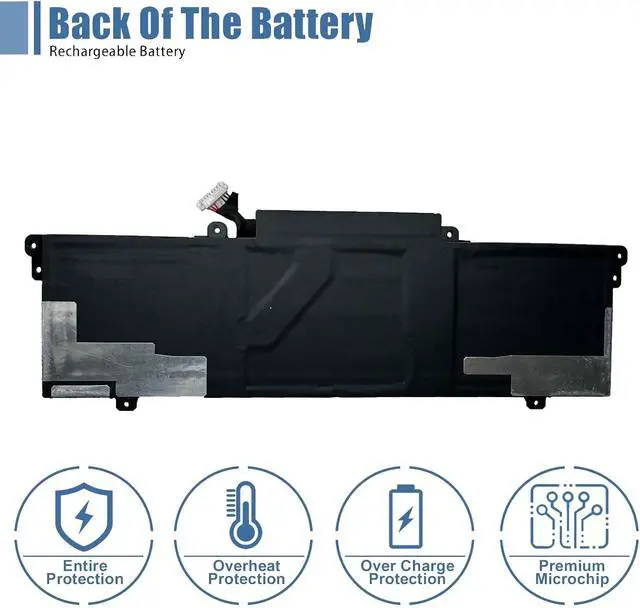
Lithium-ion batteries, rechargeable batteries for portable electronics,100% new from Manufacturer. Adopt strict quality control standards, reliable and high-quality batteries. Meet the OEMs specifications, be stable and last long, Lower Power Consumption, provide stronger power for your laptop.
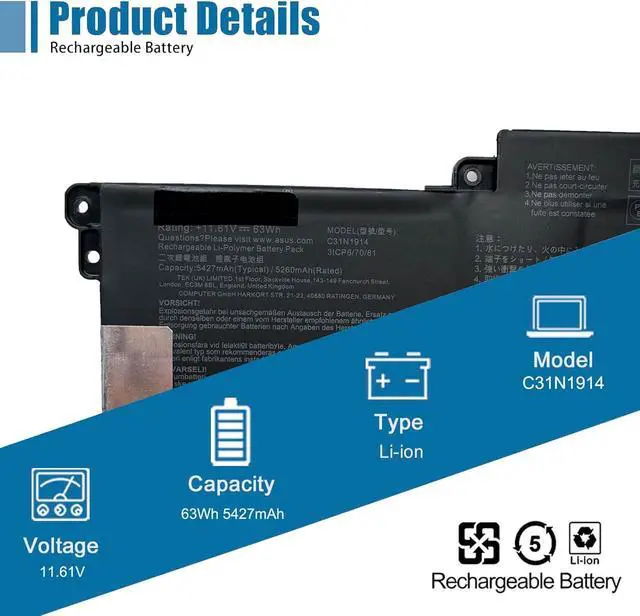
ModelC31N1914 Battery
TypeLi-ion
Voltage11.61V
Capacity63Wh 5427mAh
Condition : 100% New from Manufacturer, Grade A Cell
Packing Included:
1* C31N1914 battery
1* Instruction manual
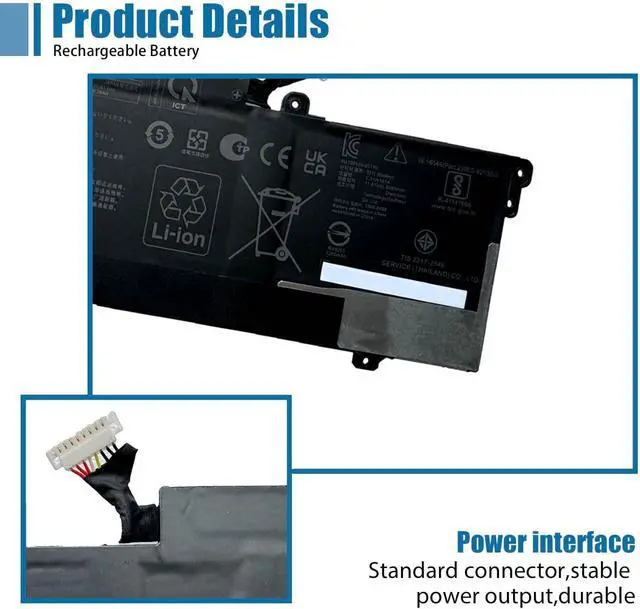
Meet the OEM. CE / FCC / RoHS certified.
Easy to install.
Up to 1000+ recharge cycles over the life of the battery.
Easily deal with various practical environments and bring you a stronger battery life experience.
Method 1: Use System Information to find your laptop model
Step 1: Press " Windows + R " to open the Run window.
Step 2: Type " msinfo32 " in the empty box and click " OK " to open System Information.
Step 3: Keep in the " System Summary " section and you will find the " System Model " item in the right pane.
Method 2: Open the back cover of the laptop and confirm the battery type and capacity, as well as the model of the laptop.
Step 1: Turn off the laptop and unplug the power cord (to prevent electric shock)
Step 2: Remove the back panel with a screwdriver. (Please proceed with care to avoid damage to the laptop's components.)
Step 3: Disconnect the cable connected to the battery and remove it. After that, you can check the specifications of your battery.
Replacement Part Number:
C31N1914 0B200-03730100 3ICP6/70/81
Compatible Models: (use "Ctrl+F" to find your model quickly)
Replacement for Asus ZenBook 13 UX425UG Series
Replacement for Asus ZenBook 14 UX435EA UX435EAL Series
Replacement for Asus ZenBook 14 UX435EG UX435EGL Series
Replacement for Asus ZenBook 14 UM425QA UM425QA-KI063 UM425QA-KI072T Series
Replaceent for Asus ZenBook 14 UM425UAZ UM425UAZ-AM050T UM425UAZ-AM058W Series
Replacement for Asus ZenBook B5402CBA B5402CEA B5402FBA B5402FEA Series
Replacement for Asus ZenBook B7402FBA B7402FEA Series
Note: For more accrate, please check the part number of your original battery.
Manual calibration, The steps are:
1) Shut down, plug in the power adapter to fully charge the battery. If the battery is full, you can proceed directly to the next step.
2) Unplug the power adapter, turn on the battery, and let the battery automatically discharge until the computer automatically shuts down. During this period, it is best not to do any computer operations.
3) Plug in the battery adapter and fully charge the battery. This process is OK if it is turned on or not.
To borrow software, such as batteryMon :
1) Install the battery, plug in the power adapter, and power on. Run Batterymon and click the start button. After charging, shut down and unplug the adapter.
2) Restart and run Batterymon. Close all applications, adjust the power plan to turn off the screen for 1 minute and never go to sleep, and then slowly wait for the battery to discharge until it automatically shuts down. Repeat the operation 3 times.
3) The software is still used, but the battery manager on the official website is used, just follow the instructions.
Besides, The software is still used, but the battery manager on the official website is used, just follow the instructions.
Use the battery that comes with BIOS to calibrate:
(1) After booting, quickly press the "F2" key to enter the BIOS menu; use the left and right direction keys to select and enter the Power menu.
(2) Enter the Power menu, you can see the "Start Battery Calibration" option, select it and press the E





 here!
here!