Your Browsing History
Meet Your Seller
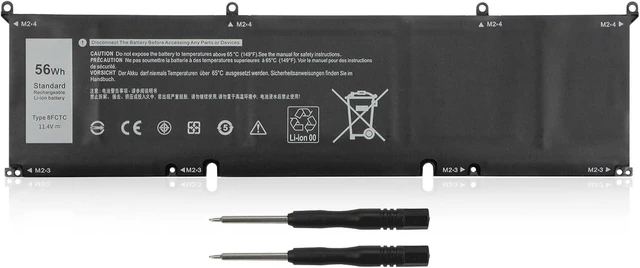
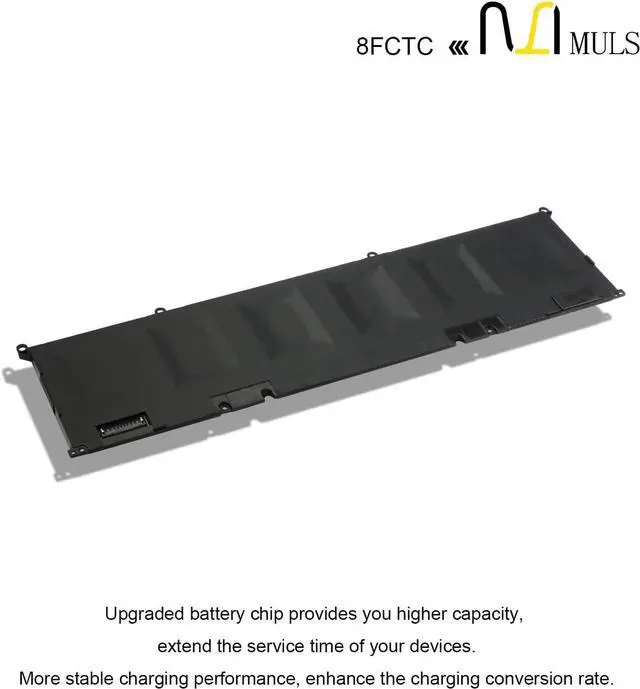
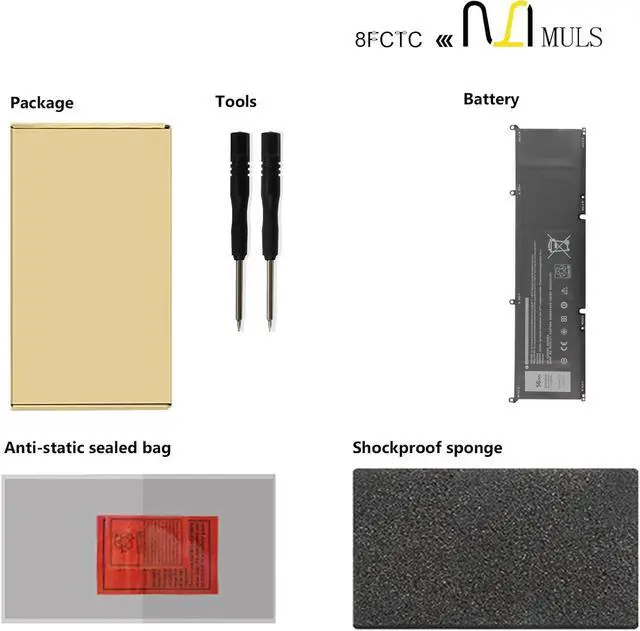
56Wh 8FCTC Laptop Battery for Dell Alienware M15 R3 R4 M17 Vostro 7510 7620
- Replacement for Dell G15 5520 5525 5530 G16 7620 7630 XPS 15 9500 9510 9520 Precision 5550 5560 Inspiron 7510 5620 7610 11.4V
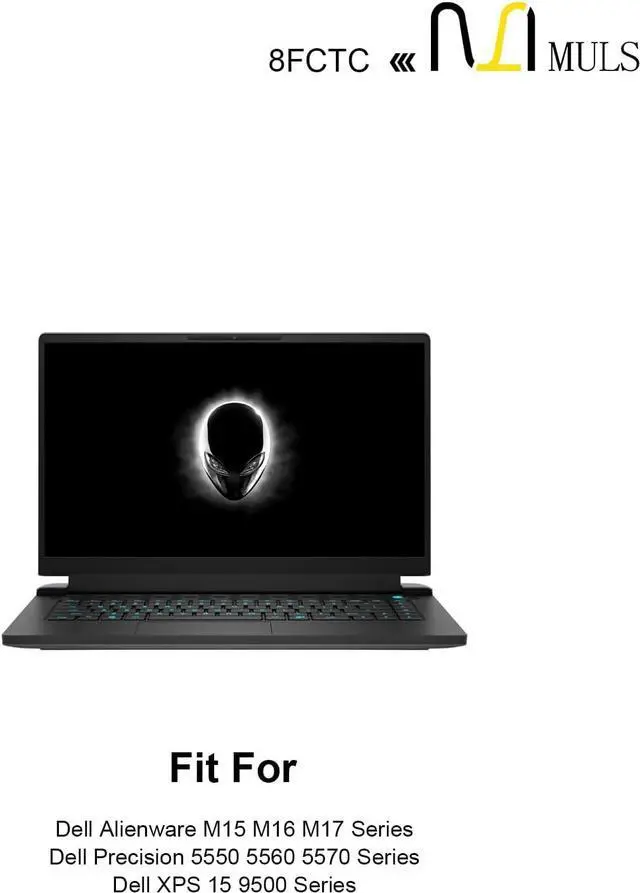
- Suitable for laptops: Fit for Dell XPS 15 9500 9510 9520 9530, Alienware M15 R3 R4 R5 R6 R7, M17 R3 R4, M16 R1, Precision 5550 5560 5570 Mobile Workstation, Dell G7 15 7500,G15 5510 5511 5515 5520 5521 5525, Inspiron 16 Plus 7610 7620, Vostro 15 7510 Series.
- Compatible with Part Number: 8FCTC 69KF2 DVG8M 70N2F M59JH P8P1P 070N2F 0P8P1P 0DVG8M 0M59JH P100F P100F001 P105F P105F001 P105F002 P105F003 P105F004 P105F005 P105F006 P105F007 P105F008 P106F002 P107F001 P109F P109F001 P109F002 P109F005 P109F007 P109F008 P117F003 P117F004 P87F P87F002 P87F003 P45E P45E001 P45E002 P91F P91F001 P91F002 P91F003 P91F004.
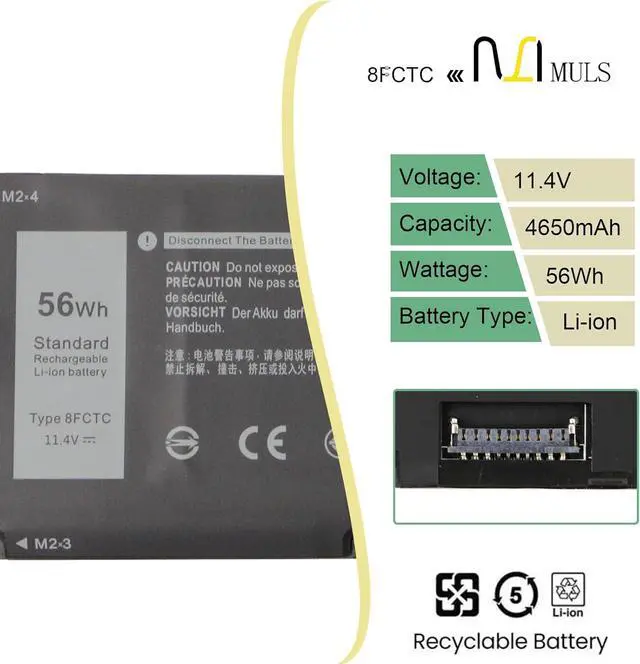
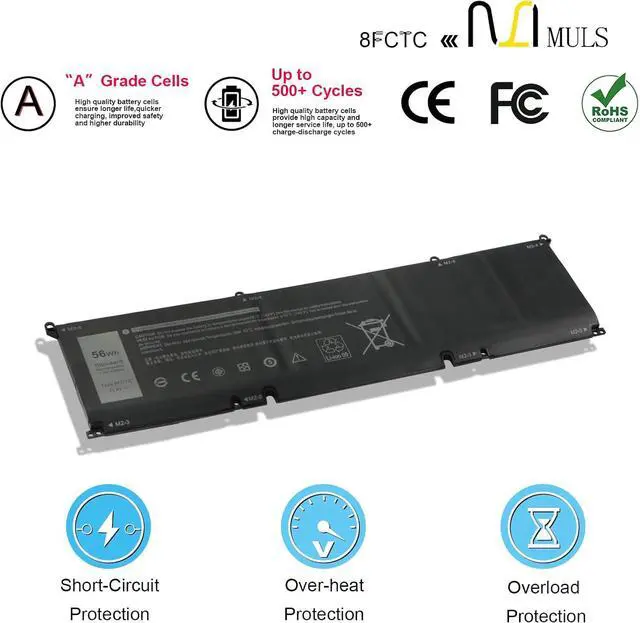
- Battery Specification: Capacity: 56Wh Voltage: 11.4V. Brand new. Up to 500 recharge cycles over the life of the battery. High-quality materials and circuit board.
- Safety Above All: Our batteries are certified by CE, FCC and RoHS to ensure your safety, and p
+
+
Overview
Reviews
Any questions? Ask CelesteSM will help you find out quickly.
Try me now
Specification:
Voltage: 11.4V
Capacity: 56Wh 4650mAh
Condition: Brand new from manufacture, Grade A cell
Replacement for Part Number
8FCTC 69KF2 08FCTC 70N2F 070N2F 0P8P1P 0DVG8M 0M59JH
Compatible Laptop Models:
Dell G7 15 7500 Series
Dell G7 15 7500 i7-10750H RTX 2060 (G7 15 Series)
Dell G15 5510 5511 5520 Series
Dell G15 5515 Ryzen Edition Series
Dell G15 5521 Special Edition Series
Dell XPS 15 9500 Series
Dell XPS 15 9510 Series
Dell XPS 15 9520 Series Not fit for Dell XPS 15 9530( It is suitable for different battery sizes, please note.)
Dell XPS 15 9500 2020 Series
Dell XPS 15 9500 Core i7 4K UHD Series
Dell Precision 5550 2020 Series
Dell Precision 5550 Mobile Workstation Series
Dell Precision 5560 Mobile Workstation Series
Dell Precision 5570 Mobile Workstation Series
Dell Alienware M15 R3 R4 R5 R6 R7 Series;
Dell Alienware M15 2020 ALW15M-5758W Series
Dell Alienware M15 R3 (2020) Series
Dell Alienware M15 R4 (2021) Series
Dell Alienware M17 R3 R4 Series
Dell Alienware M17 R3 (2020) Series
Dell Alienware M15 R4 (2021) Series
Dell Inspiron 7510 Series
Dell Inspiron 16 Plus 7610 Series
Dell Inspiron 7620 Series
Dell P91F P91F001
Dell P45E P45E001 P45E002 Dell P87F P87F002 P87F003
Dell P100F P100F00
Note: Please open the back cover of your laptop to check the original battery size and capacity before placing an order.
1. Turn off your laptop and disconnect the power.
2. Disconnect the connection between the old battery and the motherboard to avoid unnecessary damage caused by disassembling the battery. Then unscrew the old battery screws one by one and carefully save each screw.
3. Remove the old battery, carefully connect the new battery to the mainboard, reinstall all the parts that have been removed earlier, and connect the wiring of the new battery.
4. If you don't understand the above steps, you can search the relevant installation tutorial video on YouTube for help.
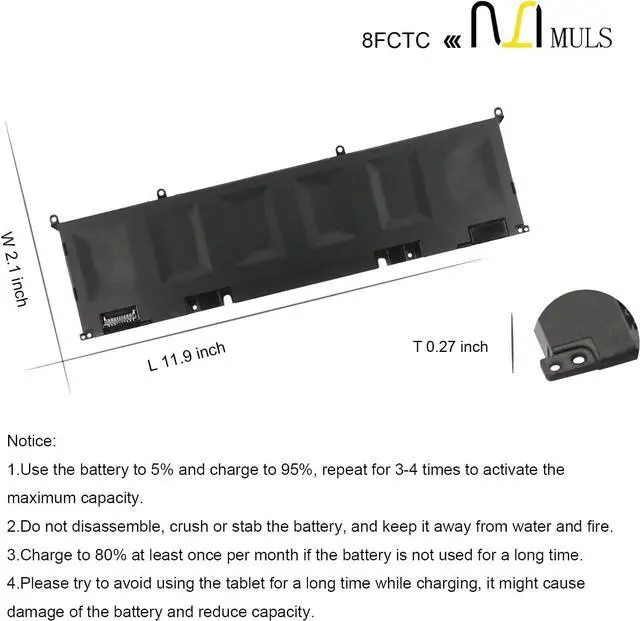
1. New battery: Discharge the new battery to 10% (not 0%), then charging up to 95% and repeat 3-4 times to activate the maximum capacity.
2. Overuse: Do not always run out of a battery to 0%, that would damage the battery or shorten the usage life.
3. Charging sequence: when charging, first install the battery, then turn on the power, when fully charged, first cut off the power, then pull the power plug.
4. Fully charge the battery before long-term storage, and keep charging once a month.
Do not store the battery at low power circumstances.
Could be caused by battery loss. Please re-install the battery and make sure that the battery cable and the motherboard interface are tightly inserted.
Maybe due to conductive material damage which the laptop motherboard and battery anode and cathode contact position, you can try to confirm it with your original battery.
Check whether the battery drive is in normal condition, if not, download the corresponding driver software to update.
Laptop Battery Usage & Inspection Guidelines
What should I be mindful of when charging the battery?
1. Use a compatible charger: Always use a charger that matches your laptop's original specifications (same voltage and current parameters).
2. Charging environment requirements: When charging, place your laptop in a well-ventilated, cool area away from direct sunlight and heat sources. Keep it distant from flammable or explosive items (such as paper or alcohol) to prevent battery overheating, swelling, or fire.
3. Charging rhythm management: For new batteries, there is no need to deliberately charge for 12 hours during the first charge. Charge to 100% and then continue charging for 30 minutes. For subsequent charges, unplug the charger promptly after reaching full capacity to avoid prolonged charging while the battery is fully charged.
Note: If the battery exhibits severe heating, unusual o
Warranty & Returns
Warranty, Returns, And Additional Information
Warranty
- Please contact the Seller directly for warranty information. Warranty information may also be found on the Manufacturer's website.
- CONTACT
Return Policies
- Return for refund within: 30 days
- Return for replacement within: 30 days
- This item is covered by Forestgrand Return Policy
Manufacturer Contact Info
- For a directory of all our manufacturers, please click below.
- Manufacturers Directory
LOADING...