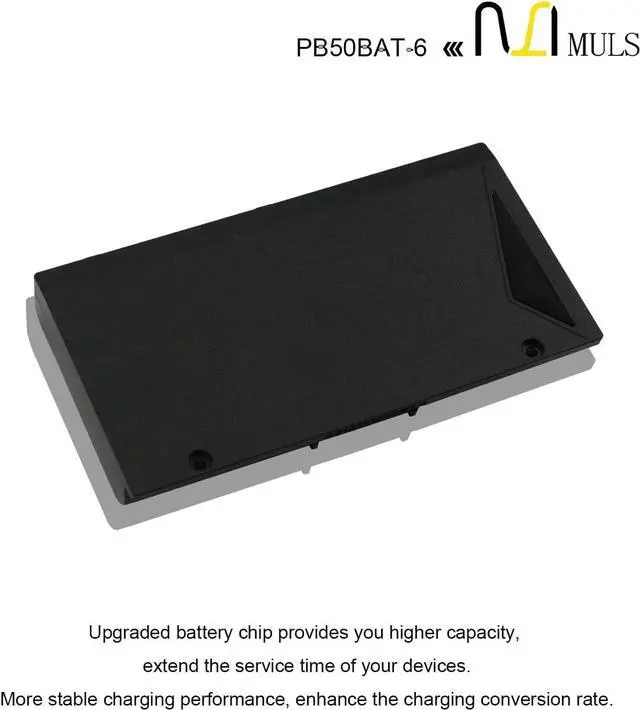
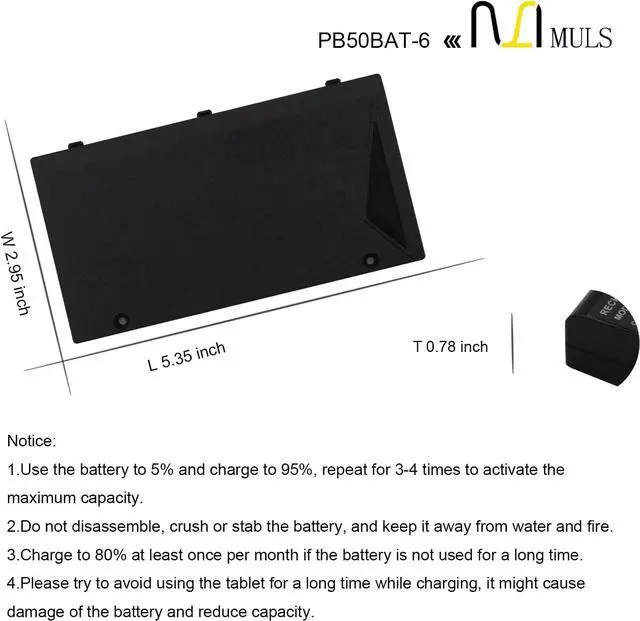
All the products had certified and come with excellent after-sales service, please feel free to communicate with us if you have any problem or concern.
Specification:
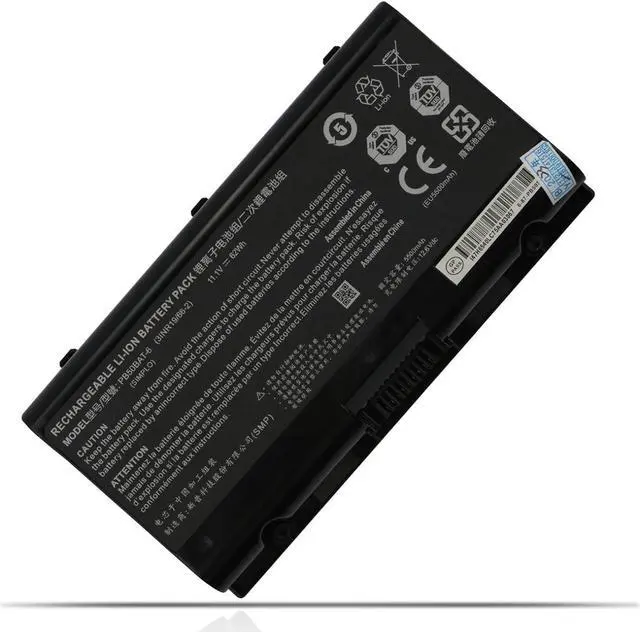
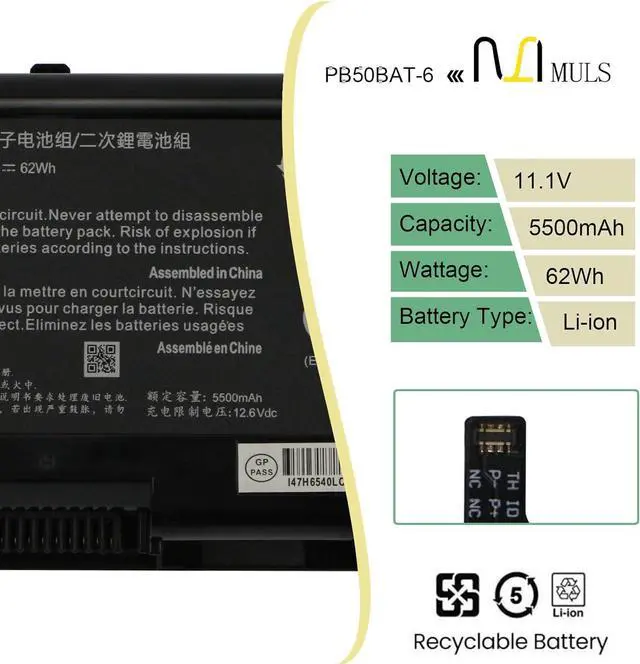
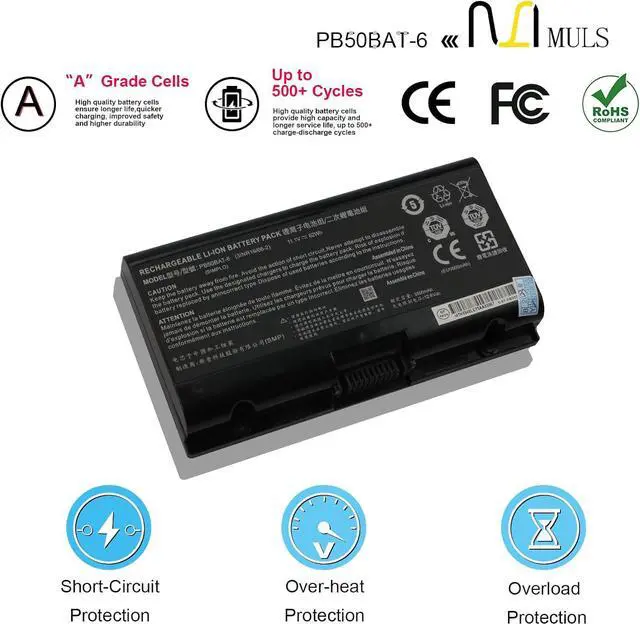
Voltage: 11.1V
Capacity: 62Wh
Condition: Brand new from manufacture, Grade A cell
Replacement for Part Number
PB50BAT-6
PB50BAT-6-62
6-87-PB50S-61D00
3INR19/66-2
Compatible Laptop Models:
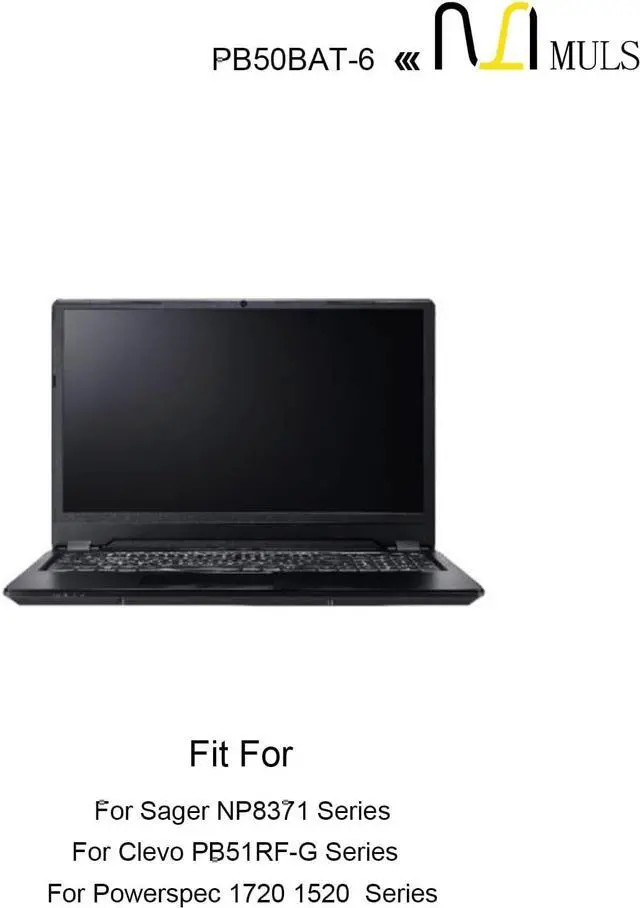
Fit for Clevo Series
Clevo PB51RF-G
Clevo PB70EF-G
Clevo PB71EF-G
Fit for Powerspec Series
Powerspec 1720
Powerspec 1520
Fit for Sager Series
Sager NP8371
Note: Please open the back cover of your laptop to check the original battery size and capacity before placing an order.
Q: How should I charge my laptop battery?
A: It is suggested to charge the battery before the power runs out completely. It is best to charge when the remaining power is about 5-10%, and the battery should be charged in a relatively dry place.
Q: How should I preserve my laptop battery when I dont use it?
A: The ideal preservation method is to charge the battery to about 40% and then put it in a cool and dry place. About 68 degrees Fahrenheit is the ideal preservation temperature. Of course, the battery should be used once a month, which can not only good preservation of the battery but also prevent the battery from being damaged by the complete loss of power.
1. Turn off your laptop and disconnect the power.
2. Disconnect the connection between the old battery and the motherboard to avoid unnecessary damage caused by disassembling the battery. Then unscrew the old battery screws one by one and carefully save each screw.
3. Remove the old battery, carefully connect the new battery to the mainboard, reinstall all the parts that have been removed earlier, and connect the wiring of the new battery.
4. If you don't understand the above steps, you can search the relevant installation tutorial video on YouTube for help.
1. New battery: Discharge the new battery to 10% (not 0%), then charging up to 95% and repeat 3-4 times to activate the maximum capacity.
2. Overuse: Do not always run out of a battery to 0%, that would damage the battery or shorten the usage life.
3. Charging sequence: when charging, first install the battery, then turn on the power, when fully charged, first cut off the power, then pull the power plug.
4. Fully charge the battery before long-term storage, and keep charging once a month.
Do not store the battery at low power circumstances.
Could be caused by battery loose. Please re-install the battery and make sure that the battery cable and the motherboard interface are tightly inserted.
Maybe due to conductive material damaged which the laptop motherboard and battery anode and cathode contact position, you can try to confirm it with your original battery.
Check whether the battery drive is in normal condition, if not, download the corresponding driver software to update.
Laptop Battery Usage & Inspection Guidelines
What should I be mindful of when charging the battery?
1. Use a compatible charger: Always use a charger that matches your laptop's original specifications (same voltage and current parameters).
2. Charging environment requirements: When charging, place your laptop in a well-ventilated, cool area away from direct sunlight and heat sources. Keep it distant from flammable or explosive items (such as paper or alcohol) to prevent battery overheating, swelling, or fire.
3. Charging rhythm management: For new batteries, there is no need to deliberately charge for 12 hours during the first charge. Charge to 100% and then continue charging for 30 minutes. For subsequent charges, unplug the charger promptly after reaching full capacity to avoid prolonged charging while the battery is fully charged.
Note: If the battery exhibits severe heating, unusual odors, bulging, or other abnormalities during charging, immed




 here!