

Your Browsing History

Meet Your Seller

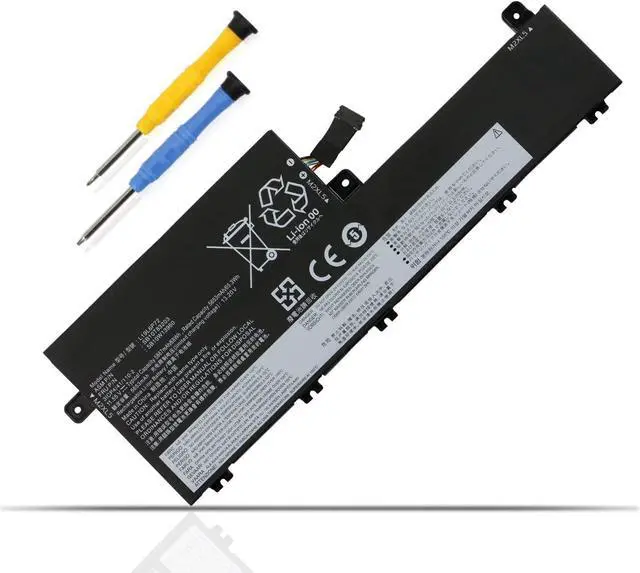
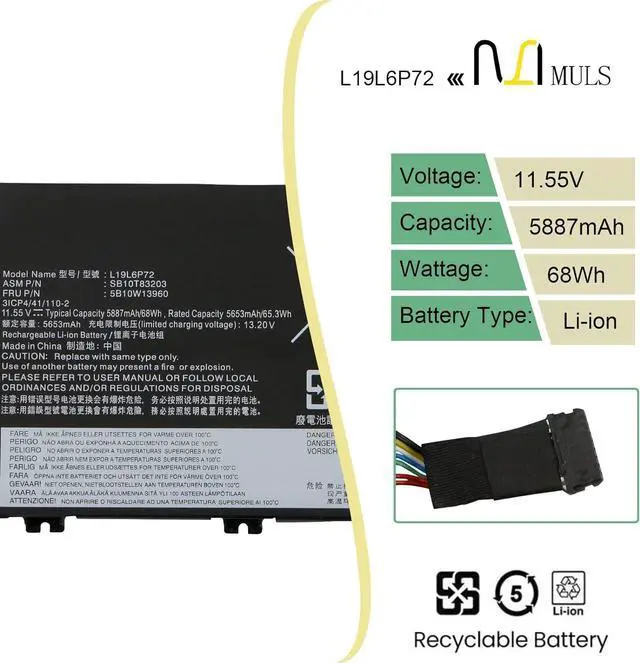

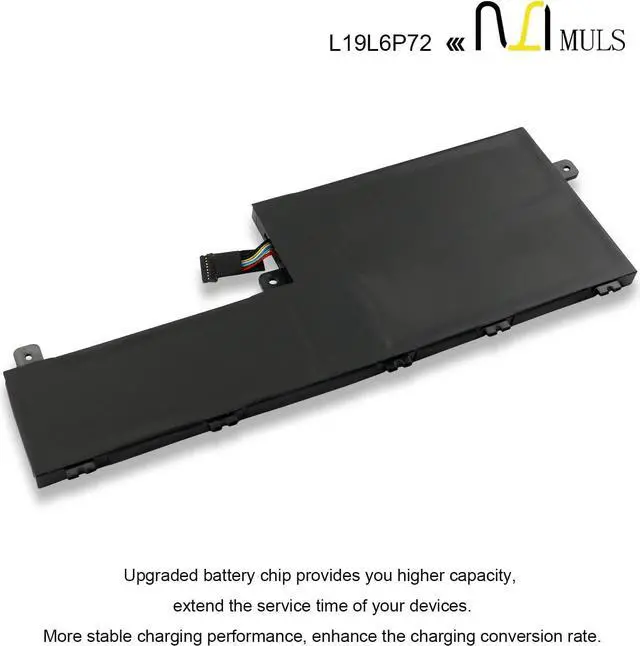
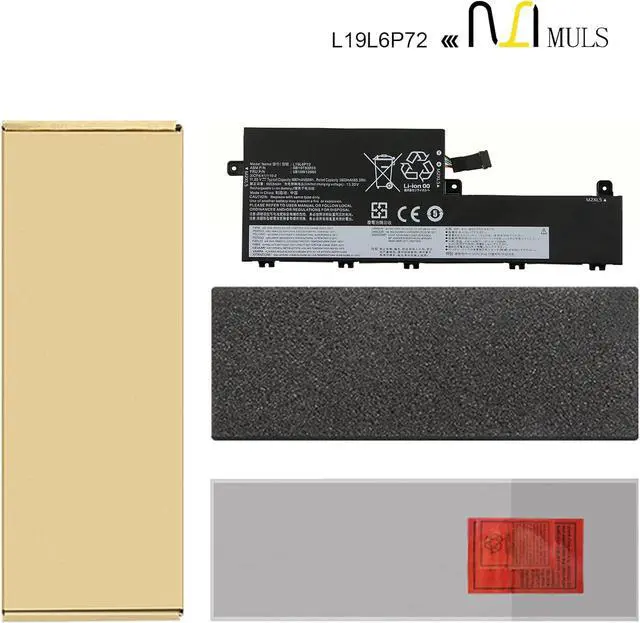
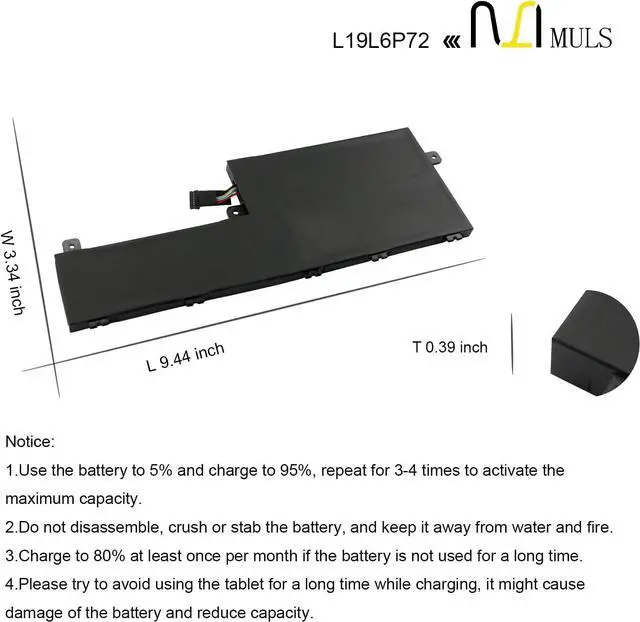


MULS L19C6P72 Laptop Battery Replacement for Lenovo ThinkPad T15P Gen 1 Gen 2 Gen 3, P15V Gen 1 Gen 2 Gen 3 Series L19L6P72 5B10W13960 5B10W13961 5B10W13960 SB10T83204 11.55V 5887mAh 68Wh
- Replacement For Laptop: Fit for Lenovo ThinkPad T15P Gen 1 (Type 20TN, 20TM) Series; for Lenovo ThinkPad T15P Gen 2 (Type 21A7, 21A8) Series; for Lenovo ThinkPad T15P Gen 3 (Type 21DA, 21DB) Series; for Lenovo ThinkPad P15V Gen 1 (Type 20TQ, 20TR) Series; for Lenovo ThinkPad P15V Gen 2 (Type 21A9, 21AA) Series; for Lenovo ThinkPad P15V Gen 3 (Type 21D8, 21D9, 21EN, 21EM) Series.
- Compatible with Part Number: L19C6P72 SB10T83204 5B10W13961 L19L6P72 SB10T83203 5B10W13960 5B11M90088 5B11M90089.
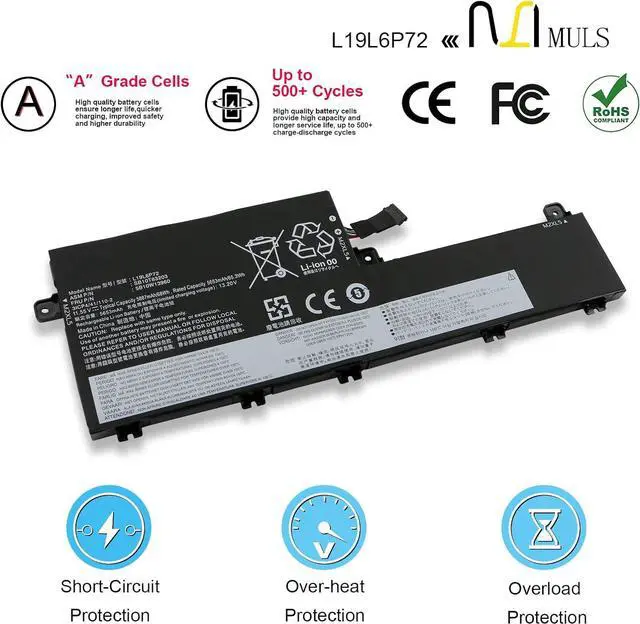
- Battery Specification: Capacity: 68Wh 5887mAh Voltage: 11.55V. Brand new. Up to 500 recharge cycles over the life of the battery. High-quality materials and circuit board.
- L19C6P72 Laptop Battery Replacement for Lenovo ThinkPad T15P Gen 1 Gen 2 Gen 3, P15V Gen 1 Gen 2 Gen 3 Series L19L6P72 5B10W13960 5B10W13961 5B10W13960 SB10T83204 11.52V 5887mAh 68Wh
- Give Customers the Best Benefit: 30 Days no-questions-asked full money back and 12 Months Exchange Guarantee. (The return window will be closed
+
+
Overview
Reviews

Any questions? Our AI beta will help you find out quickly.
Try me now
About MULS
1. We have professional battery and adapter experience!
Strictly test before shipment to ensure full capacity and safety without harming the computer!
2. We recommend that the first charge is not less than 5 hours.
3. The new battery cannot be charged, is there a problem with the battery?
Usually not. The computer charges the battery for the first time. Due to the instability of voltage and current, the computer may stop charging the battery when the battery is half charged (sometimes more, sometimes less). If this happens, Don?t worry, just take the battery out of the computer and recharge it again. The new battery charged for the first time may require several iterations. Don?t worry, this is normal.
4. When the battery is in normal operation, if the battery is discharged to 3%, it must be shut down or recharged. If the battery is discharged to 0%, the battery will be damaged and its life will be attenuated.
5. Avoid falling, heating and short-circuit, avoid using the battery in an environment where the temperature is too high or too low.
Specification:
Voltage: 11.52V
Capacity: 68Wh 5887mAh
Brand new from the manufacture, Grade A cell
Compatible Laptop Models:
Fit for Lenovo ThinkPad T15P Gen 1 (Type 20TN, 20TM) Series
Fit for Lenovo ThinkPad T15P Gen 2 (Type 21A7, 21A8) Series
Fit for Lenovo ThinkPad T15P Gen 3 (Type 21DA, 21DB) Series
Fit for Lenovo ThinkPad P15V Gen 1 (Type 20TQ, 20TR) Series
Fit for Lenovo ThinkPad P15V Gen 2 (Type 21A9, 21AA) Series
Fit for Lenovo ThinkPad P15V Gen 3 (Type 21D8, 21D9, 21EN, 21EM) Series
Fit for Lenovo ThinkPad P15V Gen 1 Series
Fit for Lenovo ThinkPad P15V Gen 1 20TQ Series
Fit for Lenovo ThinkPad P15V Gen 1 20TR Series
Fit for Lenovo ThinkPad T15P Gen 1 Series
Fit for Lenovo ThinkPad T15P Gen 1 20TN Series
Fit for Lenovo ThinkPad T15P Gen 1 20TM Series Fit for Lenovo ThinkPad T15p Gen 1 Series
20TN0003HV, 20TM0000AT
20TM0000CK, 20TM0000GM
20TM0001GE, 20TM0001IU
20TM0001MB, 20TM0001MX
20TM0001RA, 20TM0002AD
20TM0002RT, 20TM0003IU
20TM0004GB, 20TM0004ML
20TM0004MS, 20TM0007AU
Replacement for Part Number
L19C6P72, 5B10W13961, SB10T83204
L19L6P72, 5B10W13960, SB10T83203
Note: Please open the back cover of your laptop to check the original battery size and capacity before placing an order.
1. Turn off your laptop and disconnect the power.
2. Disconnect the connection between the old battery and the motherboard to avoid unnecessary damage caused by disassembling the battery. Then unscrew the old battery screws one by one and carefully save each screw.
3. Remove the old battery, carefully connect the new battery to the mainboard, reinstall all the parts that have been removed earlier, and connect the wiring of the new battery.
4. If you don't understand the above steps, you can search the relevant installation tutorial video on YouTube for help.
1. New battery: Discharge the new battery to 10% (not 0%), then charging up to 95% and repeat 3-4 times to activate the maximum capacity.
2. Overuse: Do not always run out of a battery to 0%, that would damage the battery or shorten the usage life.
3. Charging sequence: when charging, first install the battery, then turn on the power, when fully charged, first cut off the power, then pull the power plug.
4. Fully charge the battery before long-term storage, and keep charging once a month.
Do not store the battery at low power circumstances.
Could be caused by battery loss. Please re-install the battery and make sure that the battery cable and the motherboard interface are tightly inserted.
Maybe due to conductive material damage which the laptop motherboard and battery anode and cathode contact position, you can try to confirm it with your original battery.
Check whether the battery drive is in normal condition,
1. We have professional battery and adapter experience!
Strictly test before shipment to ensure full capacity and safety without harming the computer!
2. We recommend that the first charge is not less than 5 hours.
3. The new battery cannot be charged, is there a problem with the battery?
Usually not. The computer charges the battery for the first time. Due to the instability of voltage and current, the computer may stop charging the battery when the battery is half charged (sometimes more, sometimes less). If this happens, Don?t worry, just take the battery out of the computer and recharge it again. The new battery charged for the first time may require several iterations. Don?t worry, this is normal.
4. When the battery is in normal operation, if the battery is discharged to 3%, it must be shut down or recharged. If the battery is discharged to 0%, the battery will be damaged and its life will be attenuated.
5. Avoid falling, heating and short-circuit, avoid using the battery in an environment where the temperature is too high or too low.
Specification:
Voltage: 11.52V
Capacity: 68Wh 5887mAh
Brand new from the manufacture, Grade A cell
Compatible Laptop Models:
Fit for Lenovo ThinkPad T15P Gen 1 (Type 20TN, 20TM) Series
Fit for Lenovo ThinkPad T15P Gen 2 (Type 21A7, 21A8) Series
Fit for Lenovo ThinkPad T15P Gen 3 (Type 21DA, 21DB) Series
Fit for Lenovo ThinkPad P15V Gen 1 (Type 20TQ, 20TR) Series
Fit for Lenovo ThinkPad P15V Gen 2 (Type 21A9, 21AA) Series
Fit for Lenovo ThinkPad P15V Gen 3 (Type 21D8, 21D9, 21EN, 21EM) Series
Fit for Lenovo ThinkPad P15V Gen 1 Series
Fit for Lenovo ThinkPad P15V Gen 1 20TQ Series
Fit for Lenovo ThinkPad P15V Gen 1 20TR Series
Fit for Lenovo ThinkPad T15P Gen 1 Series
Fit for Lenovo ThinkPad T15P Gen 1 20TN Series
Fit for Lenovo ThinkPad T15P Gen 1 20TM Series Fit for Lenovo ThinkPad T15p Gen 1 Series
20TN0003HV, 20TM0000AT
20TM0000CK, 20TM0000GM
20TM0001GE, 20TM0001IU
20TM0001MB, 20TM0001MX
20TM0001RA, 20TM0002AD
20TM0002RT, 20TM0003IU
20TM0004GB, 20TM0004ML
20TM0004MS, 20TM0007AU
Replacement for Part Number
L19C6P72, 5B10W13961, SB10T83204
L19L6P72, 5B10W13960, SB10T83203
Note: Please open the back cover of your laptop to check the original battery size and capacity before placing an order.
1. Turn off your laptop and disconnect the power.
2. Disconnect the connection between the old battery and the motherboard to avoid unnecessary damage caused by disassembling the battery. Then unscrew the old battery screws one by one and carefully save each screw.
3. Remove the old battery, carefully connect the new battery to the mainboard, reinstall all the parts that have been removed earlier, and connect the wiring of the new battery.
4. If you don't understand the above steps, you can search the relevant installation tutorial video on YouTube for help.
1. New battery: Discharge the new battery to 10% (not 0%), then charging up to 95% and repeat 3-4 times to activate the maximum capacity.
2. Overuse: Do not always run out of a battery to 0%, that would damage the battery or shorten the usage life.
3. Charging sequence: when charging, first install the battery, then turn on the power, when fully charged, first cut off the power, then pull the power plug.
4. Fully charge the battery before long-term storage, and keep charging once a month.
Do not store the battery at low power circumstances.
Could be caused by battery loss. Please re-install the battery and make sure that the battery cable and the motherboard interface are tightly inserted.
Maybe due to conductive material damage which the laptop motherboard and battery anode and cathode contact position, you can try to confirm it with your original battery.
Check whether the battery drive is in normal condition,
Warranty & Returns
Warranty, Returns, And Additional Information
Warranty
- Please contact the Seller directly for warranty information. Warranty information may also be found on the Manufacturer's website.
- CONTACT
Return Policies
- Return for refund within: 45 days
- Return for replacement within: 45 days
- This item is covered by Xalvion E-Commerce Limited Return Policy
Manufacturer Contact Info
- For a directory of all our manufacturers, please click below.
- Manufacturers Directory
LOADING...