

Your Browsing History

Meet Your Seller

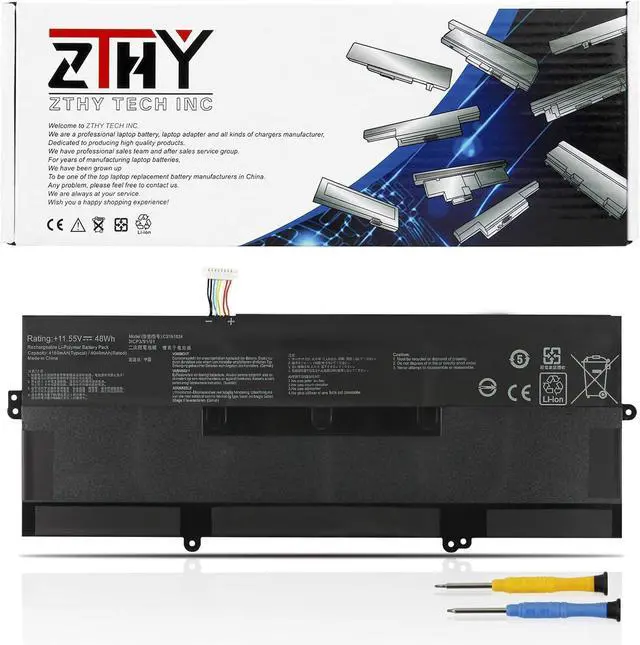
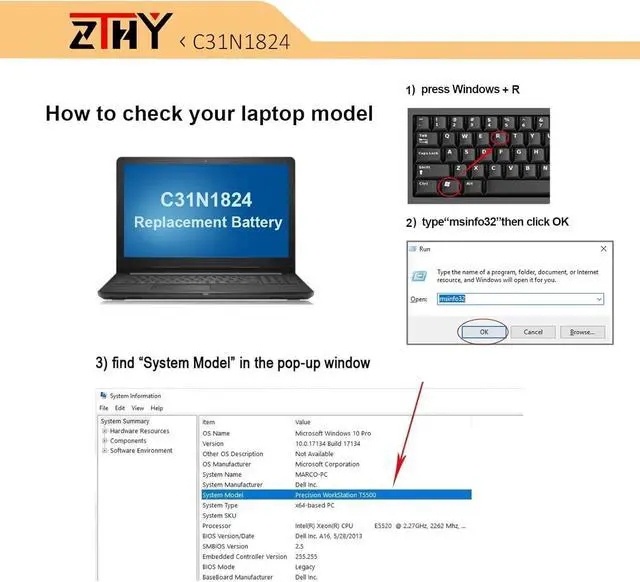
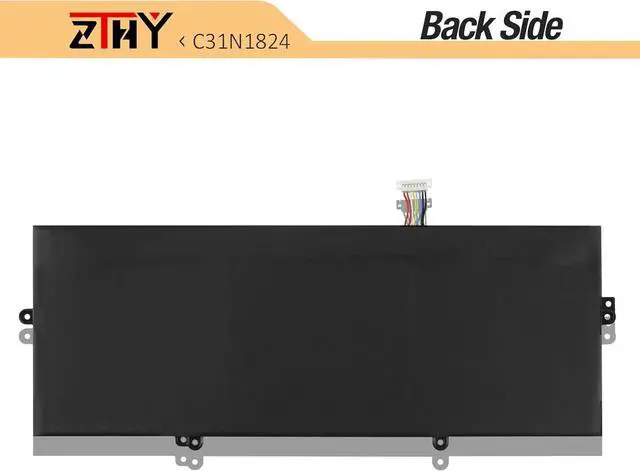


ZTHY C31N1824 Laptop Battery Compatible with Asus Chromebook Flip C434 C434T C434TA C434TA-AI0041 C434TA-AI0045 C434TA-AI0095 C434TA-AI0108 DS384T DSM4T DS588T E10013 Series C31PNC1 11.55V 48Wh
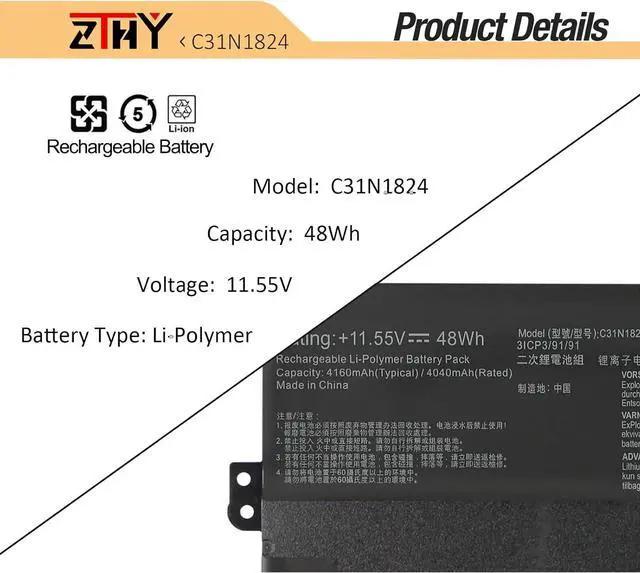
- Specifications: Battery type: Li-Polymer. Color: Black. Voltage: 11.55V. Capacity: 48Wh/4160mAh/3-Cell. New from Manufacturer. Up to 500 recharge cycles over the life of the battery
- Compatible Part Number: C31N1824 0B200-03290000(Not compatible with C31N1824-1 )
- Compatible with Laptop Models: Replacement for ASUS Chromebook Flip C434 Series, Chromebook Flip C434TA Series, Chromebook Flip C434TA-1A C434TA-E10013, C434TA-AI0080, C434TA-AI0095, C434TA-AI0264,C434TA-AI0108, C434TA-DS384, C434TA-DS384T, C434TA-DS584, C434TA-DS588T,C434TA-DSM4T
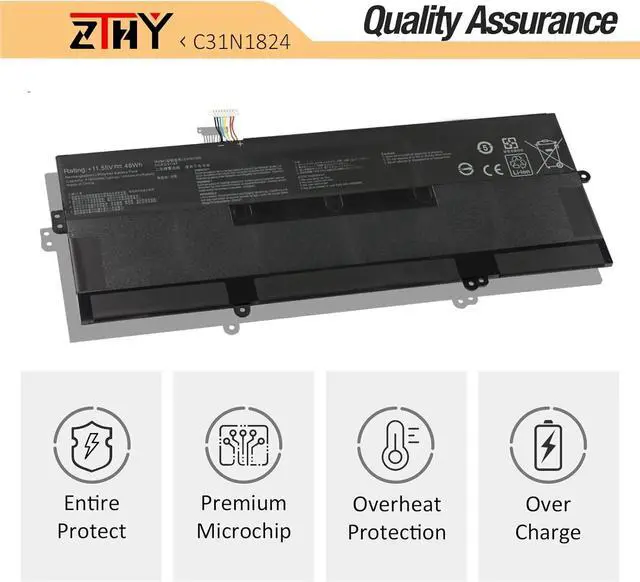
- Security: All ZTHY products are Certified by CE, FCC for safety. Strict guidelines for compatibility, and standards compliance for environment safety
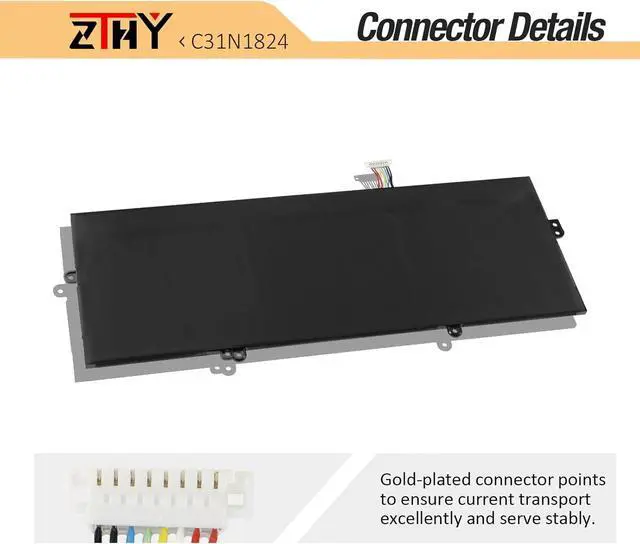
- Note: If the new battery is not recognized during the initial installation, please reinstall and check if the interface is fully connected. Discharge the new battery to 10-20% (not 0%), then charge and cycle 3-4 times to wake up the new battery
+
+
Overview
Reviews

Any questions? Our AI beta will help you find out quickly.
Try me now
Compatible Part Number C31N1824 0B200-03290000 Compatible Model Replacement for ASUS Chromebook Flip C434 Series; Compatible Model Replacement for ASUS Chromebook Flip C434TA Series:ASUS C434, C434TA, C434TA-1A, C434TA-DS384 , C434TA-DS384T, C434TA-DSM4T, C434TA-AI0108, C434TA-DS584, C434TA-AI0080, C434TA-AI0095, C434TA-DS588T, C434TA-E10013, C434TA-AI0041, C434TA-AI0045,C434TA-E10013 and more Attention If you install the battery, you find that the laptop cannot detect the battery or the battery level cannot be displayed normally. Please check whether the battery cable is installed properly. Sometimes the battery cannot be charged because the cable is not fixed properly. What do I need to be aware of when I receive a new laptop battery?
Check appearance, model, manual. Do 5-6 full charge-discharge cycles to activate. Store long-term at 50%-60% in cool dry place; check every 2-3 months & recharge if needed. These steps extend battery life & reliability.
What should I do if laptop won't boot up after installing a new battery?
1. Check battery seated & contacts clean. 2. Run laptop on charger alone (battery out). 3. If charger works, charge new battery 30 mins then boot with battery. 4. Reset BIOS/EC (hold power 30s). 5. Reinstall old battery to verify laptop hardware.
How should I do if the battery is not recognised?
Update BIOS to latest version. Power off, disconnect battery (and adapter), hold power button 20s, reconnect battery and adapter, reboot. If still not recognised, reseat battery and clean contacts.
What should I do if the battery expands?
1. Power off & unplug laptop. 2. Do not charge or use. 3. In ventilated area, remove swollen battery carefully, avoid pressing or puncturing.
What can you do if you are not satisfied with the battery?
Please use Amazon's messaging system with your order details. We are committed to your satisfaction and will do our best to help resolve any issue.
ZTHY laptop battery instruction:
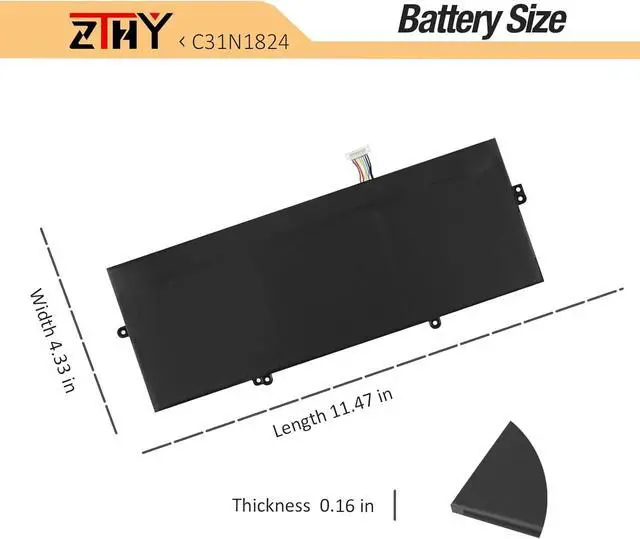
1. First check if the battery is the same size as your original battery after receiving it. When installing the battery, pay attention to whether the battery cable is fixed. If the battery cable is not installed correctly, the battery may not be charged.
2. If you use the battery for the first time after installing the battery, please do not charge the battery immediately, first use the battery to 10-20%, and then charge the battery, and cycle charging 5-6 times to activate the maximum use of the battery space.
3. We recommend that you search for battery removal tutorials on the Internet in advance, or seek help from a professional technician. We won't responsible for any damage due to improper operation.
Install A New Battery:
1, You need to turn off your laptop and disconnect the power.
2, Disconnect the connection between the old battery and the motherboard to avoid unnecessary damage caused by disassembling the battery. Then unscrew the old battery screws one by one and carefully save each screw.
3, Remove the old battery, carefully install the new battery on the battery case, screw in the screw, and connect the wiring of the new battery.
4, If you don't understand the above steps, you can search for the video about laptop battery installation on YouTube. Maybe it will help you.
The following are troubleshooting methods: 1.Turn off the laptop. 2.Unplug AC power. 3.Remove the battery. 4.Replace AC power. 5.Turn on laptop,allow OS to boot. 6.Once logged in to the machine,perform a normal shut donw. 7.Unplug AC power. 8.Replace battery.
Compatible with Laptop models: Press [Ctrl + F] to search for your type What do I need to be aware of when I receive a new laptop battery?
What should I do if laptop won't boot up after installing a new battery?
How should I do if the battery is not recognised?
What should I do if the battery expands?
Check appearance, model, manual. Do 5-6 full charge-discharge cycles to activate. Store long-term at 50%-60% in cool dry place; check every 2-3 months & recharge if needed. These steps extend battery life & reliability.
What should I do if laptop won't boot up after installing a new battery?
1. Check battery seated & contacts clean. 2. Run laptop on charger alone (battery out). 3. If charger works, charge new battery 30 mins then boot with battery. 4. Reset BIOS/EC (hold power 30s). 5. Reinstall old battery to verify laptop hardware.
How should I do if the battery is not recognised?
Update BIOS to latest version. Power off, disconnect battery (and adapter), hold power button 20s, reconnect battery and adapter, reboot. If still not recognised, reseat battery and clean contacts.
What should I do if the battery expands?
1. Power off & unplug laptop. 2. Do not charge or use. 3. In ventilated area, remove swollen battery carefully, avoid pressing or puncturing.
What can you do if you are not satisfied with the battery?
Please use Amazon's messaging system with your order details. We are committed to your satisfaction and will do our best to help resolve any issue.
ZTHY laptop battery instruction:
1. First check if the battery is the same size as your original battery after receiving it. When installing the battery, pay attention to whether the battery cable is fixed. If the battery cable is not installed correctly, the battery may not be charged.
2. If you use the battery for the first time after installing the battery, please do not charge the battery immediately, first use the battery to 10-20%, and then charge the battery, and cycle charging 5-6 times to activate the maximum use of the battery space.
3. We recommend that you search for battery removal tutorials on the Internet in advance, or seek help from a professional technician. We won't responsible for any damage due to improper operation.
Install A New Battery:
1, You need to turn off your laptop and disconnect the power.
2, Disconnect the connection between the old battery and the motherboard to avoid unnecessary damage caused by disassembling the battery. Then unscrew the old battery screws one by one and carefully save each screw.
3, Remove the old battery, carefully install the new battery on the battery case, screw in the screw, and connect the wiring of the new battery.
4, If you don't understand the above steps, you can search for the video about laptop battery installation on YouTube. Maybe it will help you.
The following are troubleshooting methods: 1.Turn off the laptop. 2.Unplug AC power. 3.Remove the battery. 4.Replace AC power. 5.Turn on laptop,allow OS to boot. 6.Once logged in to the machine,perform a normal shut donw. 7.Unplug AC power. 8.Replace battery.
Compatible with Laptop models: Press [Ctrl + F] to search for your type What do I need to be aware of when I receive a new laptop battery?
What should I do if laptop won't boot up after installing a new battery?
How should I do if the battery is not recognised?
What should I do if the battery expands?
Warranty & Returns
Warranty, Returns, And Additional Information
Warranty
- Please contact the Seller directly for warranty information. Warranty information may also be found on the Manufacturer's website.
- CONTACT
Return Policies
- Return for refund within: 45 days
- Return for replacement within: 45 days
- This item is covered by Xalvion E-Commerce Limited Return Policy
Manufacturer Contact Info
- For a directory of all our manufacturers, please click below.
- Manufacturers Directory
LOADING...