




 here!
here!
I’m your shopping assistant for PC builds, upgrades, and everything tech.
Got questions? Ask away!
Start a conversation
here!
I’m your shopping assistant for PC builds, upgrades, and everything tech.
Got questions? Ask away!
Start a conversation
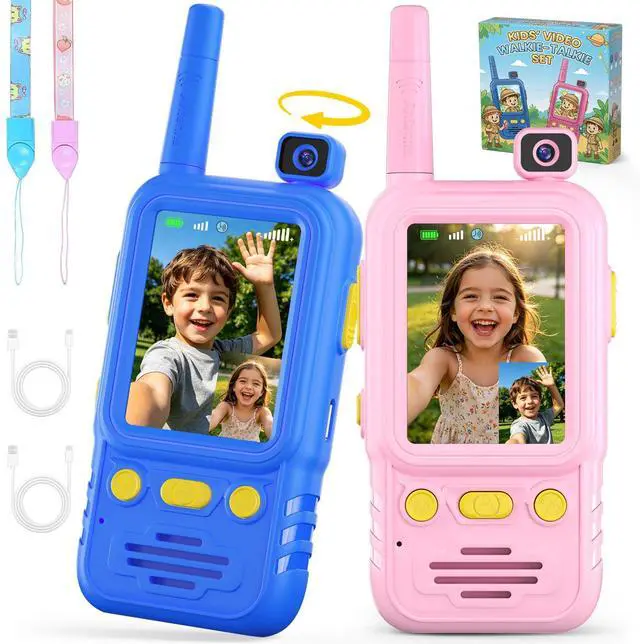



Any questions? Ask CelesteSM will help you find out quickly.

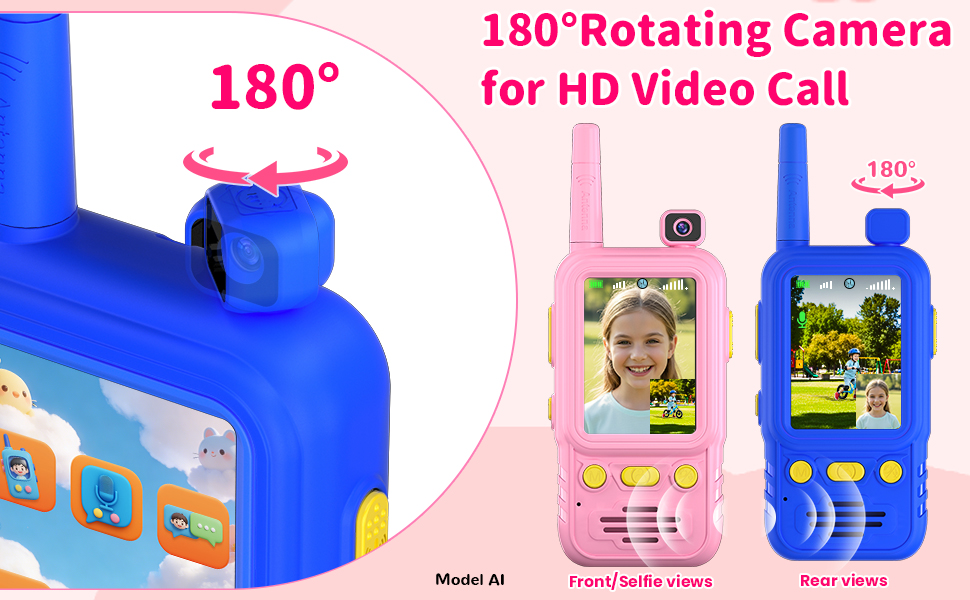
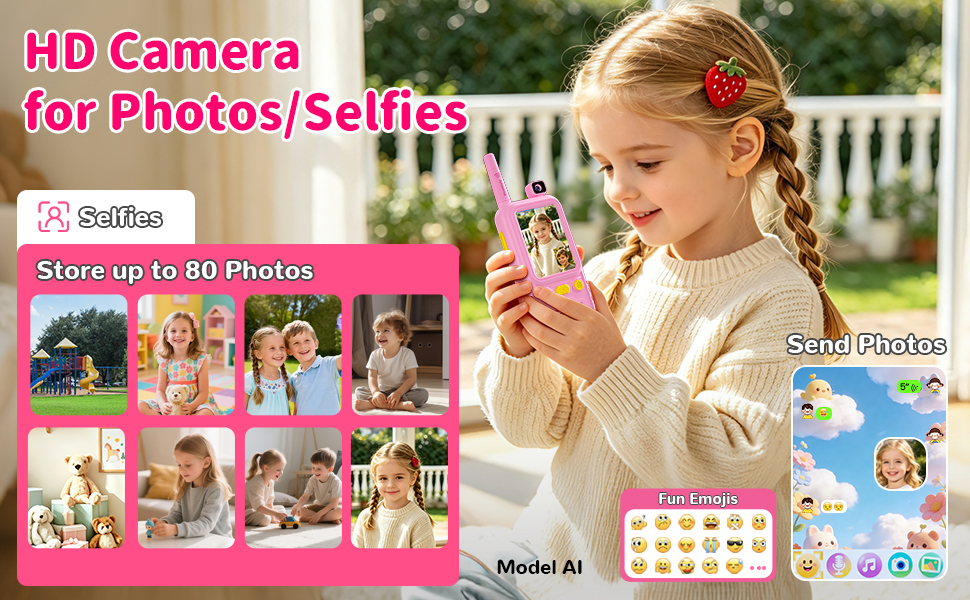
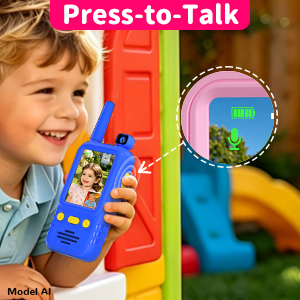
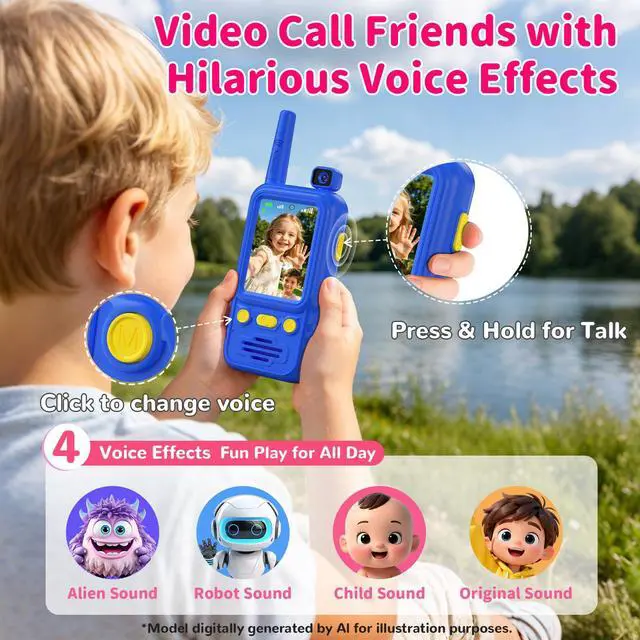
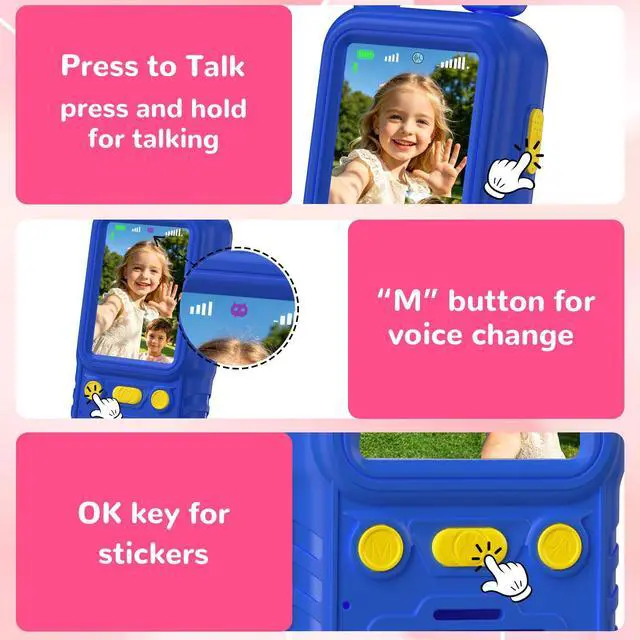
Hold down the Intercom Key to talk, and a microphone icon will pop up on the other person’s screen knowing you're talking.
It also work as Return button when not on chat
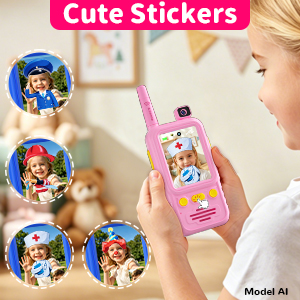
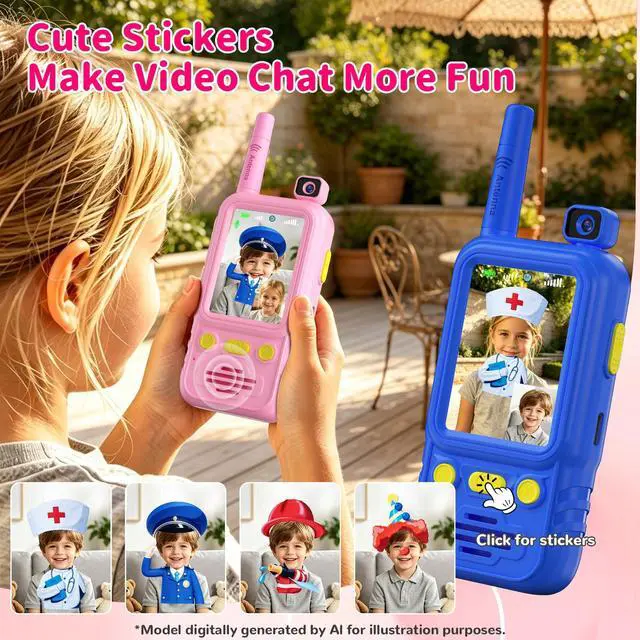
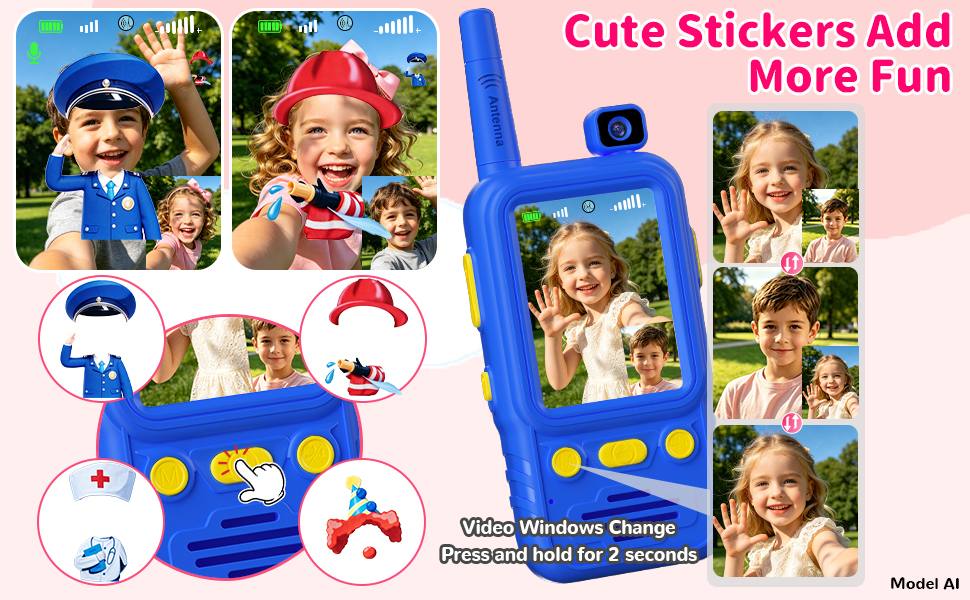
click the “OK” button to drop some cute stickers into your video call and liven things up
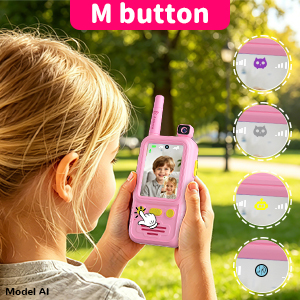
On a video call, tap the “M” button to change your voice from alien to robot
On a video call, Long press M button to change video window size
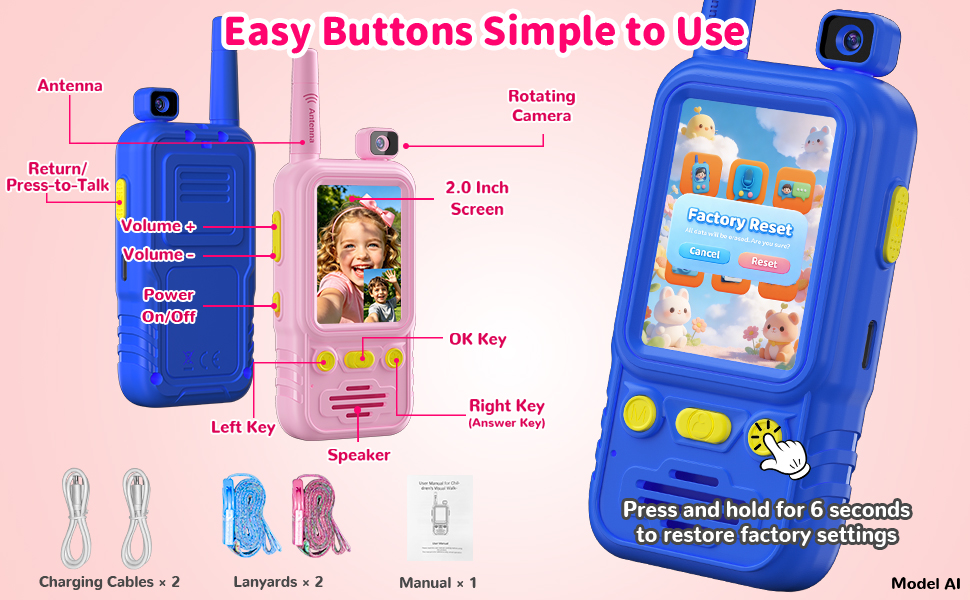
1. How to Reset: Hold down the answer button for 6 seconds(when you're on the home screen), It'll reset
2. Please keep at least 2 feet apart to avoid any loud screeching when testing the walkie-talkie
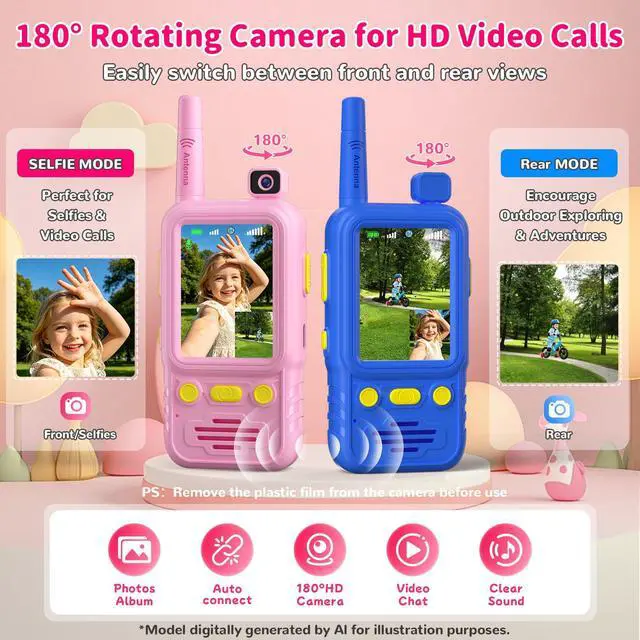
3. Before use, please peel off the protective film on the screen and camera
Hold down the Intercom Key to talk, and a microphone icon will pop up on the other person’s screen knowing you're talking.
It also work as Return button when not on chat
click the “OK” button to drop some cute stickers into your video call and liven things up
On a video call, tap the “M” button to change your voice from alien to robot
On a video call, Long press M button to change video window size
1. How to Reset: Hold down the answer button for 6 seconds(when you're on the home screen), It'll reset
2. Please keep at least 2 feet apart to avoid any loud screeching when testing the walkie-talkie
3. Before use, please peel off the protective film on the screen and camera


