


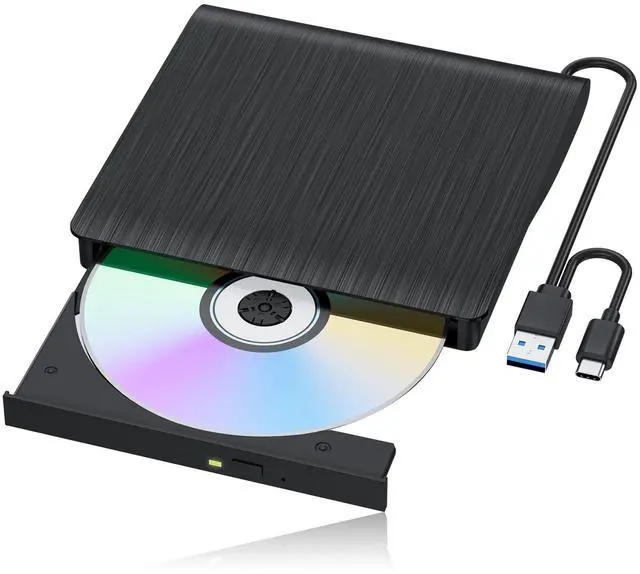
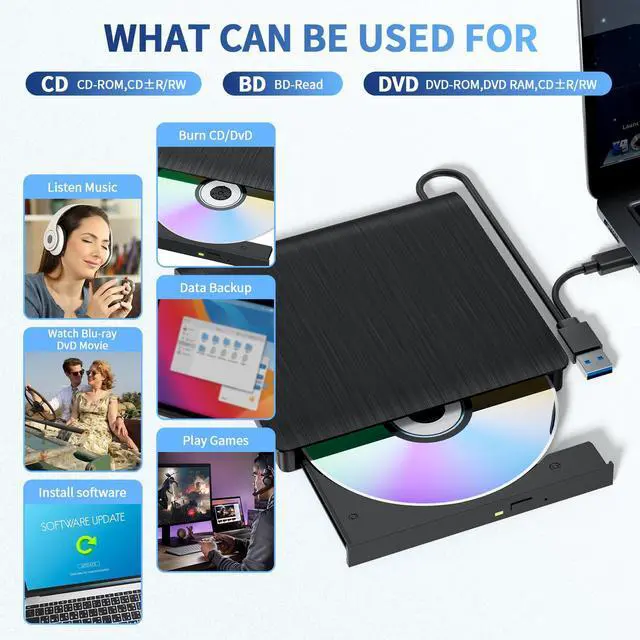
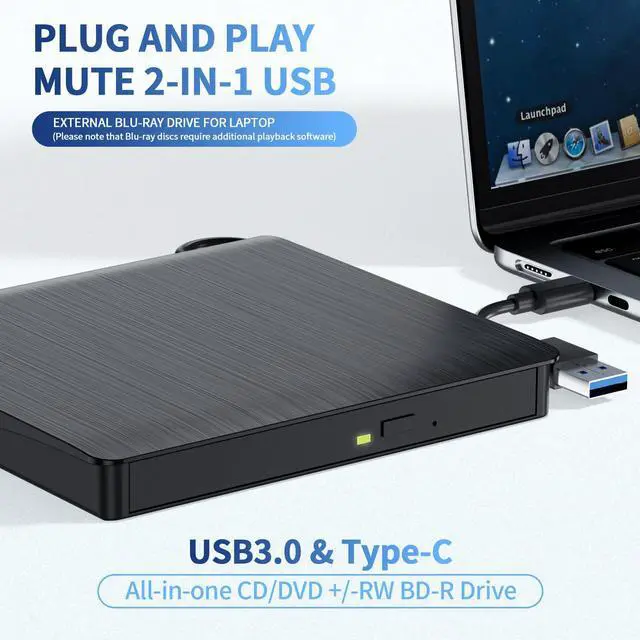


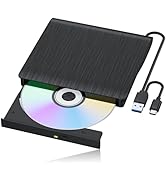
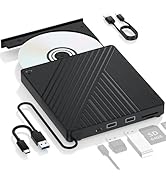




All-in-One Blu-ray Drive

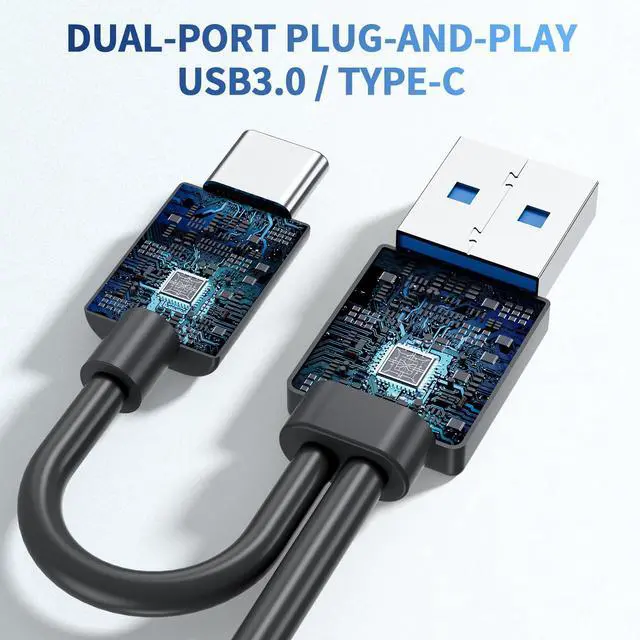
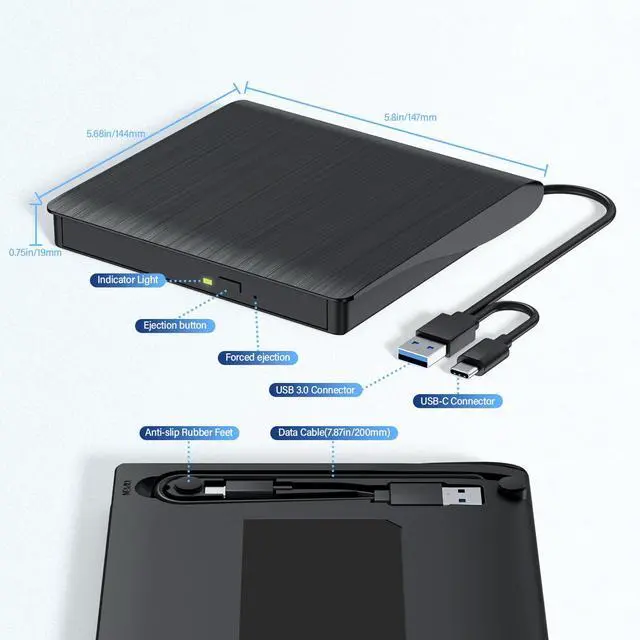
USB A & C

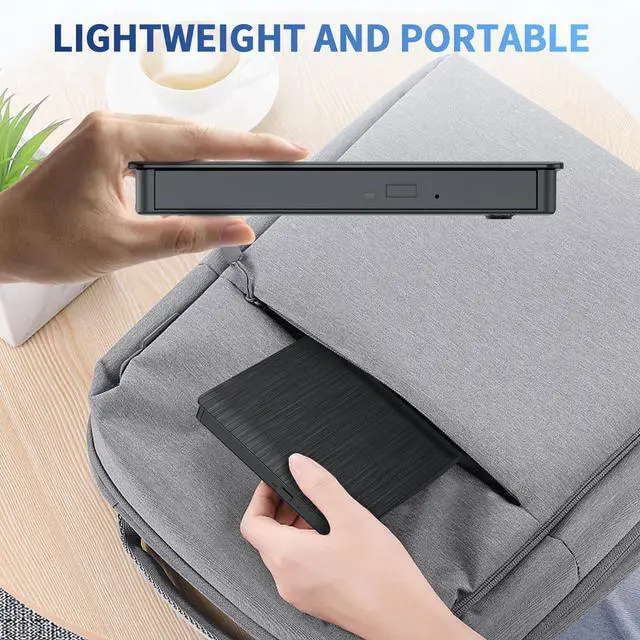
Portable

BD/CD/DVD Drive
Important Note:
1.The Blu ray drive requires a considerable amount of power to operate, and the USB-C/Thunderbolt port of the MacBook may not provide sufficient power, especially when the drive is connected through adapters, docking stations, or hubs. So make sure the optical drive is directly connected or using an external power supply/power dock, and the dual head USB-A cable must be fully plugged in.
2.Check MacBook Connection: If using an docking station, try connecting the optical drive directly to the MacBook and changing the USB-C port on the Mac.
3.Limited native support for macOS: Although macOS typically recognizes standard DVD/CD drives and discs, native support for Blu ray disc content (especially commercial movie discs) is very limited or even non-existent. The system may recognize the 'optical drive' hardware, but cannot mount or read the file system (usually UDF) on the Blu ray disc. To play commercial Blu ray movies or read Blu ray data disks in certain formats, third-party Blu ray playback software must be installed.
4.Check the 'Disk Tool': Check if the optical drive device and disc appear.
5.Test different discs: First, play a regular DVD/CD for testing. Change to another Blu ray disc for testing.
6.Test the optical drive on another computer: determine if it is an optical drive issue or a Mac/settings issue.
Troubleshooting
*Method 1: Update or reinstall the driver.
The drivers for CD and DVD drives are included in the operating system, so they do not require a specific driver to be installed. Uninstalling the driver and restarting the computer will reinstall the driver, which will solve most of the device driver problems.
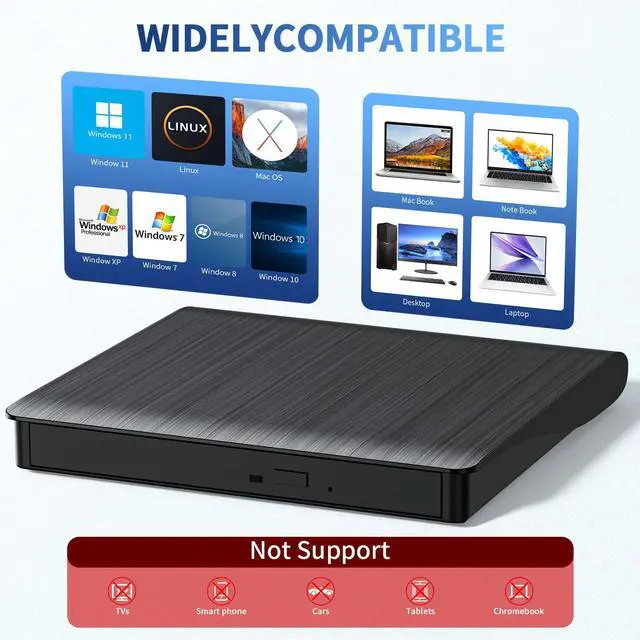
*Method 2: Run the Hardware and Devices troubleshooter (Windows 7, Windows 8, Windows 8.1 and Windows 10)
You can run the Windows Hardware and Devices troubleshooter built into Microsoft Windows. The Hardware and Devices troubleshooter is only available in Microsoft Windows 7, Windows 8/8.1 and Windows 10.
If External CD/DVD Drive can be recognized by your computer, the problem you are facing may be caused by the following two reasons:
The product power supply is insufficient, please use a 5V charger/power bank to supplement it.(Note: For Apple computers, you must first connect the external CD DVD drive to your computer, and then connect the additional power to disc drive, otherwise the Apple computer will not recognized the device.
WINDOWS 11 requires a media player (such as VLC) and a network connection.
Please ensure that your disc region code is set to 1 or is region-free. If you need to play a disc that is not from region 1, please manually change the region code of the external Blu-ray drive.


All-in-One Blu-ray Drive
USB A & C
Portable
BD/CD/DVD Drive
Important Note:
1.The Blu ray drive requires a considerable amount of power to operate, and the USB-C/Thunderbolt port of the MacBook may not provide sufficient power, especially when the drive is connected through adapters, docking stations, or hubs. So make sure the optical drive is directly connected or using an external power supply/power dock, and the dual head USB-A cable must be fully plugged in.
2.Check MacBook Connection: If using an docking station, try connecting the optical drive directly to the MacBook and changing the USB-C port on the Mac.
3.Limited native support for macOS: Although macOS typically recognizes standard DVD/CD drives and discs, native support for Blu ray disc content (especially commercial movie discs) is very limited or even non-existent. The system may recognize the 'optical drive' hardware, but cannot mount or read the file system (usually UDF) on the Blu ray disc. To play commercial Blu ray movies or read Blu ray data disks in certain formats, third-party Blu ray playback software must be installed.
4.Check the 'Disk Tool': Check if the optical drive device and disc appear.
5.Test different discs: First, play a regular DVD/CD for testing. Change to another Blu ray disc for testing.
6.Test the optical drive on another computer: determine if it is an optical drive issue or a Mac/settings issue.
Troubleshooting
*Method 1: Update or reinstall the driver.
The drivers for CD and DVD drives are included in the operating system, so they do not require a specific driver to be installed. Uninstalling the driver and restarting the computer will reinstall the driver, which will solve most of the device driver problems.
*Method 2: Run the Hardware and Devices troubleshooter (Windows 7, Windows 8, Windows 8.1 and Windows 10)
You can run the Windows Hardware and Devices troubleshooter built into Microsoft Windows. The Hardware and Devices troubleshooter is only available in Microsoft Windows 7, Windows 8/8.1 and Windows 10.
If External CD/DVD Drive can be recognized by your computer, the problem you are facing may be caused by the following two reasons:
The product power supply is insufficient, please use a 5V charger/power bank to supplement it.(Note: For Apple computers, you must first connect the external CD DVD drive to your computer, and then connect the additional power to disc drive, otherwise the Apple computer will not recognized the device.
WINDOWS 11 requires a media player (such as VLC) and a network connection.
Please ensure that your disc region code is set to 1 or is region-free. If you need to play a disc that is not from region 1, please manually change the region code of the external Blu-ray drive.
Our story is so exciting
Our story is so exciting, we look forward to your visit.