


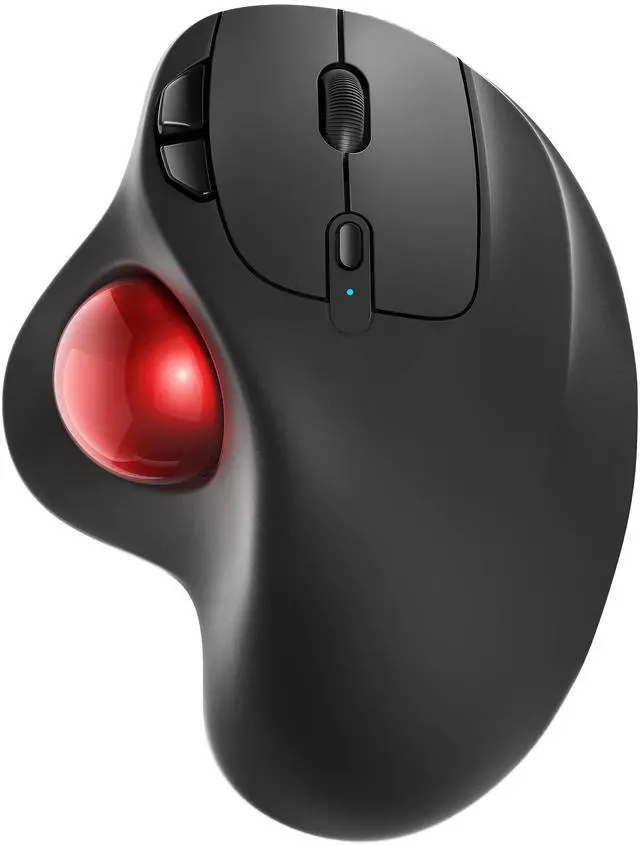
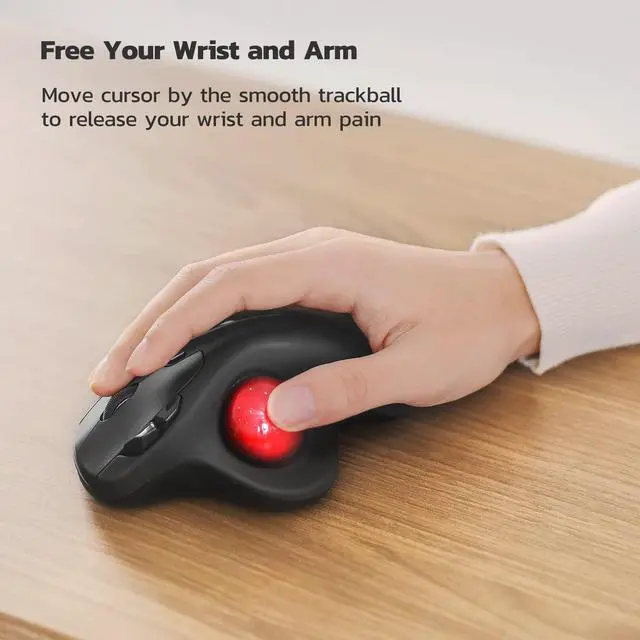
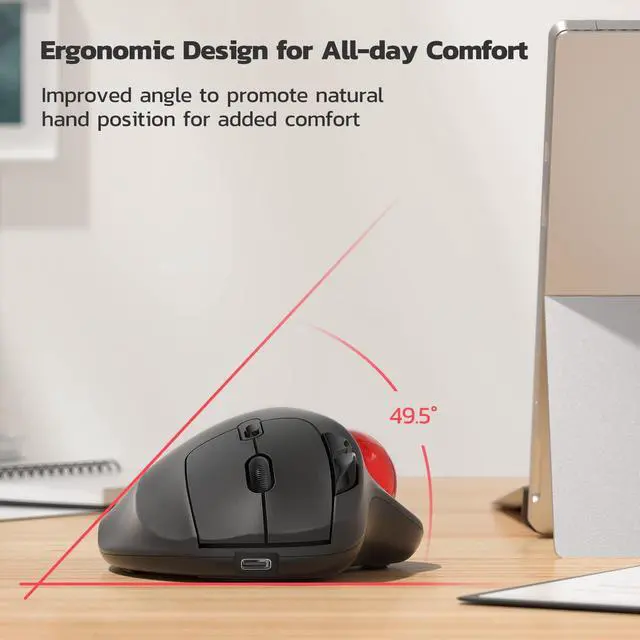
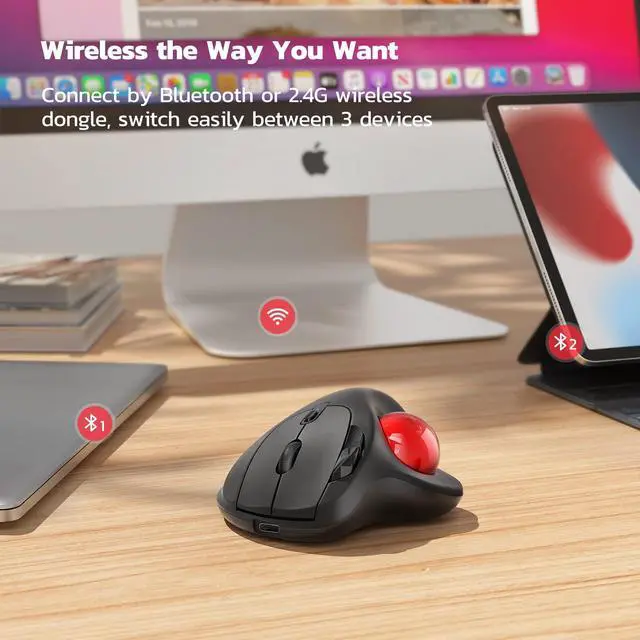
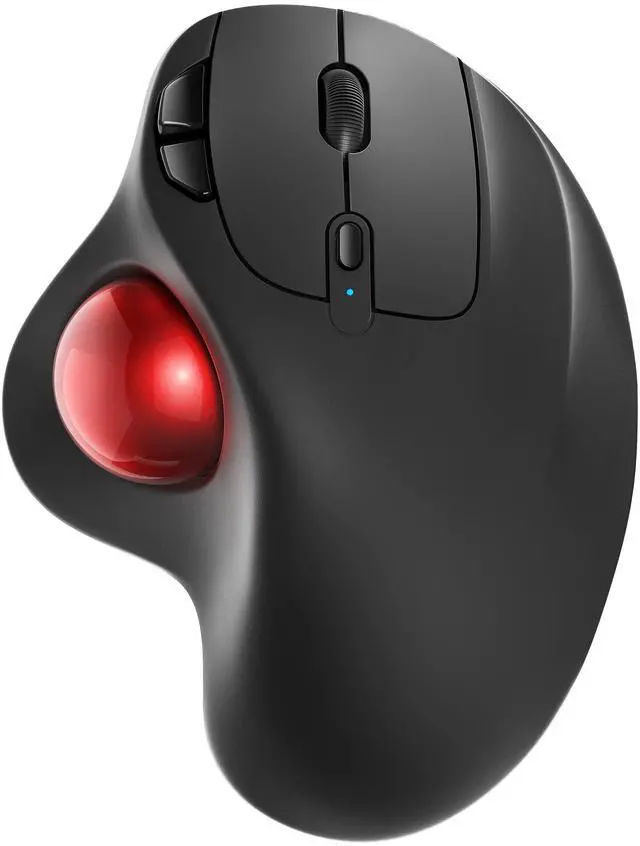
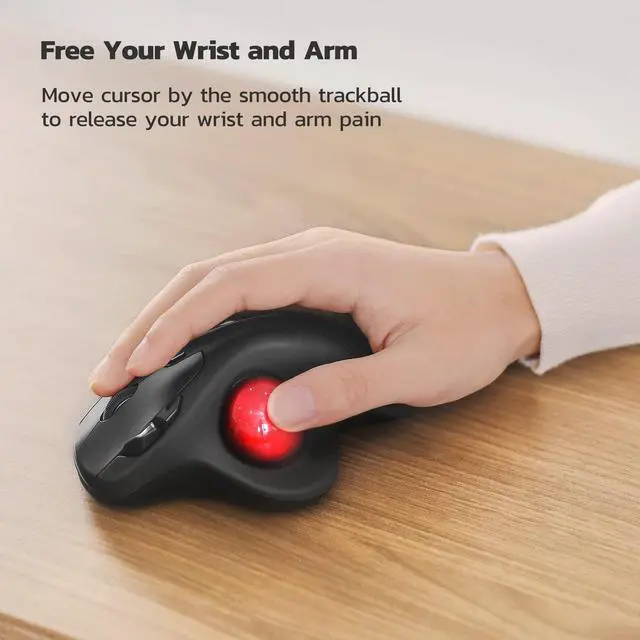
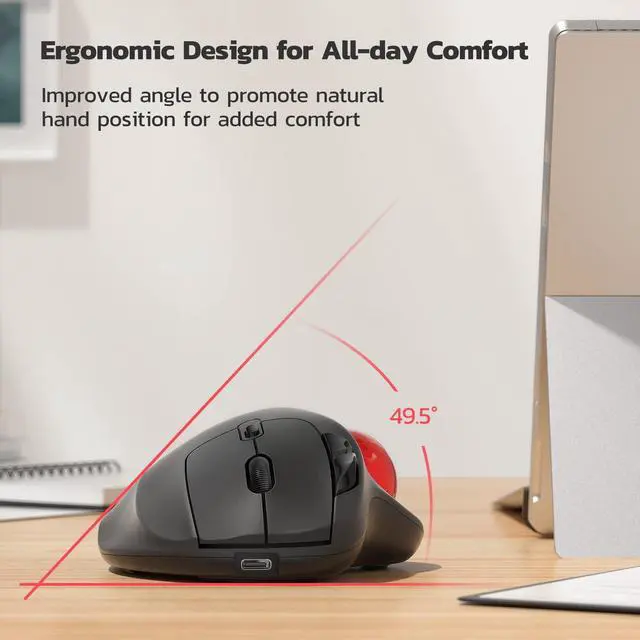
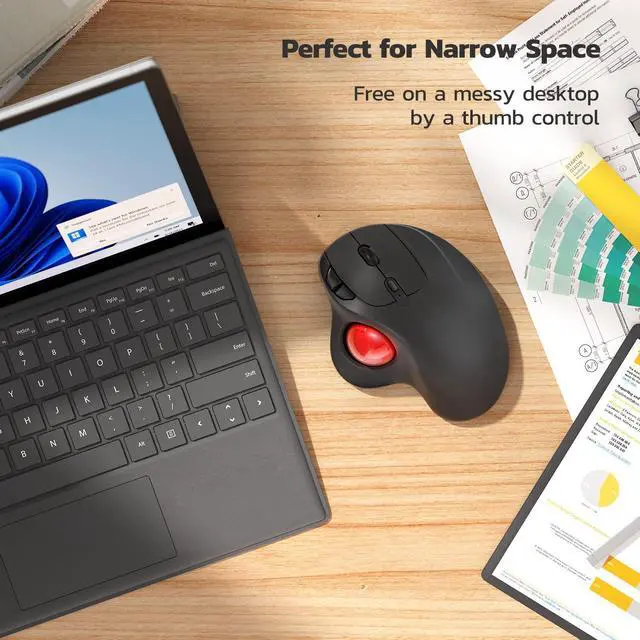
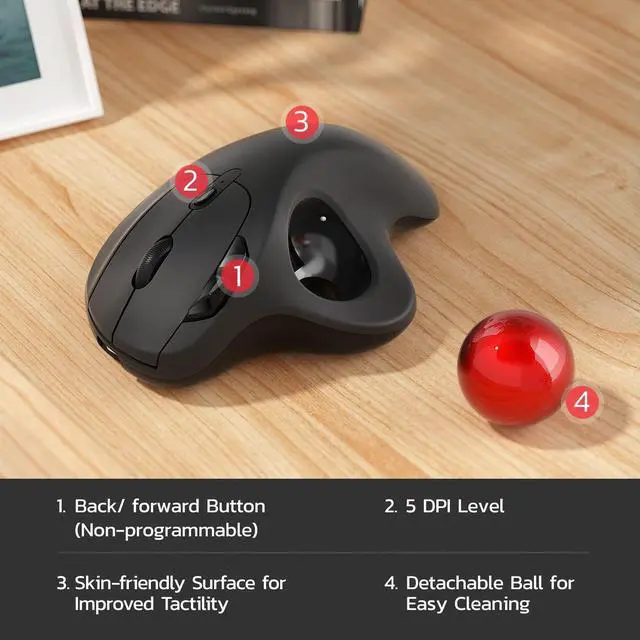


Nulea M501 Wireless Trackball Mouse
Merchant Video


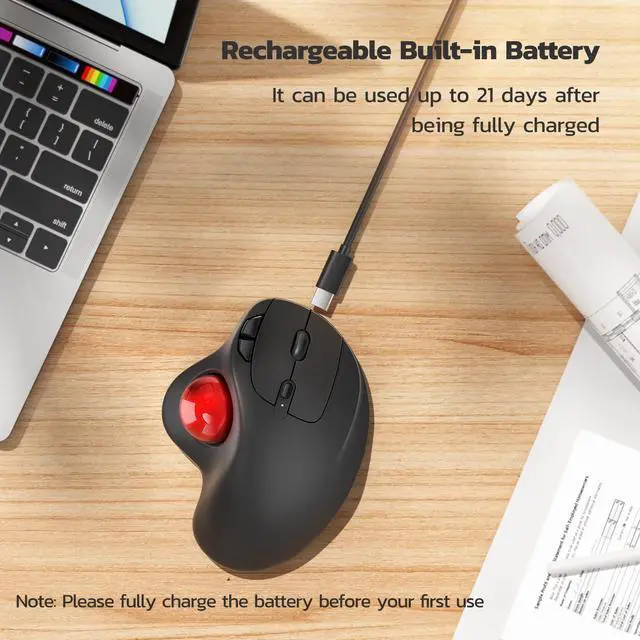
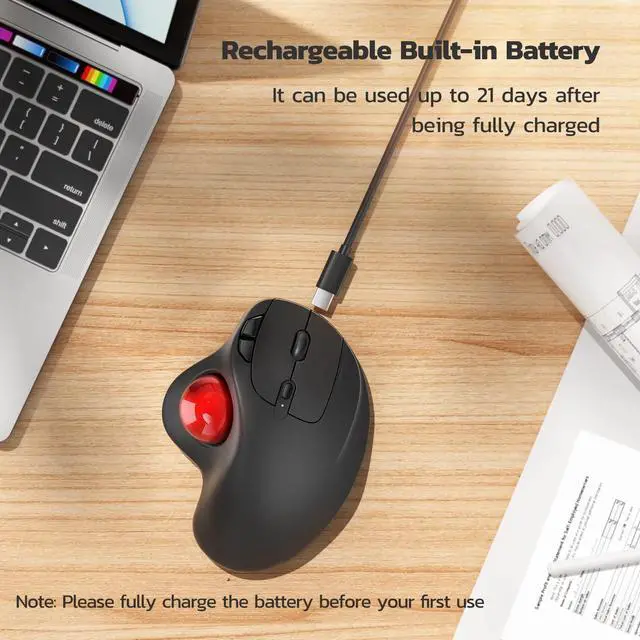
How to charge the thumb mouse and know its charging state?
1. Use the included charging cable, a charger that outputs 5V or a computer's USB port to charge. (Do not charge with a fast charger)
2. The charging indicator light under the DPI button turns blue when charging, and turns off when fully charged.
How to wake up the trackball mouse?
1.In wireless connection mode, the M501 mouse enters sleep mode 30 minutes after you last used the mouse.
2.If you need to use the mouse, you can wake it up by clicking the key.(scrolling the trackball or moving the mouse will not wake up the mouse)
How to reprogram mouse buttons?
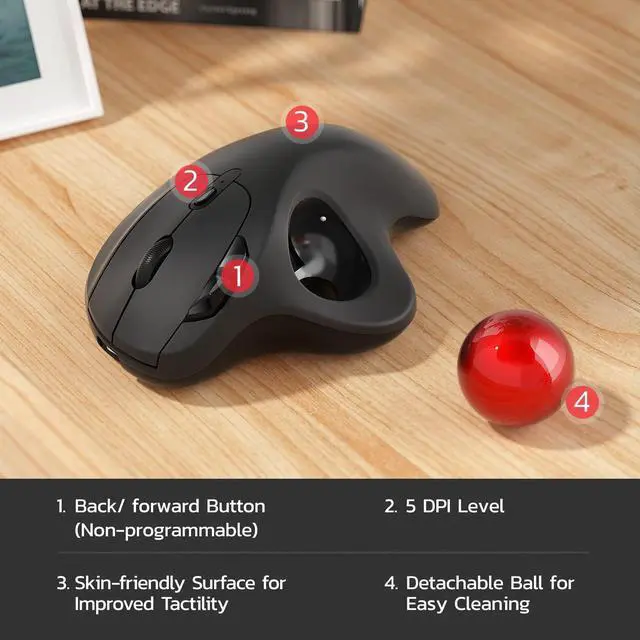
1. All buttons on this wireless trackball mouse are not programmable!
2. Forward and Backward buttons are not compatible with MAC OS.
How to adjust the DPI of this trackball mouse wireless?
The track ball mouse has 4 DPI settings, 400 (Default)-800-1200-1600, which can be easily switched by clicking the DPI button below the scroll wheel.
Where is the 2.4G USB Receiver for wireless connection?
The 2.4G USB Receiver is stored at the bottom of the wireless trackball mouse.
Work With Your Favorite - Compare Nulea Trackball Mouse Series
 M501 trackball mouse |  M512 Trackball Mouse |  M511Trackball Mouse |  M514 Trackball Mouse |  M505A trackball mouse |  M505B trackball mouse |  M509 trackball mouse | |
|---|---|---|---|---|---|---|---|
Customer Reviews | — | — | — | — | — | — | — |
Price | — | — | — | — | — | — | — |
Trackball Control Method | Thumb Control | Index Finger Control | Thumb Control | Thumb Control | Index Finger Control | Index Finger Control | Thumb Control |
Trackball size | 34mm | 55mm | 34mm | 34mm | 44mm | 44mm | 34mm |
Connectivity Tech | Bluetooth, 2.4G USB | Bluetooth, USB | Bluetooth, 2.4G USB | Bluetooth, 2.4G USB | Bluetooth, 2.4G USB | Bluetooth, 2.4G USB | Type A & Type C |
Hand Orientation | Right | Ambidextrous | Right | Right | Right | Right | Right |
Power | USB-C Rechargeable | USB-C Rechargeable | USB-C Rechargable | USB-C Rechargable | USB-C Rechargable | USB-C Rechargable | Wired |
Connected Devices | Up to 3 devices | Up to 3 devices | Up to 3 devices | Up to 3 devices | Up to 3 devices | Up to 3 devices | 1 device |
DPI Modes | 400 (Default)/800/1200/1600 | 400 (Default)/800/1200/1600 | 200/400/800/1200/1600 | 600/800/1000 | 200/400/800/1200/1600 | 200/400/800/1200/1600 | 100/200/400 (Default)/800/1200 |
Reprogram Buttons | Non-programmable | Non-programmable | Non-programmable | Non-programmable | Non-programmable | Non-programmable | Non-programmable |


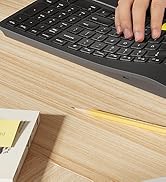
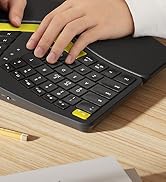


Nulea M501 Wireless Trackball Mouse
Merchant Video

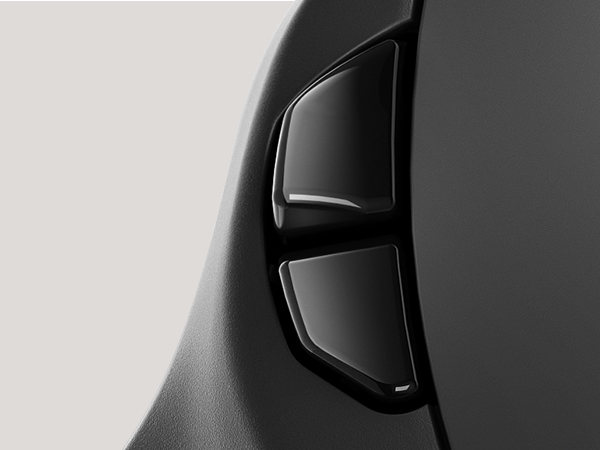
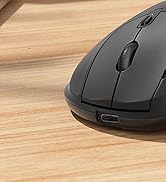
BACK AND FORWARD BUTTONS
Forward and Backward buttons are not compatible with MAC OS
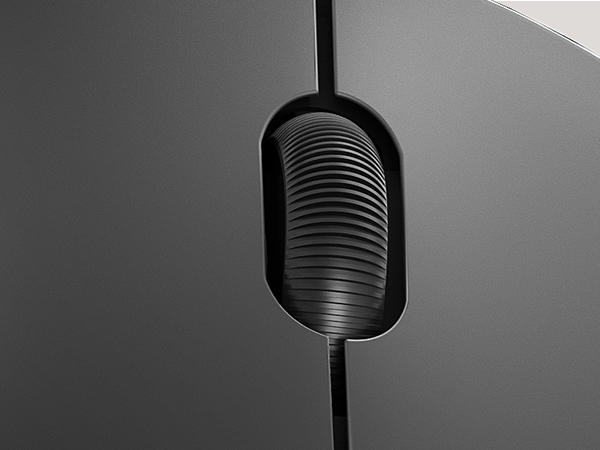
PRECISION SCROLL WHEEL
Comfortable Wheel
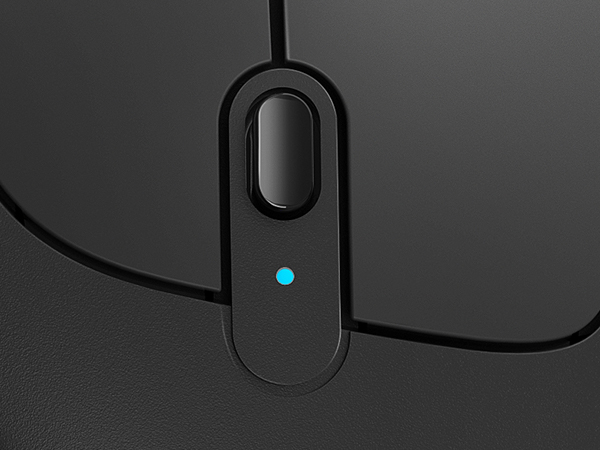
CHARGING INDICATOR
The charging indicator light turns blue when charging, and turns off when charging is complete
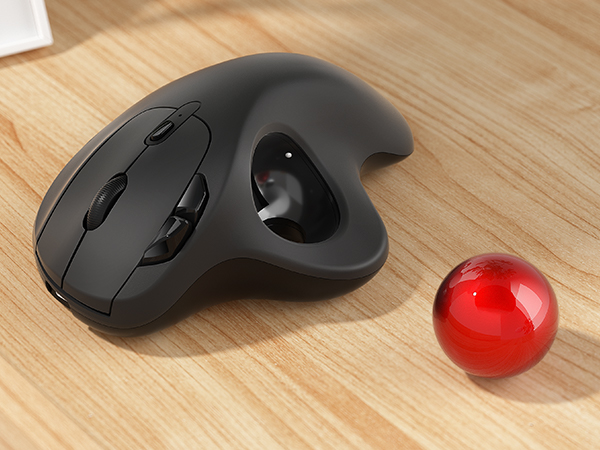
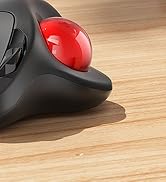
REMOVABLE BALL
Easy to remove ball for cleaning
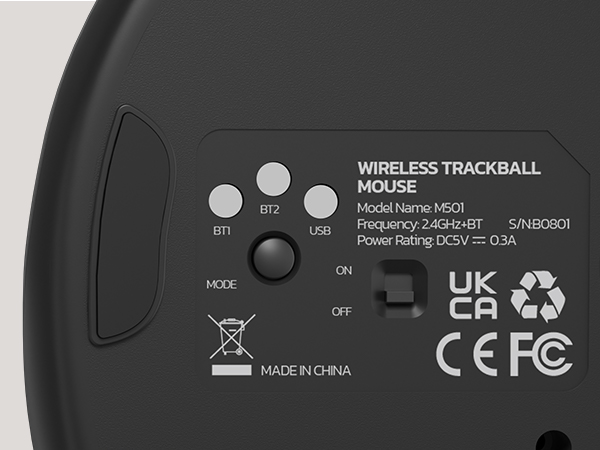
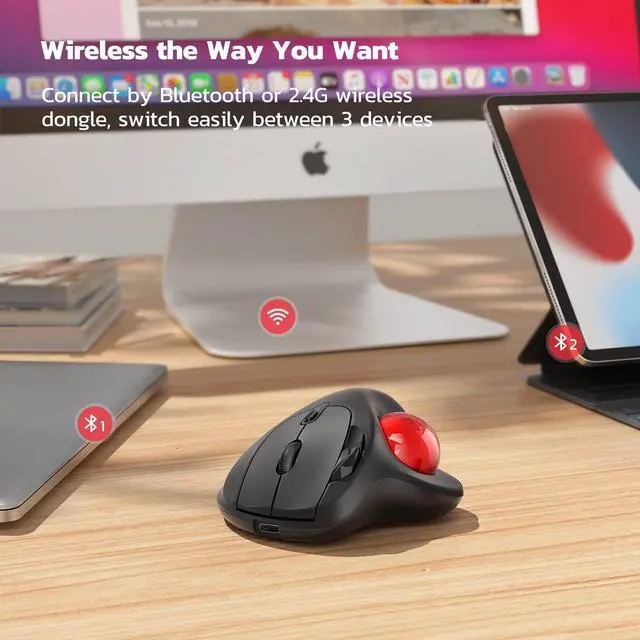
2.4G & BLUETOOTH CONNECTIVITY
Switch easily between 3 devices by the button on the bottom to improve your efficiency

Our Responsibility to Society


How to charge the thumb mouse and know its charging state?
1. Use the included charging cable, a charger that outputs 5V or a computer's USB port to charge. (Do not charge with a fast charger)
2. The charging indicator light under the DPI button turns blue when charging, and turns off when fully charged.
How to wake up the trackball mouse?
1.In wireless connection mode, the M501 mouse enters sleep mode 30 minutes after you last used the mouse.
2.If you need to use the mouse, you can wake it up by clicking the key.(scrolling the trackball or moving the mouse will not wake up the mouse)
How to reprogram mouse buttons?
1. All buttons on this wireless trackball mouse are not programmable!
2. Forward and Backward buttons are not compatible with MAC OS.
How to adjust the DPI of this trackball mouse wireless?
The track ball mouse has 4 DPI settings, 400 (Default)-800-1200-1600, which can be easily switched by clicking the DPI button below the scroll wheel.
Where is the 2.4G USB Receiver for wireless connection?
The 2.4G USB Receiver is stored at the bottom of the wireless trackball mouse.
Work With Your Favorite - Compare Nulea Trackball Mouse Series
M501 trackball mouse | M512 Trackball Mouse | M511Trackball Mouse | M514 Trackball Mouse | M505A trackball mouse | M505B trackball mouse | M509 trackball mouse |
|---|---|---|---|---|---|---|
| Customer Reviews | ||||||
| — | — | — | — | — | — | — |
| Price | ||||||
| — | — | — | — | — | — | — |
| Trackball Control Method | ||||||
| Thumb Control | Index Finger Control | Thumb Control | Thumb Control | Index Finger Control | Index Finger Control | Thumb Control |
| Trackball size | ||||||
| 34mm | 55mm | 34mm | 34mm | 44mm | 44mm | 34mm |
| Connectivity Tech | ||||||
| Bluetooth, 2.4G USB | Bluetooth, USB | Bluetooth, 2.4G USB | Bluetooth, 2.4G USB | Bluetooth, 2.4G USB | Bluetooth, 2.4G USB | Type A & Type C |
| Hand Orientation | ||||||
| Right | Ambidextrous | Right | Right | Right | Right | Right |
| Power | ||||||
| USB-C Rechargeable | USB-C Rechargeable | USB-C Rechargable | USB-C Rechargable | USB-C Rechargable | USB-C Rechargable | Wired |
| Connected Devices | ||||||
| Up to 3 devices | Up to 3 devices | Up to 3 devices | Up to 3 devices | Up to 3 devices | Up to 3 devices | 1 device |
| DPI Modes | ||||||
| 400 (Default)/800/1200/1600 | 400 (Default)/800/1200/1600 | 200/400/800/1200/1600 | 600/800/1000 | 200/400/800/1200/1600 | 200/400/800/1200/1600 | 100/200/400 (Default)/800/1200 |
| Reprogram Buttons | ||||||
| Non-programmable | Non-programmable | Non-programmable | Non-programmable | Non-programmable | Non-programmable | Non-programmable |
For Ergonomic Mouse
For Ergonomic Keyboard
