




Type -C charging
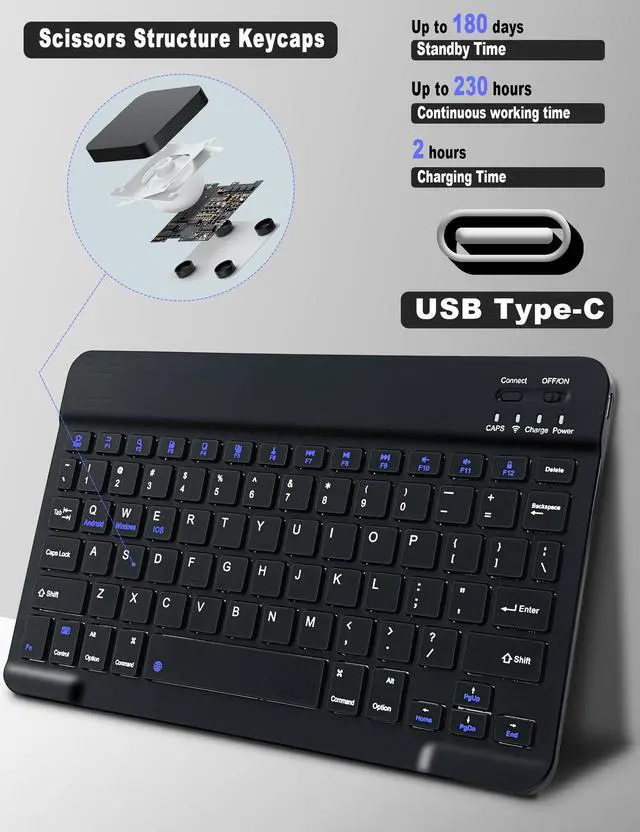
The keyboard uses a Type-C charging cable. If you will not be using it for a long time, charge it every 90 days.

Function Indicator Lights
CAPS: lights up when caps are locked
Connected: lights up when Bluetooth is turned on
Charge: lights up when charging
Power: power on light up 5s

Keyboard Connection
After the first successful connection, you can connect automatically in subsequent uses by simply turning on the keyboard.

Keystroke structure
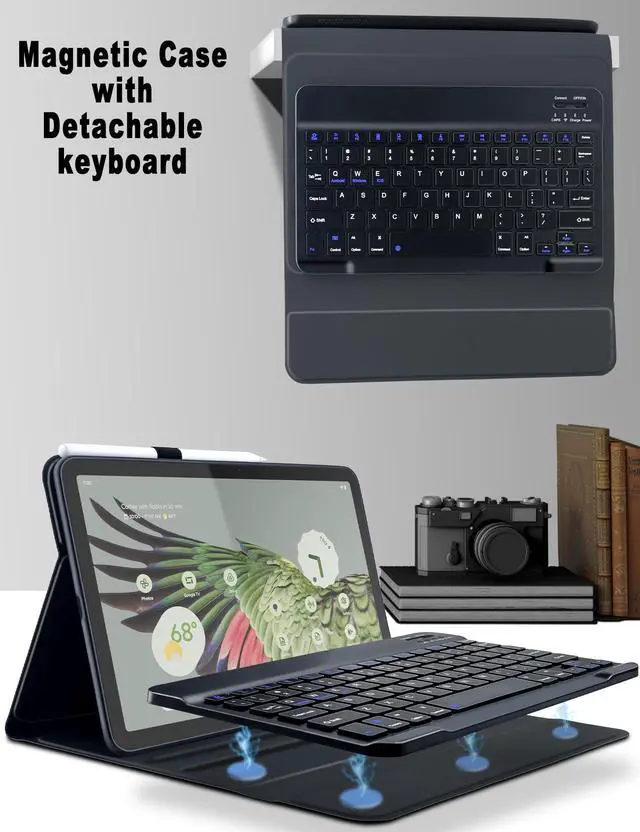
The Keycaps is Designed Like Scissors Structure, Can Supply Smooth &Responsive Typing.


How to connect the bluetooth
How to use the keyboard
1. Turn the switch to the ON side.
2. Click the Connect button to turn on the keyboard Bluetooth.
3. Open tablet settings - turn on tablet Bluetooth - click keyboard connection.
Note: When the keyboard is connected successfully, the on-screen virtual keyboard will be unavailable when using the physical keyboard.
How to connect the bluetooth
Merchant Video


Type -C charging
The keyboard uses a Type-C charging cable. If you will not be using it for a long time, charge it every 90 days.
Function Indicator Lights
CAPS: lights up when caps are locked
Connected: lights up when Bluetooth is turned on
Charge: lights up when charging
Power: power on light up 5s
Keyboard Connection
After the first successful connection, you can connect automatically in subsequent uses by simply turning on the keyboard.
Keystroke structure
The Keycaps is Designed Like Scissors Structure, Can Supply Smooth &Responsive Typing.


How to connect the bluetooth
Merchant VideoHow to connect the bluetooth
How to use the keyboard
1. Turn the switch to the ON side.
2. Click the Connect button to turn on the keyboard Bluetooth.
3. Open tablet settings - turn on tablet Bluetooth - click keyboard connection.
Note: When the keyboard is connected successfully, the on-screen virtual keyboard will be unavailable when using the physical keyboard.