








Precautions
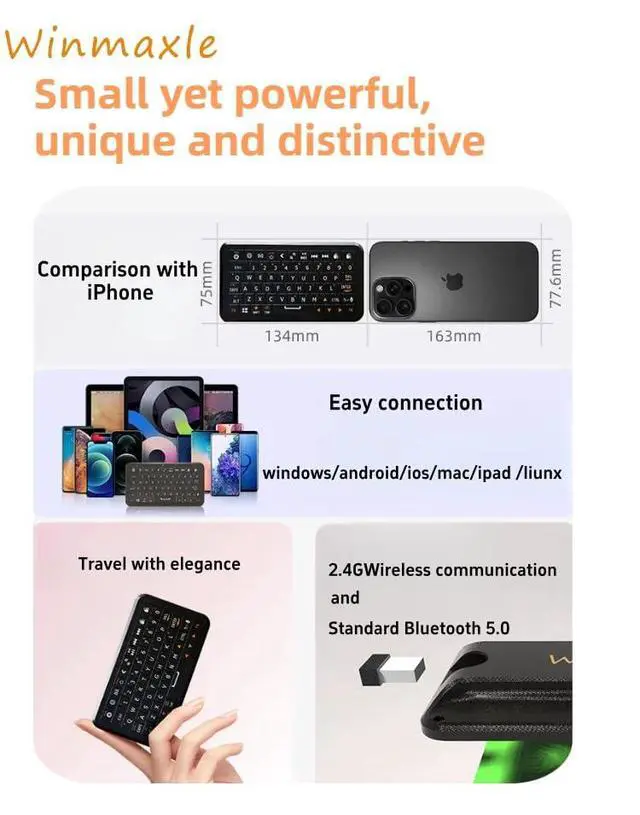
This product has two connection methods.
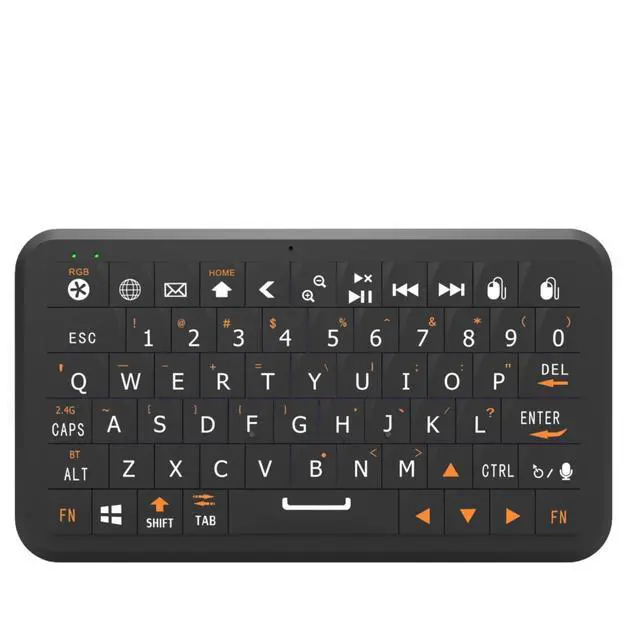
1. Bluetooth connection: After turning on the device, press FN+BT (ALT) to switch to Bluetooth mode. Press and hold this key combination for 2 seconds to enter the search mode. Find the model B1 on the device and connect.
2. 2.4GHz wireless mode: After turning on the device, press FN+2.4GHz (CAPS) to switch to this mode (default). Simply insert the USB wireless receiver into the device to automatically connect. If automatic connection fails, you can manually connect by pressing and holding FN+2.4GHz (CAPS) and holding it as close to the USB wireless receiver as possible to automatically pair.
Different operating systems differ. For example, when connected to a Windows device, the mouse automatically turns on and its sensitivity can be adjusted on the device. However, when connected to an Apple iOS/iPad device, not only does the connection need to be made, but the accessibility settings must also be enabled for the mouse to function. Switching input methods is as simple as pressing Shift, but on Apple devices, this function requires pressing Ctrl+Spacebar.
A very common function: turning the mouse on and off. This key is the one below the Enter key, and many people tend to overlook it. However, it is very commonly used.


Precautions
This product has two connection methods.
1. Bluetooth connection: After turning on the device, press FN+BT (ALT) to switch to Bluetooth mode. Press and hold this key combination for 2 seconds to enter the search mode. Find the model B1 on the device and connect.
2. 2.4GHz wireless mode: After turning on the device, press FN+2.4GHz (CAPS) to switch to this mode (default). Simply insert the USB wireless receiver into the device to automatically connect. If automatic connection fails, you can manually connect by pressing and holding FN+2.4GHz (CAPS) and holding it as close to the USB wireless receiver as possible to automatically pair.
Different operating systems differ. For example, when connected to a Windows device, the mouse automatically turns on and its sensitivity can be adjusted on the device. However, when connected to an Apple iOS/iPad device, not only does the connection need to be made, but the accessibility settings must also be enabled for the mouse to function. Switching input methods is as simple as pressing Shift, but on Apple devices, this function requires pressing Ctrl+Spacebar.
A very common function: turning the mouse on and off. This key is the one below the Enter key, and many people tend to overlook it. However, it is very commonly used.