Your Browsing History
Meet Your Seller
KCEVE KVM Switch 2 Monitors 2 Computers Displayport 4K@144Hz
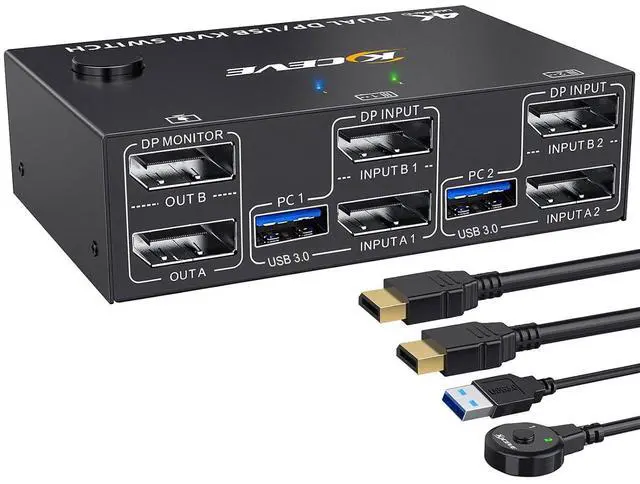
- DisplayPort KVM Switch - Control 2 Computers on 2 MonitorsKCEVE KVM Switch 2 Computers 2 Monitors Displayport allows you to manage two computers using just one keyboard, mouse, and a pair of DisplayPort monitors. Each computer connects to this KVM switch displayport 2 computer with 2 DP cables and 1 USB cable. Share printers, webcams, and storage seamlessly. Press "Windows+P" to choose between extended or mirrored desktop modes, creating an efficient workspace for office, lab, or home use
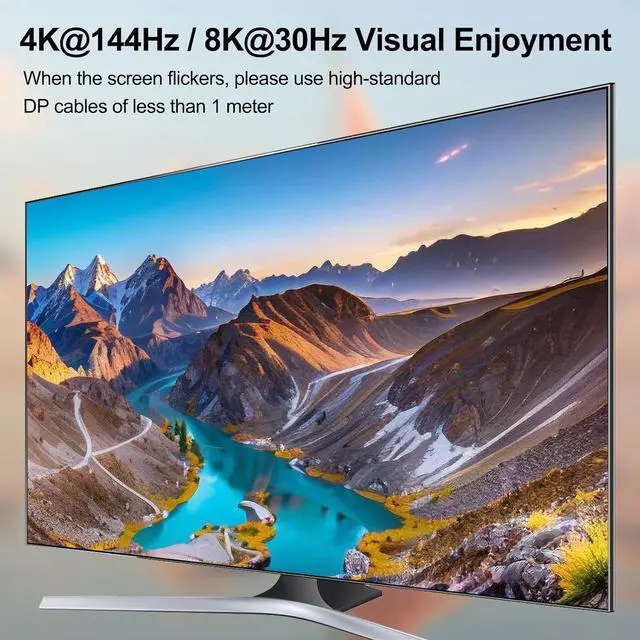
- Immersive 4K@144Hz Visual PerformanceExperience stunning, fluid visuals. This KVM Switch 4K@144Hz complies with DP 1.4 standards, supporting resolutions up to 8K@30Hz, 4K@144Hz, 4K@120Hz, and 4K@60Hz. The 2 monitor 2 computer KVM switch displayport ensures sharp, realistic image quality on both monitors. Tip for better results: Use high-quality 8K-rated cables to prevent flickering or blank screens and ensure signal stability
- High-Speed 5Gbps USB Hub & Streamlined SharingBeyond video, this KV
+
+
Overview
Specs
Reviews
Any questions? Our AI mode will help you find out quickly.
Try me now
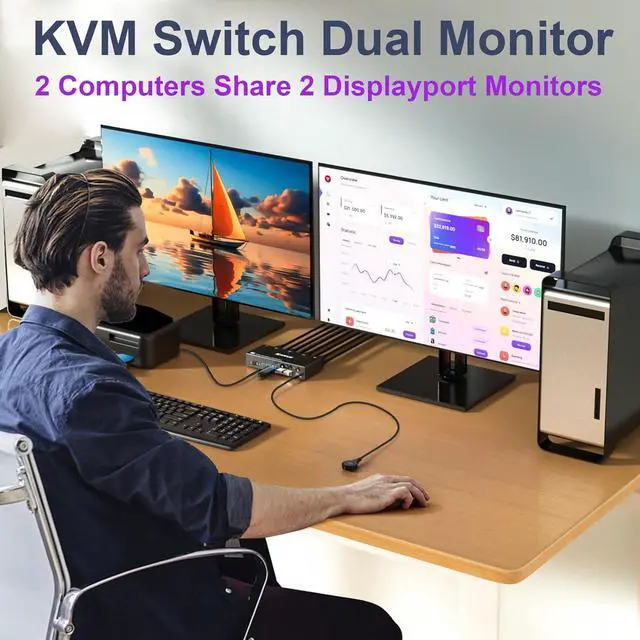
2 computers share a set of mouse, keyboard, printer, scanner or webcam, and display on 2 monitors.
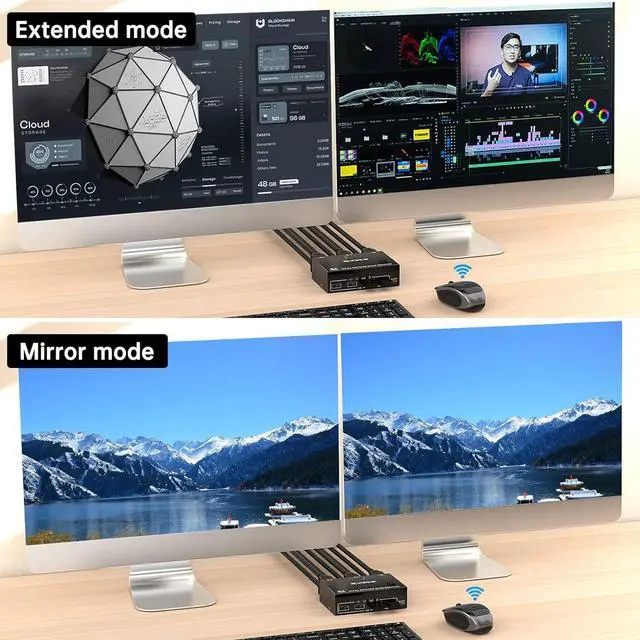
You can choose between extended screen mode and mirrored screen mode by pressing Press Windows+P to choose extended or mirrored screen mode
USB 3.0 support up to 5Gbps transmission speed
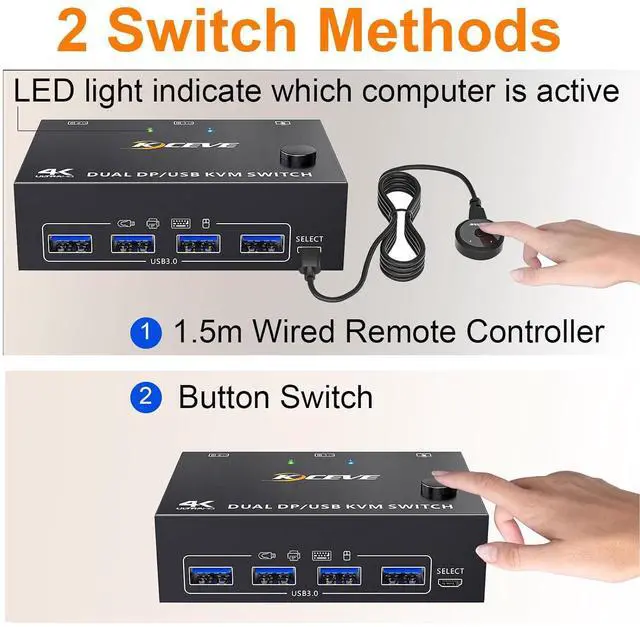
2 switching methods: button switch & 1.5m wired remote control
Plug and play. No additional driver software required.
LED lights indicate which computer is active
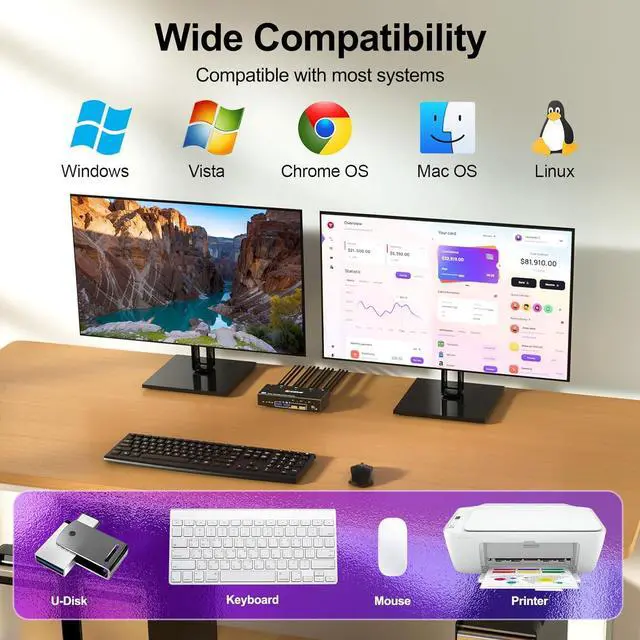
Compatible with Windows11 / 10 / 8 / XP / Vista / Chrome / Mac OS / Linux system,etc.
Support DP 1.4 and below standard protocols.
Support DP devices: Desktop, laptop, TV Box, Xbox One, Apple TV, PS5, HDTV, Monitor, projectors
Support UHD 4K@144Hz, 4K@120Hz, 2K@165Hz, 4K@60Hz.
Please Note: Using 8K cables will solve the problem of flickering and black screen.
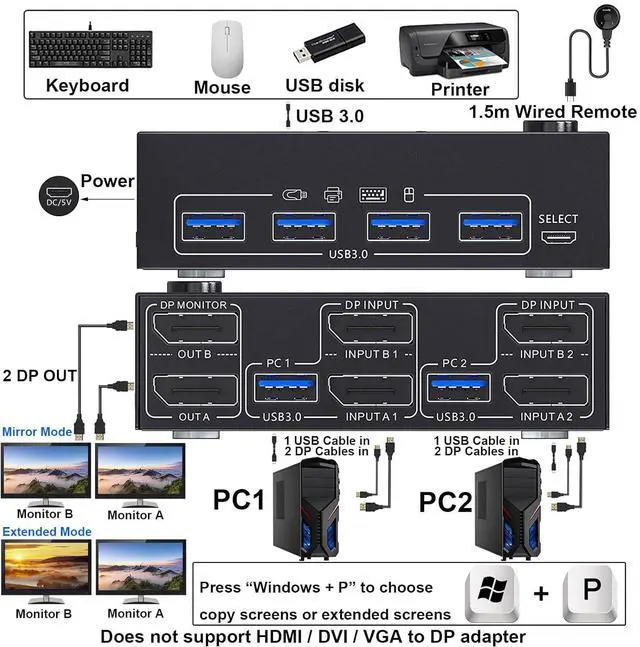
Step 1.Connect 2 displayport cables+1 USB3.0 cable between computer 1 and KVM Switch(USB 1, INPUT A1, INPUT B1).
Step 2. Connect 2 displayport cables+1 USB3.0 cable between computer 2 and KVM Switch(USB 2, INPUT A2, INPUT B2).
Step 3. Connect 2 displayport cables between the KVM Switch(OUT A, OUT B) and 2 monitors.
Step 4. Plug your USB device (keyboard & mouse) into the USB port on the KVM Switch. You can connect up to 4 USB 3.0 devices simultaneously. Compatible with USB 2.0/1.1 devices.
Step 5. Plug the wired remote into the "SELECT" port to switch freely between PC1 and PC2.
KCEVE USB 3.0 KVM Switch 2 Monitors 2 Computers DisplayPort DisplayPort KVM Switch 2 Computers Share 2 displayport Monitors and 4 USB Devices Dual Monitor KVM Switch Displayport Connection Steps Each computer requires 2 DisplayPort cable + 1 USB cable to connect to the KVM switch Widely used in business seminars, media teaching, office, video conferencing, home theater, game entertainment, etc. Please plug in the DC 5V power supply to provide enough power

You can choose between extended screen mode and mirrored screen mode by pressing Press Windows+P to choose extended or mirrored screen mode
USB 3.0 support up to 5Gbps transmission speed
2 switching methods: button switch & 1.5m wired remote control
Plug and play. No additional driver software required.
LED lights indicate which computer is active
Compatible with Windows11 / 10 / 8 / XP / Vista / Chrome / Mac OS / Linux system,etc.
Support DP 1.4 and below standard protocols.
Support DP devices: Desktop, laptop, TV Box, Xbox One, Apple TV, PS5, HDTV, Monitor, projectors
Support UHD 4K@144Hz, 4K@120Hz, 2K@165Hz, 4K@60Hz.
Please Note: Using 8K cables will solve the problem of flickering and black screen.
Step 1.Connect 2 displayport cables+1 USB3.0 cable between computer 1 and KVM Switch(USB 1, INPUT A1, INPUT B1).
Step 2. Connect 2 displayport cables+1 USB3.0 cable between computer 2 and KVM Switch(USB 2, INPUT A2, INPUT B2).
Step 3. Connect 2 displayport cables between the KVM Switch(OUT A, OUT B) and 2 monitors.
Step 4. Plug your USB device (keyboard & mouse) into the USB port on the KVM Switch. You can connect up to 4 USB 3.0 devices simultaneously. Compatible with USB 2.0/1.1 devices.
Step 5. Plug the wired remote into the "SELECT" port to switch freely between PC1 and PC2.
KCEVE USB 3.0 KVM Switch 2 Monitors 2 Computers DisplayPort DisplayPort KVM Switch 2 Computers Share 2 displayport Monitors and 4 USB Devices Dual Monitor KVM Switch Displayport Connection Steps Each computer requires 2 DisplayPort cable + 1 USB cable to connect to the KVM switch Widely used in business seminars, media teaching, office, video conferencing, home theater, game entertainment, etc. Please plug in the DC 5V power supply to provide enough power
Warranty & Returns
Warranty, Returns, And Additional Information
Warranty
- Please contact the Seller directly for warranty information. Warranty information may also be found on the Manufacturer's website.
- CONTACT
Return Policies
- Return for refund within: 30 days
- Return for replacement within: 30 days
- This item is covered by PartsPro Store Return Policy
Manufacturer Contact Info
- For a directory of all our manufacturers, please click below.
- Manufacturers Directory
LOADING...