






TROUBLESHOOTING: If your PC, Mac or smartphone is not detecting your camera, try any of the following solutions:
Check Camera Permissions:
- Go to System Settings > Privacy & Security > Camera.
- Make sure the app you're trying to use is listed and its toggle is switched on.
Update EOS Utility:
- Ensure you have the correct version of EOS Utility installed (usually version 2.13 or later). If not, download the latest version from the Canon or Nikon website.
Switch Camera Auto Power Off:
- Disable the camera's auto power-off function in the menu to prevent it from shutting down during connection.
Disable Wi-Fi/NFC:
- If Wi-Fi or NFC is enabled, it might interfere with the USB connection. Disable these settings in the camera's menu.
Change MTP Settings:
- Reset the Media Transfer Protocol (MTP) settings in File Explorer and try reconnecting the camera. (e.g., from MTP/PTP to “PC connection” or similar). Check your camera settings menu to see if this option is available and set it to PC connection or a MTP/PTP mode.
Additional resources are widely available on the internet which can be accessed by searching "Mac not detecting camera " or "PC not detecting camera." You may also contact the seller directly for support.

Thank you for trusting ienza!

Our Story
Our story began in North Carolina during the 2008 housing crash. As a family with two young daughters, we started selling used electronics on . Testing returns led to spare parts. To recover costs, we listed them on —demand was huge. When working with OEMs proved difficult, we built our own brand, designing and sourcing quality replacement parts. Today, we’re a leading producer of electronic parts and support charities.
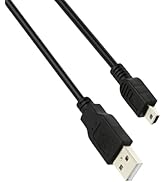
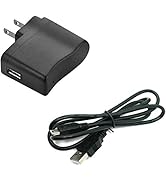
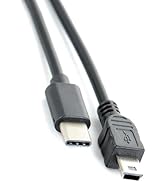
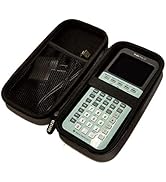
Calculator Cord & Accessories
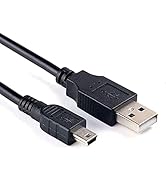
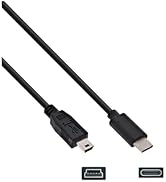
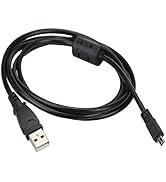
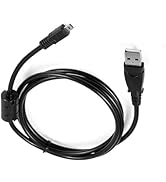
Camera Data/Charger Cables
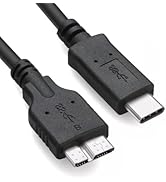
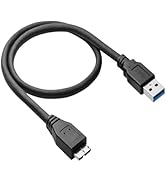
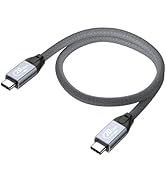
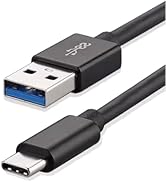
External Drive & SSD Cables
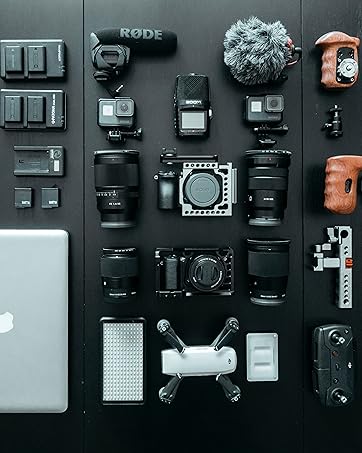
Premium Replacement Parts
Serving you from North Carolina since 2012!
TROUBLESHOOTING: If your PC, Mac or smartphone is not detecting your camera, try any of the following solutions:
Check Camera Permissions:
- Go to System Settings > Privacy & Security > Camera.
- Make sure the app you're trying to use is listed and its toggle is switched on.
Update EOS Utility:
- Ensure you have the correct version of EOS Utility installed (usually version 2.13 or later). If not, download the latest version from the Canon or Nikon website.
Switch Camera Auto Power Off:
- Disable the camera's auto power-off function in the menu to prevent it from shutting down during connection.
Disable Wi-Fi/NFC:
- If Wi-Fi or NFC is enabled, it might interfere with the USB connection. Disable these settings in the camera's menu.
Change MTP Settings:
- Reset the Media Transfer Protocol (MTP) settings in File Explorer and try reconnecting the camera. (e.g., from MTP/PTP to “PC connection” or similar). Check your camera settings menu to see if this option is available and set it to PC connection or a MTP/PTP mode.
Additional resources are widely available on the internet which can be accessed by searching "Mac not detecting camera " or "PC not detecting camera." You may also contact the seller directly for support.
Thank you for trusting ienza!
Our Story
Our story began in North Carolina during the 2008 housing crash. As a family with two young daughters, we started selling used electronics on . Testing returns led to spare parts. To recover costs, we listed them on —demand was huge. When working with OEMs proved difficult, we built our own brand, designing and sourcing quality replacement parts. Today, we’re a leading producer of electronic parts and support charities.
Calculator Cord & Accessories
Camera Data/Charger Cables
External Drive & SSD Cables
Premium Replacement Parts
Serving you from North Carolina since 2012!