

Your Browsing History

Meet Your Seller

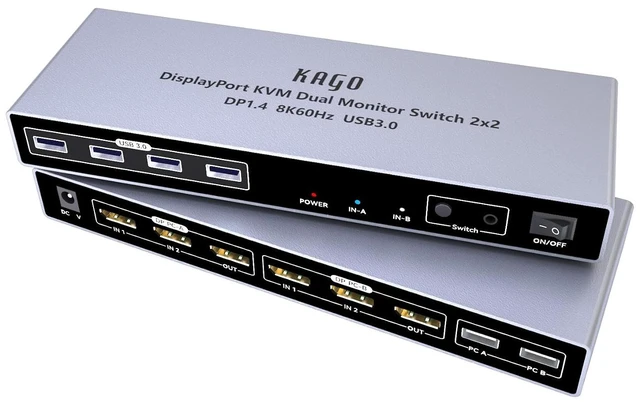


KAGO 8K DisplayPort 1.4 KVM Switch Dual Monitor for 2 PCs
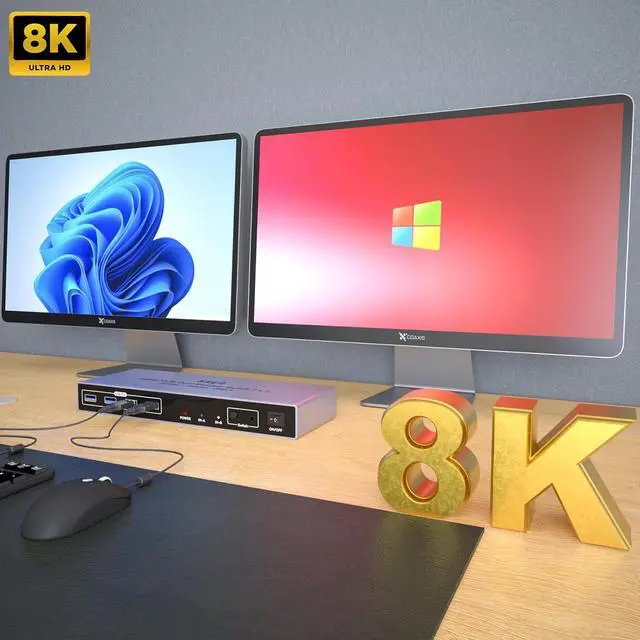
- [Ultra HD 8K & High Refresh Rate] Supports resolutions up to 8K@60Hz and 4K@144Hz/120Hz. Compatible with DP 1.4 standards to provide a tear-free gaming and high-definition video experience. (Note: Both your PC and monitor must support these specs).
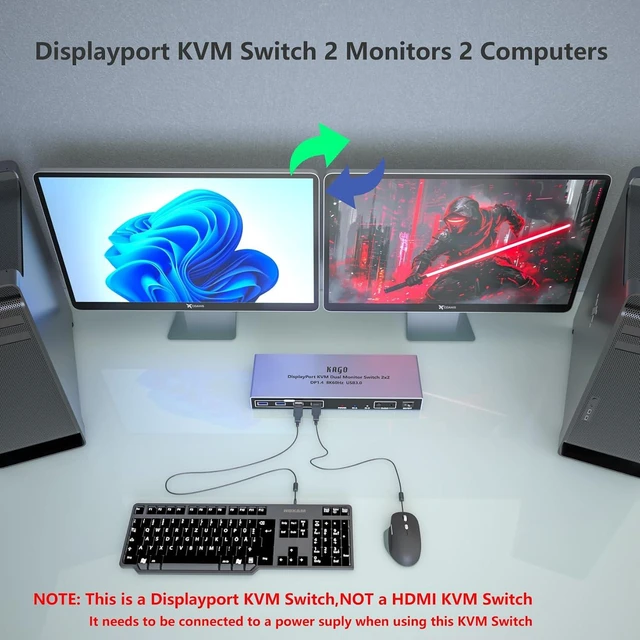
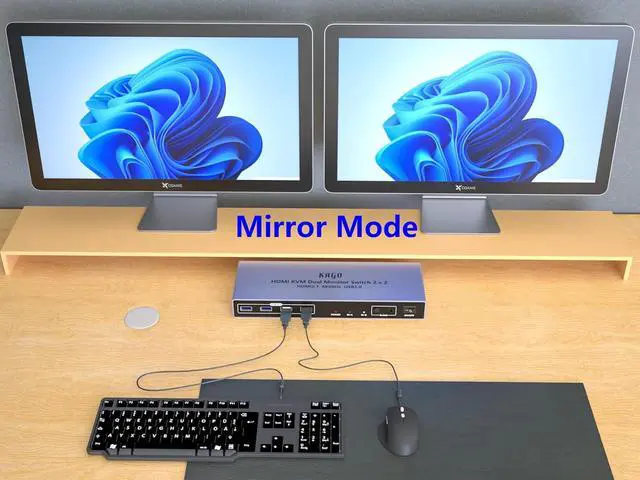
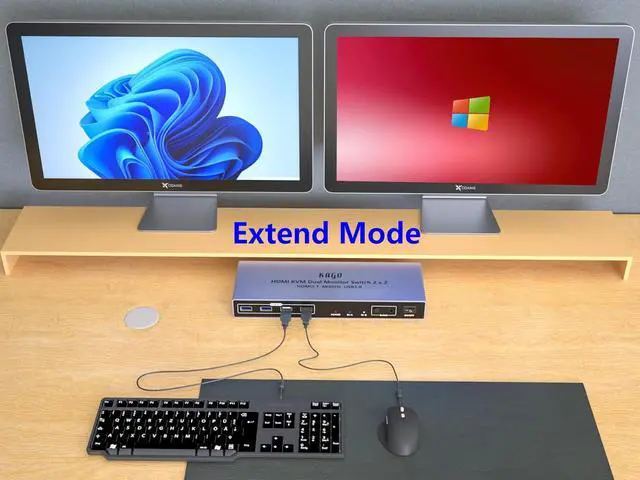
- [Dual Monitor Efficiency] Control 2 computers using one set of keyboard and mouse while outputting to 2 monitors. Supports both Mirror and Extended modes to boost productivity for designers, gamers, and programmers.
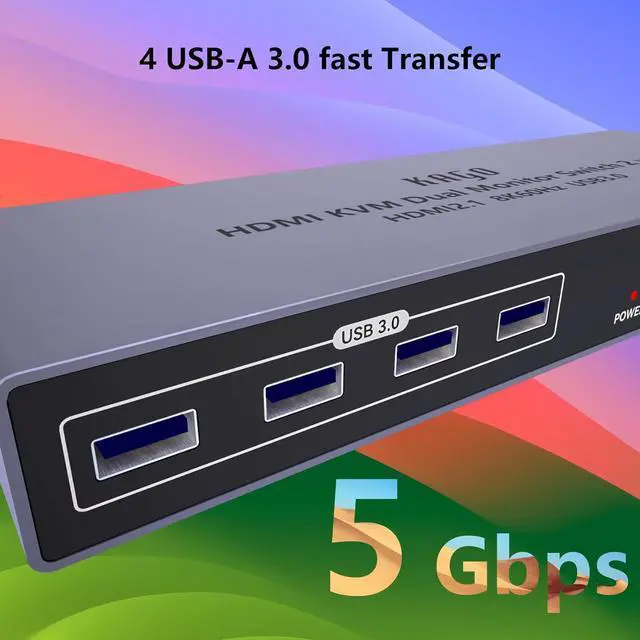
- [SuperSpeed USB 3.0 Ports] Equipped with 4 USB 3.0 ports for sharing high-speed peripherals like SSD drives, webcams, and printers. Experience data transfer speeds up to 5Gbps10 times faster than USB 2.0.
- [Two Easy Switching Modes] Seamlessly switch between PCs using the physical button on the faceplate or the included Wired Desktop Controller. The LED indicator clearly shows which computer is currently active, keeping your workspace tidy.
- What You Get: 1* KAGO 8K KVM Switch, 2* USB A Cables, 1* Desktop Controller, 1* User
+
+
Overview
Specs
Reviews

Any questions? Our AI mode will help you find out quickly.
Try me now
8K@60Hz Display port KVM Switch 2 Monitors 2 Computers
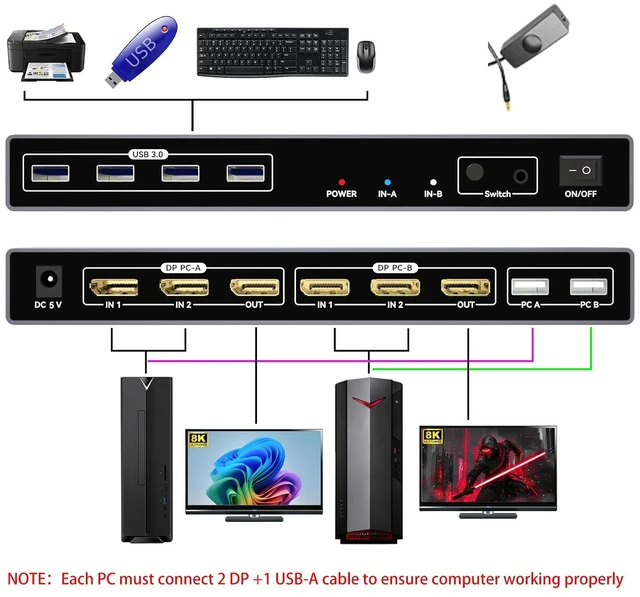
1: This KVM switch is a DisplayPort (DP) KVM switch. For it to work properly, the computer must output 2 DP signals and 1 USB-A data simultaneously. 2: It supports two computer combinations: 2 desktop computers; 1 desktop computer and 1 laptop; 2 laptops. If your computers have a mix of DP, HDMI, or USB-C outputs, please read the following carefully. 3: A desktop computer that can output two DP signals can be directly connected to this KVM switch. 4: Desktop computers with only one DP or HDMI output are not compatible with this KVM switch, as it can only display one screen. 5: For desktop computers with DP, HDMI, or dual HDMI outputs, this KVM switch does not support direct connection to the HDMI port and requires the use of an HDMI to DP converter adapter. 6: For a Windows laptop with dual USB-C outputs, you need to prepare two USB-C to DP adapters, and you must connect the USB-A port. If your laptop does not have a USB-A port, you must add a USB-C to USB-A OTG adapter and connect it to this KVM switch. 7: For Windows laptops with a single USB-C (video display) output, a USB-C dock that supports simultaneous dual DP output (MST) must be provided. 8: When the laptop is a MacBook Air M1/M2/M3 running macOS, it only supports one display output and is not suitable for use with this KVM switch. 9: For MacBook Pro/Max M1/M2/M3/M4 laptops (MacOS system), you need to prepare two USB-C to DP adapters or a USB-C hub with two DP ports, and the hub must support simultaneous video output from both DP ports (SST mode). If your laptop does not have a USB-A port, you need to add a USB-C to USB-A OTG adapter and connect it to this KVM switch. Each PC MUST connect 2 DP1.4 8K Cables and 1 UAB-A
4 USB-A 3.0 Faster Data Transfer Rate
Multiple Screen Display Modes: Mirror Mode, Extended Mode
Correct Connect Tips
18K@60Hz 4K@120Hz2High Refresh Rate3Dynamic HDR Important Notice
1: This KVM switch is a DisplayPort (DP) KVM switch. For it to work properly, the computer must output 2 DP signals and 1 USB-A data simultaneously. 2: It supports two computer combinations: 2 desktop computers; 1 desktop computer and 1 laptop; 2 laptops. If your computers have a mix of DP, HDMI, or USB-C outputs, please read the following carefully. 3: A desktop computer that can output two DP signals can be directly connected to this KVM switch. 4: Desktop computers with only one DP or HDMI output are not compatible with this KVM switch, as it can only display one screen. 5: For desktop computers with DP, HDMI, or dual HDMI outputs, this KVM switch does not support direct connection to the HDMI port and requires the use of an HDMI to DP converter adapter. 6: For a Windows laptop with dual USB-C outputs, you need to prepare two USB-C to DP adapters, and you must connect the USB-A port. If your laptop does not have a USB-A port, you must add a USB-C to USB-A OTG adapter and connect it to this KVM switch. 7: For Windows laptops with a single USB-C (video display) output, a USB-C dock that supports simultaneous dual DP output (MST) must be provided. 8: When the laptop is a MacBook Air M1/M2/M3 running macOS, it only supports one display output and is not suitable for use with this KVM switch. 9: For MacBook Pro/Max M1/M2/M3/M4 laptops (MacOS system), you need to prepare two USB-C to DP adapters or a USB-C hub with two DP ports, and the hub must support simultaneous video output from both DP ports (SST mode). If your laptop does not have a USB-A port, you need to add a USB-C to USB-A OTG adapter and connect it to this KVM switch. Each PC MUST connect 2 DP1.4 8K Cables and 1 UAB-A
4 USB-A 3.0 Faster Data Transfer Rate
Multiple Screen Display Modes: Mirror Mode, Extended Mode
Correct Connect Tips
18K@60Hz 4K@120Hz2High Refresh Rate3Dynamic HDR Important Notice
Warranty & Returns
Warranty, Returns, And Additional Information
Warranty
- Please contact the Seller directly for warranty information. Warranty information may also be found on the Manufacturer's website.
- CONTACT
Return Policies
- Return for refund within: 30 days
- Return for replacement within: 30 days
- This item is covered by FluffyNest Return Policy
Manufacturer Contact Info
- For a directory of all our manufacturers, please click below.
- Manufacturers Directory
LOADING...