

Your Browsing History

Meet Your Seller

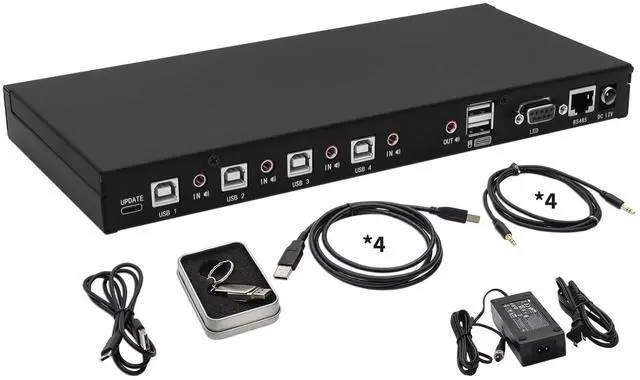
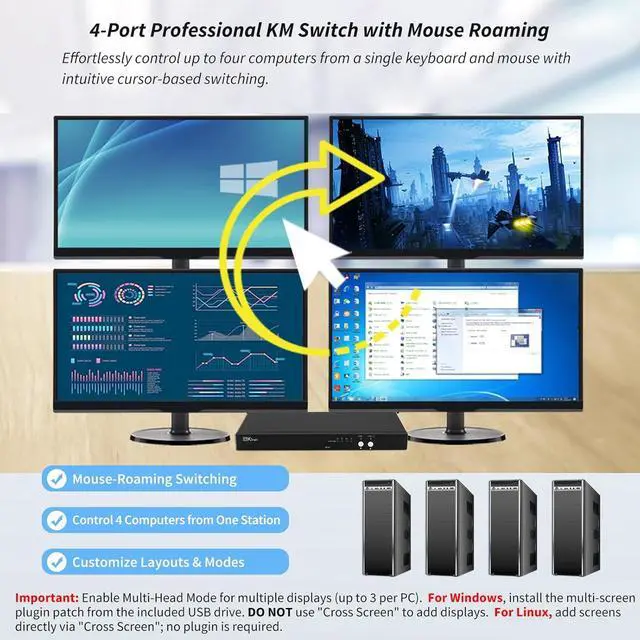


4-Port KM Switch with Mouse Roaming Control, Independent Audio Switching
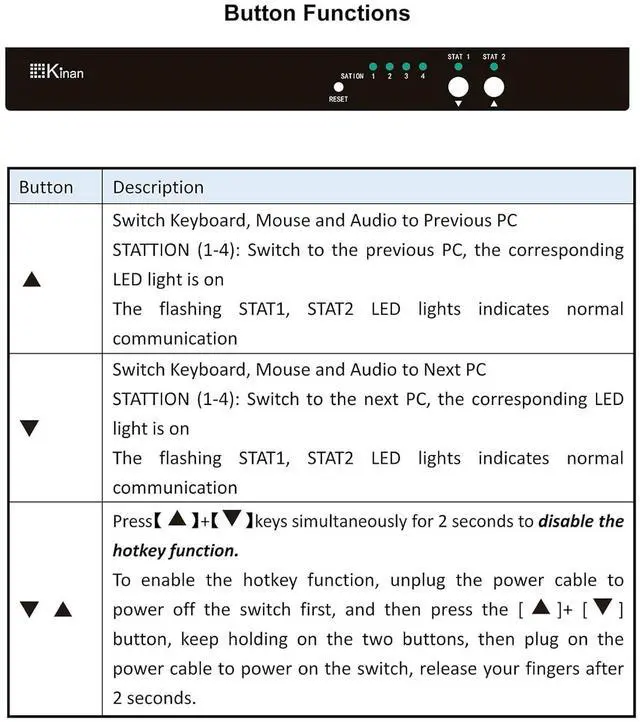
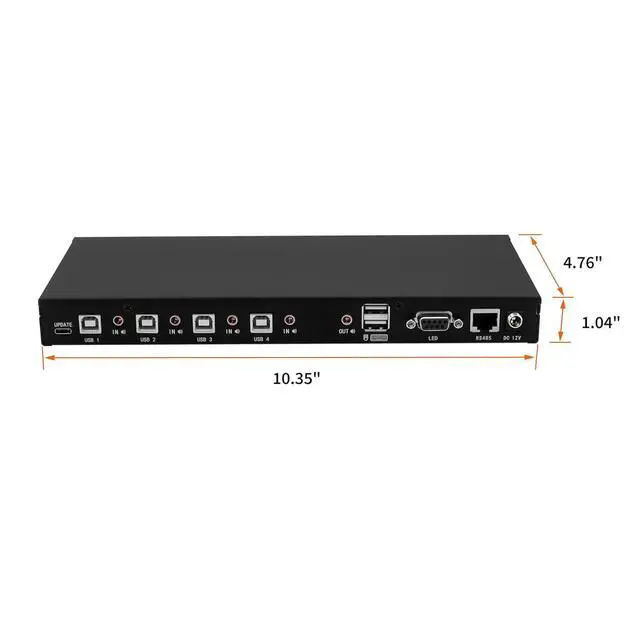
- Four-Port Keyboard and Mouse Switch: Effortlessly manage and switch KM (Keyboard and Mouse) functions across four computers, including multi-head setups, with the 4 Port KM Switch. This device supports seamless KM commands from a single workstation, streamlining your workflow without needing additional software. Simply use front panel push buttons or keyboard hotkeys for easy port selection.
- Mouse Roaming Function: Switch between computers seamlessly by moving the mouse cursor from one display to another. This intuitive mouse roaming feature allows for smooth transitions and enhanced control. You can also switch using front panel buttons or hotkeys.
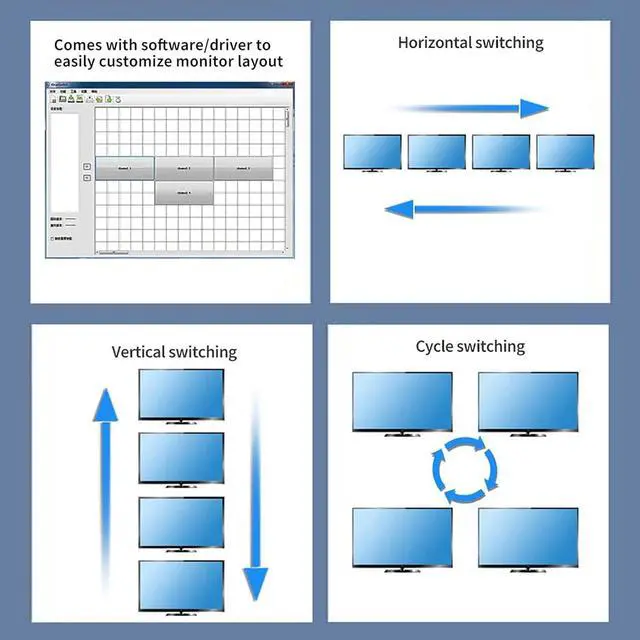
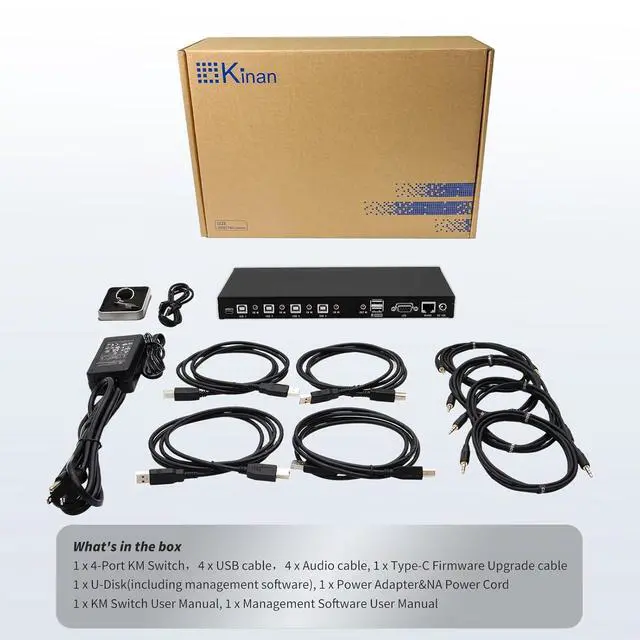
- Customizable Monitor Layouts: Personalize your monitor layouts by connecting the KM switch to your computer via the included USB-C cable. Install the management software from the provided U-disk to customize the switching modes. This feature ensures an efficient and personalized setup, adapting to your specific workflow requirements.
- In
+
+
Overview
Specs
Reviews

Any questions? Our AI mode will help you find out quickly.
Try me now
Control 4 PCs with one keyboard & mouse. Move mouse cursor between screens to switch. Or use hotkeys/buttons. Independent audio switching. Supports up to 3 displays per PC.
Customize with included management software (USB drive).
Cables included.
Mouse Cursor Switching
Front Panel Buttons Switching
Keyboard Hotkeys Switching
Customizable layouts via included software.
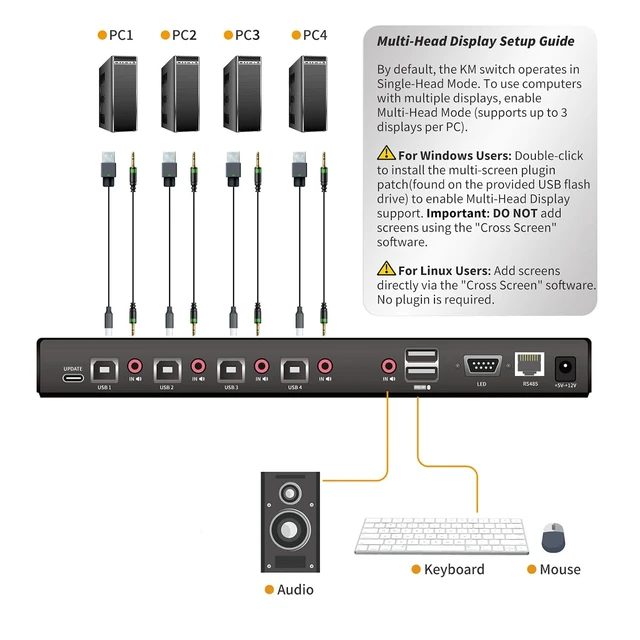
Multi-Head Display Setup: WindowsInstall the multi-screen plugin patch; Linuxadd screens in software.
Q: How does cursor roaming / seamless switching work?
A: The switch defaults to horizontal left-to-right roaming (PC1-PC4) with no software required. Moving the cursor to the screen edge triggers the switch.
For nondefault monitor layouts (e.g., vertical stacking), install the included management software to customize the roaming direction (horizontal, vertical, etc.).
Q: Do I need to install the Windows Plugin Patch on all PCs?
A: No. The plugin patch is only required for Windows PCs that use multiple monitors (multi-head). Single-monitor PCs do not need it. After installing the plugin patch, multihead switching works automatically-do not add multi-head screens in the software interface (that feature is for Linux only).
Q: Will the device appear as a standard HID keyboard and mouse?
A: Yes. It functions as a generic HID device, reading only USB keyboard and mouse signals. It does not handle video signals.
Q: How do I enable or disable the KM switching function?
A: Double-click the mouse wheel to toggle the KM switching function on/off.
Q: What should I note when enabling multi-head display mode?
A: Default is Single-Head Mode. For multi-head (up to 3 displays per PC): Windows: Install the Kinan Multi-Screen Support patch from the USB drive. Do not use "Cross Screen" to add displays. Linux: Add displays directly via "Cross Screen" no plugin required.
Q: One of my computers is connected to two monitors, but the mouse cursor cannot be moved to the secondary screen.
A: This KM switch operates in single-head display mode by default. You are currently in multi-head display mode and need to configure it as follows:
For Windows: Install the "Kinan Multi-Screen Support" plugin patch. Simply install it with a double-clickno extra steps needed. DO NOT add a secondary screen in the "Cross Screen" software. If you have already added one, delete it before installing the plugin patch.
For Linux: Add Screens via the "Cross Screen" software: Right-click the Channel icon (e.g., Channel 1) > Select Add Screen.No plugin patch is required.
Q: How many computers can this KM switch support? A: It supports up to 4 computers, and each computer can connect up to 3 screens. Please follow the correct steps to set up the multi-head display mode.
Q: When I move the mouse cursor up or down from the center of the screen, it switches to the next screen instead of switching only when the cursor reaches the edge of the screen. A: You need to configure the switching direction in the "Cross Screen" software. Please refer to the software manual for detailed steps.
Q: Can't switch between computers. A: 1. Power off the device, unplug all cables, then plug them back in. 2. Use the panel buttons to switch ports and check if the keyboard and mouse respond on the corresponding port. Also check whether the front panel indicator light changes with the mouse sliding direction. If not, make sure the mouse is plugged into the dedicated USB port. 3.Double-click the mouse wheel to enable or disable the KM switching function.
Q: No response from mouse and keyboard.
A: 1.Unplug all cables, then reconnect them one by one. Make sure each connection is secure and not loose.
2. Re-plug the keyboard and mouse, or try replacing them with standard office USB keyboard and mouse (no macro functions) to see if that restores functionality. 3.Check if your PC's Device Manager has rec
Warranty & Returns
Warranty, Returns, And Additional Information
Warranty
- Please contact the Seller directly for warranty information. Warranty information may also be found on the Manufacturer's website.
- CONTACT
Return Policies
- Return for refund within: 30 days
- Return for replacement within: 30 days
- This item is covered by FluffyNest Return Policy
Manufacturer Contact Info
- For a directory of all our manufacturers, please click below.
- Manufacturers Directory
LOADING...