• $54.99
  • Free 30-day Returns
  • Ships from China.
    Sold by LUOYIMAN

    Shipped by LUOYIMAN

    Price alert
    Shop it at NeweggBusiness.

    Meet Your Seller

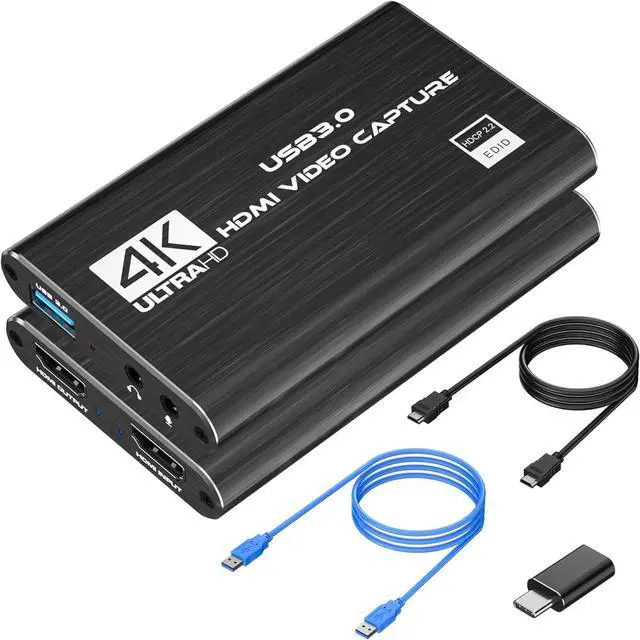
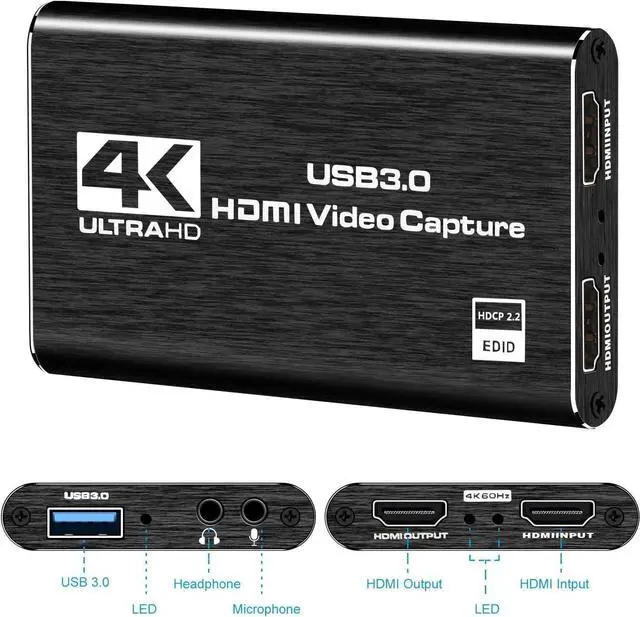
    Capture Card Nintendo Switch, 4K HDMI Video Capture Card, 1080P 60FPS, HDMI to USB 3.0 Capture Card for Streaming Work with Camera/Xbox/PS4/PS5/PC/OBS

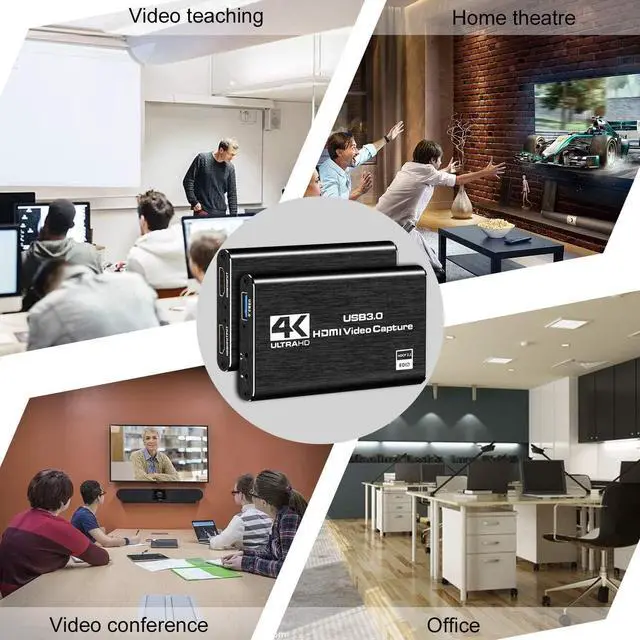
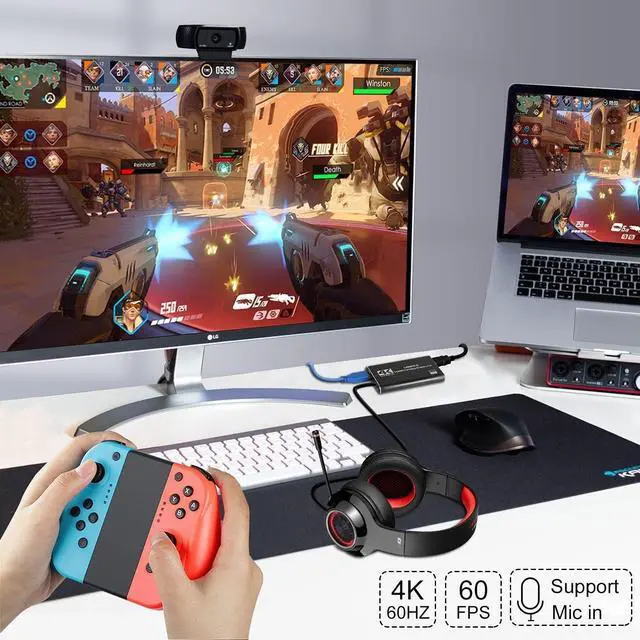
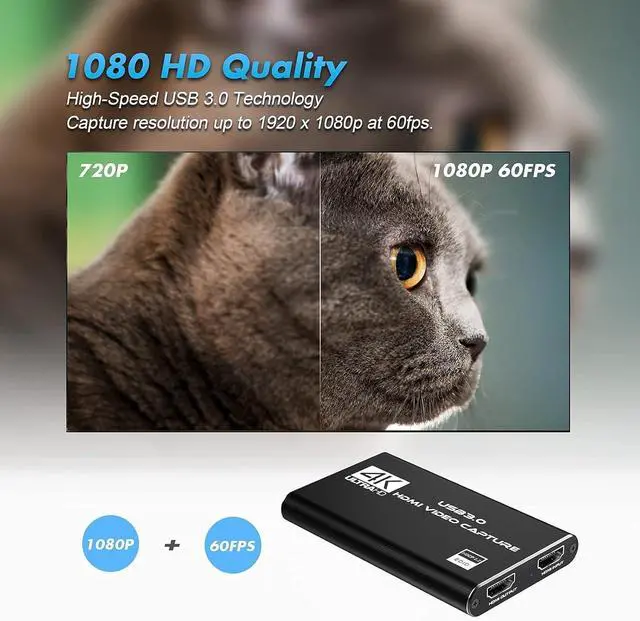
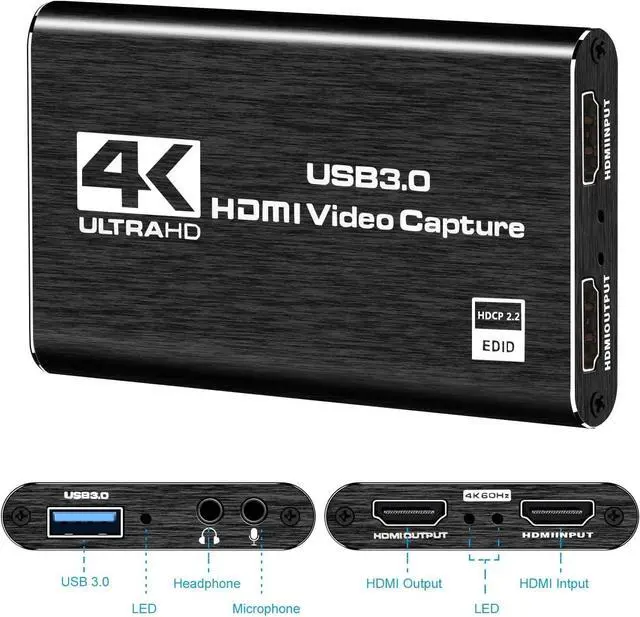
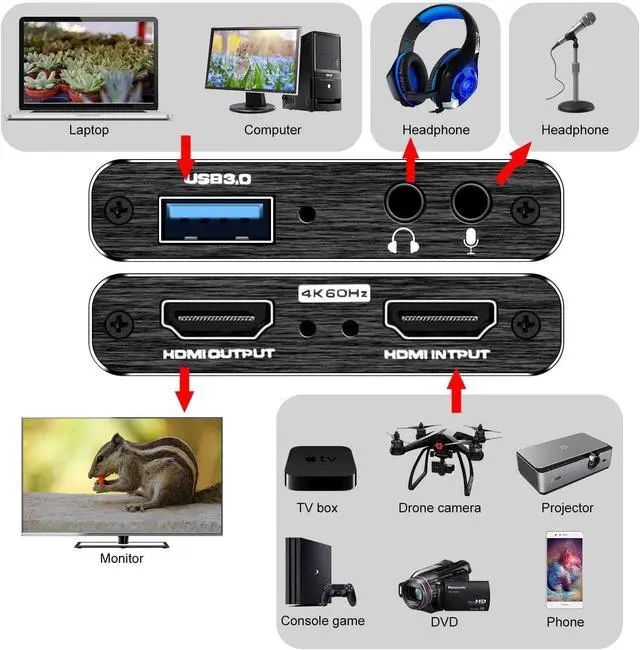
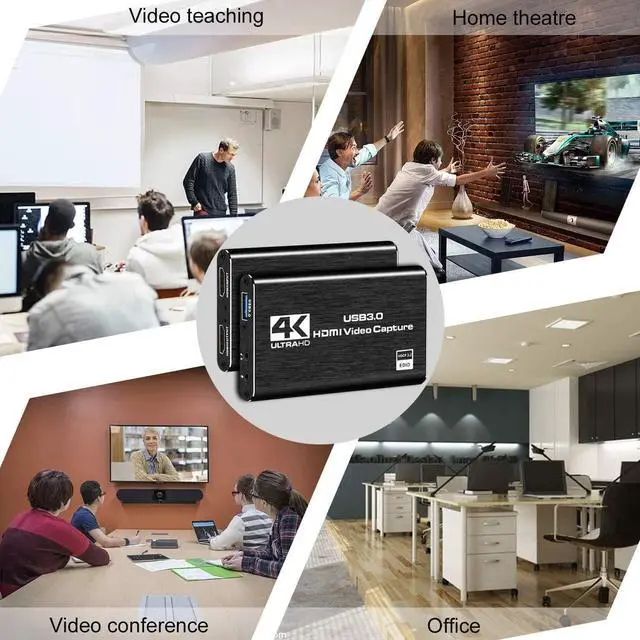
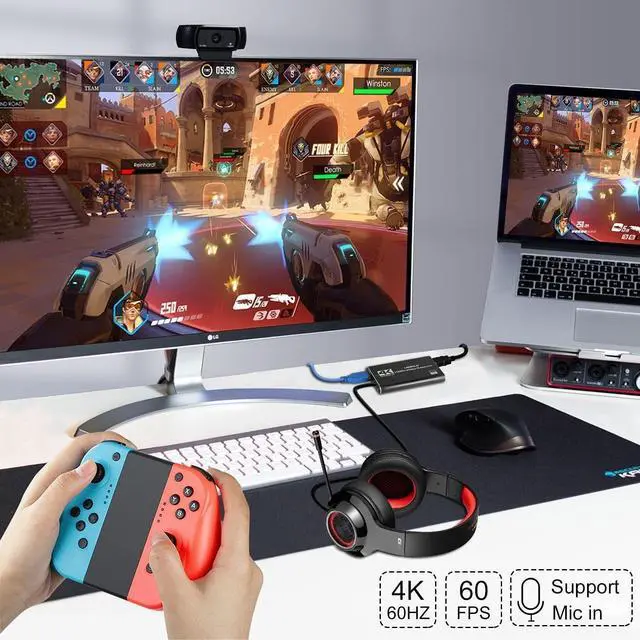
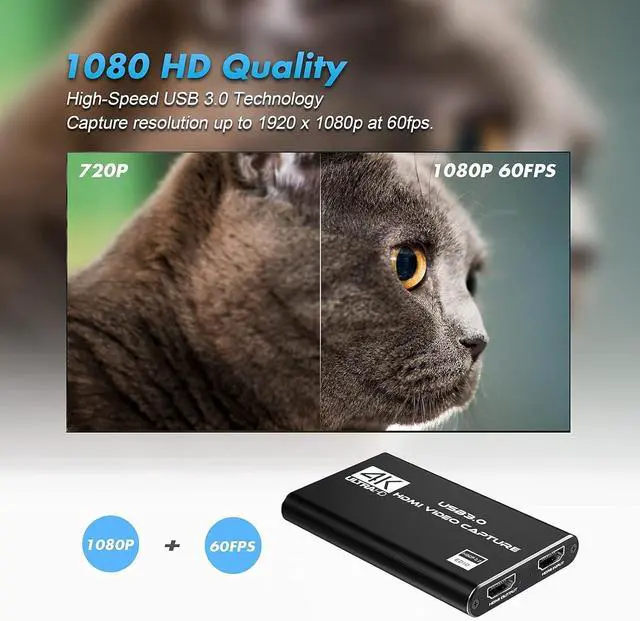
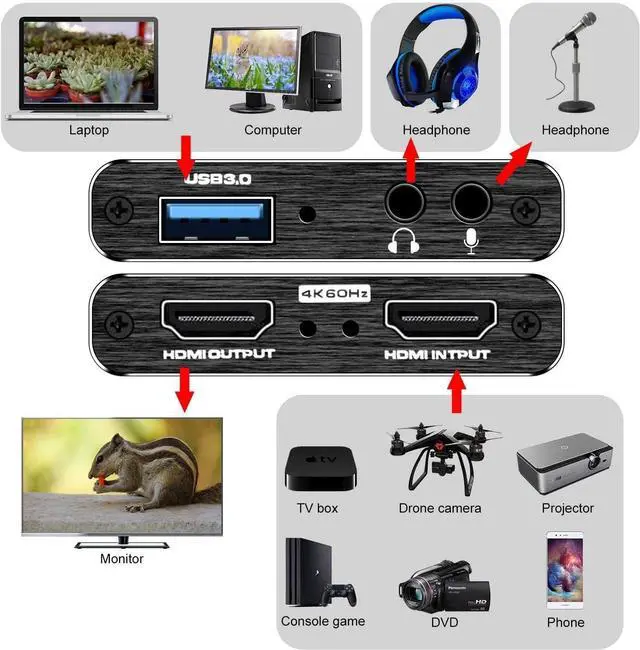
    • 1080P HD High QualityCapture resolution up to 1080p for video source and it is ideal for all HDMI devices such as PS4, PS3, Xbox One, Xbox 360, Wii U, DVDs, DSLR, Camera, Security Camera and set top box. Note: Video input supports 4K30/60Hz and 1080p120/144Hz. Does not support 4K120Hz/144Hz. Output supports up to 2K30Hz.; Plug and PlayNo driver or external power supply required, true PnP. Once plugged in, the device is identified automatically as a webcam. Detect input and adjust output automatically. Won't occupy CPU, optional audio capture. No freeze with correct setting.; Plug and PlayNo driver or external power supply required, true PnP. Once plugged in, the device is identified automatically as a webcam. Detect input and adjust output automatically. Won't occupy CPU, optional audio capture. No freeze with correct setting.; HDMI LOOP-OUTBased on the high-speed USB 3.0 technology, it can capture one single channel HD HDMI video signal. There is no delay when you are playing game live.; Support Mic-in for CommentaryKedok capture card has microphone input and you can use it to add external commentary when playing a game. Please note: it only accepts 3.5mm TRS standard microphone headset.
    +
    +
    Overview
    Specs
    Reviews
    avatar

    Any questions? Our AI beta will help you find out quickly.

    Product description Recording and loop output YUY2 1080P 60PFS USB 3.0 Smart Chip Compatible OBS Studio Setup
    1. Open OBS, create a new source under Sources by clicking "+", select "Video Capture Device", name it, then
    set:
    Device: USB 3.0 Video;
    Audio Output Mode: Capture Mode Only;
    Use custom audio device: Digital Audio Interface (USB 3.0 Audio)
    2.
    In OBS settings Audio: Disable all Global Audio Settings except Mic/Auxiliary Audio; Set Mic/Auxiliary Audio to Digital Audio Interface (USB 3.0 Audio)
    3.
    Under the Audio tab: Right-click Mic/Auxiliary Audio Advanced Audio Properties Set Audio Monitoring to "Monitor Only (Mute Output) "
    4. In PC settings
    System Sound: Set Input to Laptop Microphone; All Sound Devices Input Devices Digital Audio Interface. Ensure it is NOT set to default. All Sound Devices Input Devices Laptop Microphone. Ensure it IS set to default.
    5.
    In Discord: If prompted to switch audio device, choose "don't switch"; User Settings > Voice & Video > Input > Laptop Microphone; User Settings > Voice & Video > Output > Laptop Speakers.

    Warranty & Returns

    Warranty, Returns, And Additional Information

    Warranty

    • Please contact the Seller directly for warranty information. Warranty information may also be found on the Manufacturer's website.
    • CONTACT

    Return Policies

    • Return for refund within: 30 days
    • Return for replacement within: 30 days
    • This item is covered by LUOYIMAN Return Policy

    Manufacturer Contact Info

    LOADING...