

Your Browsing History

Meet Your Seller

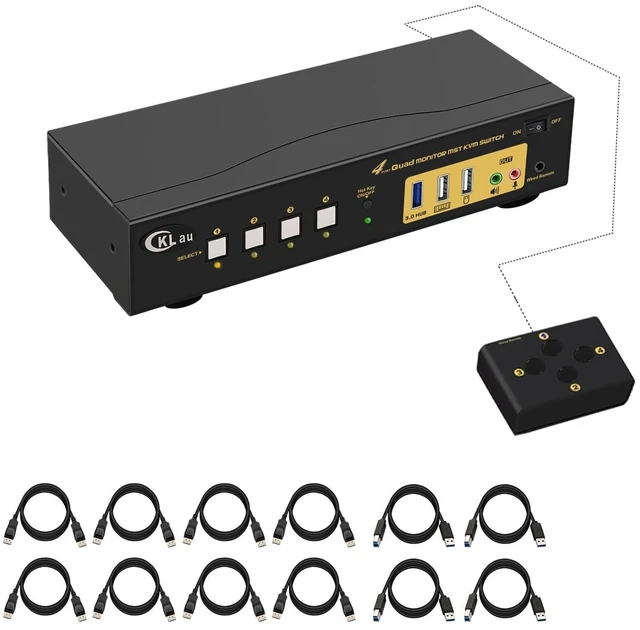


Quad Monitor Displayport KVM Switch MST, 2 DP in 4 DP Out, 4K60Hz 2K@144Hz 2 Computers 4 Monitors Switcher with Cables, Audio, Microphone and USB 3.0 Hub Supports Hot Key Switching
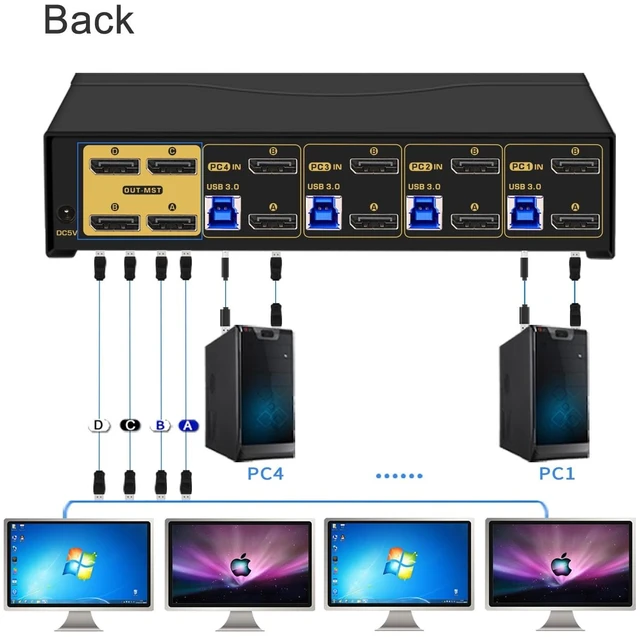
- 1. MST KVM 4 Monitors: 2 Displayport in, 4 Displayport out. It allows up to 4 PCs to share one USB set of keyboard & mouse, 4 monitors, 1 USB peripheral, headset/bar, and speaker. (Notices: 1. This is DP 1.2 KVM switch, you should set your devices as 4K@60Hz before use. 2. This KVM switch does not support emulation EDID. 3. If you want to use 4 monitors, your computers should with 2 or more video output. If one of your computers only with 1 video output, that only 2 monitors have display.)
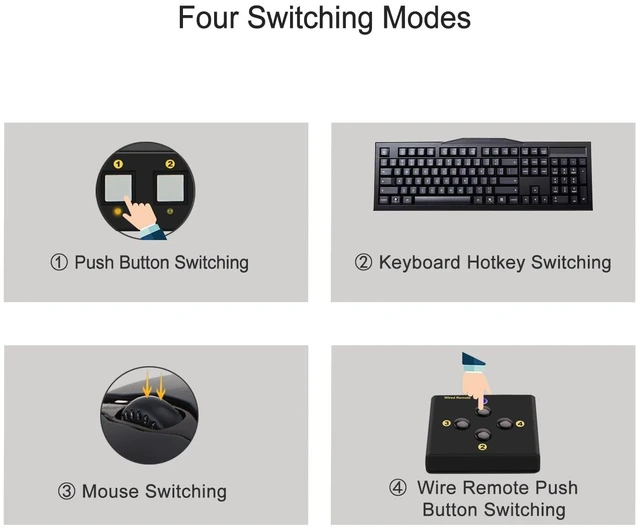
- 2. MST KVM Switch 4 Monitors 4 Computers: Hotkey switching (Num Lock + Num Lock + 1 / 2 / 3 / 4 + Enter, or Ctrl + Ctrl + 1 / 2 / 3 / 4 + Enter, or Scroll Lock+ Scroll Lock+ 1 / 2 / 3 / 4 + Enter), mouse switching (click mouse wheel 2 times + left button / right button), manual button switching, wired remote push button switching. Support extended display, mirror display, and splice wall display.
- 3. KVM Switch Quad Monitor Displayport: resolution compatible 4096x2160@60Hz, 3840x2160@60Hz, 3840x162
+
+
Overview
Reviews

Any questions? Our AI mode will help you find out quickly.
Try me now
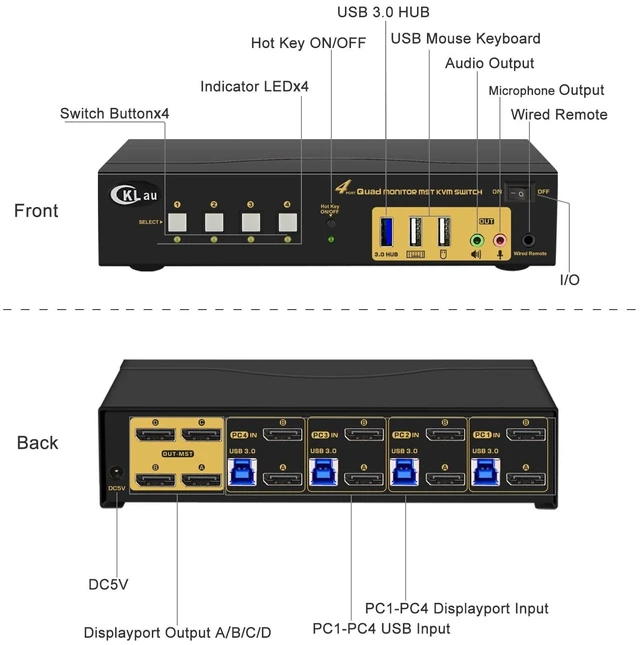
1. Connect the KVM switch and computers by USB 3.0 cables, and Displayport 1.4 cables which come with the KVM switch;
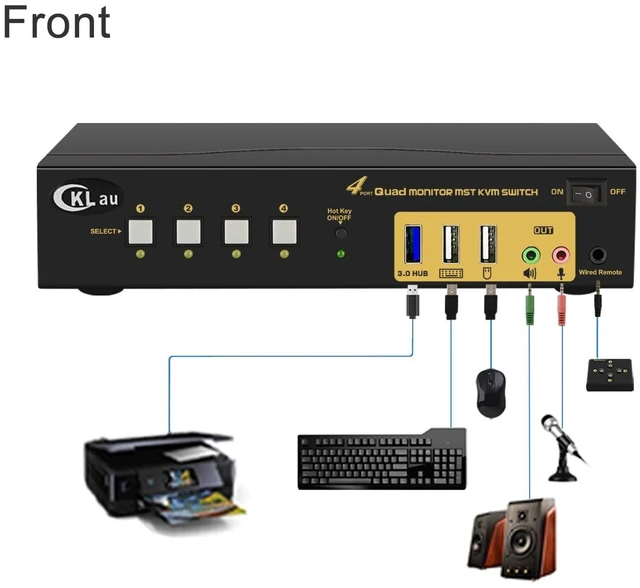
2. Plug the mouse into the mouse slot of the KVM switch, and plug the keyboard into the keyboard slot of the KVM switch;
3. Connect the KVM switch and your monitors by Displayport cables;
4. Plug your speaker/ microphone/wired remote push button controller into the KVM switch if needed.
5. If one of your computers operates on BIOS, you need turn off all your computer, and start by turning on that computer, entering your password, logging into the system, and waiting for the display. Then, switch to the second computer and turn it on. If both computers are BIOS-based, follow this sequence: start by powering on the KVM, then switch on the first BIOS computer, enter your password, log into the system, switch the KVM to the second computer, and finally, turn on the second BIOS computer. In summary, avoid starting both BIOS computers simultaneously, as it may cause issues like a black screen or disable your keyboard and mouse.
Package includes:
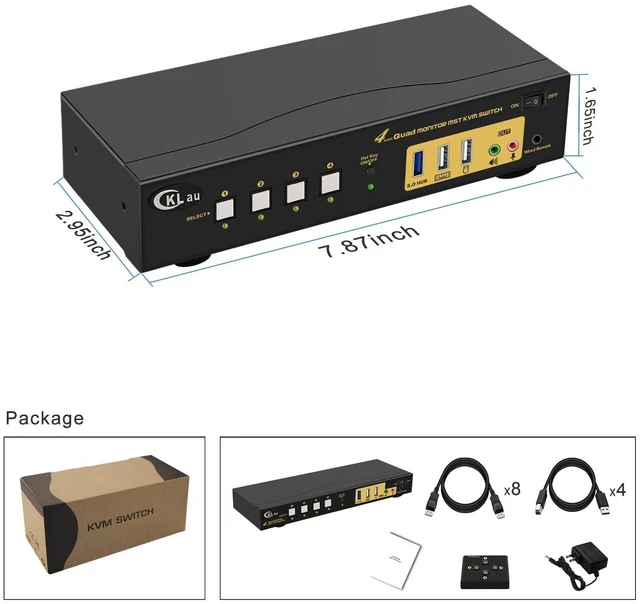
1 x KVM switch + 8 x Displayport 1.4 cables + 4 x USB 3.0 cables + 1 x DC 5V 2A Power adapter + 1 x manual + 1 x wired remote push button switch
Warm Tips:
1. This MST KVM switch is without emulation EDID function, windows size and location may be changed after switching between computers;
2. This MST KVM switch requires each of your computers/laptops to support Displayport 1.2 or Displayport 1.4, and you should set your devices as 4K@60Hz before using.
3. If you want to use 4 monitors, your computers should with 2 or more video output. Otherwise, 4 monitors can't display together. In short, if one of your computers with 1 video output, that only 2 monitors have display.
With audion & microphone output, you can share headset/speaker between two computers.
With 1 pcs extra USB 3.0 Hub, data transferring rate up to 5Gbps/s (10 times faster than USB 2.0).
With a HOTKEY ON/OFF key, you can turn on/turn off hotkey function by press this button.
The default hotkey key is the right CTRL. Switching operates:
Num Lock + Num Lock + 1 / 2 / 3 / 4 + Enter,
or Ctrl + Ctrl + 1 / 2 / 3 / 4 + Enter,
or Scroll Lock+ Scroll Lock+1 / 2 / 3 / 4 + Enter
Only need to click the mouse wheel 2 times + left button / right button, and then it will switch to another computer.
You can press the button one time, then it will switch to another computer.
You can press the button of the wired remote switch one time, it will switch to another computer.
Questions & Answers:
1. How to reset the KVM switch? (You can reset the KVM switch when you meet USB disconnect or monitor issue)
Step 1. Turn off the KVM switch and all of your computers/laptops, then unplug all the cables;
Step 2. Plug the DC5V 2A power adapter into the KVM switch and AC socket, and turn on the KVM switch (There is an o/f button on the back);
Step 3. Plug the keyboard into the keyboard slot of the KVM switch;
Step 4. Click right [CTRL] on the keyboard 2 times, then click [ESC] 3 times, at last click [ENTER]. (The whole operation time should not be over 2s after you hear a beep sound, that shows operated successfully);
Step 5. Plug USB 3.0 cables, and Displayport cables into the KVM switch and computers, plug Displayport cables into the KVM switch and your monitors; plug the mouse into the mouse slot of the KVM switch; plug other USB devices into the USB 3.0 Hub of the KVM switch if needed;
Step 6. Turn on your computers.
2. How to turn off the Beep sound? (Beep sound default turn on, you can turn it on or turn it off by the step)
You need to keep the HOTKEY ON/OFF key turned on(when it turns on, its LED light), plug the keyboard into the keyboard slot, and make this operate: click right [CTRL] on the keyboard 2 times, then click [B], at last click [ENTER]. (Whole time should not be over 2s, th
2. Plug the mouse into the mouse slot of the KVM switch, and plug the keyboard into the keyboard slot of the KVM switch;
3. Connect the KVM switch and your monitors by Displayport cables;
4. Plug your speaker/ microphone/wired remote push button controller into the KVM switch if needed.
5. If one of your computers operates on BIOS, you need turn off all your computer, and start by turning on that computer, entering your password, logging into the system, and waiting for the display. Then, switch to the second computer and turn it on. If both computers are BIOS-based, follow this sequence: start by powering on the KVM, then switch on the first BIOS computer, enter your password, log into the system, switch the KVM to the second computer, and finally, turn on the second BIOS computer. In summary, avoid starting both BIOS computers simultaneously, as it may cause issues like a black screen or disable your keyboard and mouse.
Package includes:
1 x KVM switch + 8 x Displayport 1.4 cables + 4 x USB 3.0 cables + 1 x DC 5V 2A Power adapter + 1 x manual + 1 x wired remote push button switch
Warm Tips:
1. This MST KVM switch is without emulation EDID function, windows size and location may be changed after switching between computers;
2. This MST KVM switch requires each of your computers/laptops to support Displayport 1.2 or Displayport 1.4, and you should set your devices as 4K@60Hz before using.
3. If you want to use 4 monitors, your computers should with 2 or more video output. Otherwise, 4 monitors can't display together. In short, if one of your computers with 1 video output, that only 2 monitors have display.
With audion & microphone output, you can share headset/speaker between two computers.
With 1 pcs extra USB 3.0 Hub, data transferring rate up to 5Gbps/s (10 times faster than USB 2.0).
With a HOTKEY ON/OFF key, you can turn on/turn off hotkey function by press this button.
The default hotkey key is the right CTRL. Switching operates:
Num Lock + Num Lock + 1 / 2 / 3 / 4 + Enter,
or Ctrl + Ctrl + 1 / 2 / 3 / 4 + Enter,
or Scroll Lock+ Scroll Lock+1 / 2 / 3 / 4 + Enter
Only need to click the mouse wheel 2 times + left button / right button, and then it will switch to another computer.
You can press the button one time, then it will switch to another computer.
You can press the button of the wired remote switch one time, it will switch to another computer.
Questions & Answers:
1. How to reset the KVM switch? (You can reset the KVM switch when you meet USB disconnect or monitor issue)
Step 1. Turn off the KVM switch and all of your computers/laptops, then unplug all the cables;
Step 2. Plug the DC5V 2A power adapter into the KVM switch and AC socket, and turn on the KVM switch (There is an o/f button on the back);
Step 3. Plug the keyboard into the keyboard slot of the KVM switch;
Step 4. Click right [CTRL] on the keyboard 2 times, then click [ESC] 3 times, at last click [ENTER]. (The whole operation time should not be over 2s after you hear a beep sound, that shows operated successfully);
Step 5. Plug USB 3.0 cables, and Displayport cables into the KVM switch and computers, plug Displayport cables into the KVM switch and your monitors; plug the mouse into the mouse slot of the KVM switch; plug other USB devices into the USB 3.0 Hub of the KVM switch if needed;
Step 6. Turn on your computers.
2. How to turn off the Beep sound? (Beep sound default turn on, you can turn it on or turn it off by the step)
You need to keep the HOTKEY ON/OFF key turned on(when it turns on, its LED light), plug the keyboard into the keyboard slot, and make this operate: click right [CTRL] on the keyboard 2 times, then click [B], at last click [ENTER]. (Whole time should not be over 2s, th
Warranty & Returns
Warranty, Returns, And Additional Information
Warranty
- Please contact the Seller directly for warranty information. Warranty information may also be found on the Manufacturer's website.
- CONTACT
Return Policies
- Return for refund within: 30 days
- Return for replacement within: 30 days
- This item is covered by FluffyNest Return Policy
Manufacturer Contact Info
- For a directory of all our manufacturers, please click below.
- Manufacturers Directory
LOADING...