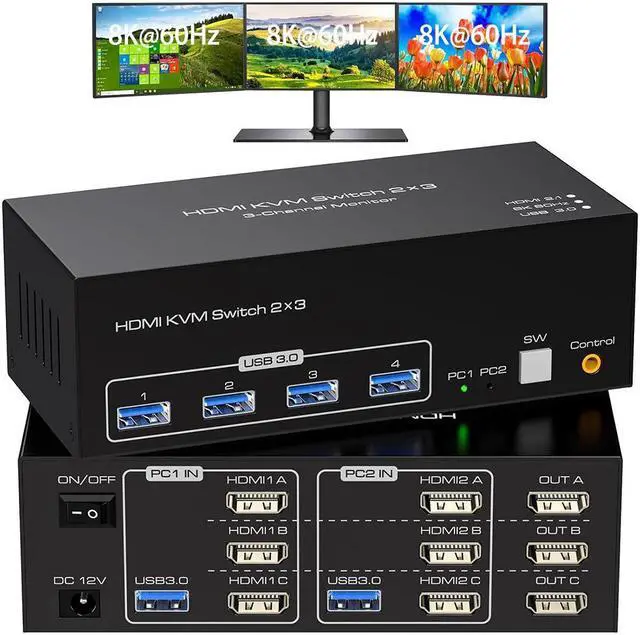
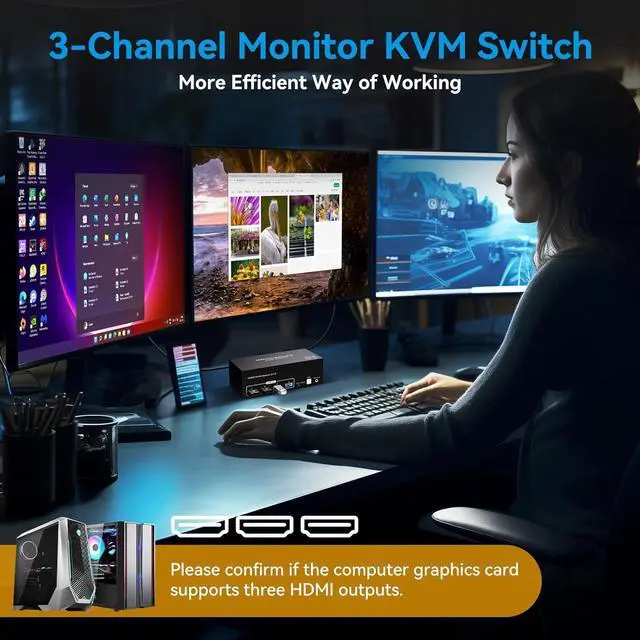
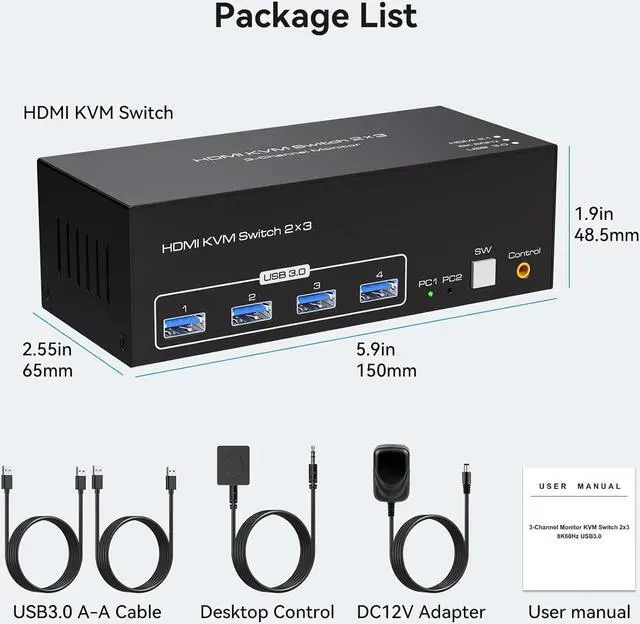
8K HDMI Triple Monitor KVM Switch for 2 Computers Share 3 Monitors and 4 USB 3.0 devices.
- It is possible to control two computers and three monitors directly with one set of keyboard and mouse.
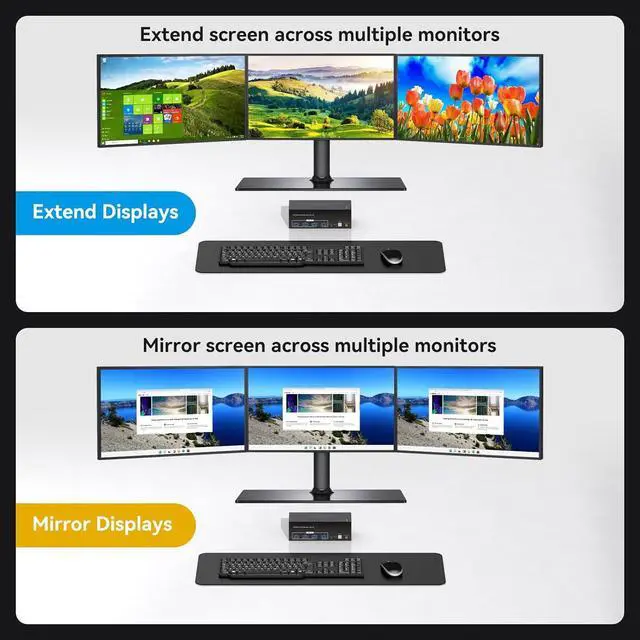
- Three monitors can support two modes:duplicate and extend.
- Supports resolutions up to 8K 60Hz and backward compatible.
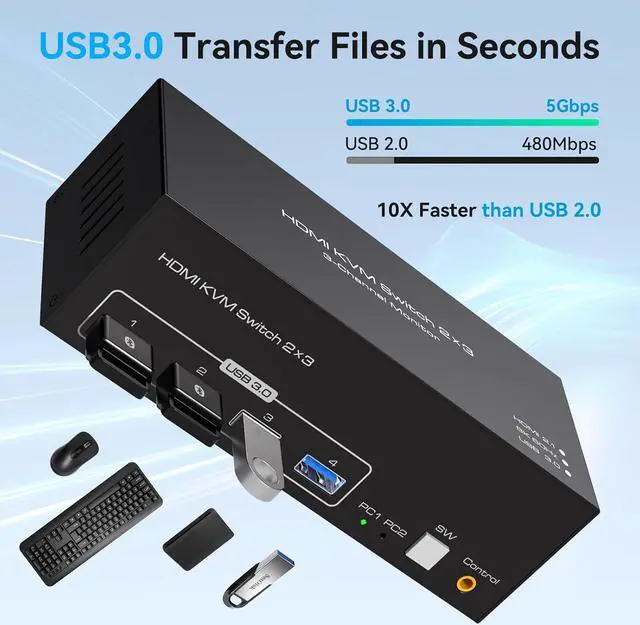
- Equipped with four USB 3.0 ports, allowing you to connect scanners, hard drives, and other USB devices.
- Equipped with a 12V/1A power supply, ensuring stable work even when high-power devices are connected.
- Compatible with Windows/Vista/XP, Mac OS, Linux, and Unix, plug-and-play.
Usage
- Connect the power source.
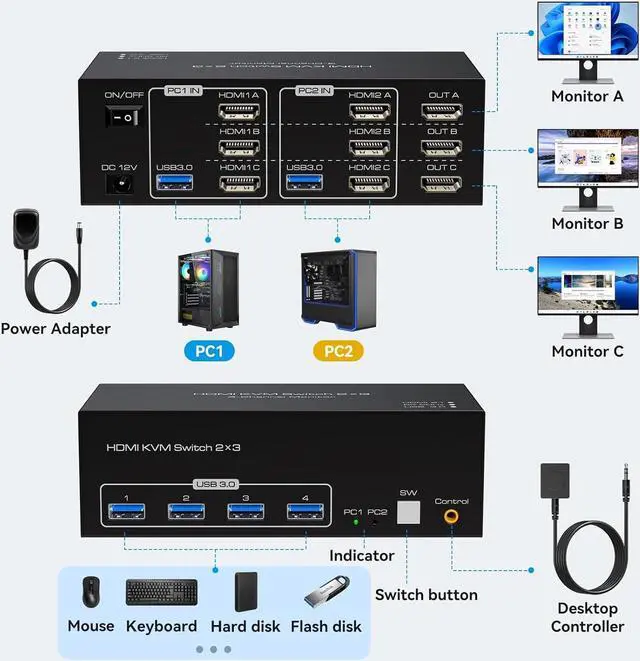
- Connect PC1 to the KVM device using one USB 3.0 cable and three HDMI cables.
- Connect PC2 to the KVM device using one USB 3.0 cable and three HDMI cables.
- Connect each of the three monitors to OUT A, OUT B, and OUT C using separate HDMI cables.
- Connect the keyboard and mouse to the KVM device.
(Please note that if you want to properly use three monitors, make sure that your graphics card supports 3 HDMI outputs.)
Duplicate and Extend
- Duplicate mode:three screens display the same content.
- Extend mode:Drag and drop windows from the main screen to the other two output screens.
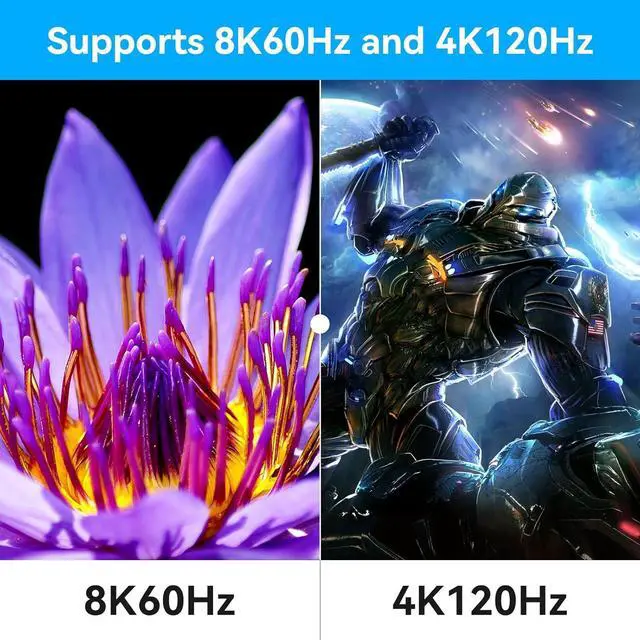
KVM Switch 3 Monitors Supports Resolutions Up to 8K@60Hz, 4K@120Hz and backward compatible
Equipped with Four USB 3.0 Ports
USB+HDMI Switches are equipped with 4 USB 3.0 ports, which offers significantly faster data transfer rates, enabling quick and efficient file sharing and device connectivity between computers and peripherals. USB 3.0 is backward compatible with USB 2.0 devices, ensuring seamless integration and usage of a wide range of peripherals, such as keyboards, mouse, printers, scanners, external storage devices, and more.
Button Switch
With a touch of a button on the control panel, you can easily and quickly switch between computers.
Desktop Controller
The included extension cable for the push button switch allows for easy switching without having to stand up.
LED Indicator
The LED lights are designed to display active devices, so you can clearly see which device is in use.
8K HDMI Triple Monitor KVM Switch for 2 Computers Share 3 Monitors and 4 USB 3.0 devices.
Features:
It is possible to control two computers and three monitors directly with one set of keyboard and mouse.
Three monitors can support two modes: duplicate and extend.
Supports resolutions up to 8K 60Hz and backward compatible.
Equipped with four USB 3.0 ports, allowing you to connect scanners, hard drives, and other USB devices.
Equipped with a 12V/1A power supply, ensuring stable work even when high-power devices are connected.
Compatible with Windows/Vista/XP, Mac OS, Linux, and Unix, plug-and-play.
Usage
Connect the power source.
Connect PC1 to the KVM device using one USB 3.0 cable and three HDMI cables.
Connect PC2 to the KVM device using one USB 3.0 cable and three HDMI cables.
Connect each of the three monitors to OUT A, OUT B, and OUT C using separate HDMI cables.
Connect the keyboard and mouse to the KVM device.
(Please note that if you want to properly use three monitors, make sure that your graphics card supports 3 HDMI outputs. )





 here!
here!