




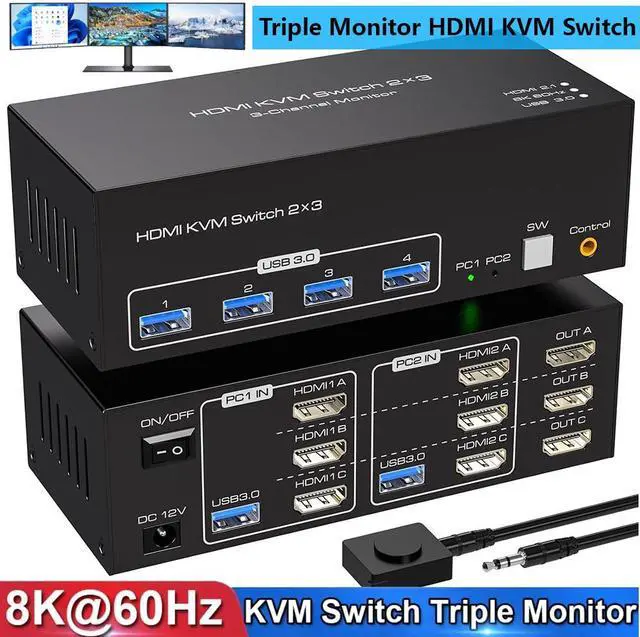

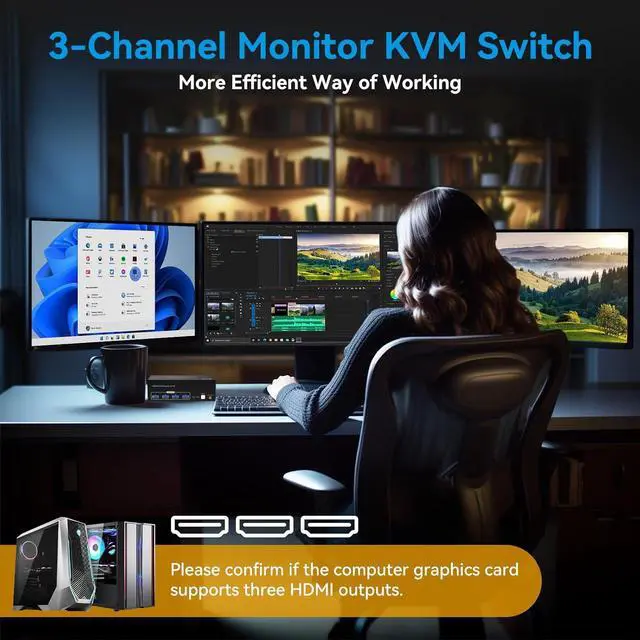
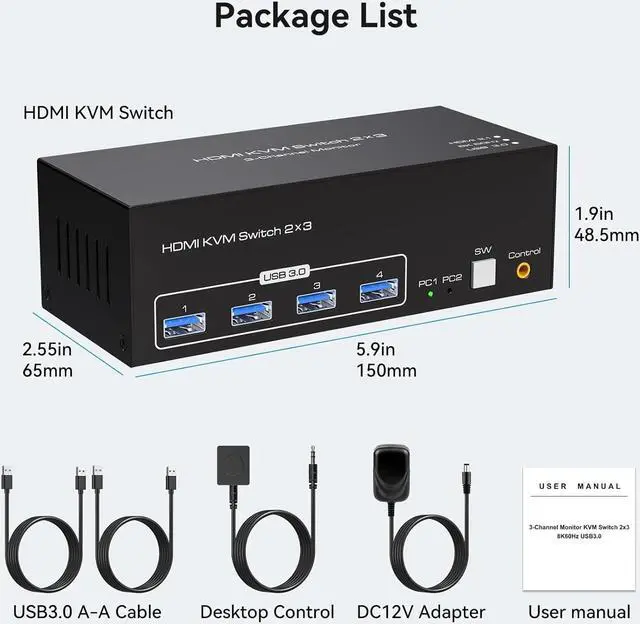


8K USB 3.0 3 Channel HDMI KVM Switch 3 Monitors 2 Computers, 4K@120Hz Triple Monitor KVM Switch for 2 Computers Share 3 Monitors with 3 USB 3.0 Ports Keyboard Mouse Switcher


8K 60Hz 2x3 HDMI USB 3.0 KVM Switch allows you to share one USB keyboard, USB mouse, and three HDMI monitor to control 2 computers, laptops, game consoles.
It is designed for multitask with four computers at your necessary, increasing productivity in the office or at home ; You can switch between 2 computers using a manual switch located on the top of the KVM unit.

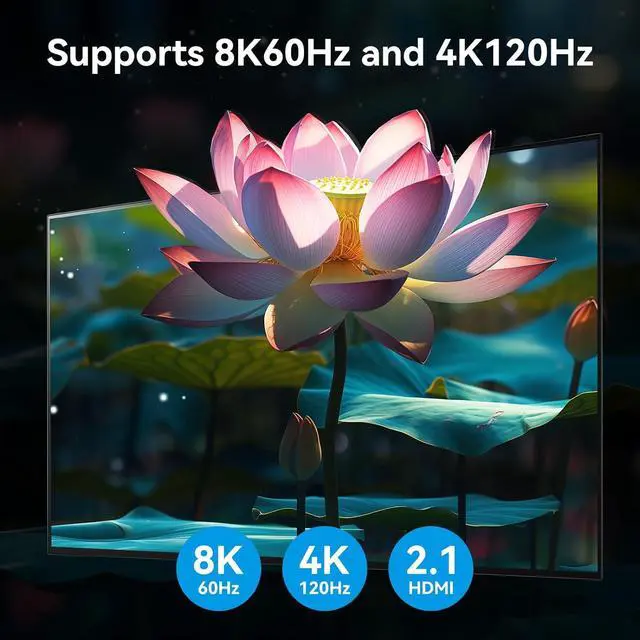
Support Resolutions Up to 4K@120Hz/8K@60Hz, and backward compatible with lower resolutions: 4K@60Hz, 4K@30Hz, 1080P, 720P, etc.
HDMI 2.1 KVM Switch 3 Monitors allows easy switching of a full set of keyboards and mice and other USB 3.0 devices between two computers and 3 monitors, Up to four USB devices can be shared at the same time, Avoiding frequent unplugging that can lead to device damage.
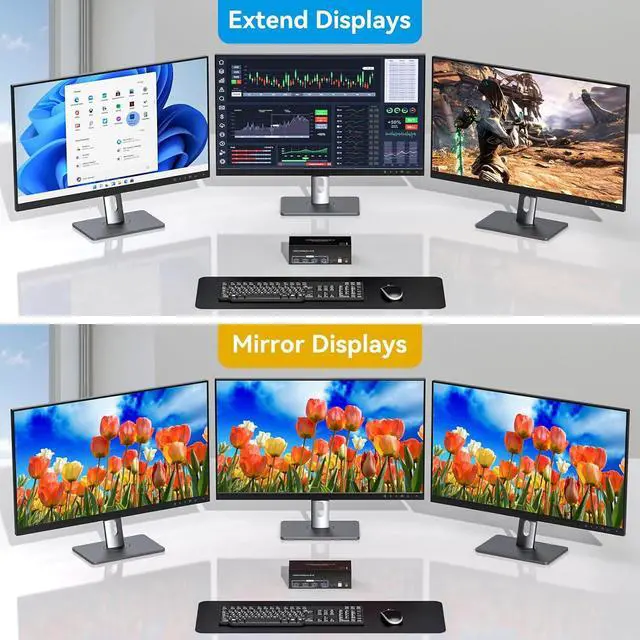
Support two modes:
Mode 1: Copy mode (computer host outputs 3 identical screens on 3 displays) Mode 2: Extended mode (computer host outputs 3 different screens on 3 displays)

USB 3.0 with ultra-fast data transfer rates up to 5Gb/s, up to ten times faster than USB 2.0, and backward compatible with USB 2.0 and USB 1.1.

Support for External Wired Controllers
Equipped with an external wired controller that can be easily switched without getting up when using it.

Supports Key Switching
You can easily and quickly switch between computers with the push of a button on the control panel.

Support for Indicator Design
LED lights are designed to show active devices so you can clearly see which device is in use.

Installation steps:
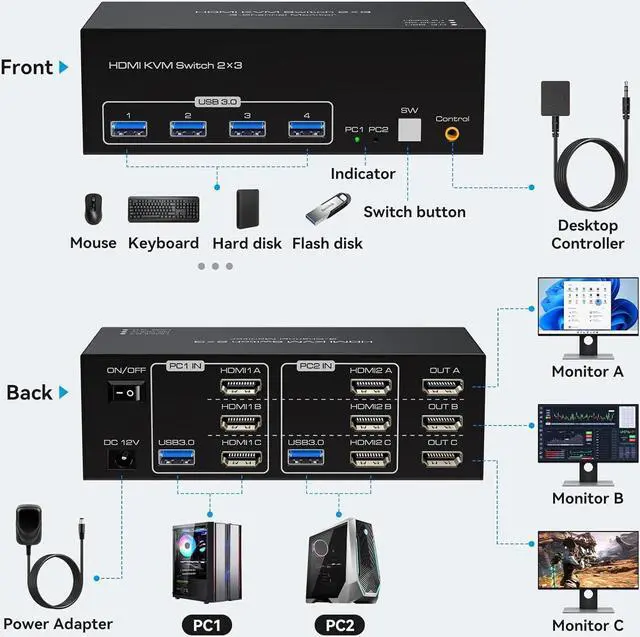
1. Insert the adapter into the KVM;
2. Plug the 3* HDMI cable into the KVM switch and monitor;(Output)
3. Plug the HDMI cable, and USB cable into the KVM switch and your computer/laptop (HD-MI cables are not included)(Input)
Please check whether HDMI IN 1A, HDMI IN 1B, HDMI IN 1C, and USB IN 1 corresponding, and whether HDMI IN 2A, HDMI IN 2B, HDMI IN 2C and USB IN 2 are corresponding. Mixed insertion is not supported.
HDMI IN 1A + HDMI IN 1B + HDMI IN 1C + USB IN 1=PC1
HDMI IN 2A + HDMI IN 2B + HDMI IN 2C + USB IN 2=PC2
4. Insert the mouse and keyboard into the KVM switch
Note:
1. Most of the reasons why only one video output works is because of an incorrect connection. Please make sure each computer has 3 HDMI cables connected to the KVM.
2. If the KVM switch does not work, you can turn off the switch on the panel and turn it on again after 2-3 seconds, and it will return to normal.

