here!
here!
I’m your shopping assistant for PC builds, upgrades, and everything tech.
Got questions? Ask away!
Start a conversation
here!
I’m your shopping assistant for PC builds, upgrades, and everything tech.
Got questions? Ask away!
Start a conversation




Any questions? Ask CelesteSM will help you find out quickly.

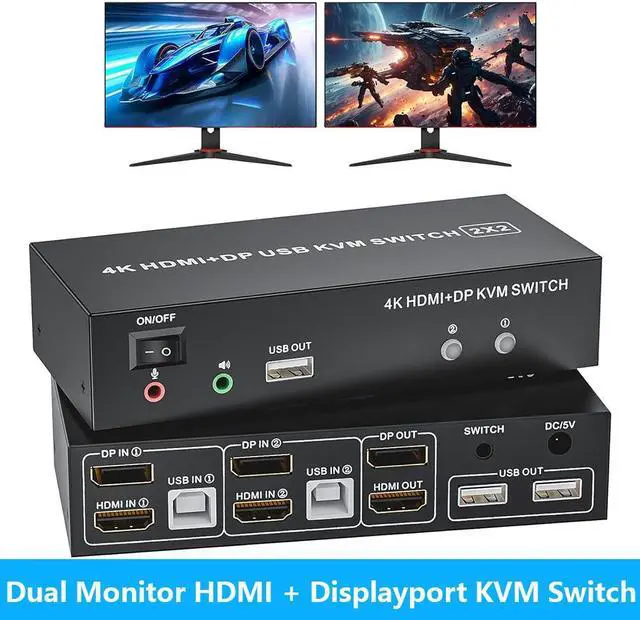
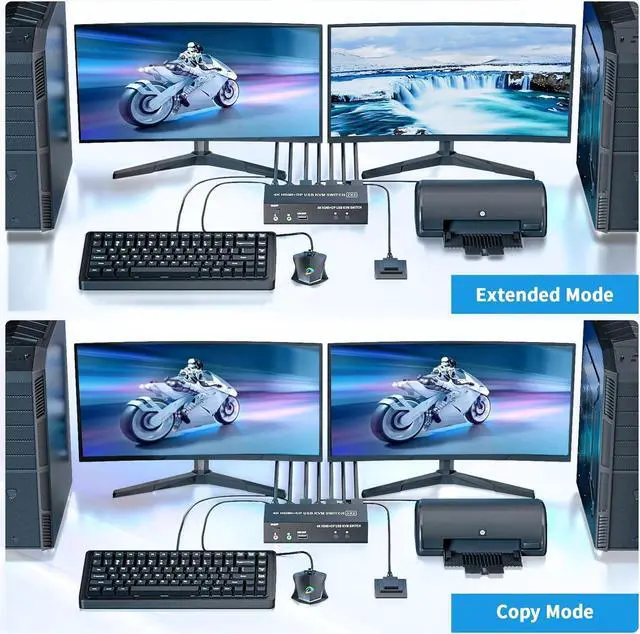
Boost Yout Productivity with Extra Screens


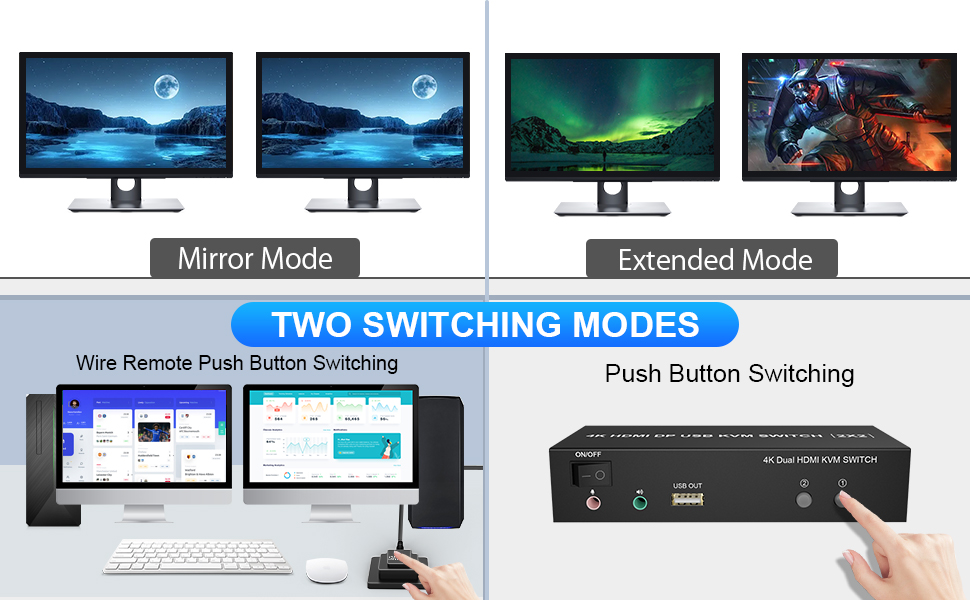
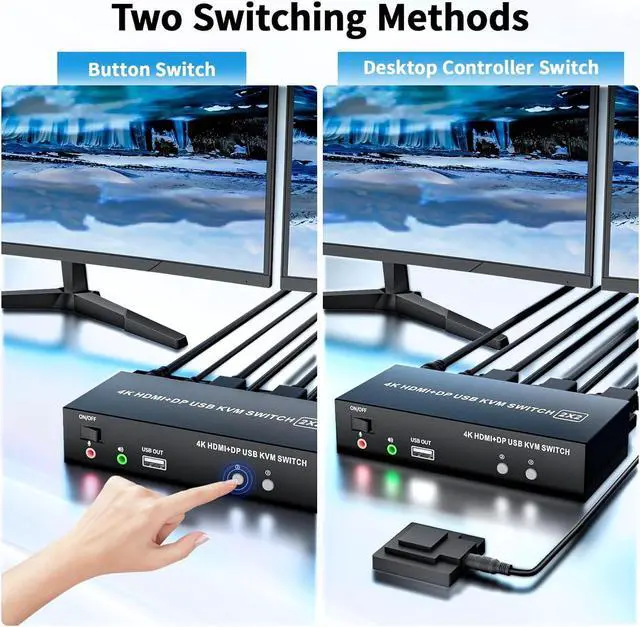
Using the remote to switch 2 monitors between 2 computers with one set of keyboard and mouse

Supports up to 4K@60Hz resolution, HDMI 2.0 HDCP 2.2 compliant. Bring you an stunning viewing experience with realistic images / sounds and vibrant colors

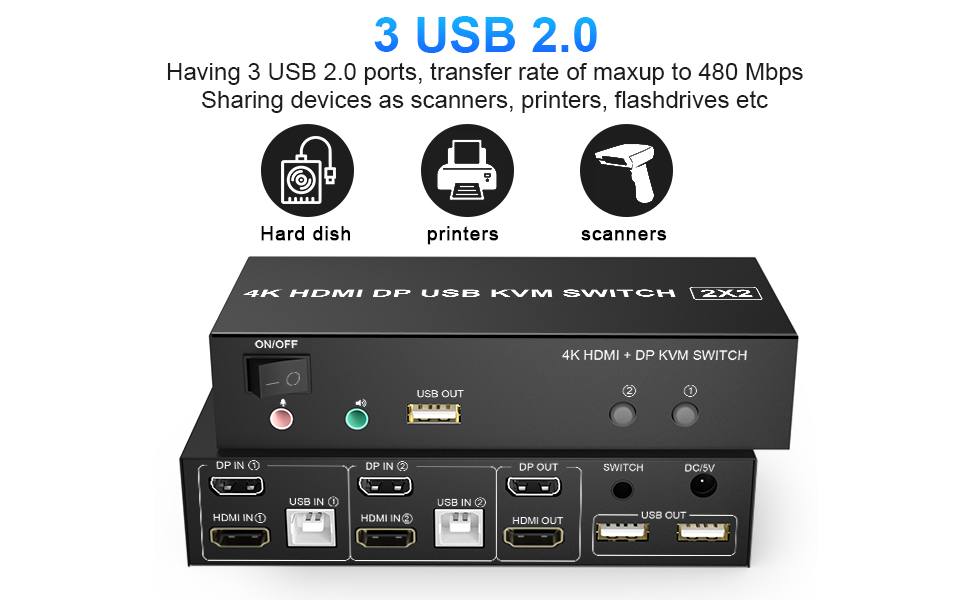
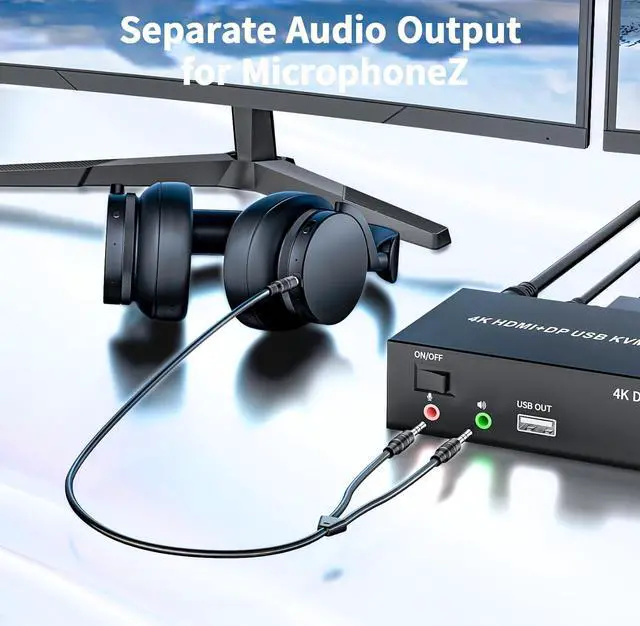
Supports stereo audio output for microphones, enjoy immersive clear audio
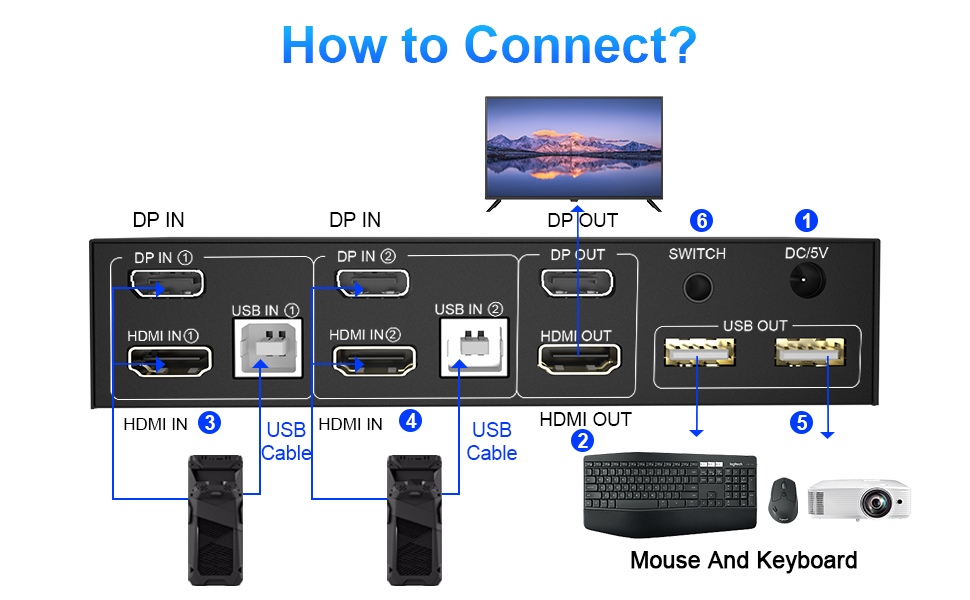
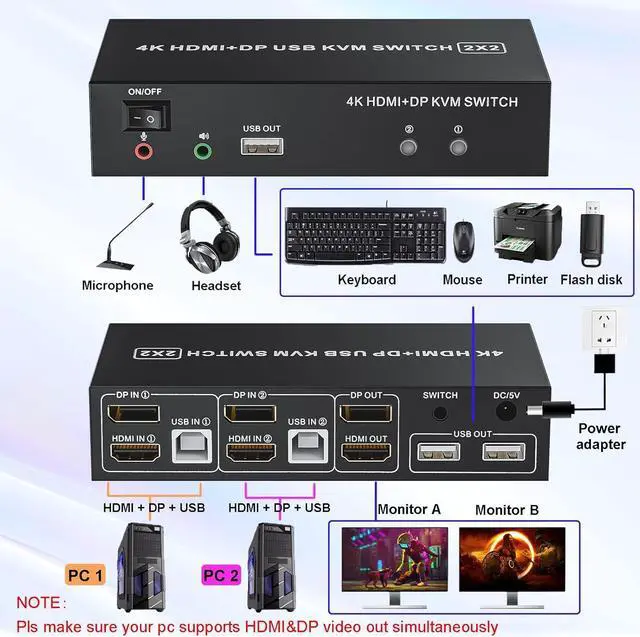
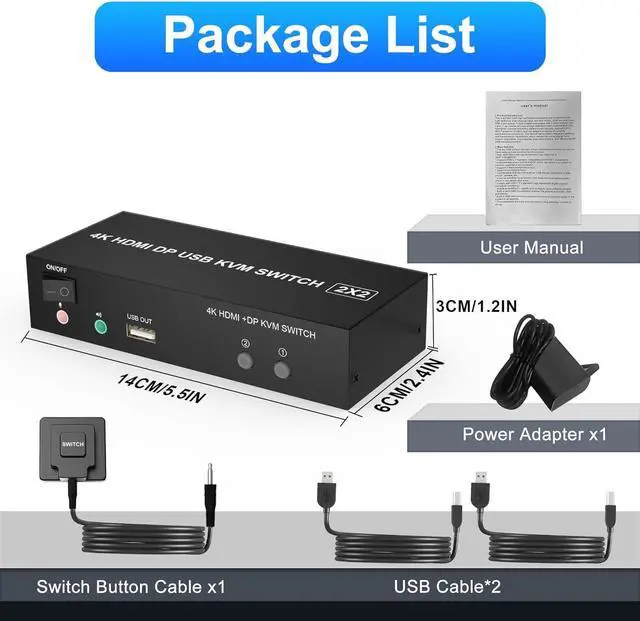
1. Insert the adapter into the KVM ;
2. Plug the Displayport cable and HDMI cable into the KVM switch and monitor;(Output)
3. Plug the Displayport cable, HDMI cable and USB cable into the KVM switch and your computer/laptop (HDMI and DP cables are not included)(Input)
Please check whether HDMI IN1, DP IN1 and USB IN1 are corresponding, and whether HDMI IN2, DP IN2 and USB IN2 are corresponding. Mixed insertion is not supported.
HDMI IN1 + DP IN1 + USB IN1=PC1
HDMI IN2 + DP IN2 + USB IN2=PC2
4. Insert the mouse and keyboard into the KVM switch
5. If needed, you can connect a microphone and audio port
Note:
1. Most of the reasons why only onevideo output works is because of incorrect connection. Please make sure eachcomputer have 1 HDMI /1 DP cables connect to the KVM.
2. If the KVM switch does not work, you can turn off the switch on the panel and turn it on again after 2-3 seconds, and it will return to normal.