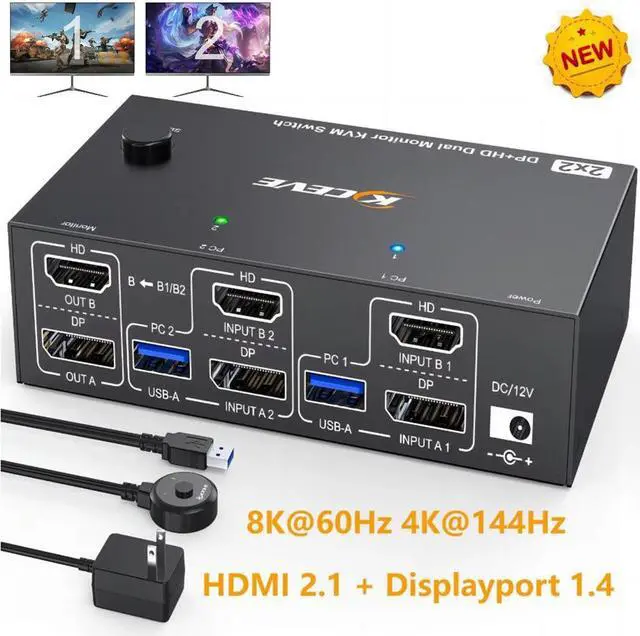
2 Computers 2 Monitor USB 3.0 HDMI+Displayport KVM Switch
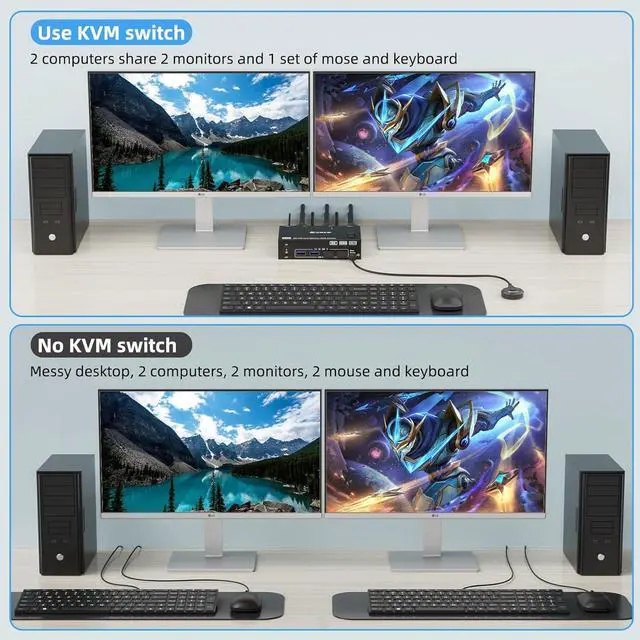
- This Displayport+HDMI 2 monitor KVM switch is perfect for 2 computers or laptops to share 2 monitors and 4 USB 3.0 devices (keyboard, mouse, printer, scanner and other USB devices, making the work space tidier and greatly improve work efficiency.
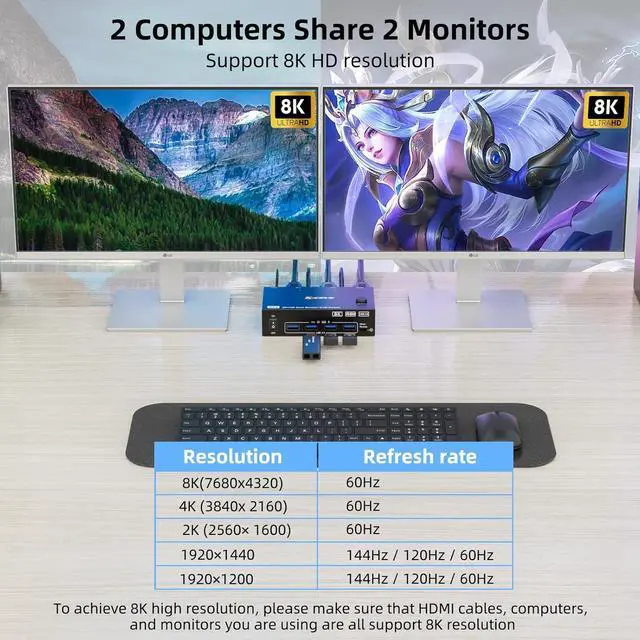
Ultra HD 8K@60HZ/4K@144Hz Visual Experience
- This 2 in 2 out KVM switch output max resolution up to 8K@60Hz/4K@144Hz, each details can be displayed without any latency.
- Displayport 1.4 support max resolution up to 8K@30Hz/4K@144Hz and backward compatible.
- HDMI 2.1 supports max 8K@60Hz/4K@60Hz and down compatible with lower resolution. Note: HDMI part does not support 4k@144Hz or 4K@120Hz
Important Note: The final resolution is subject to your graphics card, cables, monitors and adapters.
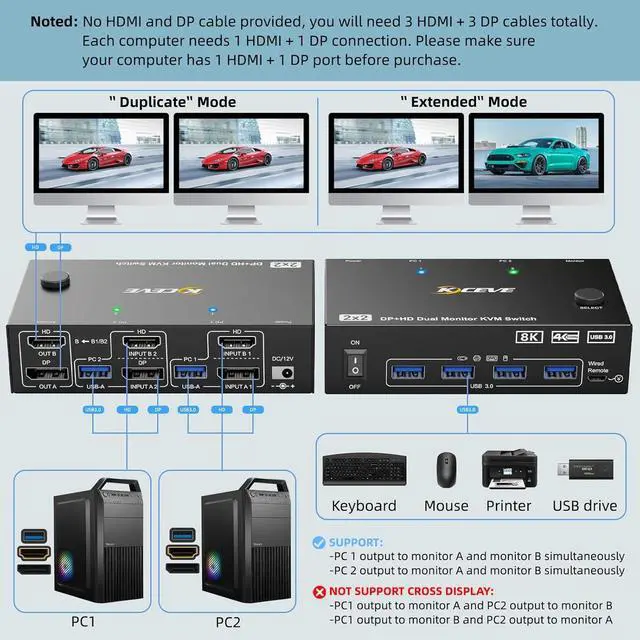
Each computer needs 1 HDMI cable + DP cables + 1 USB cable to connect the KVM switch.
- Step 1: Connect 1 HDMI cable + 1 Displayport cable + 1 USB cable to PC 1 and KVM switch (INPUT A1, INPUT B1, USB 3.0).
- Step 2. Connect 1 HDMI cable + 1 Displayport cable + 1 USB cable to PC 2 and KVM switch (INPUT A2, INPUT B2, USB 3.0).
- Step 3. Connect 1 HDMI cable and 1 Displayport cable to the KVM switch (OUT A, OUT B) and 2 monitors.
- Step 4: Connect your USB device (keyboard and mouse) to the USB 3.0 port on the KVM switch. You can connect up to 4 USB 3.0 devices at the same time. Compatible with USB 2.0/1.1 devices.
- Step 5. Connect the wired remote control
Note: Please connect the 12V DC power adapter to provide sufficient power. Using a shorter 8K HDMI + DP cable can make the KVM switch more stable.
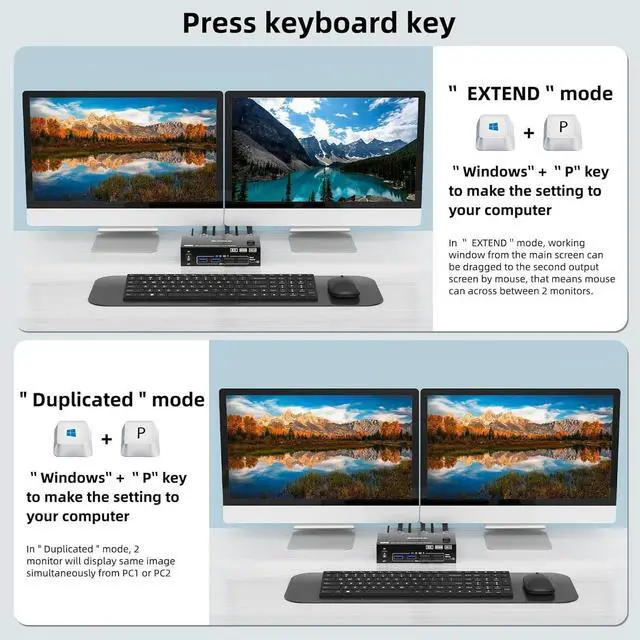
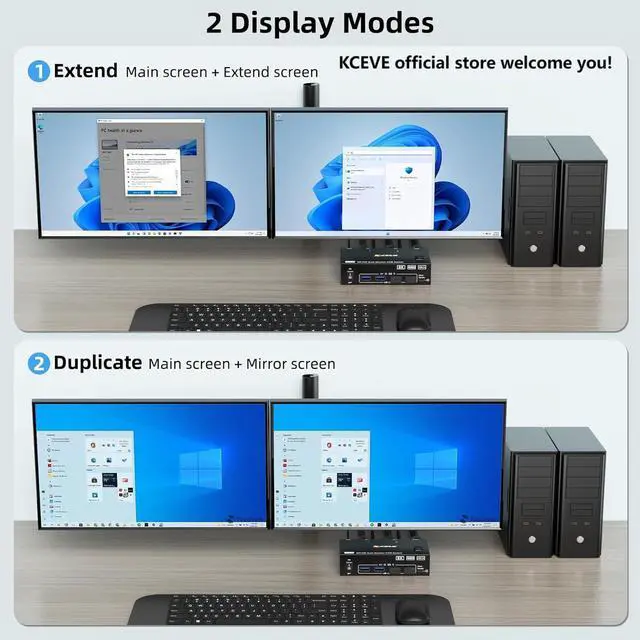
This 2 monitors 2 computers kvm switch support 2 display modes
- Press "Windows+P" on keyboard and choose duplicate mode in the small winow that pops up. In mirror mode, the main screen can be copied to the secondary screen.
- Press "Windows+P" on keyboard and choose Extend mode in the small winow that pops up.In extend mode, the window from main screen can be dragged to second screen (Note: MAC M1/M2 not support extend mode.)
Enjoy HD 8K@60HZ/4K@144Hz Visual Experience
- Displayport 1.4 support max resolution up to 8K@30Hz/4K@144Hz and backward compatible.
- HDMI 2.1 supports max 8K@60Hz/4K@60Hz and down compatible with lower resolution. Note: HDMI part does not support 4k@144Hz or 4K@120Hz
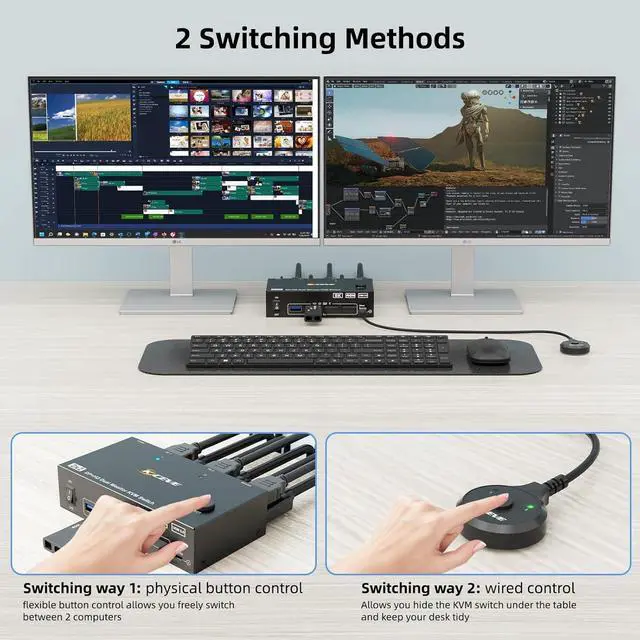
Support 2 switching ways
- Physical button control.
- Wired control, we upgraded the wired control, it's size is more bigger and touch feel more comfortable, this switching way is fast respond and flexible, you can hide the 4 PC KVM switch under the table and keep desk tidy.
DC12V port for power supply
- External power supply is not required for normal USB device.
- DC12 power adapter is included. When connected high power consumption USB device, you will need to connect power adapter to ensure it's connection stable.
2 LED light indicator
- Led light indicator on this kvm switch is to show which PC is in display on the monitor.
Each computer needs 1 HDMI cable + DP cables + 1 USB cable to connect the KVM switch.
Step 1: Connect 1 HDMI cable + 1 Displayport cable + 1 USB cable to PC 1 and KVM switch (INPUT A1, INPUT B1, USB 3.0 ).
Step 2. Connect 1 HDMI cable + 1 Displayport cable + 1 USB cable to PC 2 and KVM switch (INPUT A2, INPUT B2, USB 3.0 ).
Step 3. Connect 1 HDMI cable and 1 Displayport cable to the KVM switch (OUT A, OUT B) and 2 monitors.
Step 4: Connect your USB device (keyboard and mouse) to the USB 3.0 port on the KVM switch. You can connect up to 4 USB 3.0 devices at the same time. Compatible with USB 2.0 / 1.1 devices.
Step 5. Connect the wired remote control
Note: Please connect the 12V DC power adapter to provide sufficient power. Using a shorter 8K HDMI + DP cable can make the KVM switch more stable.
:
1* 8K HDMI DP KVM switch;
2*USB 3.0 Cable( 1.5M );
1*Wired Remote( 1.5M );
1*12V Power adapter
1*User Manual.
Any problem, pls tell us to solve.





 here!
here!