


v AV Access KVM Switch Dual Monitor 4K@60Hz, 2K@144Hz, 1080P@240Hz, USB 3.0 KVM Switch 2 Monitors 2 Computers, Ultrawide Screen PC Keyboard Mouse Switcher, Hotkey Switch
  •  
  • $99.99 
  • $99.99
  • Free 30-day Returns
  • Ships from China.
    Price alert
    Shop it at NeweggBusiness.

    IHDAPP 8K@60Hz USB 3.0 Displayport KVM Switch 2 Monitors 2 Computers, DP 1.4 Dual Monitor KVM Switch with Audio Microphone Output and 3 USB 3.0 Ports, Wired Remote and 2 USB Cables Included giyqxHw

    Limited time offer, ends 01/17 By Smarter & Better Life Marketplace

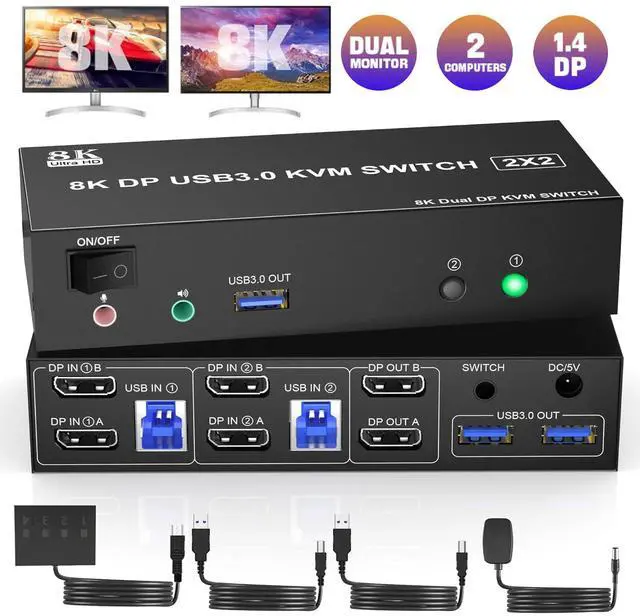
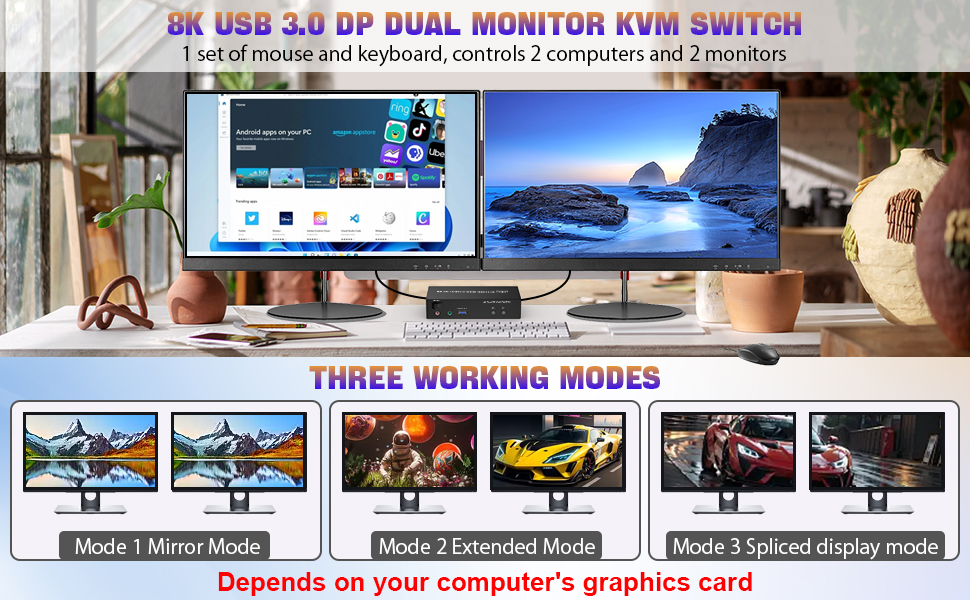
    • [DP KVM Switch 2 PC 2 monitors] This KVM switch allow you to control 2 PCs by only one set of wired or wireless keyboard mouse,share 3 USB 3.0 devices, audio microphone output and 2 monitors (extended mode or copy display mode).
    • [8K@60HZ ULTRA HD] With th
    +
    +
    Overview
    Specs
    Reviews
    avatar

    Any questions? Our AI beta will help you find out quickly.

    DP KVM


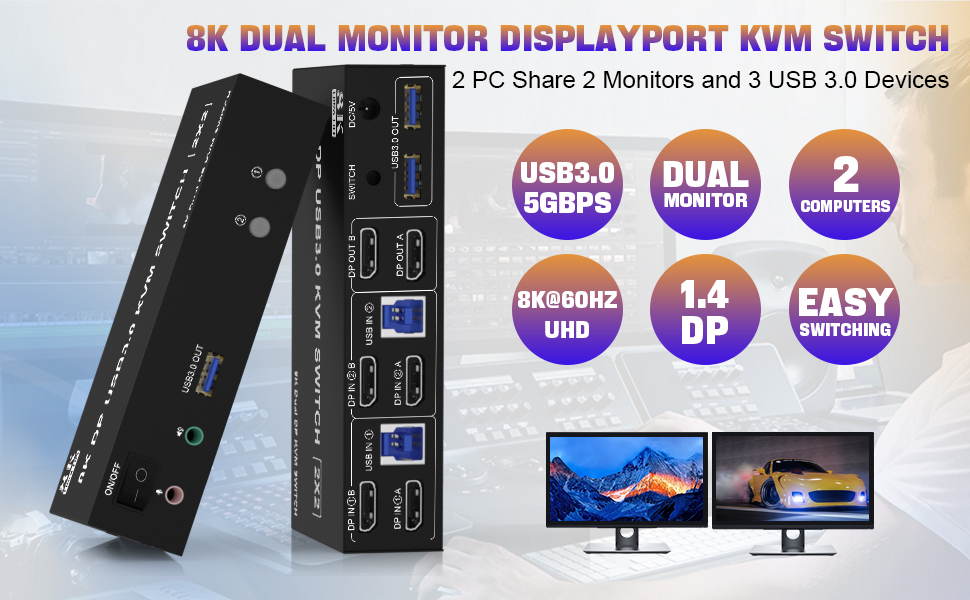
    8K@60Hz Displayport KVM Switch for 2 computers Share 2 monitors and 3 USB 3.0 devices

    Features:


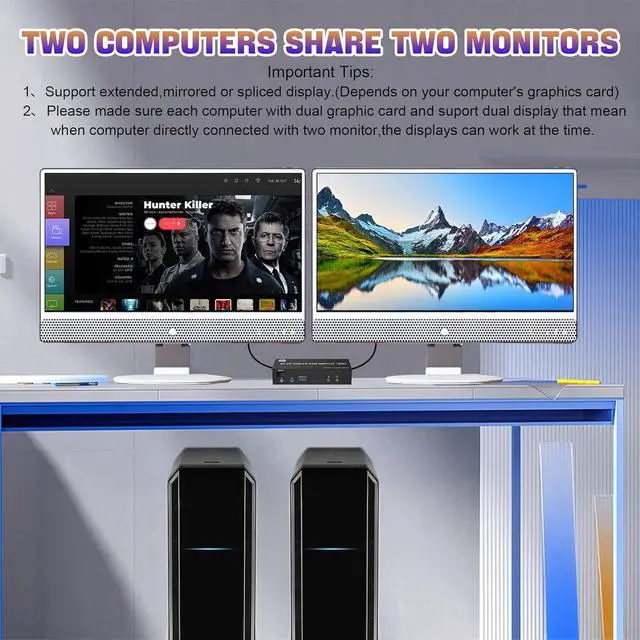
    1. KVM Switch Displayport 2 port allows 2 computers/laptops share one set of keyboard, mouse, and 2 monitors (DisplayPort+ DisplayPort).

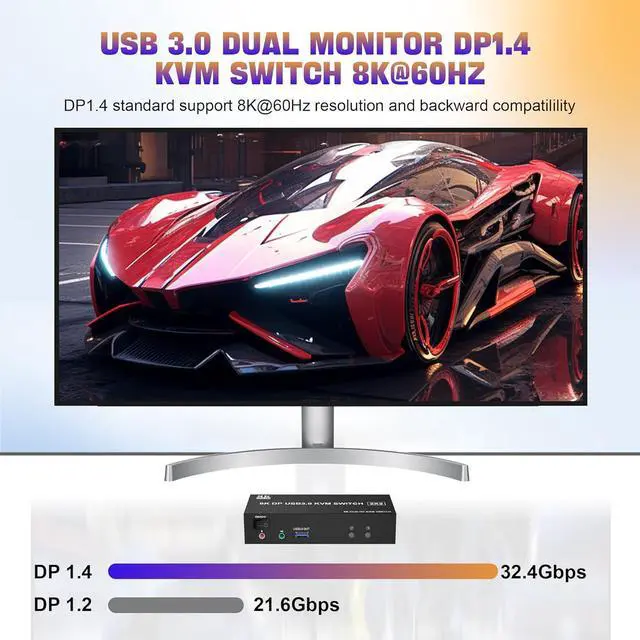
    2. Dual monitors output support up to 8K@60Hz/4K@120Hz, Ultra HD, HDR 10, Dolby vision, 3D effect.

    3. Support DP 1.4 , transfer rates up to 32.4Gbps, backwards compatible with DP 1.2.

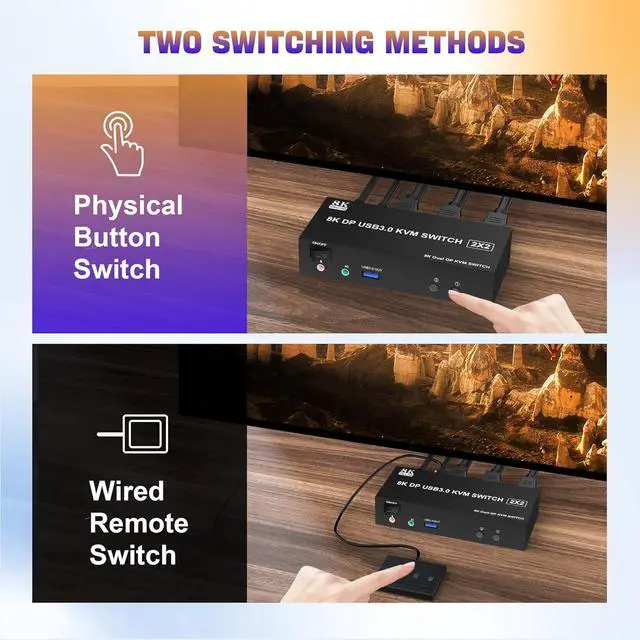
    4. 2 Switching modes: Button switch and wired remote.

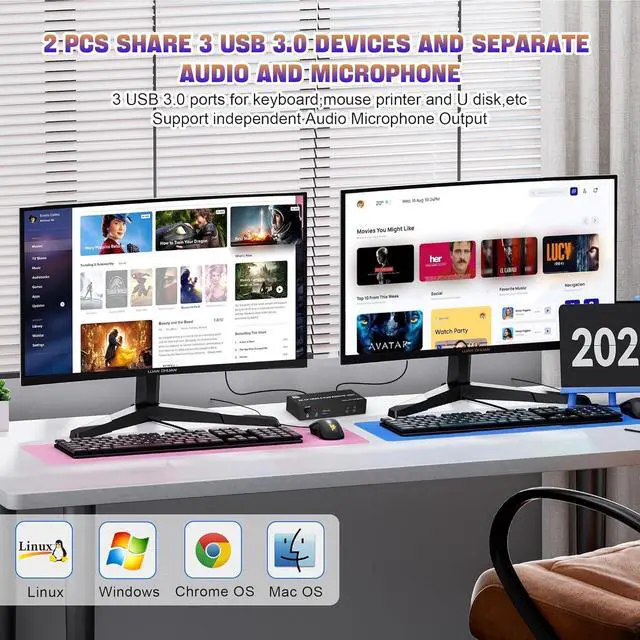
    5. With extra 3 USB 3.0 ports and independent audio microphone output.

    6. Plug and play, compatible with Windows/Vista/XP and Mac Os, Linux and Unix

    7. The ports that need to plug in DisplayPort/USB cables are all hidden behind the 2 monitor KVM switch, so the desktop doesn't get cluttered, you can enjoy the clean workspace.
    Features:
    Features:
    Ultra HD 8K@60Hz Dual Monitor KVM Switch


    • Supports up to 8K@60Hz/4K@120Hz, Ultra HD, HDR 10, Dolby vision, 3D effect.
    • Support DP 1.4 , transfer rates up to 32.4Gbps, backwards compatible with DP 1.2
    • Note: Only when both your computer Graphics card and monitor support 8K@60Hz you can get the 8K@60Hz effect, so if you want the max resolution you have to check your devices first.
    Ultra HD 8K@60Hz Dual Monitor KVM Switch
    How to connect?


    Installation steps:

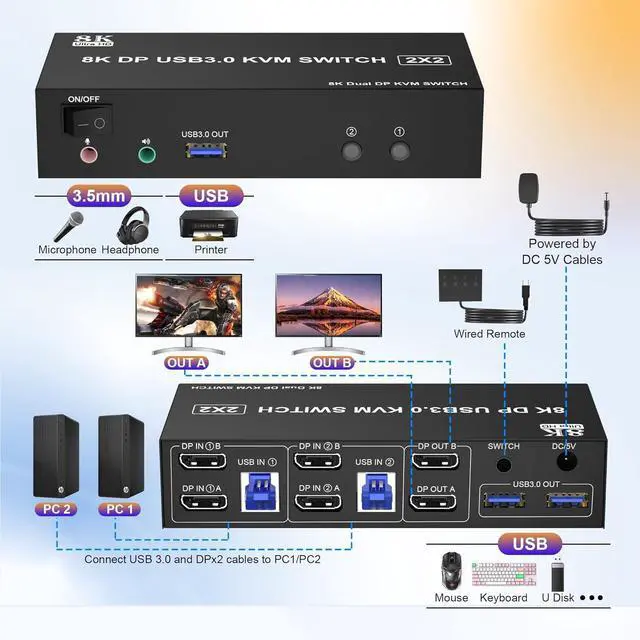
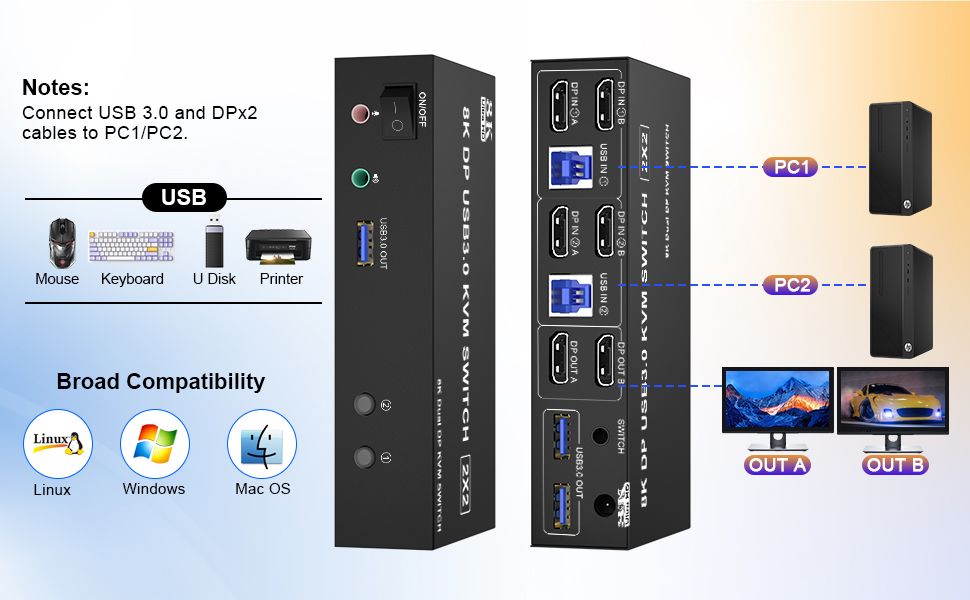
    1. Insert the power adapter into the KVM ;

    2. Plug the 2*Displayport cable into the KVM switch and monitor;(Output)

    3. Plug the Displayport cable and USB cable into the KVM switch and your computer/laptop (DP cables are not included)(Input)

    Please check whether DP IN 1A, DP IN 1B, and USB IN 1 are corresponding, and whether DP IN 2A, DP IN 2B, and USB IN 2 are corresponding. Mixed insertion is not supported.

    DP IN 1A + DP IN 1B + USB IN 1=PC1

    DP IN 2A + DP IN 2B + USB IN 2=PC2

    4. Insert the mouse and keyboard into the KVM switch

    5. If needed, you can connect a microphone and audio port

    Note:

    1. Most of the reasons why only one video output works is because of an incorrect connection. Please make sure each computer has 2 DP cables connected to the KVM.

    2. If the KVM switch does not work, you can turn off the switch on the panel and turn it on again after 2-3 seconds, and it will return to normal.
    Note:  1. Most of the reasons why only one video output works is because of an incorrect connection.


    Dual displayport KVM switches with 3 USB3.0 Ports


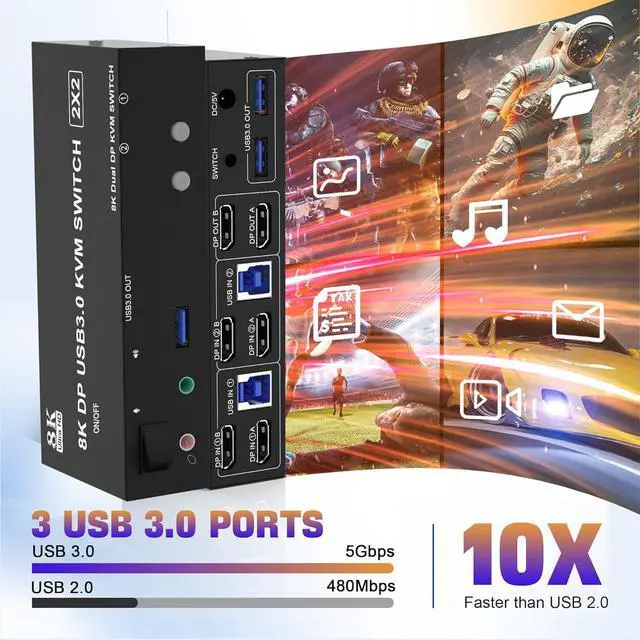
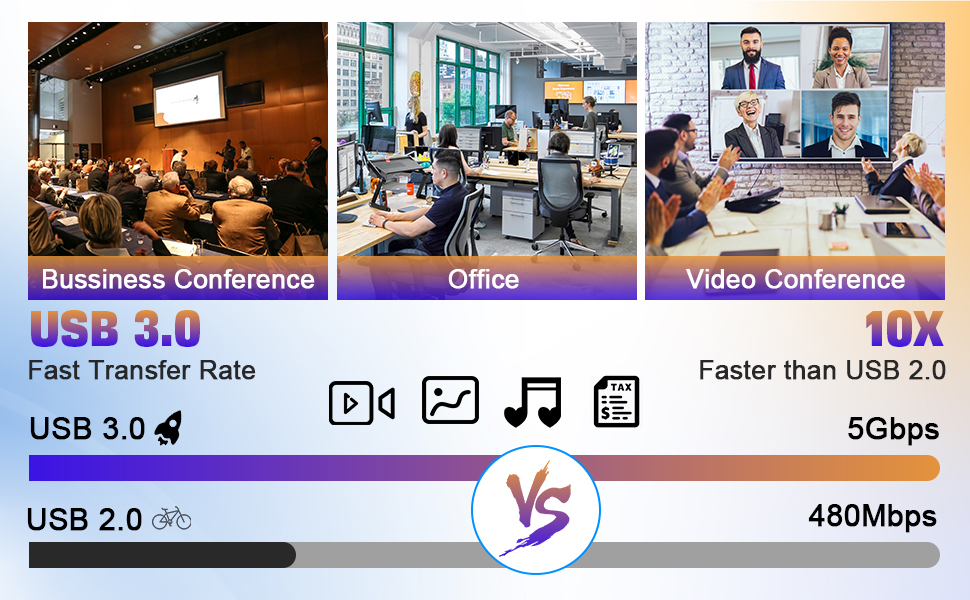
    • 3 USB 3.0 ports, backward compatible with USB 2.0 and USB 1.1, share USB devices such as keyboard mouse scanner, printer, flash drive, etc.
    • USB 3.0 offers data transfer speeds of up to 5Gbps, while USB 2.0 offers data transfer speeds of only 480Mbps.
    Wired Remote Control Supports wired remote switching for easy cable management, you can switch direc

    Wired Remote Control

    • Supports wired remote switching for easy cable management, you can switch directly on the desktop, convenient for your life and work
    Switch by Panel button Push-button design allows for one-touch switching using a button on the KVM S

    Switch by Panel button

    • Push-button design allows for one-touch switching using a button on the KVM Switch box, eliminating the need to plug and unplug cables frequently, saving space and time.
    Switch by Panel button Push-button design allows for one-touch switching using a button on the KVM S

    LED Indicator

    • When switching to which PC, the LED will tell you whether PC1 or PC2 is active
    Audio and microphone output KVM switch dual monitor comes with a 3.5mm Audio Jack port with a DAC ch

    Audio and microphone output

    • KVM switch dual monitor comes with a 3.5mm Audio Jack port with a DAC chip inside, which can be inserted into a 3-segment 3.5mm earpiece device, and a 3.5mm microphone interface, which can be inserted into a 3-segment microphone.
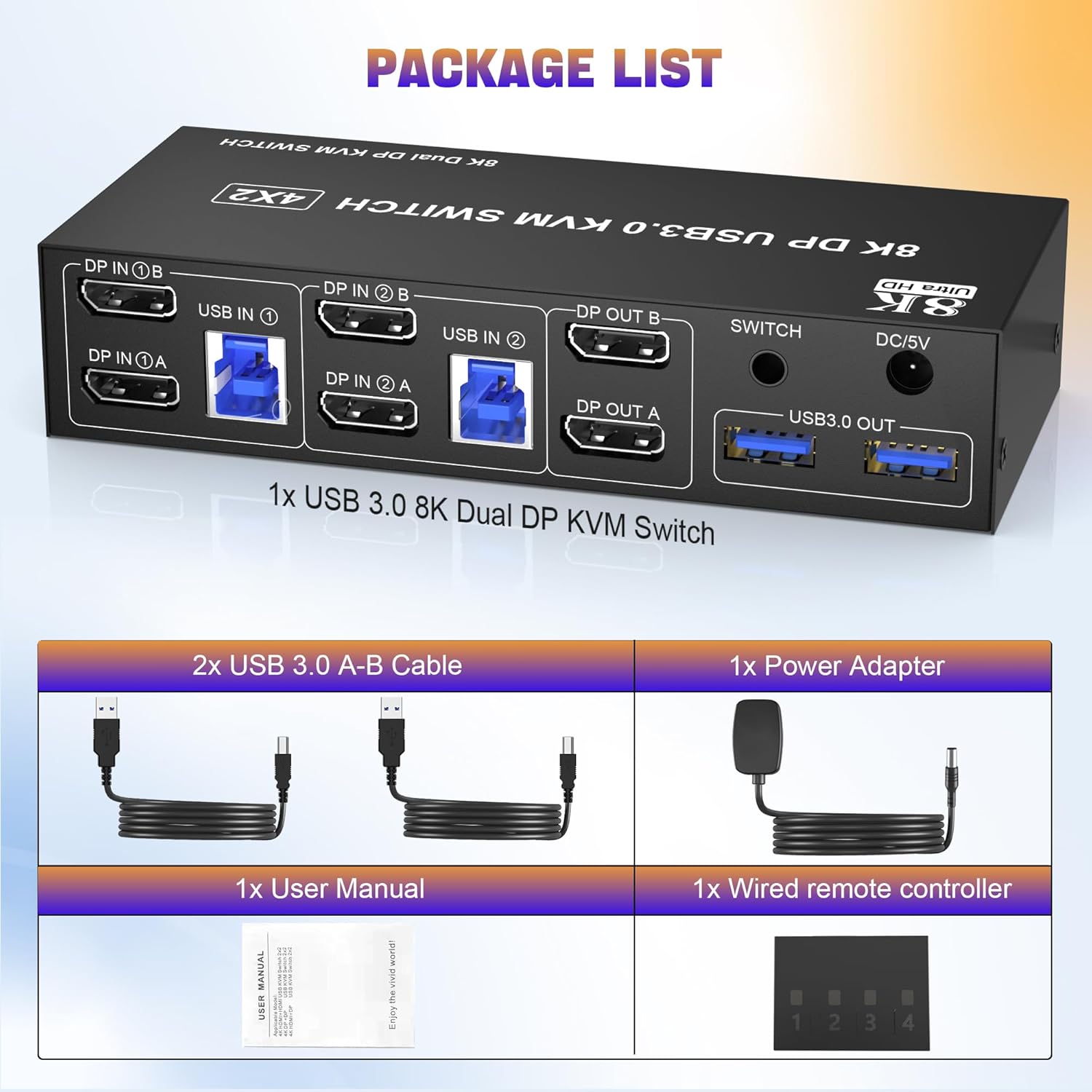
    Packing
    8K@60Hz Displayport KVM Switch for 2 monitors 2 computers Share 2 monitors and 3 USB 3.0 devices


    Features:

    1. KVM Switch Displayport 2 port allows 2 computers/laptops share one set of keyboard, mouse, and 2 monitors (DisplayPort+ DisplayPort).

    2. Dual monitors output support up to 8K@60Hz/4K@120Hz, Ultra HD, HDR 10, Dolby vision, 3D effect.

    3. Support DP 1.4, transfer rates up to 32.4G bps, backwards compatible with DP 1.2.

    4. 2
    Switching modes: Button switch and wired remote.

    5. With extra 3 USB 3.0 ports and independent audio microphone output.

    6. Plug and play, compatible with Windows/Vista/XP and Mac Os, Linux and Unix

    7. The ports that need to plug in DisplayPort/USB cables are all hidden behind the 2 monitor KVM switch, so the desktop doesn't get cluttered, you can enjoy the clean workspace.


    Installation steps:
    1. Insert the power adapter into the KVM;

    2. Plug the 2*Displayport cable into the KVM switch and monitor; (Output)

    3. Plug the Displayport cable and USB cable into the KVM switch and your computer/laptop (DP cables are not included) (Input)

    Please check whether DP IN 1A, DP IN 1B, and USB IN 1 are corresponding, and whether DP IN 2A, DP IN 2B, and USB IN 2 are corresponding. Mixed insertion is not supported.

    DP IN 1A + DP IN 1B + USB IN 1=PC1

    DP IN 2A + DP IN 2B + USB IN 2=PC2

    4. Insert the mouse and keyboard into the KVM switch

    5. If needed, you can connect a microphone and audio port

    Note:

    1. Most of the reasons why only one video output works is because of an incorrect connection. Please make sure each computer has 2 DP cables connected to the KVM.

    2. If the KVM switch does not work, you can turn off the switch on the panel and turn it on again after 2-3 seconds, and it will return to normal.

    Warranty & Returns

    Warranty, Returns, And Additional Information

    Warranty

    • Please contact the Seller directly for warranty information. Warranty information may also be found on the Manufacturer's website.
    • CONTACT

    Return Policies

    Manufacturer Contact Info

    LOADING...