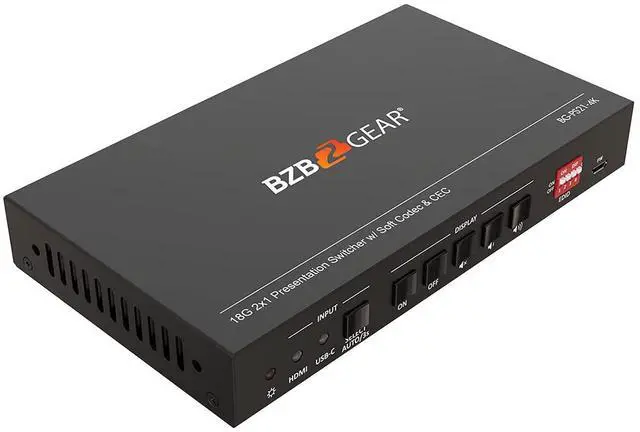
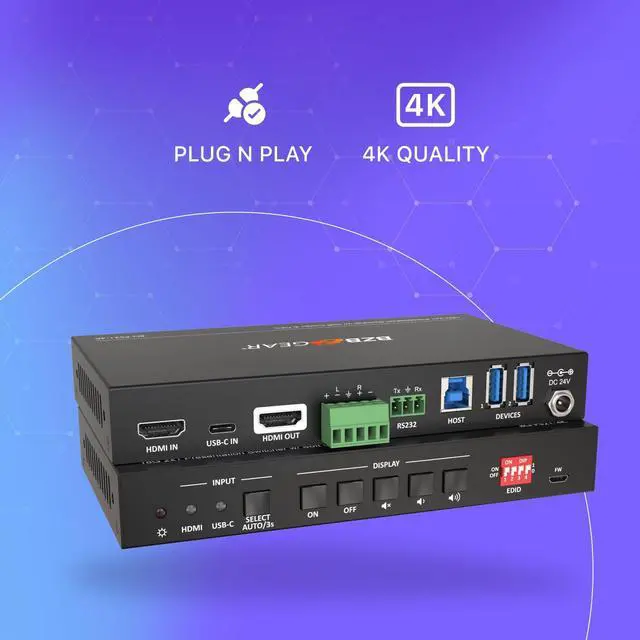
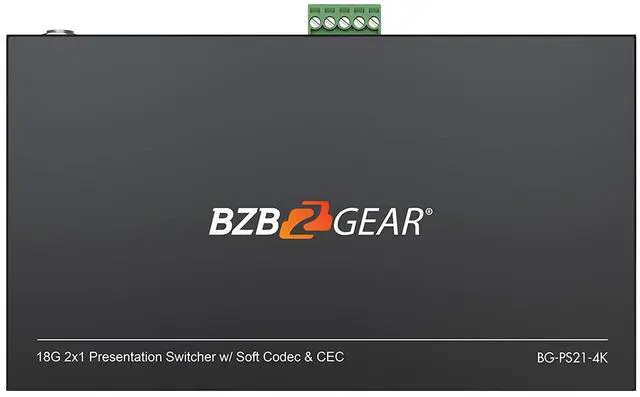
Built for flexible digital presentations, the BG-PS21-4K is a KVM switcher that enables two devices to be connected to the same display at output resolutions of up to 4K@60Hz. Thanks to its USB-A ports, users can control two connected devices with one mouse and keyboard. These USB peripherals can be shared between the HDMI/Host connections and the USB-C connection. The device will also automatically switch inputs when a signal is detected via HDMI.
With the ability to de-embed audio and support for audio formats such as LPCM 7.1 audio and the latest audio technologies, youll be able to capture crystal clear audio from your presentations.
This KVM switcher is a great option for small to medium sized conference rooms needing extra connectivity for multiple presenters during meetings. Our four-device KVM switcher, the BG-UHD-KVM41 may be a better fit if more than two devices need to be connected for presentation events.
Connectivity & Control
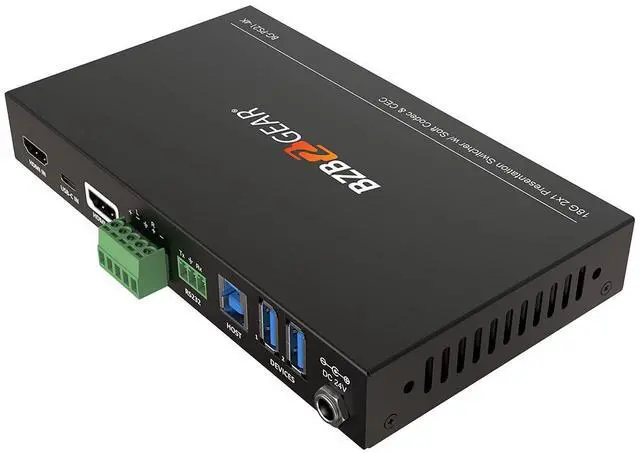
With two HDMI ports for input, the BG-PS21-4K can easily connect two separate devices. There is one HDMI output to send the signal to a single display, enabling presenters to share content during meetings. This device supports HDMI 2.0 and HDCP 2.2. The resolution for HDMI inputs supports up to 4Kx2K@60Hz. There is also a USB-C port which offers 4Kx2K@30Hz resolution. Additionally, the USB-C port provides 40 watts of charging to keep devices online through the entirety of a presentation. Auto-switching between active inputs is also supported.
Using the two USB 3.0/2.0 type-A ports, peripherals like mice and keyboards can be connected to control active content. The unit itself can be controlled via front panel buttons of the RS-232 interface. A 4-pin DIP switch is also provided for EDID settings. A balanced audio output is also included for audio de-embedding.
18G 2x1 switcher with HDMI and USB-C inputsSupports automatic switchingControllable via front panel buttons and RS232Supports HDMI 2.0, 4Kx2K@60Hz 4:4:4, HDR 10, Dolby Vision, HDCP 2.2Provides charging on USB-C port up to 40WProvides USB data (USB 3.0/2.0) and 4K video transmission on USB-C portSmart EDID management for various applications and customized settingsBalanced analog audio for audio de-embeddingFront panel buttons trigger both CEC and RS232 commands for display control
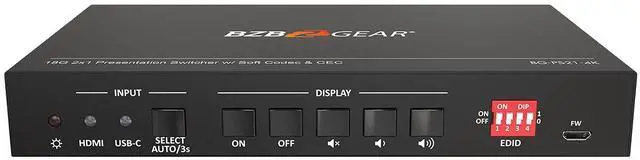
Video Input(1) HDMI, (1) USB-CVideo Input Connector(1) Type-A female HDMI, (1) Type-C USBHDMI Input ResolutionUp to 4Kx2K@60Hz 4:4:4 8bitUSB-C Input ResolutionUp to 4Kx2K@30Hz 4:4:4Video Output Connector(1) Type-A female HDMIHDMI Output ResolutionUp to 4Kx2K@60Hz 4:4:4 8bitHDMI Version2.0HDCP Version1080p@60HDCP Version2.2HDR 10SupportedCECSupportedHPDSupportedAudio Output Connector(1) 5-pin terminal blockHDMI Audio FormatLPCM 7.1 audio and the latest audio technologiesMax Output Level2.0Vrms ± 0.5dB. 2V = 16dB headroom above -10dBV (316mV) nominal consumer line level signalDimension (W*H*D)6.6" x 1.0" x 3.7" [168.0mm x 24.5mm x 95.0mm] 1. Power LED: This LED will illuminate red when the device is connected to the power supply.
2. HDMI Input LED: This LED will illuminate green when the HDMI input is selected in AUTO mode, or will illuminate in orange when the HDMI input is selected in MANUAL mode.
3. USB-C Input LED: This LED will illuminate green when the USB-C input is selected in AUTO mode, or will illuminate in orange when the USB-C input is selected in MANUAL mode.
4. SELECT AUTO/3s Button: Press this button to select the next input source, or hold this button for at least 3 seconds to enable auto switching mode. Note that the factory default switching mode is AUTO.
5. DISPLAY On Button: Press ON to turn on the display. 6. DISPLAY Off Button: Press OFF to turn off the display.
7. Audio Off Button: Press this button to mute/unmute the display audio.
8. Volume Down Button: Press this button to decrease the audio volume gradually, or hold it to decrease the audio volume constantly. 9. Volum