




 here!
here!
I’m your shopping assistant for PC builds, upgrades, and everything tech.
Got questions? Ask away!
Start a conversation
here!
I’m your shopping assistant for PC builds, upgrades, and everything tech.
Got questions? Ask away!
Start a conversation



Any questions? Ask CelesteSM will help you find out quickly.

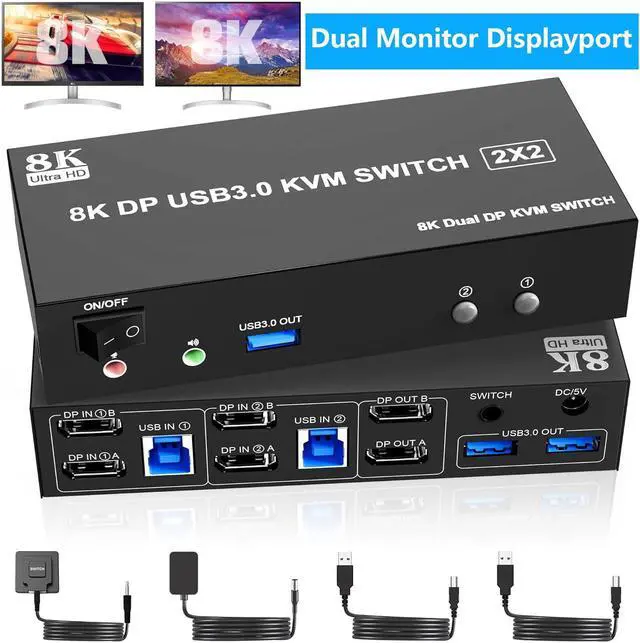
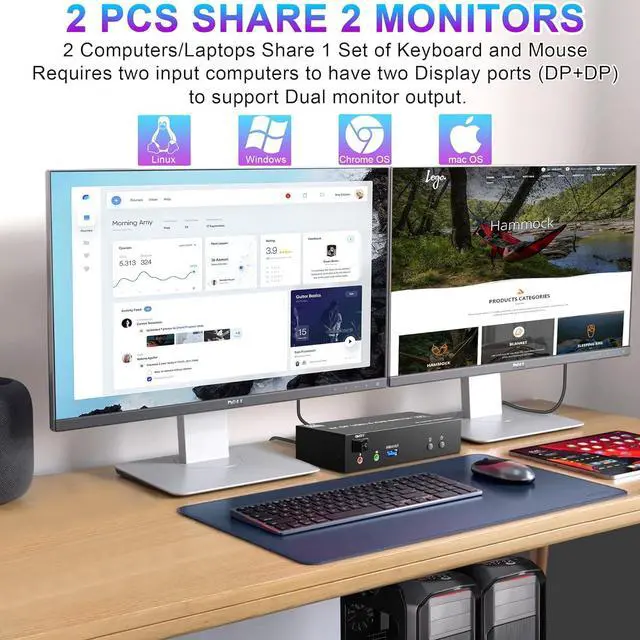
2 Ports Dual Monitor displayport KVM Switch, 2 computers share 2 monitors and 3 USB3.0 devices and Audio & Microphone Output
Advantages:
With this 8K displayport KVM, the screens of the two monitors come from the same computer, and you can watch movies for entertainment while working.
Important tips:
1) If the DP source is input from DP IN A, it needs to be output from the DP OUT A. If the DP source is input from DP IN B, then it needs to be output from the DP OUT B.
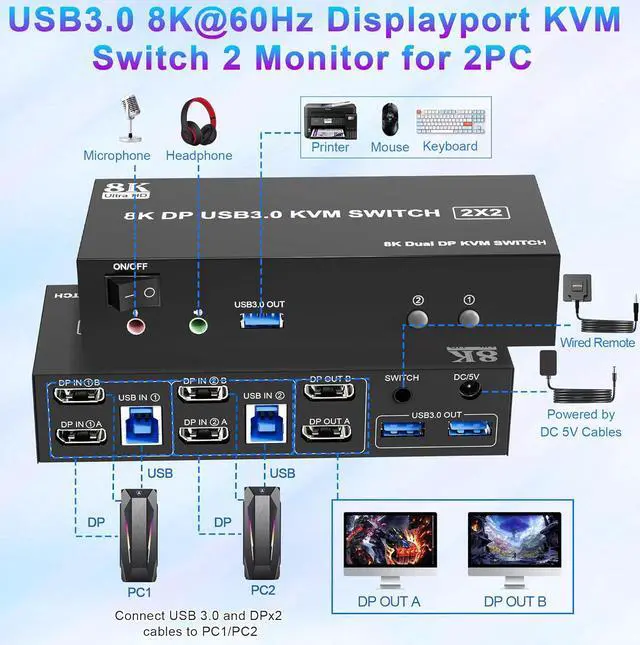
2) If you want to output 2 monitors simultaneously, 2 DP ports of one DP source computer must be connected. Specifically, DP IN A and DP IN B of PC1 should be connected at the same time, and DP OUT A and DP OUT B of the output ends should also be connected simultaneously. DP OUT A display the video from DP IN A, and DP OUT B will display the video from DP IN B.

Solve our need for simultaneous operation of multiple devices. We can program on one computer while consulting information on another computer; we can also design on one computer while previewing the effect on another computer. The displayport kvm switch 2 monitors is perfect for programmers, designers, editors and more.
Installation Guide Tips (incorrect connection will cause malfunction):
Each computer must connection 2 DP cables and 1 USB cable to ensure keyboard, mouse and monitors to work correctly.
Connection steps:
1. Insert the adapter into the KVM ;.
2. Connect 2*DP cables+1*USB-A cable between PC 1 and KVM (USB IN 1, DP IN 1 A, DP IN 1B).
3. Connect 2*DP cables+1*USB-A cable between PC 2 and KVM (USB IN 2, DP IN 2A, DP IN 2B).
4. Connect 2*DP cables between the KVM (DP IN 1 A, DP IN 1 B) and your 2 monitors.
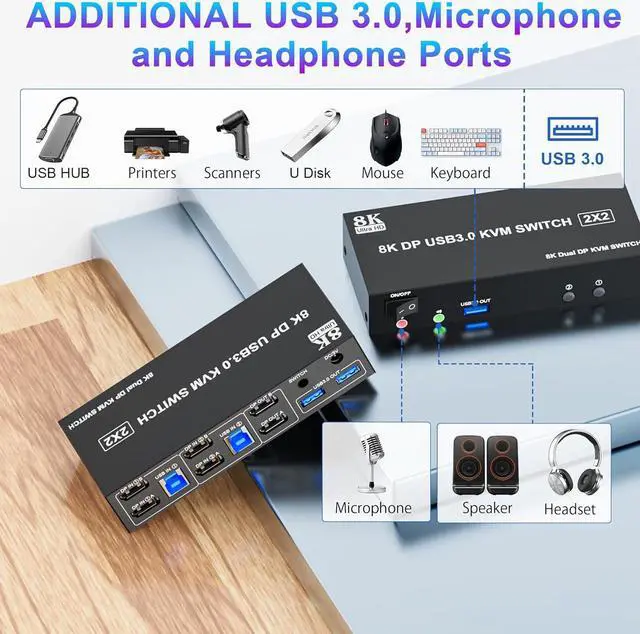
5. Insert your USB devices(keyboard mouse and U disk) into the USB port on the KVM.
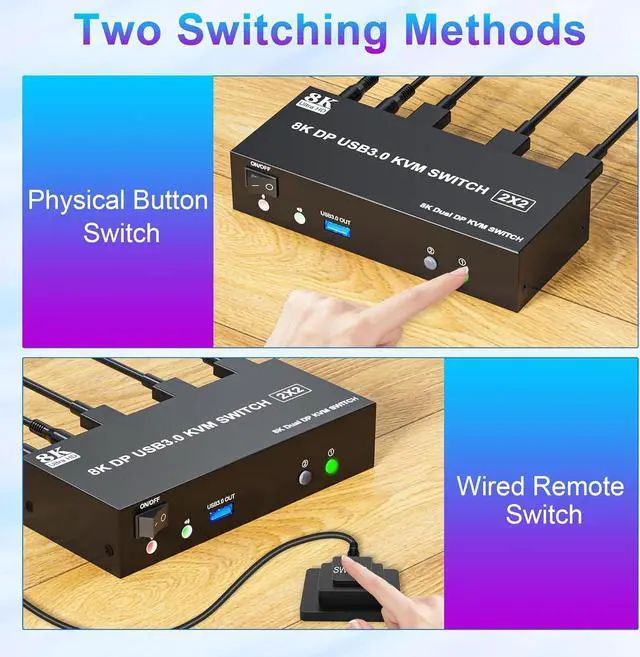
6. Insert the Wired Remote into the "SWITCH" port to remotely switch between PC1 and PC2.
Notice
1.After connecting the computers and the monitors through KVM, you need to set the screen output mode on the computer (press Windows+P) and select the output mode in the pop-up window on the screen. Otherwise, only one of the two connected monitors work normally.
2.Before purchasing this dual monitor KVM switch, please make sure that connecting your computer directly to the monitor can work normally,Otherwise, the KVM will not be available.
3. Most of the reasons why only one video output works is because of incorrect connection. Please make sure each PC has(2 DP cables+1 USB cable) connect to the KVM.

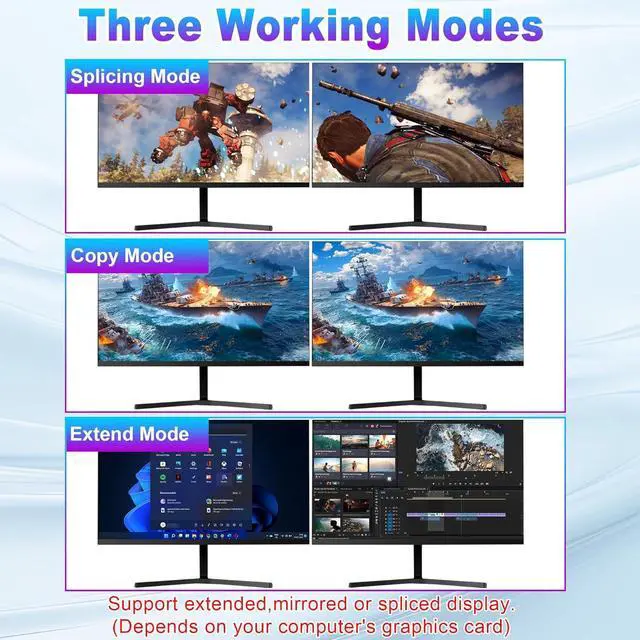
- In stitch mode, the displayport kvm switch 2 port can seamlessly stitch multiple images together to create a larger picture, providing an immersive viewing experience for cinema and gaming.
- In copy mode, the kvm displayport can display the same image on different screens at the same time. In extended mode, the kvm switcher expands the screen space to provide you with a wider working area.
- If you are a designer, you can easily view reference material on one screen while working on a design on another.

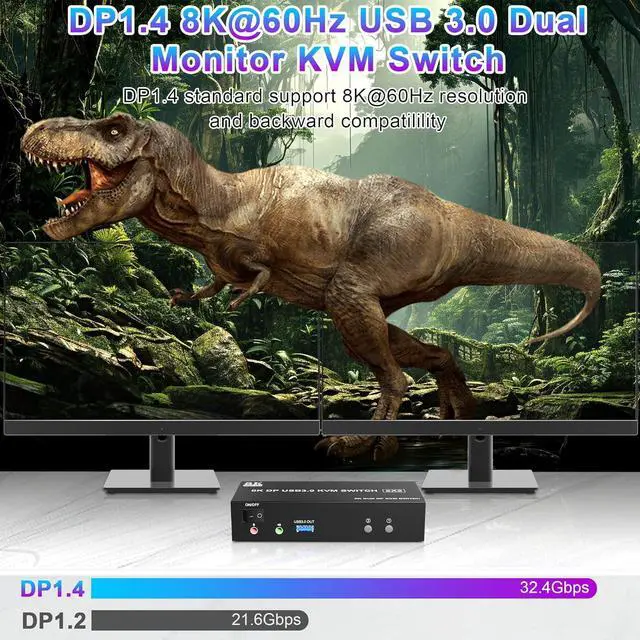
8K60 HD video display. Realistic details, vibrant colours, stunning visual effects, all highlight the excellence of the 8K Ultra HD put the effect of the place.

With support for mouse, keyboard, printer, microphone, speakers and other multifunctional ports. Multi-functional ports to meet the needs of our digital devices, these ports can work at the same time, plug and play.

DP1.4 technology and 3.0 USB. Dual monitor kvm switch 2 computers has excellent DP 1.4 technology ensures high-speed and high-quality video transmission with no lag and zero latency, and USB 3.0 port, with data transfer speed up to 5Gbps, greatly improves the efficiency of data transmission.

Some daily questions about the product
Q: How can I tell if my PC can support dual screen mode.
A: 1. You can connect your PC to 2 monitors. If they can both display, it means your PC supports multi-monitor display.
2. Check the display output ports of your PC. Observe how many display ports there are on the motherboard, usually there will be VGA, DVI, HDMI ports, or one or two of them.
Q: Why can't I drive my keyboard, mouse and printer?
A: Please make sure the PC port and monitor port are connected properly before driving your keyboard, mouse and printer.
What will you get?


