Your Browsing History
- Free 30-day Returns
$289.78
Ships from China.
Meet Your Seller
CKLau 2 Port USB 3.0 Dual Monitor KVM Switch Displayport 1.4, Display Port KVM Switch 2 Monitors with Audio and Cables Support 4K@144Hz, 8K@30Hz
Limited time offer, ends 07/22 By YuXuan Technology
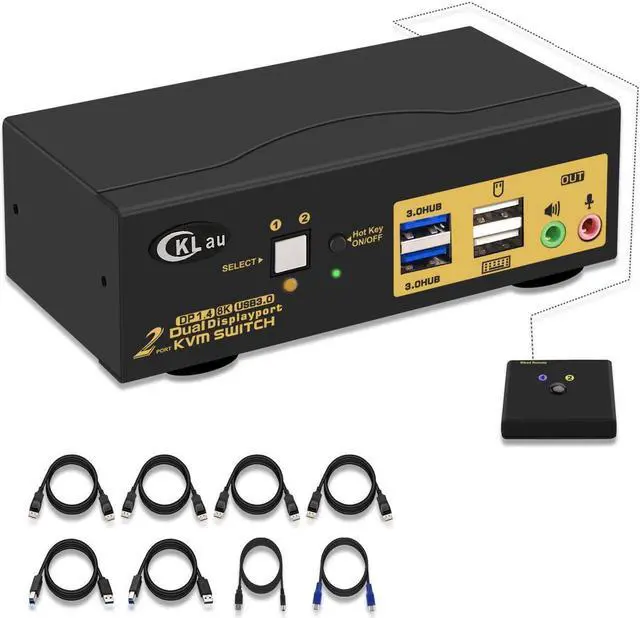
- 1. Displayport Dual Monitor Switch: 2 displayport-interface computers sharing one set of keyboard & mouse, 2 monitor, audio, microphone and 2 pcs USB 3.0 peripheral devices. With audio and microphone output, 2 pcs USB 3.0 hub (data transferring rate up to 5Gbps/s ,10 times faster than USB 2.0), 2 kits 4.9ft(1.5m) cables and a wire remote push button switch. (Tips: this KVM switch required your computer with 2 or multi video output)
- 2. Displayport KVM Dual Monitor: Resolution compatible 7680x4320@30Hz, 3840x2160@144hz and lower resolution. Drive-free for Windows 10/7/2000/XP/Vista, Linux, Mac, Debian, Ubuntu, Fedora, Raspbian, Ubuntu, etc.
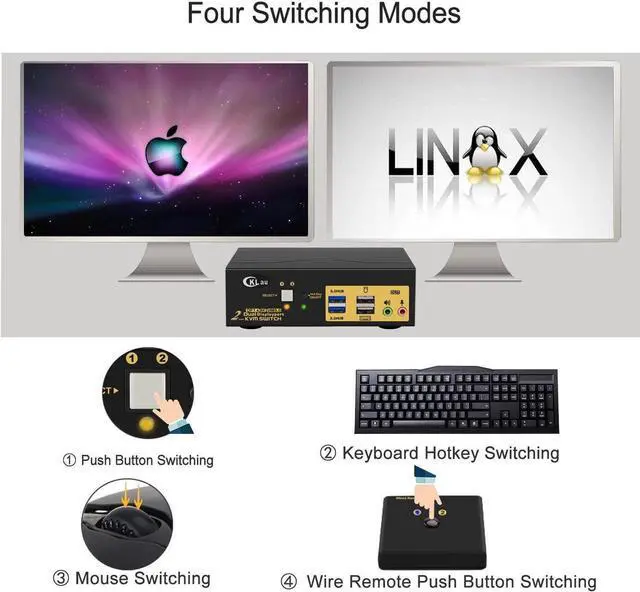
- 3. 8K Displayport KVM Switches: Support wired/wireless/unify keyboard and mouse, Apple keyboard (hot key is changeable), touch screen, OLED screen, 16:9 widescreen, 21:9 ultra-wide monitors, etc. It can switch by mouse or keyboard independently, even without USB signal input, such as Apple TV, Android TV box, etc. And it can enter into BIOS interfa
+
+
Overview
Specs
Reviews
Any questions? Our AI beta will help you find out quickly.
Try me now
Monitor Switch for 2 Computers 4K KVM Switch 2 Port KVM Switch KMV Switches KVM Displayport
Installation Step:
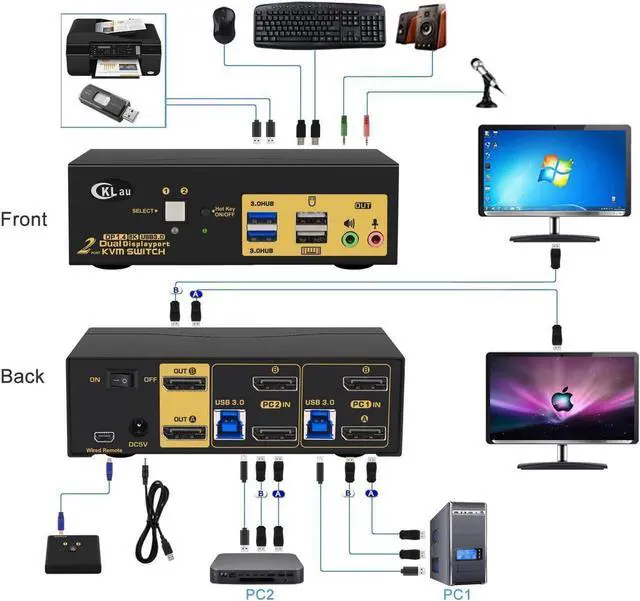
1. Turn off all devices and unplug all cables;
2. Plug USB 3.0 cables (transfer USB signal and audio signal), displayport cables into your computers and KVM switch
3. Plug mouse into mouse slot of KVM switch, plug keyboard into keyboard slot of KVM switch(for gaming or mechanical keyboard, please plug them into USB 3.0 HUB on front panel if they did not work well on rear USB ports);
4. Connect your Monitors to KVM switch;
5. Plug your speaker or microphone or wired remote push button switch into KVM switch if needed;
6. Turn on KVM switch;
7. Turn on your computers;
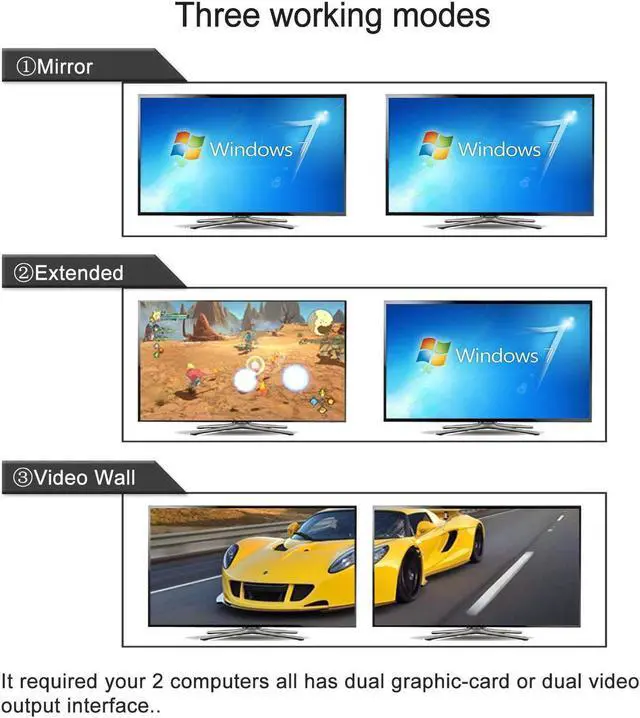
8. Set computer display modes as extended display/duplicated display.
Package:
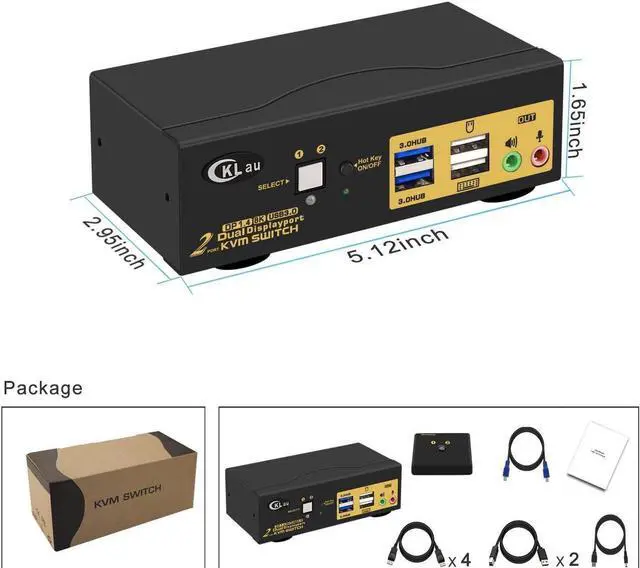
1 x 2 port displayport KVM switch
4 x displayport cables
2 x USB 3.0 cables
1 x DC 5V 2A Power adapter
1 x manual
1 x wire remote push button switch

Installation Step:
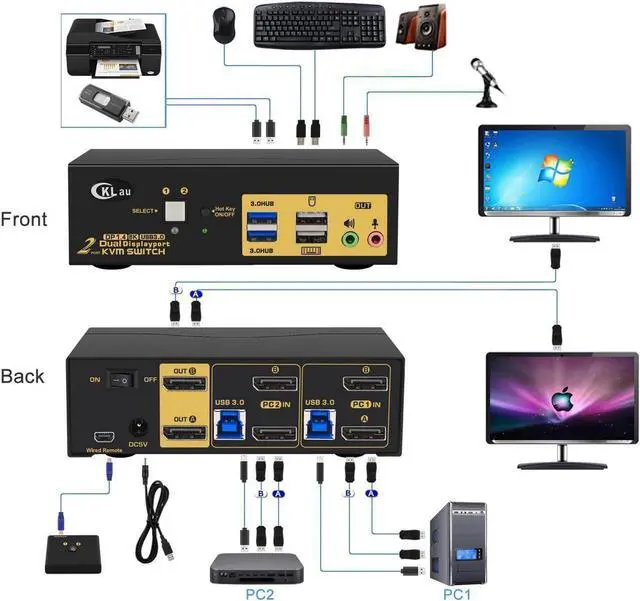
1. Turn off all devices and unplug all cables;
2. Plug USB 3.0 cables (transfer USB signal and audio signal), displayport cables into your computers and KVM switch
3. Plug mouse into mouse slot of KVM switch, plug keyboard into keyboard slot of KVM switch(for gaming or mechanical keyboard, please plug them into USB 3.0 HUB on front panel if they did not work well on rear USB ports);
4. Connect your Monitors to KVM switch;
5. Plug your speaker or microphone or wired remote push button switch into KVM switch if needed;
6. Turn on KVM switch;
7. Turn on your computers;
8. Set computer display modes as extended display/duplicated display.
Package:
1 x 2 port displayport KVM switch
4 x displayport cables
2 x USB 3.0 cables
1 x DC 5V 2A Power adapter
1 x manual
1 x wire remote push button switch
Warranty & Returns
Warranty, Returns, And Additional Information
Warranty
- Please contact the Seller directly for warranty information. Warranty information may also be found on the Manufacturer's website.
- CONTACT
Return Policies
- Return for refund within: 30 days
- Return for replacement within: 30 days
- This item is covered by YuXuan Technology Return Policy
Manufacturer Contact Info
- For a directory of all our manufacturers, please click below.
- Manufacturers Directory
LOADING...