Your Browsing History
- Free 30-day Returns
$298.78
Ships from China.
Meet Your Seller
2x2 Displayport + HDMI KVM Switch Dual Monitor USB 3.0 4K@60Hz with Audio and Cables Support EDID, DP 1.2, HDMI 2.0, HDR 10
Limited time offer, ends 07/22 By YuXuan Technology
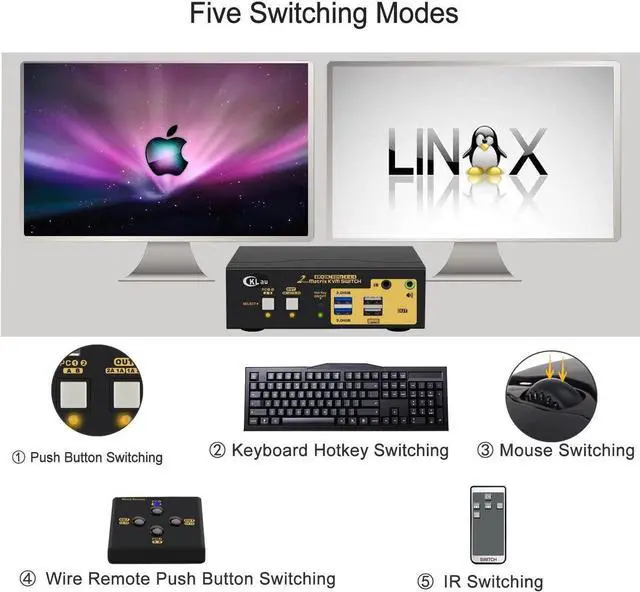
- 1. KVM HDMI Displayport Switch: 2 computers or laptops sharing 1 set of keyboard & mouse, audio, 2 USB 3.0 periperal devices and 2 monitors. Support EDID emulation (each monitor to display each computer, windows won't move during switching between computers), HDMI 2.0, HDCP 2.2, DP 1.2.
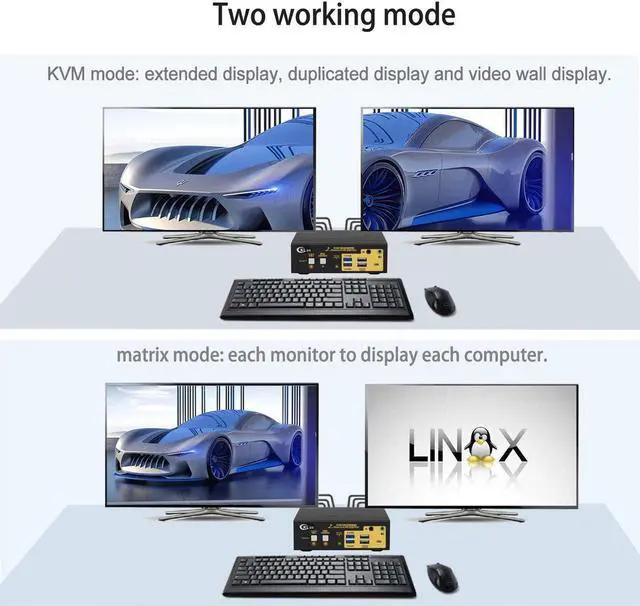
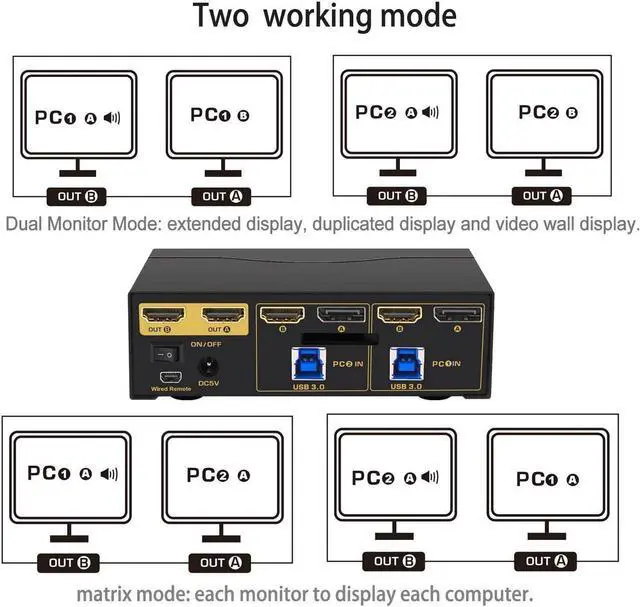
- 2. KVM Switch HDMI + Displayport: Support two display mode. KVM switch display mode --- extended display, mirror display, video wall display. Matrix KVM switch display mode --- dual monitor extended desktop (1 monitor on 1 computer and swap them easily).
- 3. Dual Monitor KVM Displayport HDMI: Resolution up to 4096x2160@60Hz 4:4:4, compatible lower resolution. Supports wired/wireless/mechanical/multimedia/unify/Apple/gaming keyboard & mouse. Supports touch screen, OLED screen, widescreen, etc.
- 4. KVM Switch Dual Monitor HDMI Displayport: We are Certified HDMI adopter over 10 years. Excellent image processing and transmission capacity, make the output signal is more smooth and steady.
- 5. KVM Switch 2
+
+
Overview
Specs
Reviews
Any questions? Our AI beta will help you find out quickly.
Try me now
Monitor Switch for 2 Computers 4K KVM Switch 2 Port KVM Switch KMV Switches KVM Displayport
Installation Step:
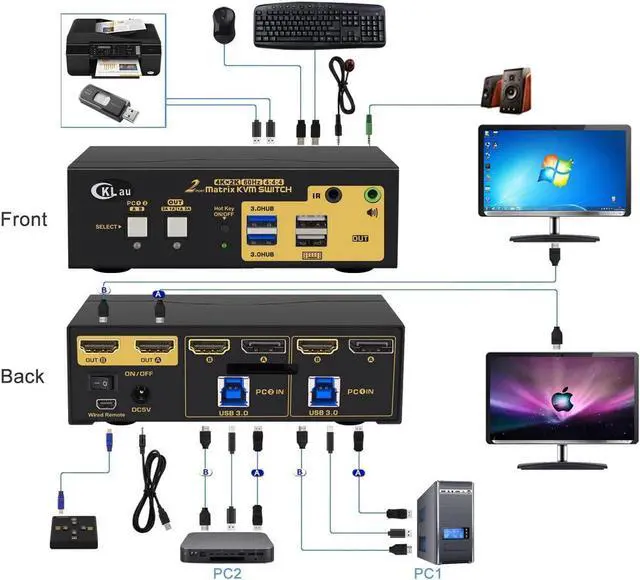
1. Turn off all devices and unplug all cables;
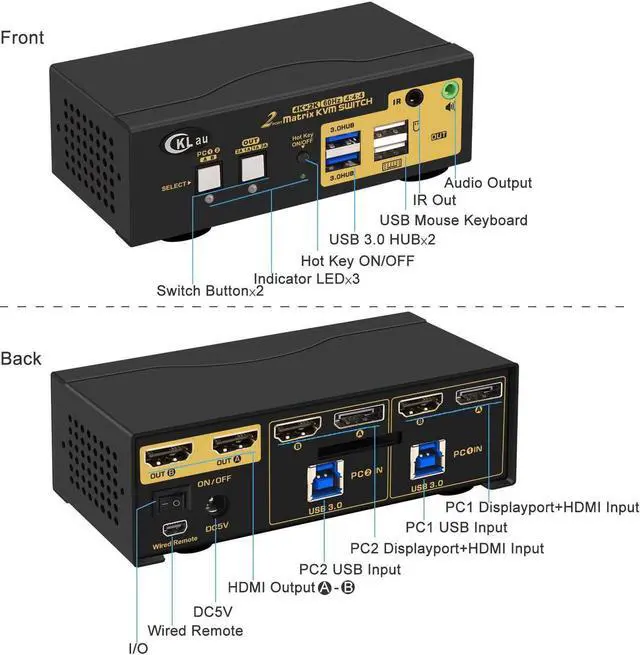
2. Plug USB 3.0 cables (transfer USB signal and audio signal), displayport cables into your computers and KVM switch
3. Plug mouse into mouse slot of KVM switch, plug keyboard into keyboard slot of KVM switch(for gaming or mechanical keyboard, please plug them into USB 3.0 HUB on front panel if they did not work well on rear USB ports);
4. Connect your Monitors to KVM switch;
5. Plug your speaker or microphone or wired remote push button switch into KVM switch if needed;
6. Turn on KVM switch;
7. Turn on your computers;
8. Set computer display modes as extended display/duplicated display.
Package:
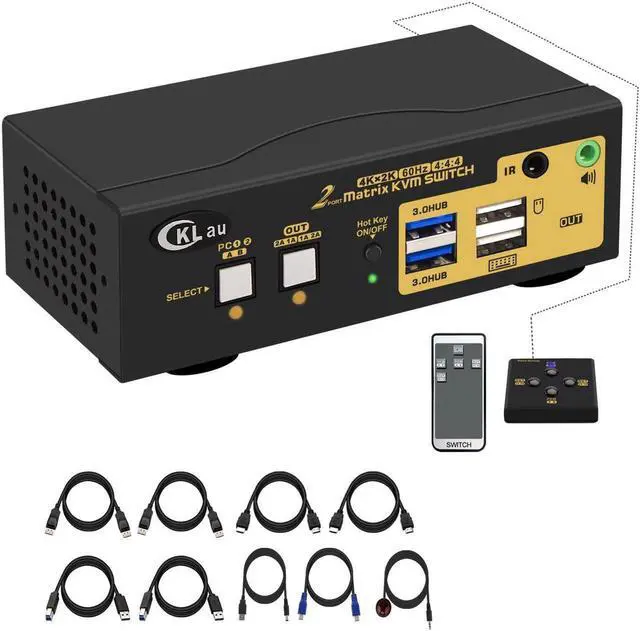
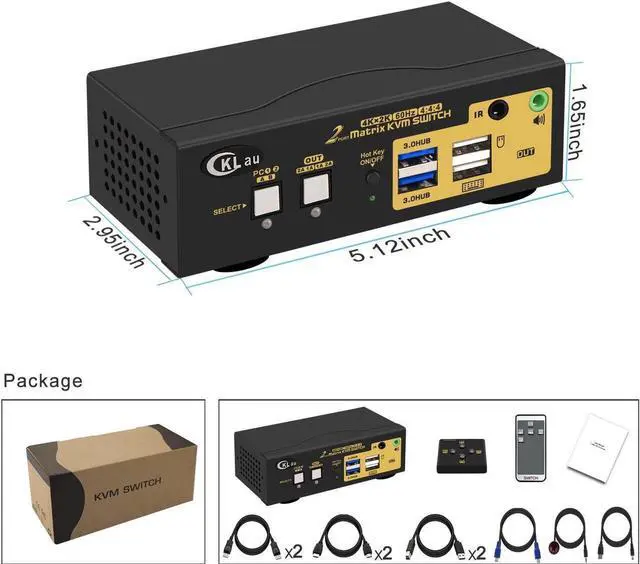
1 x 2 port displayport KVM switch
4 x displayport cables
2 x USB 3.0 cables
1 x DC 5V 2A Power adapter
1 x manual
1 x wire remote push button switch

Installation Step:
1. Turn off all devices and unplug all cables;
2. Plug USB 3.0 cables (transfer USB signal and audio signal), displayport cables into your computers and KVM switch
3. Plug mouse into mouse slot of KVM switch, plug keyboard into keyboard slot of KVM switch(for gaming or mechanical keyboard, please plug them into USB 3.0 HUB on front panel if they did not work well on rear USB ports);
4. Connect your Monitors to KVM switch;
5. Plug your speaker or microphone or wired remote push button switch into KVM switch if needed;
6. Turn on KVM switch;
7. Turn on your computers;
8. Set computer display modes as extended display/duplicated display.
Package:
1 x 2 port displayport KVM switch
4 x displayport cables
2 x USB 3.0 cables
1 x DC 5V 2A Power adapter
1 x manual
1 x wire remote push button switch
Warranty & Returns
Warranty, Returns, And Additional Information
Warranty
- Please contact the Seller directly for warranty information. Warranty information may also be found on the Manufacturer's website.
- CONTACT
Return Policies
- Return for refund within: 30 days
- Return for replacement within: 30 days
- This item is covered by YuXuan Technology Return Policy
Manufacturer Contact Info
- For a directory of all our manufacturers, please click below.
- Manufacturers Directory
LOADING...