

Your Browsing History
- Free 30-day Returns
$211.99
Ships from China.

Meet Your Seller

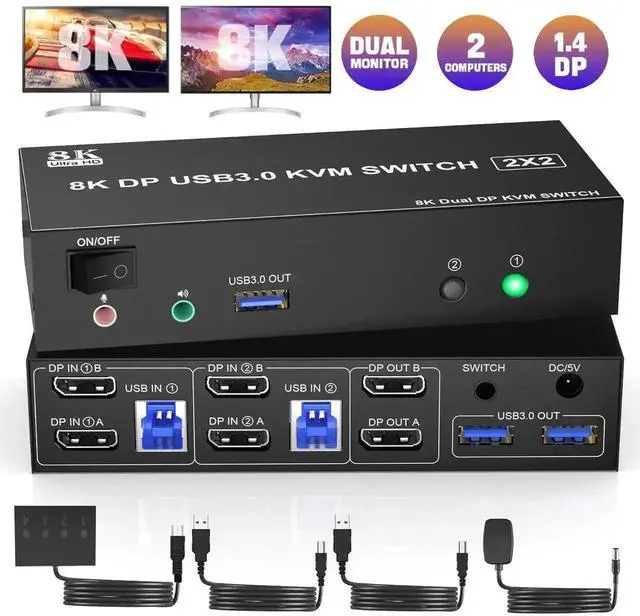


Vszerda 8K@60Hz USB 3.0 Displayport KVM Switch 2 Monitors 2 Computers, DP 1.4 Dual Monitor KVM Switch with Audio Microphone Output and 3 USB 3.0 Ports, Wired Remote and 2 USB Cables Included
Limited time offer, ends 10/14 By Hai Kou Shi Quan Jun Dian Zi Shang Wu Yo
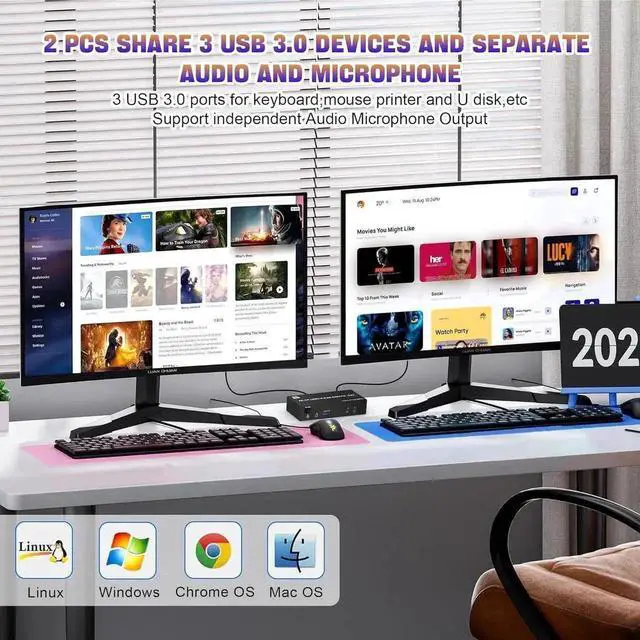
- [DP KVM Switch 2 PC 2 monitors] This KVM switch allow you to control 2 PCs by only one set of wired or wireless keyboard mouse,share 3 USB 3.0 devices, audio microphone output and 2 monitors (extended mode or copy display mode).
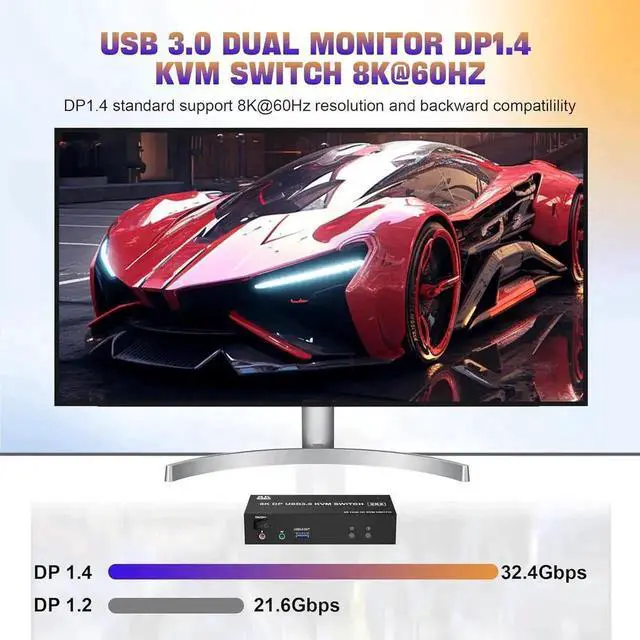
- [8K@60HZ ULTRA HD] With the DP 1.4 technology,immerse yourself in the pinnacle of visual clarity with astonishing 8K resolution and a seamless 60Hz refresh rate.
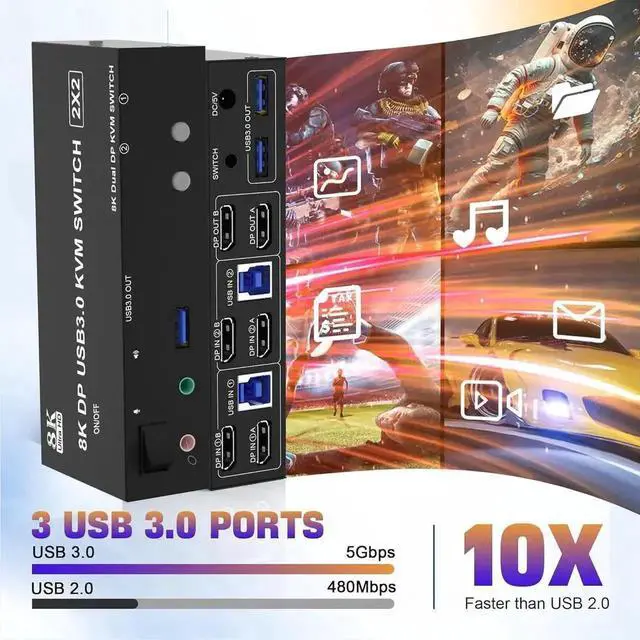
- [ with 3 USB 3.0 Ports] KVM switch with 3 integrated USB 3.0 ports, supports ultra-fast USB 3.0 data transfer, Data transfer speeds up to 5Gbps, which can recognize keyboard,mouse,printer and other USB devices.compatible with USB 2.0/1.1 devices.
- [Splicing Extended and Copy Mode] Supports 3 display mode: splicing mode, copy mode and extend modes. Note:Please make sure your computer supports multi-screen display.
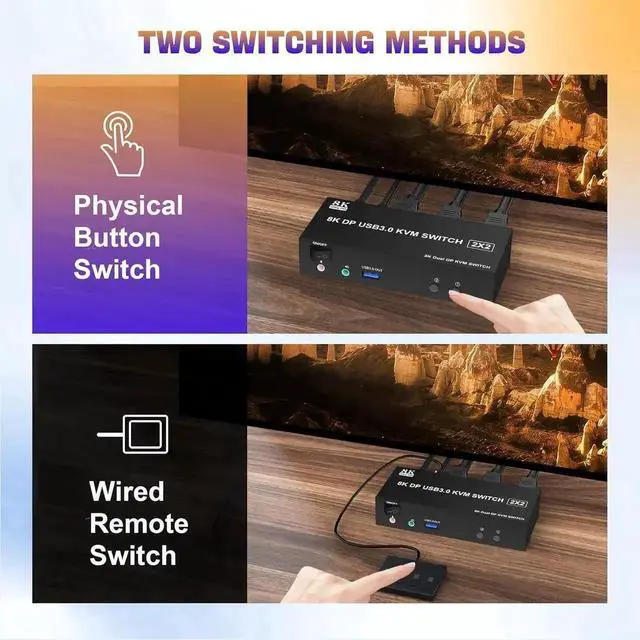
- [Great Compatibility & 2 Switching Modes] Driver-free for Windows 11/10/8/7/XP and Mac OS. You can press the button on the panel or use the wired remote controller to switch the computers.
+
+
Overview
Specs
Reviews

Any questions? Our AI mode will help you find out quickly.
Try me now
8K@60Hz Displayport KVM Switch for 2 monitors 2 computers Share 2 monitors and 3 USB 3.0 devices
Features:
1. KVM Switch Displayport 2 port allows 2 computers/laptops share one set of keyboard, mouse, and 2 monitors (DisplayPort+ DisplayPort).
2. Dual monitors output support up to 8K@60Hz/4K@120Hz, Ultra HD, HDR 10, Dolby vision, 3D effect.
3. Support DP 1.4, transfer rates up to 32.4G bps, backwards compatible with DP 1.2.
4. 2
Switching modes: Button switch and wired remote.
5. With extra 3 USB 3.0 ports and independent audio microphone output.
6. Plug and play, compatible with Windows/Vista/XP and Mac Os, Linux and Unix
7. The ports that need to plug in DisplayPort/USB cables are all hidden behind the 2 monitor KVM switch, so the desktop doesn't get cluttered, you can enjoy the clean workspace.
Installation steps:
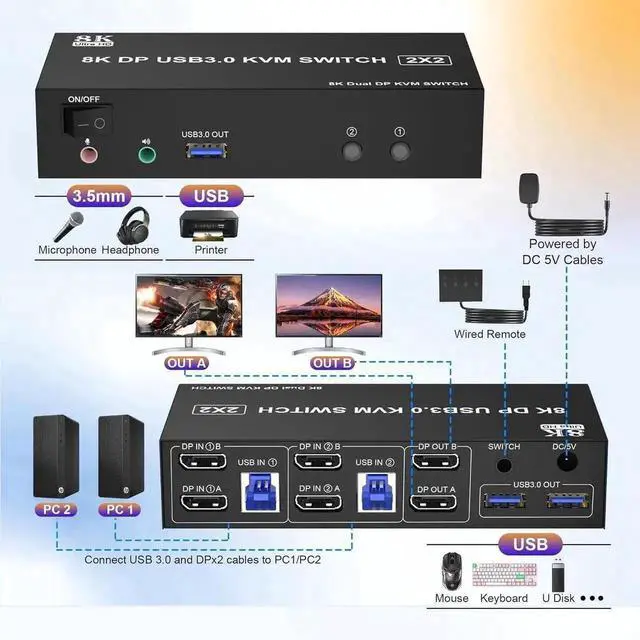
1. Insert the power adapter into the KVM;
2. Plug the 2*Displayport cable into the KVM switch and monitor; (Output)
3. Plug the Displayport cable and USB cable into the KVM switch and your computer/laptop (DP cables are not included) (Input)
Please check whether DP IN 1A, DP IN 1B, and USB IN 1 are corresponding, and whether DP IN 2A, DP IN 2B, and USB IN 2 are corresponding. Mixed insertion is not supported.
DP IN 1A + DP IN 1B + USB IN 1=PC1
DP IN 2A + DP IN 2B + USB IN 2=PC2
4. Insert the mouse and keyboard into the KVM switch
5. If needed, you can connect a microphone and audio port
Note:
1. Most of the reasons why only one video output works is because of an incorrect connection. Please make sure each computer has 2 DP cables connected to the KVM.
2. If the KVM switch does not work, you can turn off the switch on the panel and turn it on again after 2-3 seconds, and it will return to normal.
Warranty & Returns
Warranty, Returns, And Additional Information
Warranty
- Please contact the Seller directly for warranty information. Warranty information may also be found on the Manufacturer's website.
- CONTACT
Return Policies
- Return for refund within: 30 days
- Return for replacement within: 30 days
- This item is covered by Hai Kou Shi Quan Jun Dian Zi Shang Wu Yo Return Policy
Manufacturer Contact Info
- For a directory of all our manufacturers, please click below.
- Manufacturers Directory
LOADING...