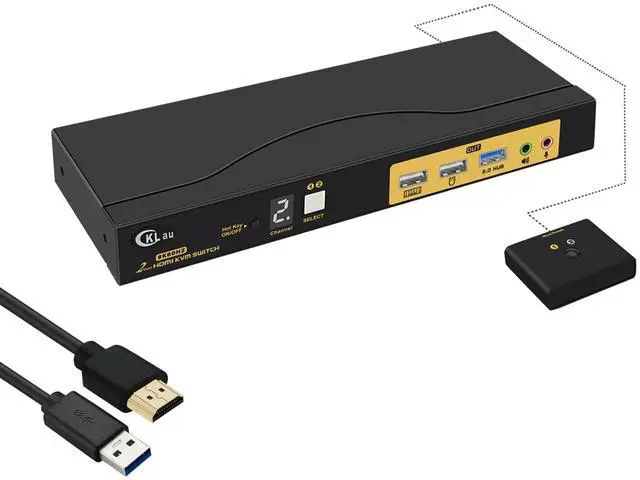
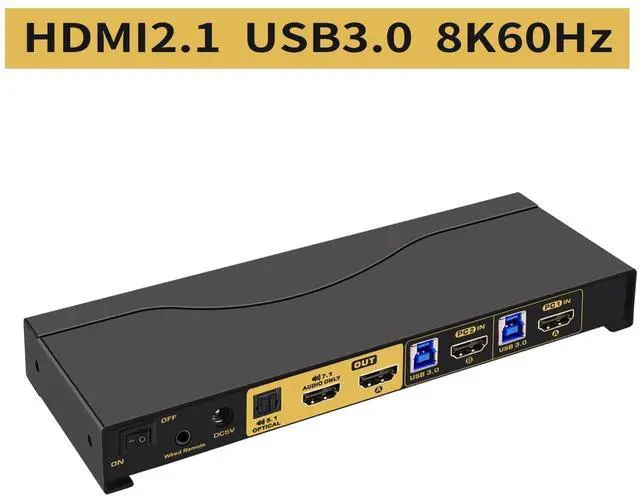
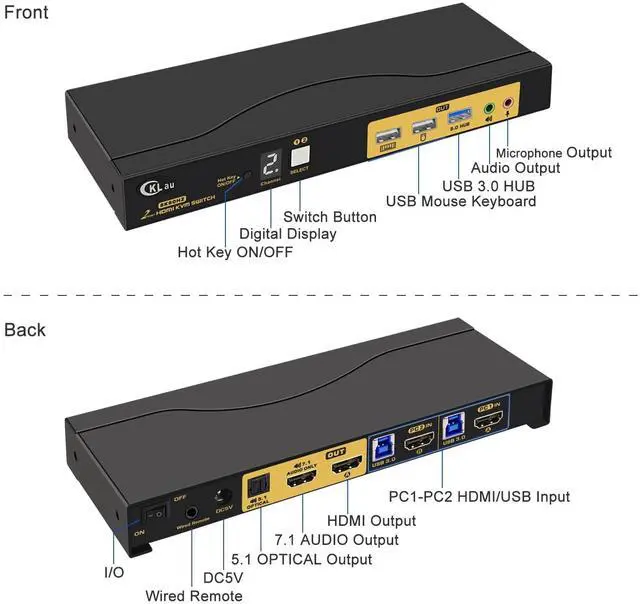
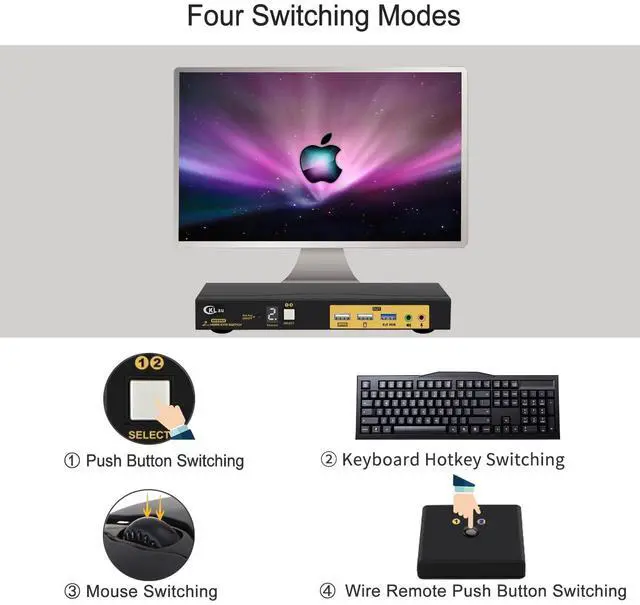
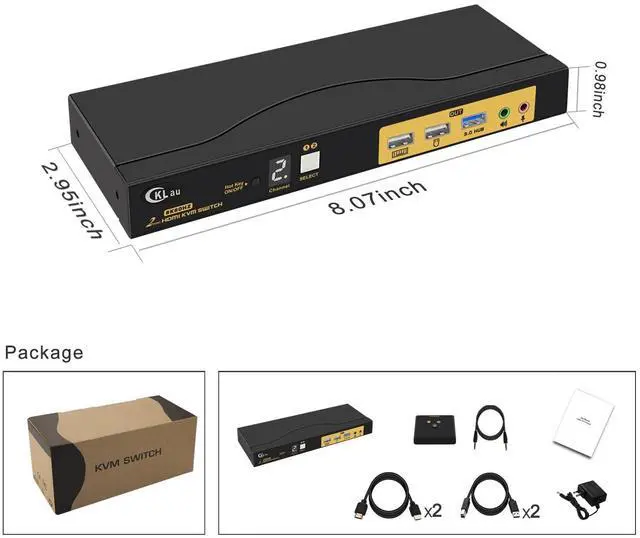
1. 144Hz KVM Switch Dual Monitor HDMI: 2 PCs in, 1 monitor output. With 3.5mm audio & microphone output, digital display, 5.1 channel digital fiber optical audio output, 7.1 surround sound audio output via HDMI, 1 USB 3.0 Hub port, and cables. 2. 8K KVM KVM Monitor: This KVM switch supports emulation EDID(defaults turn on, you can turn it off if needed). Support HDMI 2.1, HDCP.3. KVM USB HDMI Switch: Resolution compatible 7680x4320@60Hz, 5120x2880@50/60/100/120Hz, 4096x2160@50/60/100/120Hz, 3840x2160@60/120/144Hz, 3840x1620@60/120/144Hz, 3440x1600@60/120/144Hz, 3440x1440@60/120/144Hz, 3840x1080@60/120/144/165/240Hz, 3200x1800@60/120/144/165/240Hz, 2560x1440@60/120/144/165/240Hz, 2048x1536@60/120/144/165/240Hz, 2048x1280@60/120/144/165/240Hz, 2048x1080@60/120/144/165/240Hz, 1920x1200@60/120/144/165/240Hz, etc.4. USB 3.0 KVM Switch 144Hz: We have been certified HDMI adopters for over 10 years. Support auto detection, auto scan, and waking up, with memory function in case of power-down. It can be switched by mouse or keyboard independently, even without USB signal input, such as Apple TV, Android TV box, etc. And it can enter into the BIOS interface directly.5. KVM Switch HDMI: Four switching ways optional: keyboard hotkey switching (Num Lock + Num Lock + 1 / 2 + Enter, or Ctrl + Ctrl + 1 / 2 + Enter or Scroll Lock+ Scroll Lock+1 / 2 + Enter), mouse switching (click mouse wheel 2 times), manual button switching, and wired remote push-button switching.
Please use a self-power USB splitter if you need more USB port
keyboard hotkey switching (Num Lock + Num Lock + 1 / 2 + Enter,
or Ctrl + Ctrl + 1 / 2 + Enter or Scroll Lock+ Scroll Lock+1 / 2 + Enter),
mouse switching (click mouse wheel 2 times), manual button switching, and wired remote push-button switching.
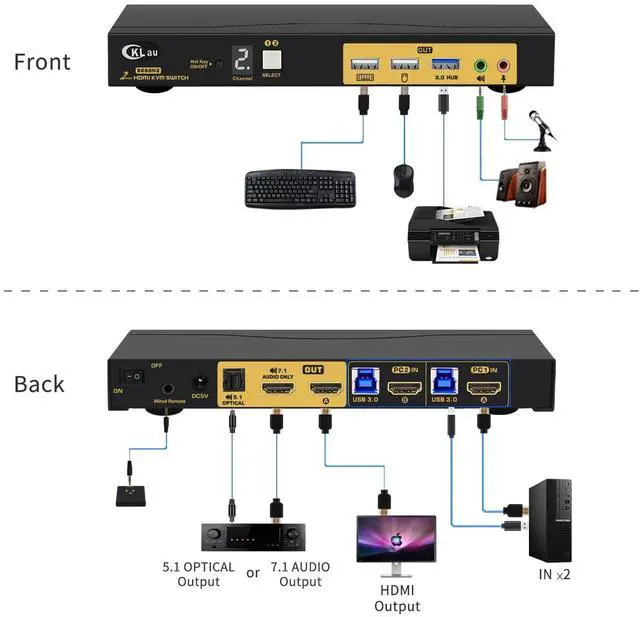
Connect the KVM switch and computers using the HDMI cables and USB 3.0 cables that come with the KVM switch.Connect the KVM switch and monitors using HDMI cables.Plug the keyboard into the keyboard slot and the mouse into the mouse slot of the KVM switch.Plug any wired remote push-button switch, headset, speaker, or other USB device into the KVM switch if needed.
If you plan to purchase a HDMI Adaptor, please make sure it's an 8K adapter with chips build in. The quality of the adapter will affect the function of the KVM switch.If your devices have a docking station and you encounter display issues, we suggest you try using another docking station. The quality of the docking station will affect the function of the KVM switch.If you want to achieve 8K60Hz or 4K144Hz resolution, all your devices (including computers, docking stations, and adapters) should support that resolution. The KVM switch acts like a bridge for transferring computer signals to monitors; it cannot change your devices' resolution. For example, if all your computers and the monitor support 4K144Hz, but one of your computers needs to use an adapter, and this adapter only supports 4K60Hz, then this computer will only support 4K60Hz, not 4K144Hz.
CKLau 2 Port HDMI KVM Switch 1 Monitor 8K@60Hz 4K@144Hz with Cables Supports Emulation EDID, Hotkey Switching, 5.1 Optical and 7.1 Audio via HDMI Optical 5.1 Audio and 7.1 Audio Via HDMI USB 3.0 HUB Hokey On/off button and LED display Support 3.5mm Audio port and microphone for easy assist Installation Step: Helpful Tips for Using Your KVM Switch