





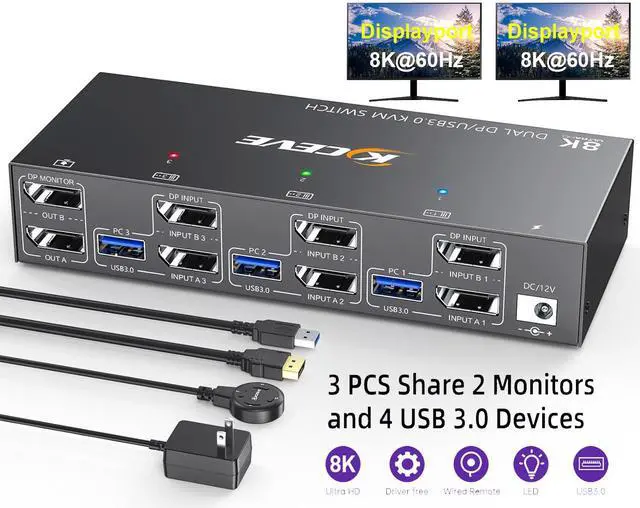
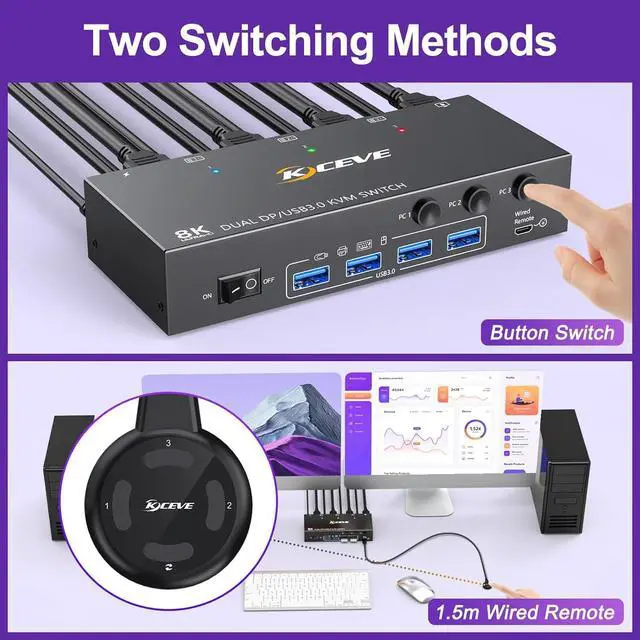


Dual Monitor Displayport KVM Switch 3 Computers Share 2 monitor and 4 USB Devices


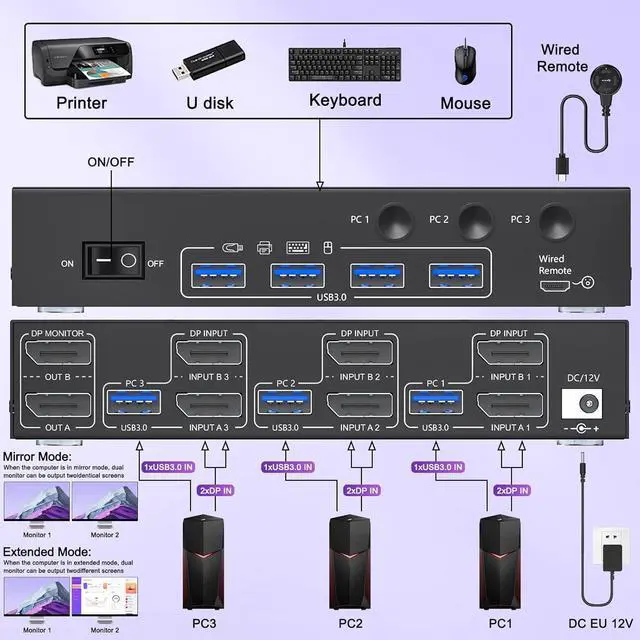
1. Turn off all devices before connecting the KVM switch to avoid potential damage or connection issues.
2.Each computer requires 2*Displayport +1* USB cable to connect the 2 monitor KVM switch,OUT A, OUT B need 2 DP cables connect to 2 monitor
3. Plug your keyboard and mouse into the USB devices ports on the KVM switch.
4. Turn on the monitors, computers, and KVM switch
Note: You must use USB cables to connect both computers and the KVM switch, otherwise the 4 USB ports devices will not work.
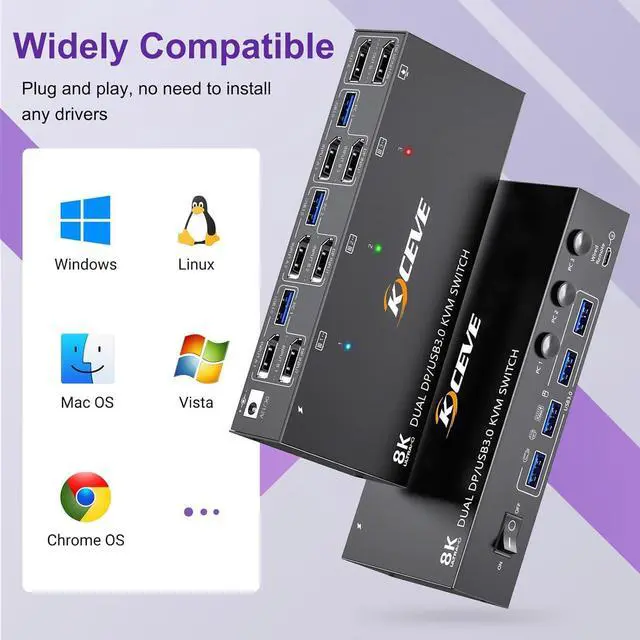
DP KVM switch 2 monitors 3 computers wide compatibility

This KVM Switch Displayport 3 Port supports Windows 11/10/8.1/8/7..,Mac OS, and Linux systems. Just plug and play and without any installation. This KVM switch 3 computers 2 monitors is compatible with most source devices, such as PC, Laptop, PS4, DVR etc. It is widely applied for enterprise, office, multimedia teaching, meeting rooms, gaming rooms and research tests.
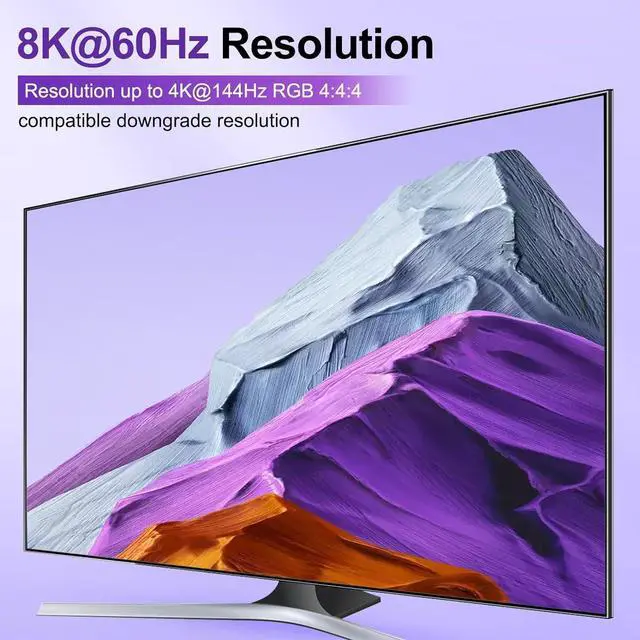
8K@60Hz 4K@144Hz USB 3.0 DP KVM Switch 2 Monitors 3 Computers

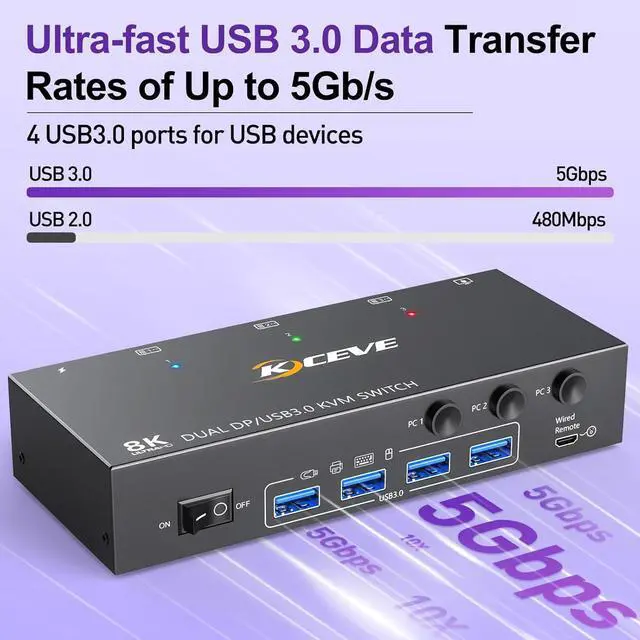
This dual displayport kvm switches is equipped with 4 USB3.0 ports and supports ultra-fast USB 3.0 data transfer at up to 5Gbps. Use this DP KVM switch. It can recognize USB devices like keyboards, mice, printers, scanners, etc., and is backwards compatible with USB2.0 peripherals..

Demonstration video of how to set the output mode
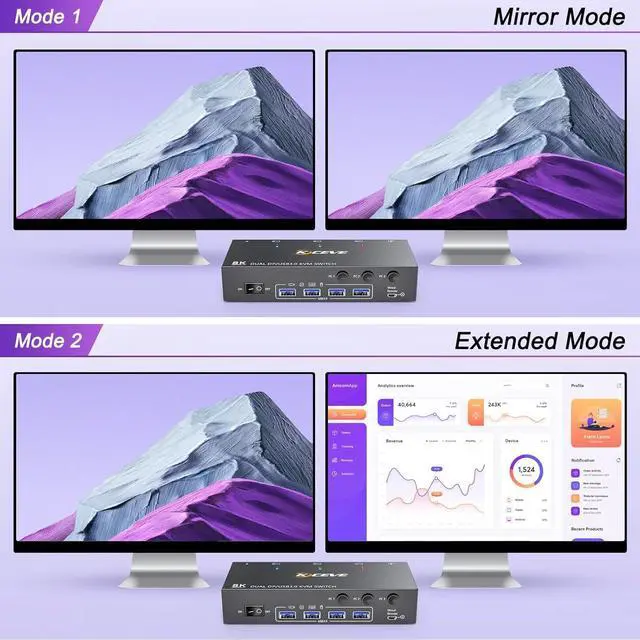
3 port DP KVM switch supports extended mode and mirror mode.
Windows OS: Press the shortcut key "WIN+P" and then select "Extension" or "mirror" below
Mac OS: Set [Mirror Mode]: Select [A-p-p-l-e Icon] [System Preferences], click [Display] [Arrange], and then check [Mirror Display];
Set [Extended Mode]: When [Mirror Display] is unchecked, "Extended Mode" can be achieved.
