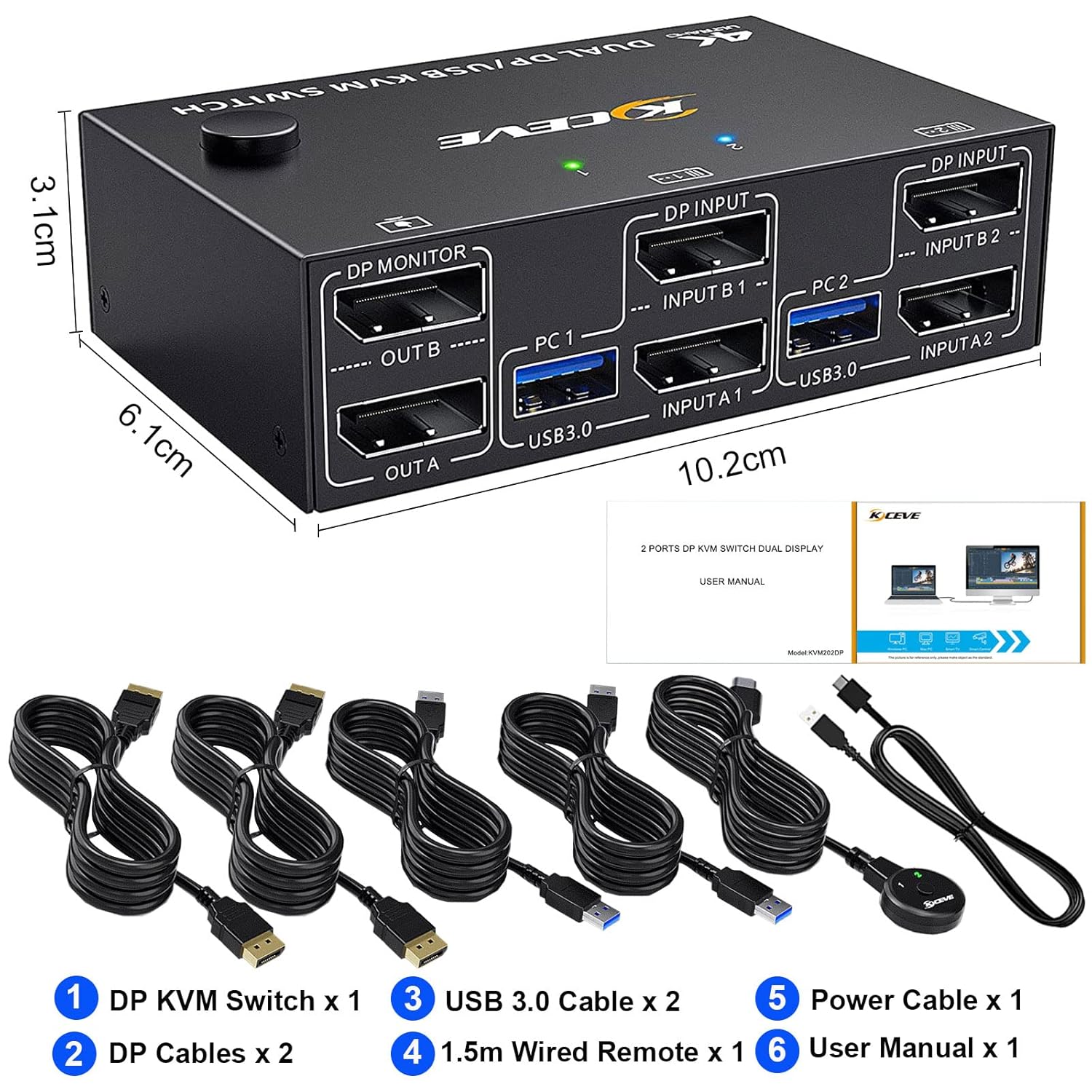
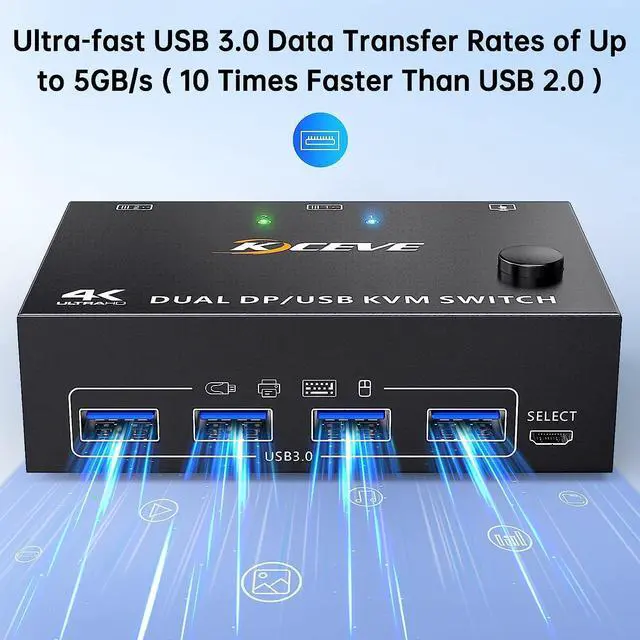


USB 3.0 KVM Switch 2 Monitors 2 Computers DisplayPort
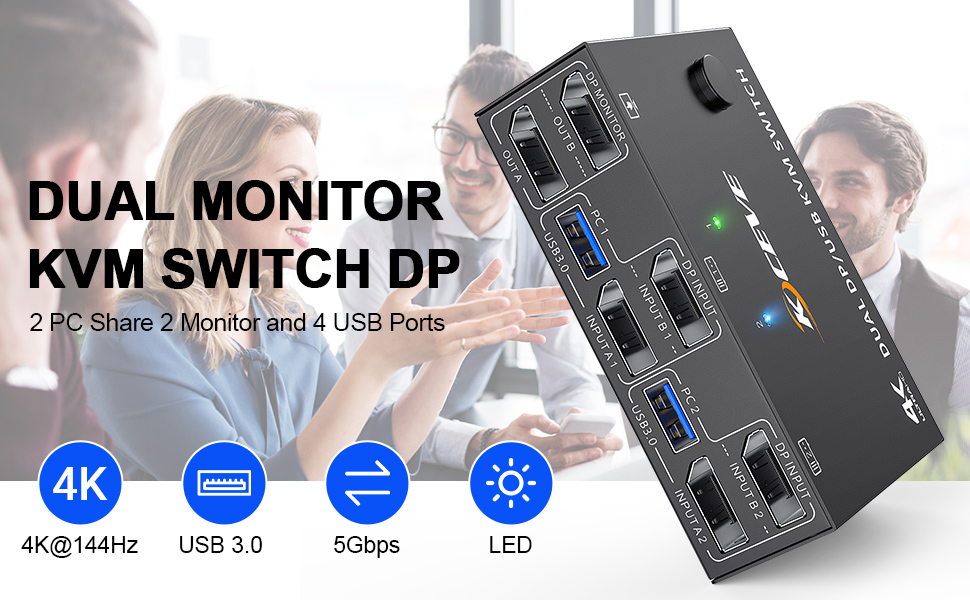
- 2 computers share a set of mouse, keyboard, printer, scanner or webcam, and display on 2 monitors.
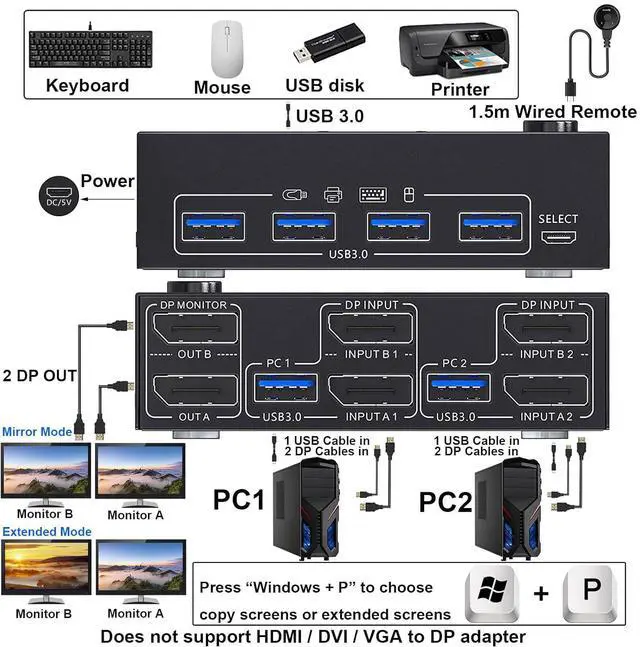
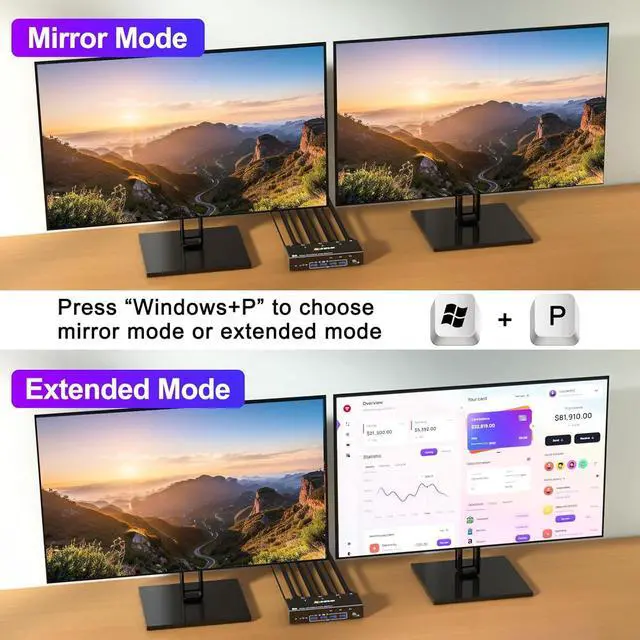
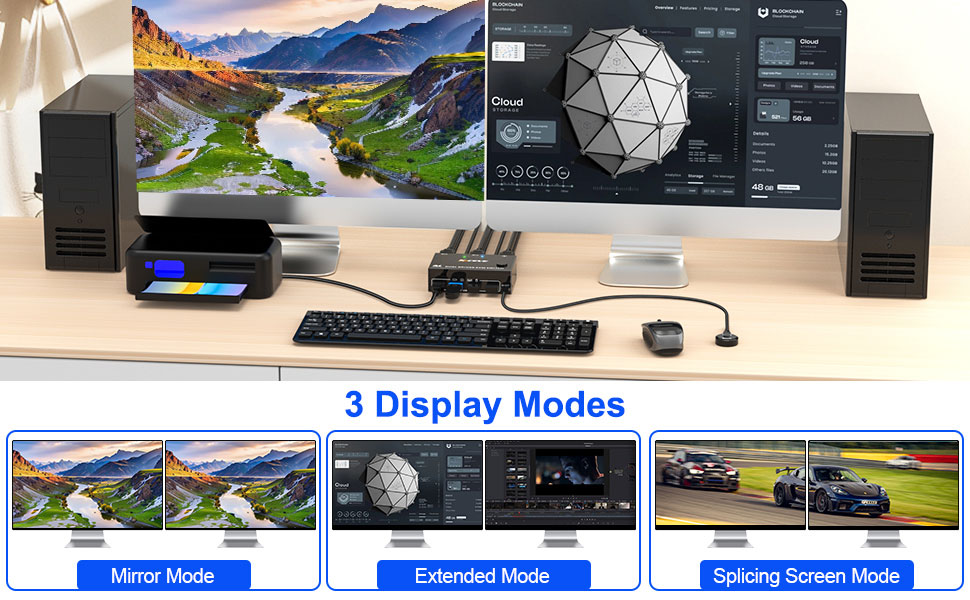
- You can choose between extended screen mode and mirrored screen mode by pressing Press "Windows+P" to choose extended or mirrored screen mode
- USB 3.0 support up to 5Gbps transmission speed
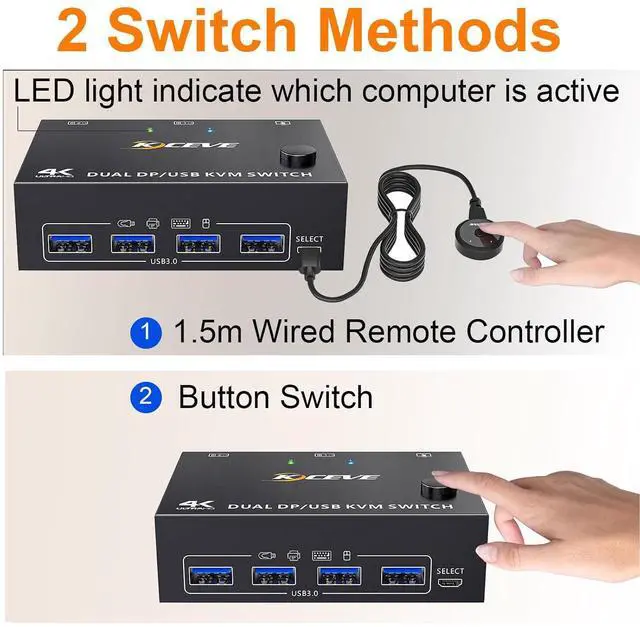
- 2 switching methods: button switch &1.5m wired remote control
- Plug and play. No additional driver software required.
- LED lights indicate which computer is active
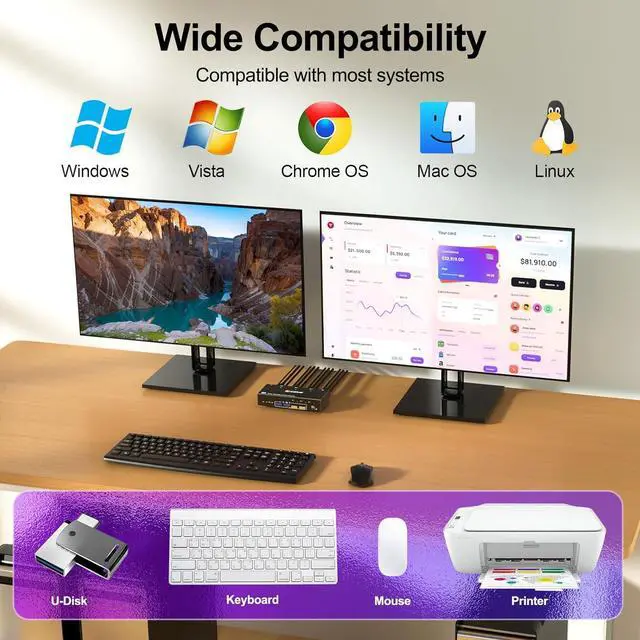
- Compatible with Windows11 / 10 / 8 / XP / Vista / Chrome / Mac OS / Linux system,etc.
- Support DP 1.4 and below standard protocols.
- Support DP devices: Desktop, laptop, TV Box, Xbox One, A-p-p-l-e TV, PS5, HDTV, Monitor, projectors
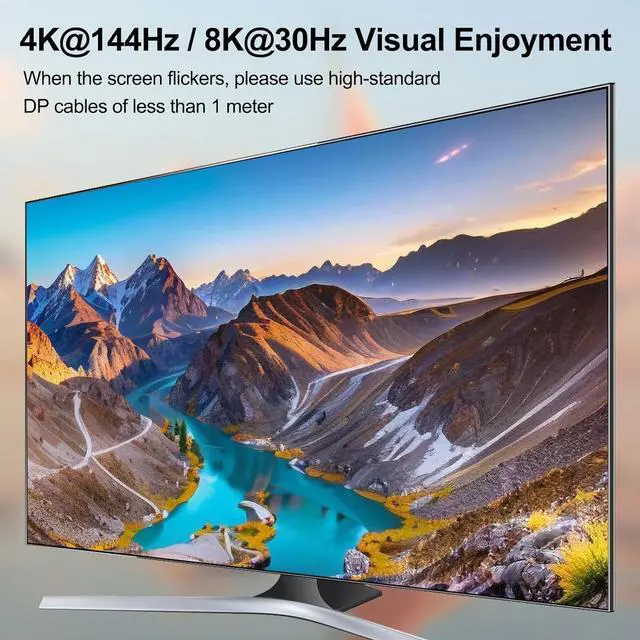
- Support UHD 4K@144Hz, 4K@120Hz, 2K@165Hz, 4K@60Hz.
Please Note: Using 8K cables will solve the problem of flickering and black screen.
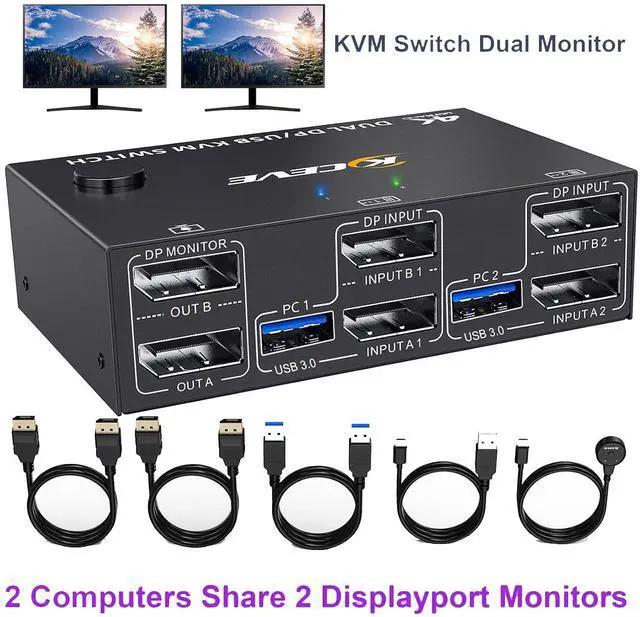
DisplayPort KVM Switch 2 Computers Share 2 displayport Monitors and 4 USB Devices
Dual Monitor KVM Switch Displayport Connection Steps
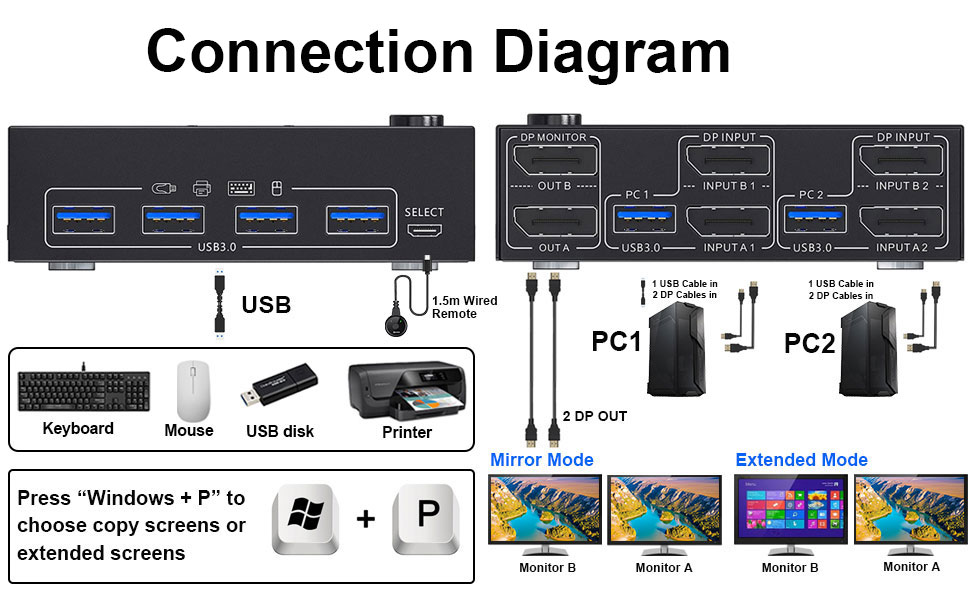
Each computer requires 2 DisplayPort cable + 1 USB cable to connect to the KVM switch
- Step 1.Connect 2 displayport cables+1 USB3.0 cable between computer 1 and KVM Switch(USB 1, INPUT A1, INPUT B1).
- Step 2. Connect 2 displayport cables+1 USB3.0 cable between computer 2 and KVM Switch(USB 2, INPUT A2, INPUT B2).
- Step 3. Connect 2 displayport cables between the KVM Switch(OUT A, OUT B) and 2 monitors.
- Step 4. Plug your USB device (keyboard & mouse) into the USB port on the KVM Switch. You can connect up to 4 USB 3.0 devices simultaneously. Compatible with USB 2.0/1.1 devices.
- Step 5. Plug the wired remote into the "SELECT" port to switch freely between PC1 and PC2.
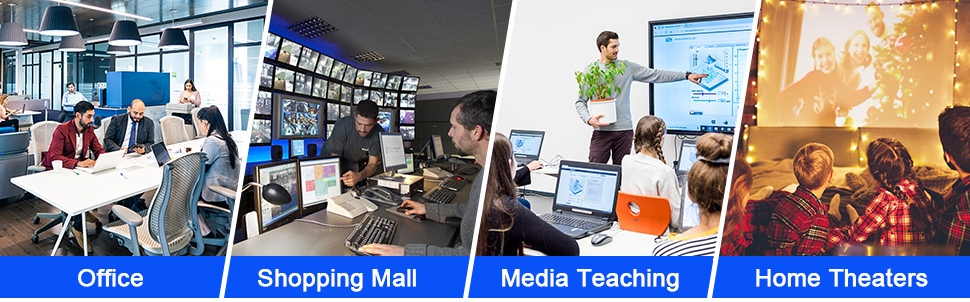
Widely used in business seminars, media teaching, office, video conferencing, home theater, game entertainment, etc.