• $229.99
  • Free 30-day Returns
  • Ships from China.
    Price alert
    Shop it at NeweggBusiness.

    AUTYUE 8K@60Hz KVM Switch 3 Monitors 4 Computers, 4K@144Hz 2 Displayport + HDMI Triple Monitor KVM Switch for 4 PC Sharing 3 Screens and 4 USB 3.0 Ports, Support Copy & Extended Mode,with Wired Remote

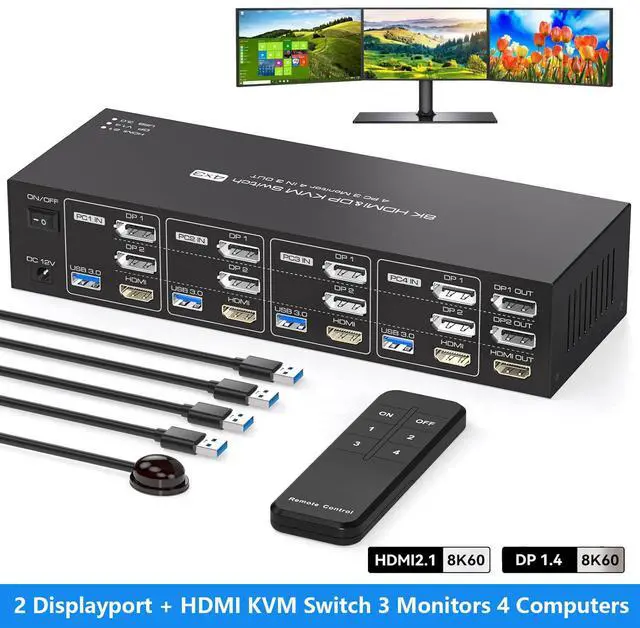
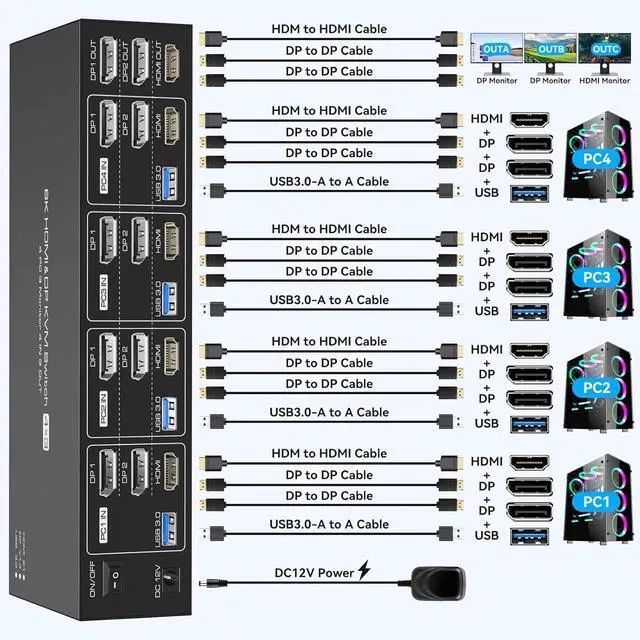
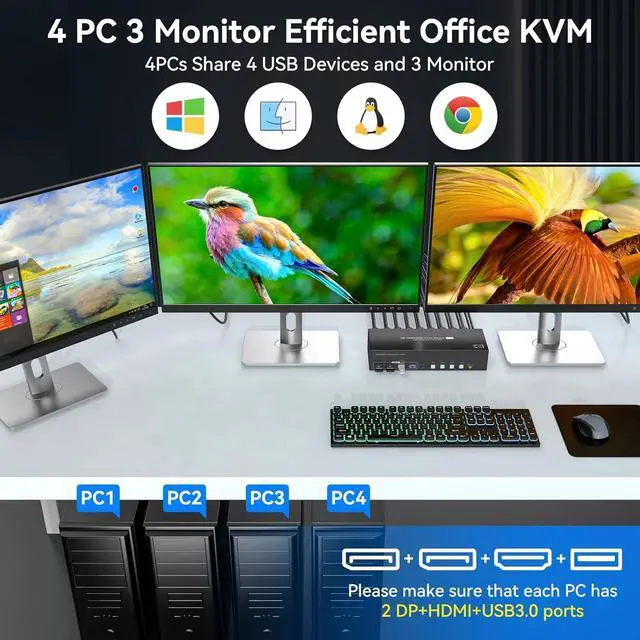
    • HDMI + 2 DisplayPort KVM Switch for 4 PCs & 3 Monitors: This KVM switch allows 4 computers to share 3 high-resolution monitors and 4 USB 3.0 peripherals, such as mice, keyboards, printers, USB drives, or game controllers.Note: Pls ensure that each computer supports simultaneous output to three external displays and is equipped with 1x HDMI & 2x DP video ports for connection to the KVM.
    • Supports Copy & Extended Modes: This KVM switch supports both Extended and Mirror (Copy) modes. In Extended Mode, you can display 3 different screens to expand your workspace, while Mirror Mode displays three identical screens. You can easily toggle between modes by pressing "Windows Key + P".
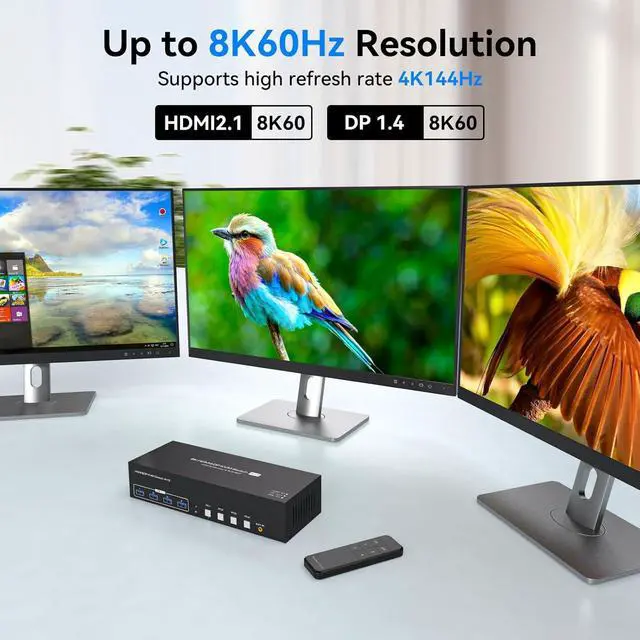
    • DP 1.4 & HDMI 2.1: Supporting both DP 1.4 and HDMI 2.1 standards, this switch delivers resolutions up to 8K@60Hz and 4K@144Hz. It is backward compatible with 4K@60Hz, 4K@30Hz, 1080P, 720P, and more.
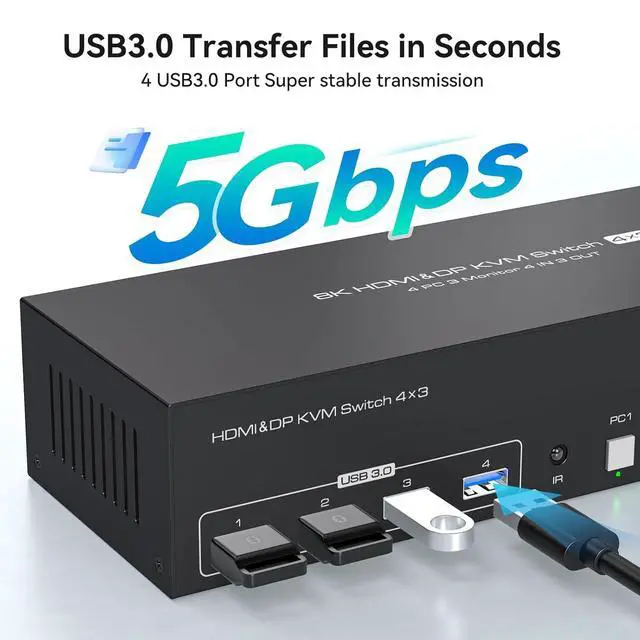
    • USB 3.0: Equipped with 4 USB 3.0 ports, this switch allows you to share peripherals like keyboards, mice, printers, and scanners. USB 3.0 technology enables data transfer speeds of up to 5 Gbps, significantly outperforming the 480 Mbps limit of USB 2.0.
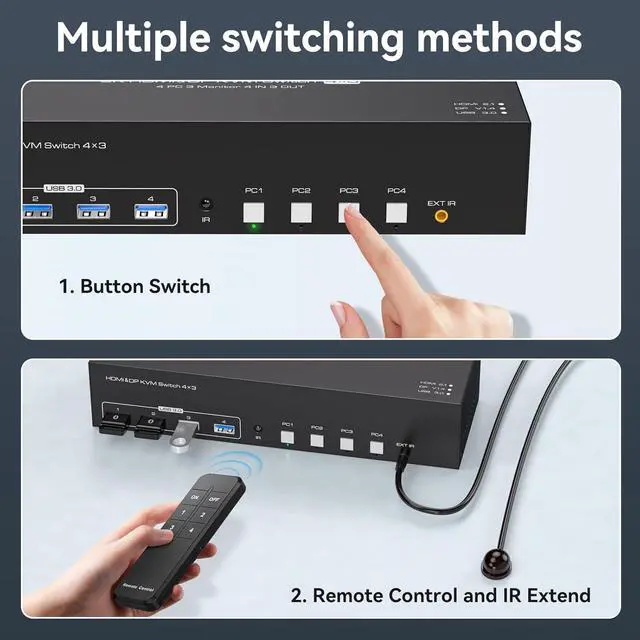
    • IR Remote & Button Switching: This KVM switch supports both IR remote control and manual button switching.Remote Switching: Point the remote at the KVM switch (or the connected IR receiver if the unit is placed out of reach) and press the button to easily switch between computers. Button Switching: Simply press the physical buttons (PC1 to PC4) on the device.
    +
    +
    Overview
    Specs
    Reviews
    avatar

    Any questions? Our AI beta will help you find out quickly.

    8K@60Hz KVM Switch 3 Monitors 4 Computers, 4K@144Hz 2 Displayport + HDMI Triple Monitor KVM Switch f


    The 8k HDMI and display port 4 PC KVM switch allows you to directly control 4 computers and 3 monitors using a single mouse and keyboard.

    The 8k HDMI and display port 4 PC KVM switch allows you to directly control 4 computers and 3 monito


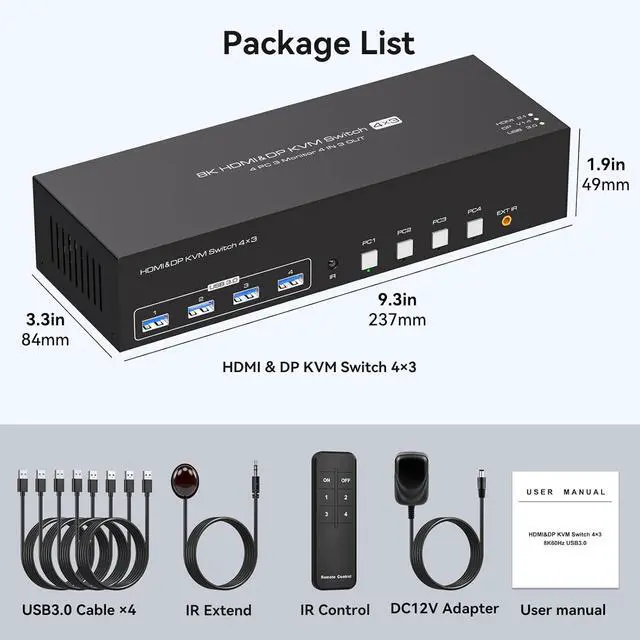
    If you need multiple PC to share 4 USB 3.0 ports, you need to connect a USB cable to each PC (4 USB 3.0 cables are included with this product).


    USB 3.0 is faster than USB 2.0

    If you need multiple PC to share 4 USB 3.0 ports, you need to connect a USB cable to each PC (4 USB


    Note: If you need to use 8K resolution, it is recommended that you use a 4K@120Hz/8K high refresh rate cable within 3ft or a high quality docking station/adapter.

    Note:If you need to use 8K resolution, it is recommended that you use a 4K@120Hz/8K high refresh rat
    Note:If you need to use 8K resolution, it is recommended that you use a 4K@120Hz/8K high refresh rat
    Note:If you need to use 8K resolution, it is recommended that you use a 4K@120Hz/8K high refresh rat

    Q & A:


    Q: KVM switch does not work

    A: Be sure to connect an external power supply to the switch (the product comes with a power adapter), and the switch does not support powering your devices.


    Q: How to solve the problem of flickering or non-displaying screen?

    A: Downgrade the monitor resolution to 4K60Hz or lower refresh rate if it works fine at 4K, it is recommended to replace the 3ft 4K120Hz/ 8K high refresh rate cable or high quality docking station/adapter cable (in order to output 8K resolution content)


    Q:  How to solve the problem that one of the computers can't output the content?

    A: First confirm: switch to which computer when the output is abnormal, try to exchange the position with other devices and cables that can display normally, to confirm the port abnormality or device problems.


    Q: How to solve the problem of USB device disconnection or USB data can not be shared?

    A: Try swapping the ends of the USB cables/changing the USB ports of the PC/exchanging the input channels of the 4 PC/Or try a different mouse and keyboard. If you still can't solve the problem, please ask us for help in time.

    Features
    1. HDMI + 2 DisplayPort KVM Switch for 4 PCs & 3 MonitorsThis KVM switch allows 4 computers to share 3 high-resolution monitors and 4 USB 3.0 peripherals, such as mice, keyboards, printers, USB drives, or game controllers.Note: Please ensure that each computer supports simultaneous output to three external displays and is equipped with 1x HDMI and 2x DP video ports for connection to the KVM switch.
    2. Supports Copy & Extended ModesThis 4-port KVM switch supports both Extended and Mirror (Copy) modes. In Extended Mode, you can display three different screens to expand your workspace, while Mirror Mode displays three identical screens. You can easily toggle between modes by pressing "Windows Key + P".
    3. DP 1.4 & HDMI 2.1 KVM SwitchSupporting both DP 1.4 and HDMI 2.1 standards, this switch delivers resolutions up to 8K@60Hz and 4K@144Hz. It is backward compatible with 4K@60Hz, 4K@30Hz, 1080P, 720P, and more. The Ultra HD resolution provides detailed, lifelike images with vibrant colors, immersing you in a crystal-clear visual experience.Note: To achieve 8K resolution, please ensure that your computers, monitors, and cables are all 8K compatible.
    4. USB 3.0 KVM SwitchEquipped with 4 USB 3.0 ports, this switch allows you to share peripherals like keyboards, mice, printers, and scanners. USB 3.0 technology enables data transfer speeds of up to 5 Gbps, significantly outperforming the 480 Mbps limit of USB 2.0. It is plug-and-play with no software drivers required.
    5. IR Remote & Button Switching SupportThis DisplayPort KVM switch supports both IR remote control and manual button switching.Remote Switching: Point the remote at the KVM switch (or the connected IR receiver if the unit is placed out of reach) and press the button to easily switch between computers. Button Switching: Simply press the physical buttons (PC1 to PC4) on the device to switch inputs. Note: Hotkey switching via keyboard is not supported.


    Warranty & Returns

    Warranty, Returns, And Additional Information

    Warranty

    • Please contact the Seller directly for warranty information. Warranty information may also be found on the Manufacturer's website.
    • CONTACT

    Return Policies

    Manufacturer Contact Info

    LOADING...