Q & A:
Q: Why is only one monitor displaying the screen?
A: 1. Please check if each computer supports multi-display output, and set the display mode to "Extend" or "Duplicate" in the system display settings.
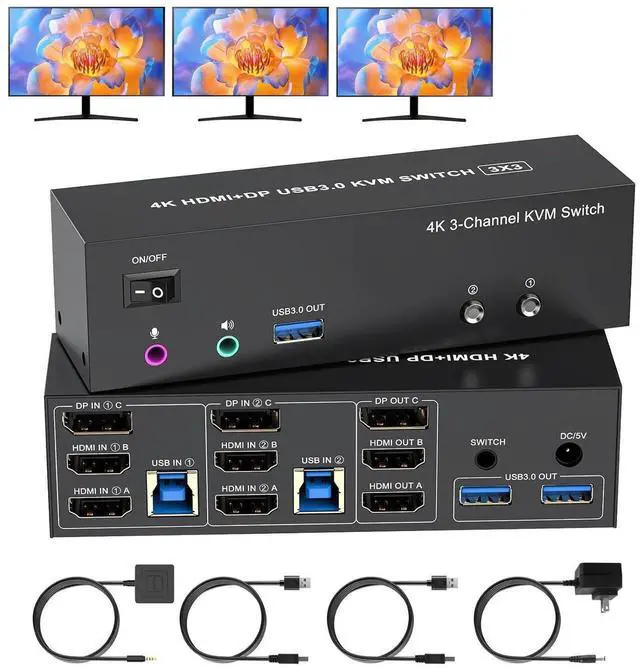
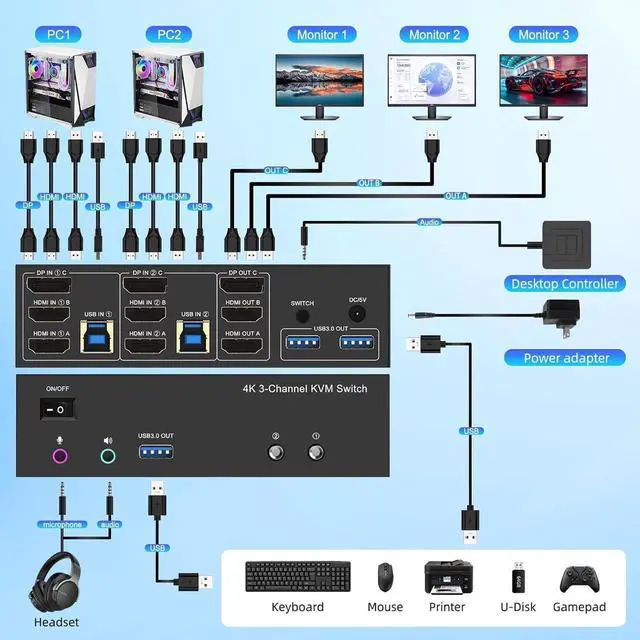
2. Ensure each computer is properly connected to the KVM switch with 2 HDMI / DP cables and 1 USB cable.
Q: Why aren't the keyboard and mouse working?
A: This issue usually occurs because the USB cable between the computer and the switch is not properly connected. If you're using a mechanical keyboard, there may be compatibility issues.
Q: Do I need to install any drivers?
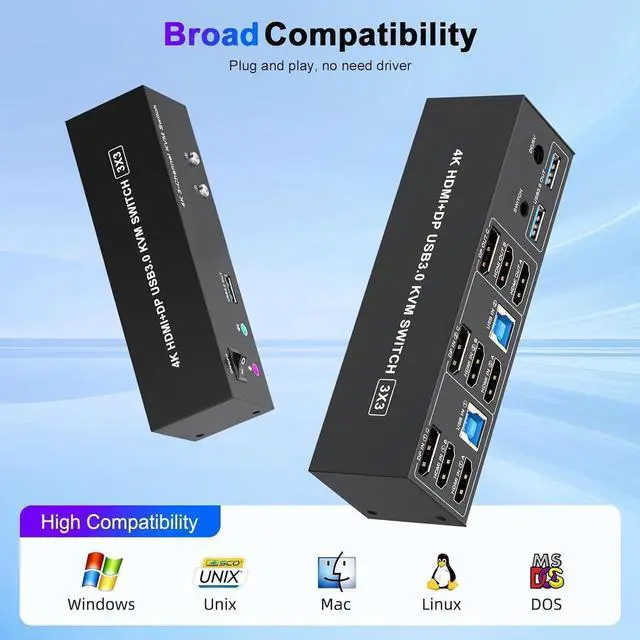
A: No driver installation required, plug and play.
Q: What should I do when the KVM fails to display my Windows PC content correctly?
A:
1. Please make sure the KVM iscorrectly (6 HDMI 2.0 cables + 2 DP cables + 2 USB 3.0 cables + 1 Power Adapter to be connected at the same time).
2. If you encounter problems during use, please contact service support for assistance.





 here!
here!