Your Browsing History
Meet Your Seller
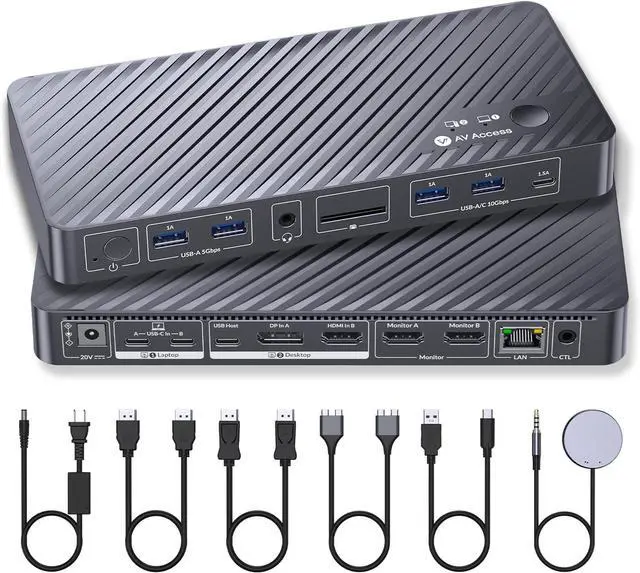
AV Access KVM Switch Docking Station for MacBook Desktop PC, USB C KVM Switch 2 Monitors 2 Computers, 4K Dual HDMI Displays, Plug&Play, Ethernet, 100W Power Delivery, EDID Emulation
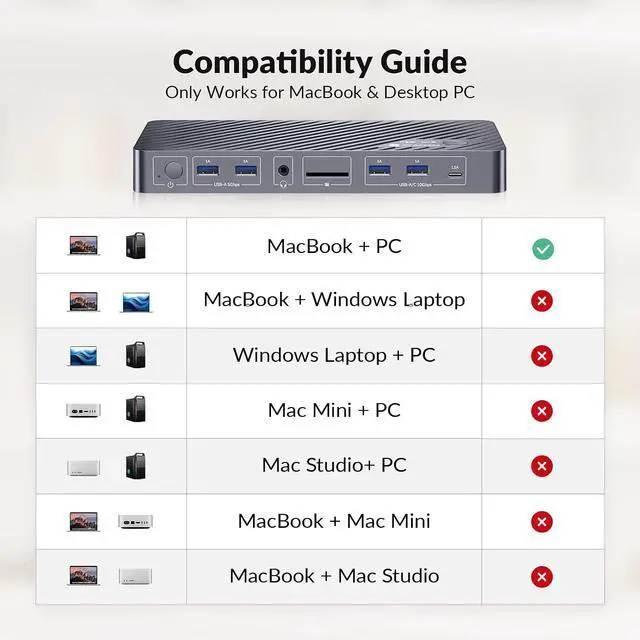
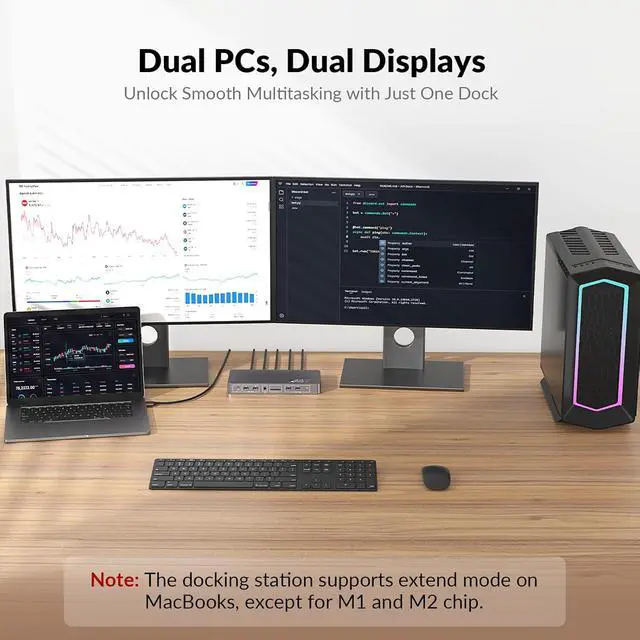
- Designed for MacBook + PC Combo This dual USB C KVM switch docking station is designed for one MacBook (Pro/Air) + one Windows PC only not for Mac Mini or Mac Studio. On the MacBook side, it supports dual extended displays on macOS with M1/M2/M3/M4 Pro, M1/M2/M3/M4 Max, and M3/M4 chips. No additional drivers or software required.
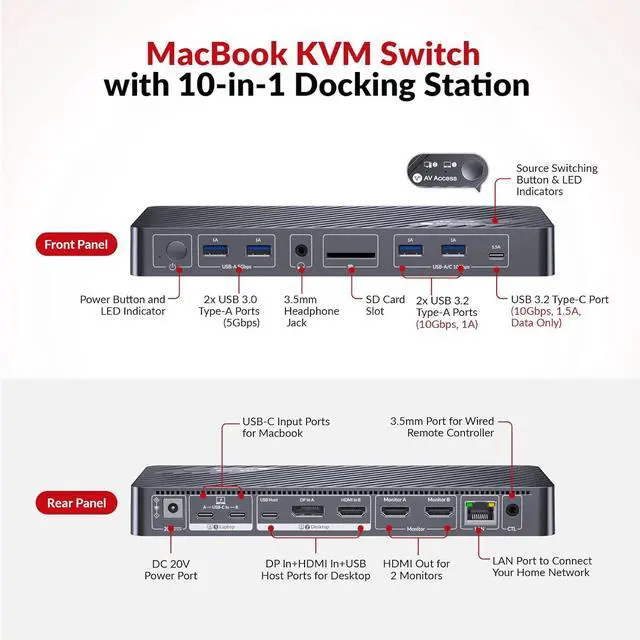
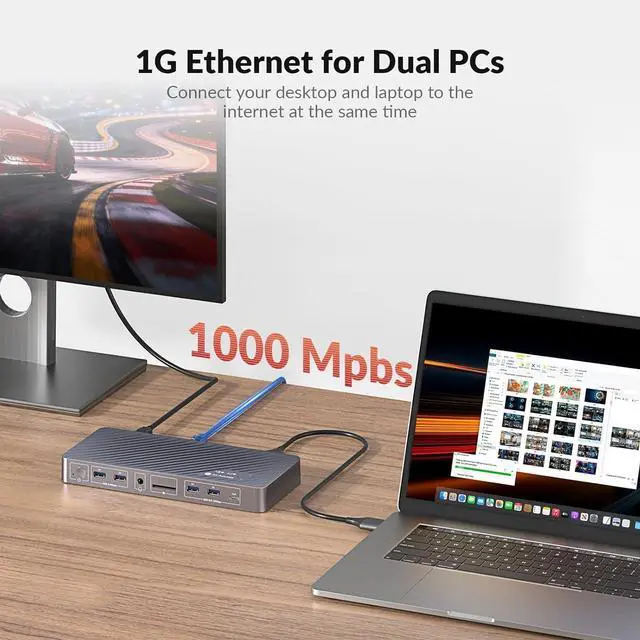
- Dual 4K Displays, One Seamless WorkflowConnect 1 laptop (MacBook only) and 1desktop PC to two HDMI monitors. Effortlessly switch between systems using the top-mounted button or included wired remote. Ideal for multitasking in office, education, design, and light gaming environments.
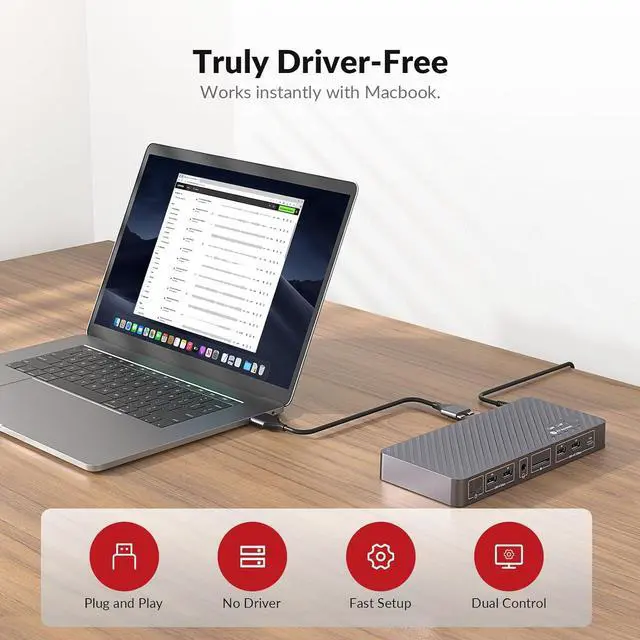
- Plug & PlayThis KVM dock is truly plug and play no DisplayLink software, no drivers, no setup required. It eliminates installation hassles and compatibility worries, letting you connect your Mac and start using dual screens instantly and reliably, saving time and avoiding technical frustration.
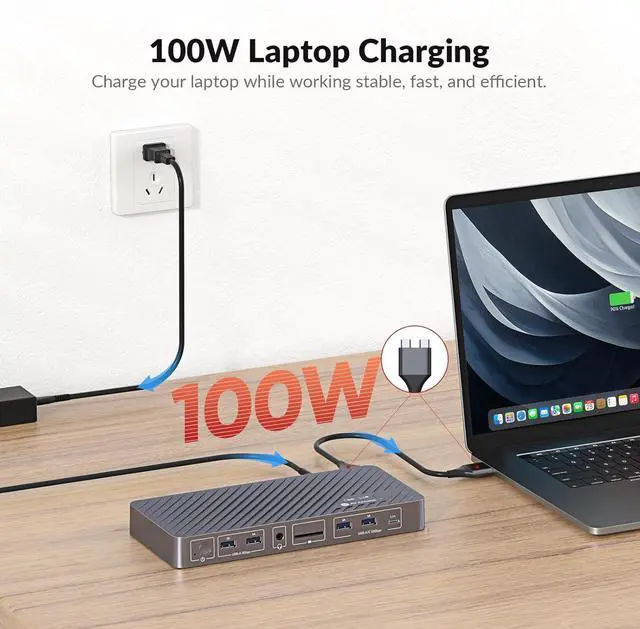
- 10-in-1 KVM Docking Station Engineered to declutter your workspace, thi
+
+
Overview
Specs
Reviews
Any questions? Our AI beta will help you find out quickly.
Try me now
1Plug & Play for Mac Users2Dual Screen Mac Setup310Gbps Faster Transfer410-in-1 Docking Station1EDID Emulation2Two Ways Switching Way1Universal Compatibility2Compact Design3Check Before Purchase How do I know if my MacBook is compatible with this product?
Intel / M1 or M2 (non-Pro/Max): iDock M10 can extend to only one external display.
M3 (non-Pro): up to two extended displays when the lid is closed; lid open supports mirroring only.
M4 or any Pro/Max chip: supports two extended displays.
Do I need to install any drivers or software to use this KVM docking?
No. It is fully plug and play, and does not require drivers, or software installation. Just connect your devices and start using it immediately.
Can I use longer USB-C cables?
Yes. Required USB-C cables are included. If you need a longer connection, use two longer certified Thunderbolt 4, Thunderbolt 5, or USB4 cables for reliable video, data, and charging performance.
Will my screens flicker or rearrange when switching?
No. Built-in EDID emulation keeps monitor resolution and layout consistent, preventing flicker or window rearrangement during switching.
What are the advantages of iDock M10 over a DisplayLink solution?
1. iDock M10 is fully plug-and-play with no software needed, so it works freely and poses no security risk.
2. iDock M10 sends DP Alt video signals directly over USB-C without compression, ensuring stable and reliable video quality.
How do I know if my MacBook is compatible with this product?
Do I need to install any drivers or software to use this KVM docking?
Can I use longer USB-C cables?
Will my screens flicker or rearrange when switching?
What are the advantages of iDock M10 over a DisplayLink solution?

Intel / M1 or M2 (non-Pro/Max): iDock M10 can extend to only one external display.
M3 (non-Pro): up to two extended displays when the lid is closed; lid open supports mirroring only.
M4 or any Pro/Max chip: supports two extended displays.
Do I need to install any drivers or software to use this KVM docking?
No. It is fully plug and play, and does not require drivers, or software installation. Just connect your devices and start using it immediately.
Can I use longer USB-C cables?
Yes. Required USB-C cables are included. If you need a longer connection, use two longer certified Thunderbolt 4, Thunderbolt 5, or USB4 cables for reliable video, data, and charging performance.
Will my screens flicker or rearrange when switching?
No. Built-in EDID emulation keeps monitor resolution and layout consistent, preventing flicker or window rearrangement during switching.
What are the advantages of iDock M10 over a DisplayLink solution?
1. iDock M10 is fully plug-and-play with no software needed, so it works freely and poses no security risk.
2. iDock M10 sends DP Alt video signals directly over USB-C without compression, ensuring stable and reliable video quality.
How do I know if my MacBook is compatible with this product?
Do I need to install any drivers or software to use this KVM docking?
Can I use longer USB-C cables?
Will my screens flicker or rearrange when switching?
What are the advantages of iDock M10 over a DisplayLink solution?
Warranty & Returns
Warranty, Returns, And Additional Information
Warranty
- Please contact the Seller directly for warranty information. Warranty information may also be found on the Manufacturer's website.
- CONTACT
Return Policies
- Return for refund within: 30 days
- Return for replacement within: 30 days
- This item is covered by PrimeVolt’Shop Return Policy
Manufacturer Contact Info
- For a directory of all our manufacturers, please click below.
- Manufacturers Directory
LOADING...