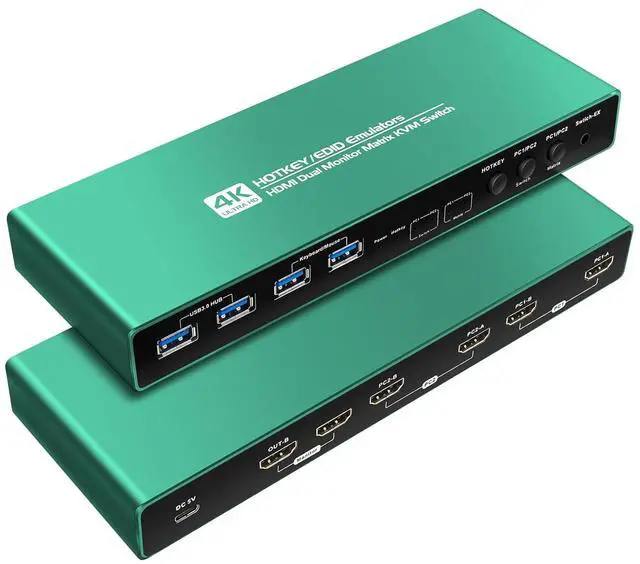
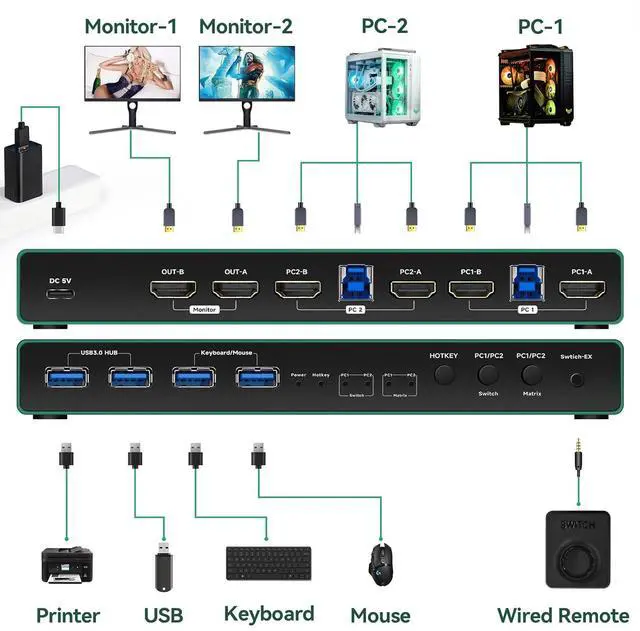
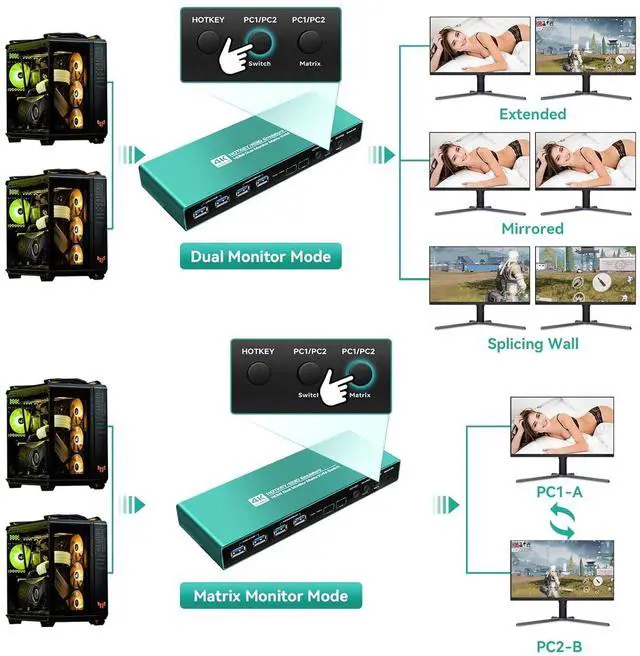
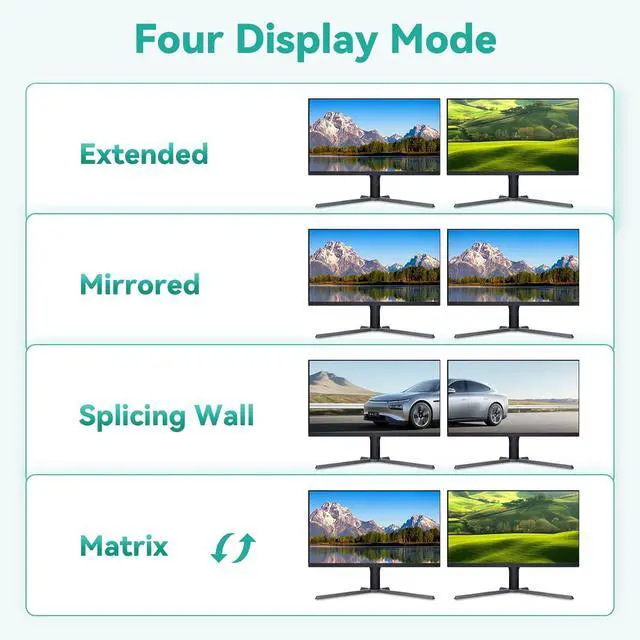
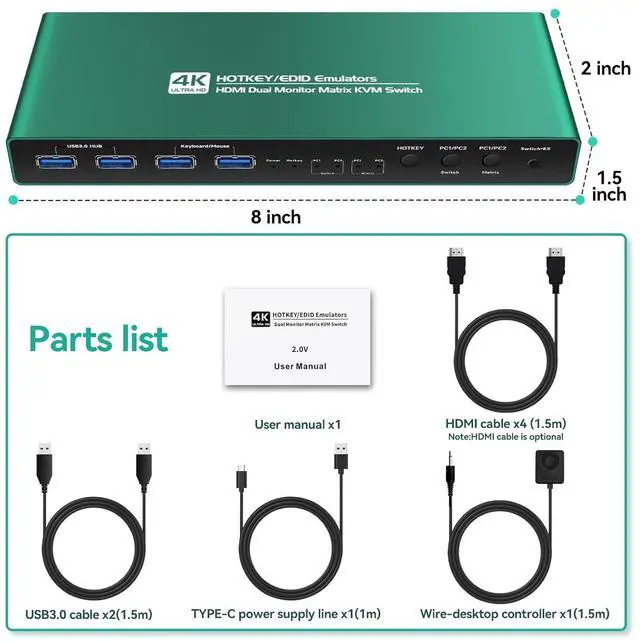
kvm switch 2 monitors 2 computers hdmi edid extend display
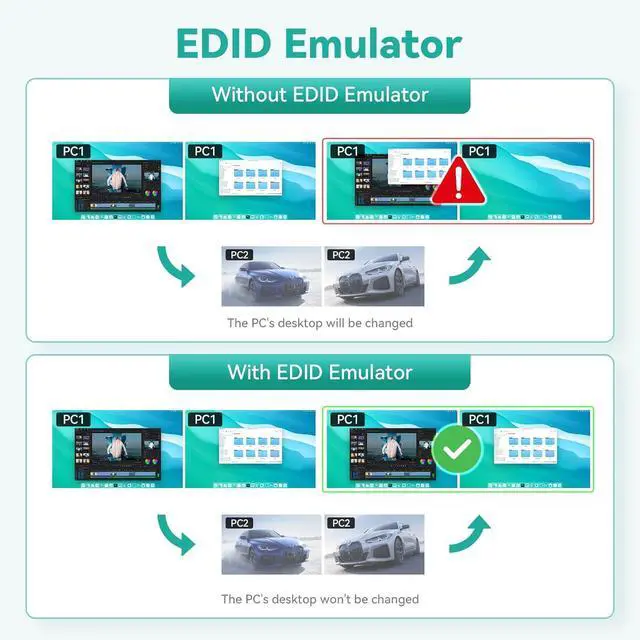
kvm switch 2 monitors 2 computers hdmi edid emulator
kvm switch 2 monitors 2 computers hdmi edid support 4k 60hz,3440*1440 100hz, 2560*1440 120hz, 2560*1440 144hz.
hdmi kvm switch 2 monitor 2 computers edid emulator cross out 4k 60hz
Detailed hotkeys:
It is recommended to control the completion of the hotkey combination within 1.5-2 seconds. If there is no special requirement, use the mouse as much as possible Hotkeys are more convenient and fast. Mouse hotkey: Double-click the wheel key+left or right button(switch between two computers) Note:Mouse hotkey can only control the KVM switching mode, cannot control the KVMmatrix mode matrix mode can only be achieved by keyboard hotkeys or device keys. Keyboard hotkeys:The initial default hotkey is right CTRL, if using right CTRL will conflict with other functions, the hotkey can be changed to:CTRL left,NUMLOCK,SCROLLLOCK Method of changing hotkeys:Current hotkey+current hotkey+specified hotkey+Enter For example, if the hotkey is set to [Numlock] and the current hotkey is right CTRL, Right Ctrl+Right Ctrl+Numlock +ENTER Hotkey combination description:
1: Right Ctrl+Right Ctrl+[1]+Enter The PC1 Switch mode
2: Right Ctrl+Right Ctrl+[2]+Enter Switch to PC2 Switch mode
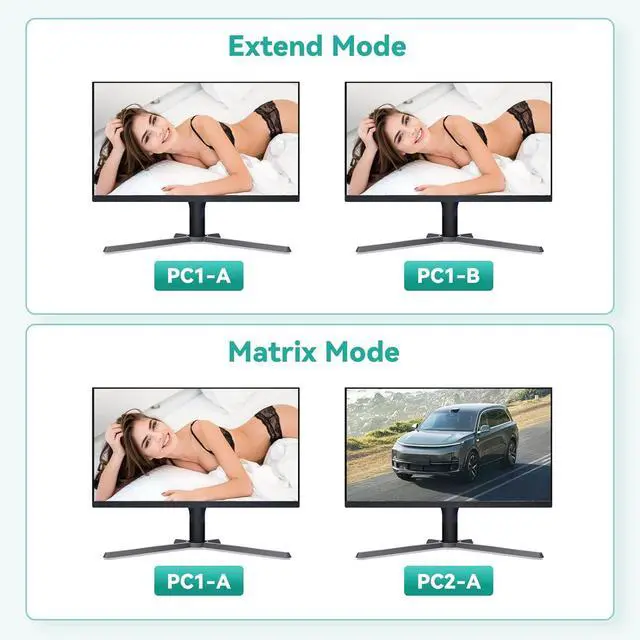
3: Right Ctrl+Right Ctrl+[3]+Enter Switch to PC1A+PC2A Matrix mode ,hdmi Cross output and USB follows PC1
4: Right Ctrl+Right Ctrl+[4]+Enter Switch to PC2A+PC1A Matrix mode ,hdmi Cross output and USB follows PC2
5: Right Ctrl+Right Ctrl+[B]+Enter Enables or disables the buzzer sound
6: Right Ctrl+Right Ctrl+[S]+Enter Enables or disables the automatic scanning function
7. Right Ctrl+Right Ctrl+[S]+[Number]+Enter Set automatic scanning time (8 to 999 5S) The default value is 8 seconds
kvm switch 2 monitors 2 computers hdmi edid extend display hotkey switching kvm switch 2 monitors 2 computers hdmi edid extend display kvm switch 2 monitors 2 computers hdmi edid emulator kvm switch 2 monitors 2 computers hdmi edid emulator hdmi kvm switch 2 monitor 2 computers edid emulator cross out 4k 60hz hdmi kvm switch 2 monitor 2 computers edid emulator cross out 4k 60hz