
Your Browsing History




Any questions? Our AI beta will help you find out quickly.
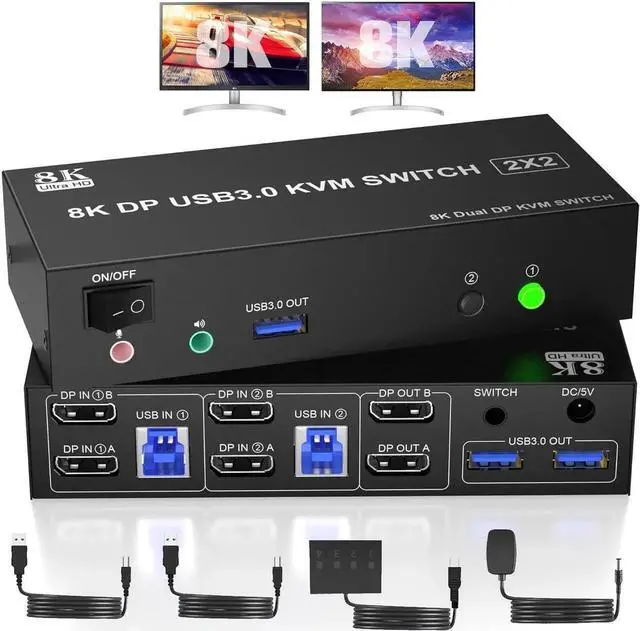
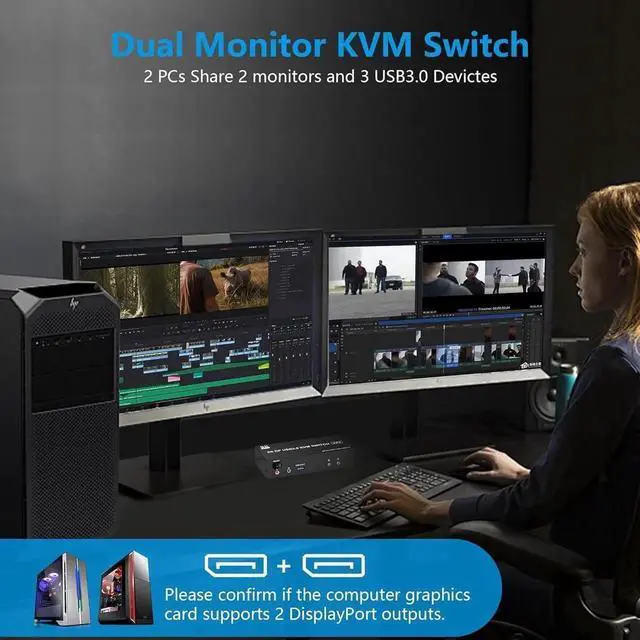
2 Ports Dual Monitor displayport KVM Switch, 2 computers share 2 monitors and 3 USB3.0 devices and Audio & Microphone Output
Advantages:
With this 8K displayport KVM, the screens of the two monitors come from the same computer, and you can watch movies for entertainment while working.
Important tips:
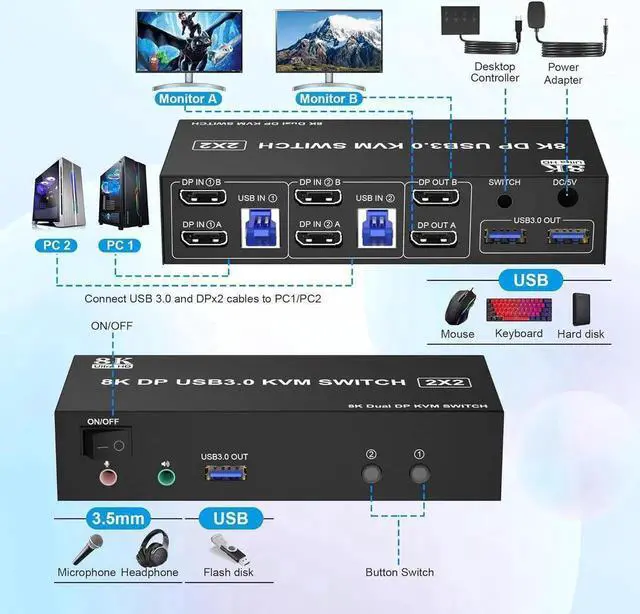
1) If the DP source is input from DP IN A, it needs to be output from the DP OUT A. If the DP source is input from DP IN B, then it needs to be output from the DP OUT B.
2) If you want to output 2 monitors simultaneously, 2 DP ports of one DP source computer must be connected. Specifically, DP IN A and DP IN B of PC1 should be connected at the same time, and DP OUT A and DP OUT B of the output ends should also be connected simultaneously. DP OUT A display the video from DP IN A, and DP OUT B will display the video from DP IN B.
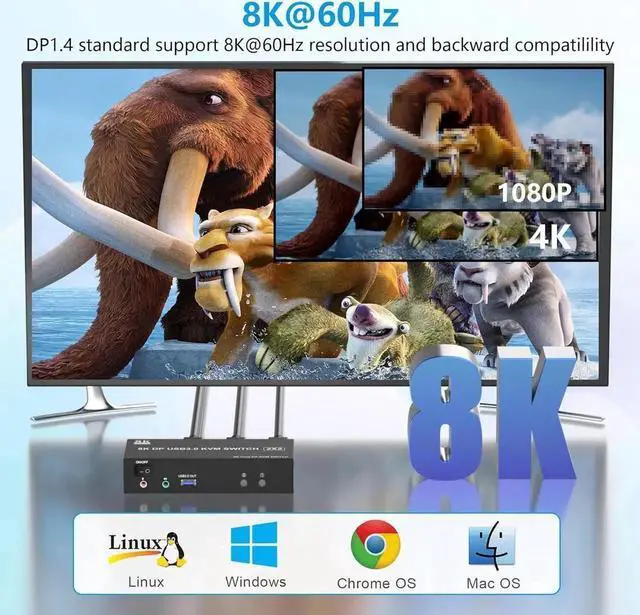
Ultra HD 8K@60Hz Dual Monitor KVM Switch
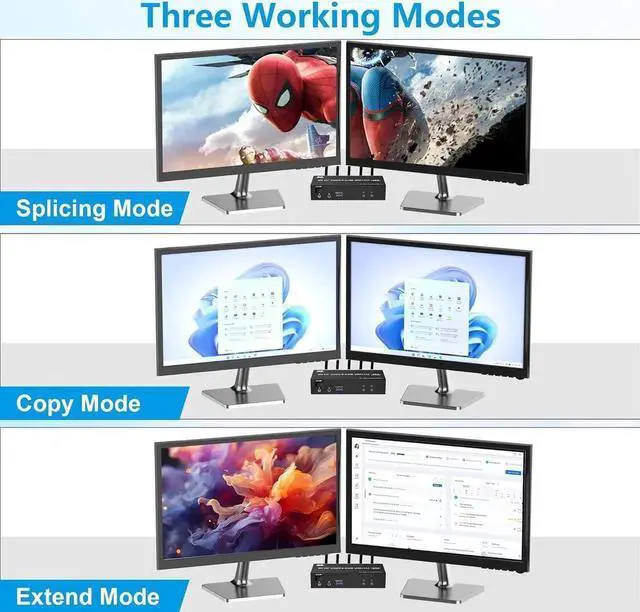
3 Display Modes
Extended Display
Mirrored Display
Spliced Display
1) Extended mode can output 2 different screens and mirror mode can output 2 : identical screens. Note: If your graphics card has a splicing screen function, you can use the splicing screen mode.
2) The requirement for this KVM to achieve a dual-screen display is that each PC you connect to can support a dual-screen display. This has nothing to do with KVM.
Installation Guide Tips (incorrect connection will cause malfunction):
Each computer must connection 2 DP cables and 1 USB cable to ensure keyboard, mouse and monitors to work correctly.
Connection steps:
1. Insert the adapter into the KVM ;.
2. Connect 2*DP cables+1*USB-A cable between PC 1 and KVM (USB IN 1, DP IN 1 A, DP IN 1B).
3. Connect 2*DP cables+1*USB-A cable between PC 2 and KVM (USB IN 2, DP IN 2A, DP IN 2B).
4. Connect 2*DP cables between the KVM (DP IN 1 A, DP IN 1 B) and your 2 monitors.
5. Insert your USB devices(keyboard mouse and U disk) into the USB port on the KVM.
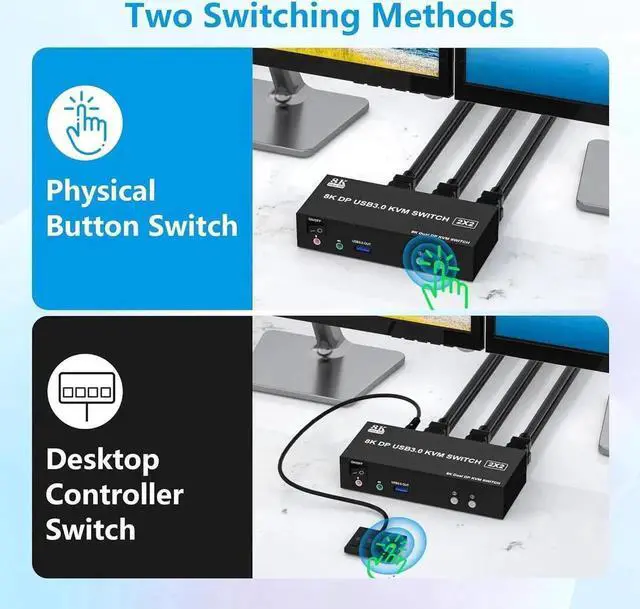
6. Insert the Wired Remote into the "SWITCH" port to remotely switch between PC1 and PC2.
Note:
1.After connecting the computers and the monitors through KVM, you need to set the screen output mode on the computer (press Windows+P) and select the output mode in the pop-up window on the screen. Otherwise, only one of the two connected monitors work normally.
2.Before purchasing this dual monitor KVM switch, please make sure that connecting your computer directly to the monitor can work normally,Otherwise, the KVM will not be available.
3. Most of the reasons why only one video output works is because of incorrect connection. Please make sure each PC has(2 DP cables+1 USB cable) connect to the KVM.
Switch by Panel button
Desktop Control Enhanced Convenience
with LED Indicator
Audio and microphone output
What You Get:
[Dual Monitor KVM switch 2 monitors 2 PC] This KVM switch allows two computers to share 2 monitors and 3 USB 3.0 ports, such as mouse, keyboard, printer U disk, etc. And connect 2 displays in extend or mirror display mode. (Note: Pls make sure your computer supports multi-display and each connected computer requires 2 DP ports)
[Ultra HD 8K@60Hz/4K@144Hz] DP 1.4 KVM Switch support resolution 8K@60Hz/4K@144Hz, and backward compatible with 4K@60Hz 3D 1080P 720P etc.
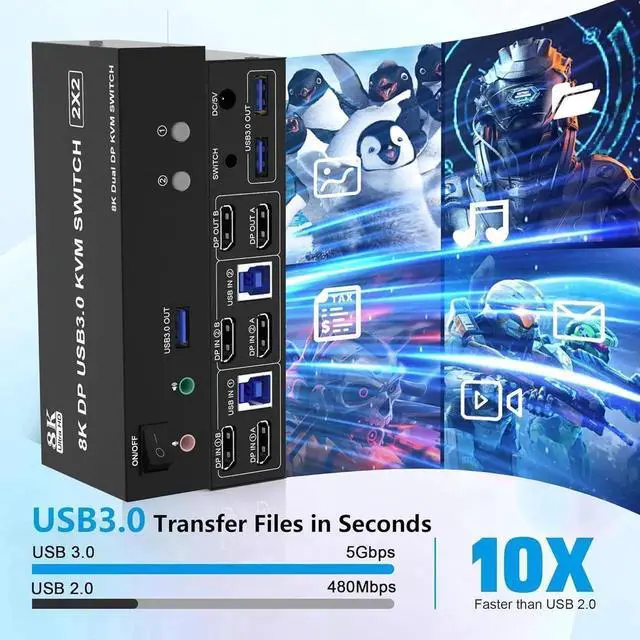
[with 3 USB 3.0 Ports and Audio & Microphone Output] with 3 USB 3.0 ports, 2 computers can share up to 3 USB devices, such as mouse, keyboard, printer etc. Supports ultra-fast USB 3.0 data transfer up to 5Gbps, backward compatible with USB 2.0 / 1.1. KVM Switch also supports separate audio and microphone output.
[2 Switching Modes] Supports front panel buttons and external controller for easy input switching. The LED indicates the active computer.
[Wide Compatibility] Compatible with Windows/Vista/XP and Mac OS, Linux, and Unix.