
Your Browsing History




Any questions? Our AI beta will help you find out quickly.
1. The product has been connected to the device, and the key cannot switch the fault:
1). Check DC 5V connector. If there is no power supply, please connect the power supply cable to the 5V charging head or the USB head of the equipment. After the power supply is connected, the channel selection indicator will turn on, and the button can be switched.
2). If DC 5V has power supply, please check whether other connecting lines are correctly connected, or exclude whether the connecting lines are well inserted.
3). Check whether the button can be pressed, whether the key touch control is good and effective, and whether the 1 and 2 channel lights are on. If the channel lights are not on, it is recommended to contact the service merchant to replace them.
2. The display cannot display the fault after the product connection:
1). Check whether the computer USB-C and the monitor communicate normally, and whether the monitor or display device switch the channels correctly.
2). Check that the output resolution of the computer is too high. It is recommended to set the output of the computer output resolution to the highest resolution that the display can display.
3). Check whether the computer device supports the USB-C video output function.
3. After the equipment is connected, the charging and transmission speed is slow:
1). Under the normal condition of equipment connection and communication, the speed of charging and transmission speed is related to your computer configuration and the equipment, as well as the quality of your cable.
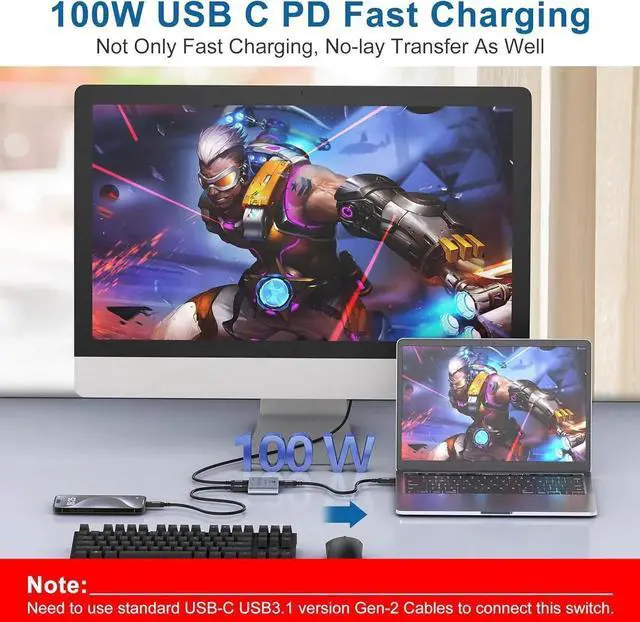
2). Check whether your computer configuration and external equipment can run high speed transmission, Check whether your computer has the PD fast charging function. Check whether your charging adapter has the PD fast charging function.
3). Update your computer motherboard system drive, and then restart the computer to try.
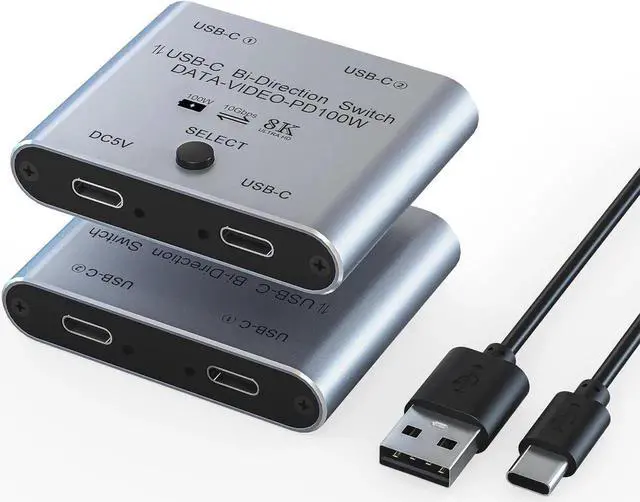
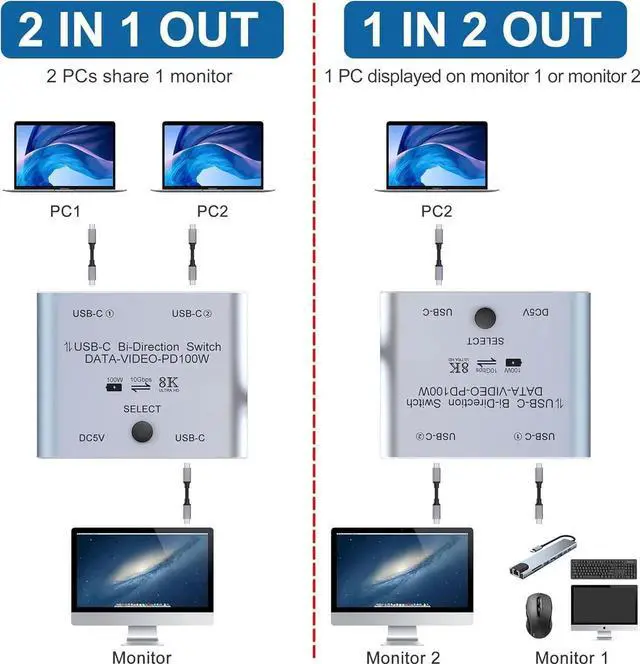
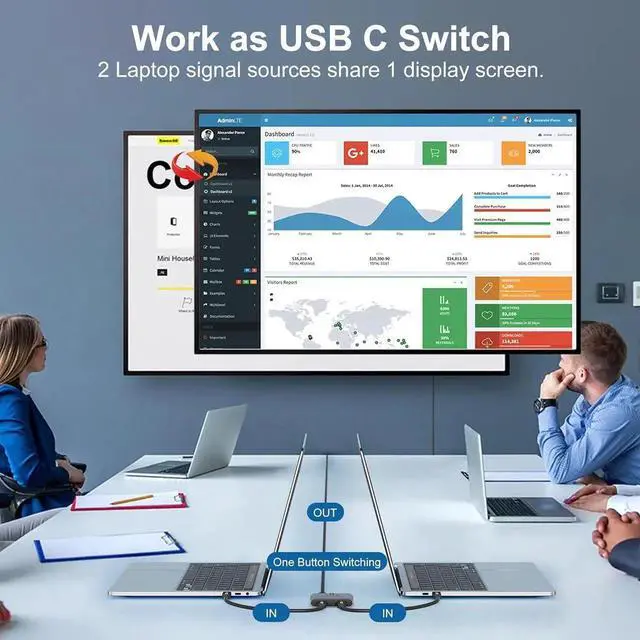
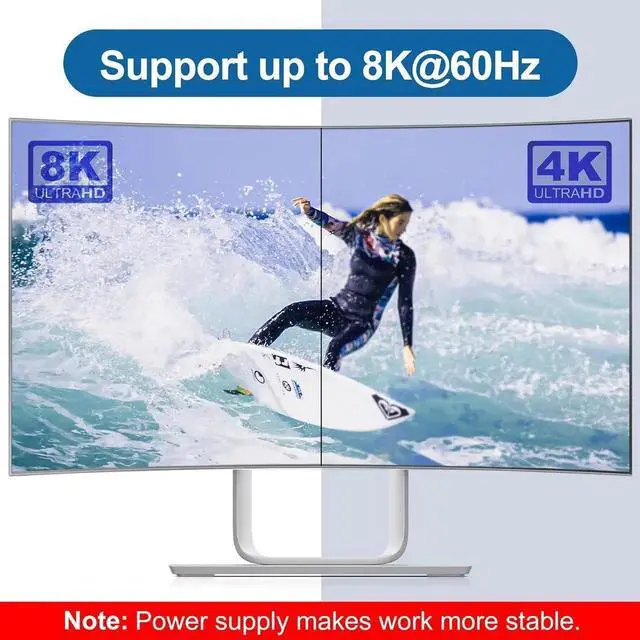
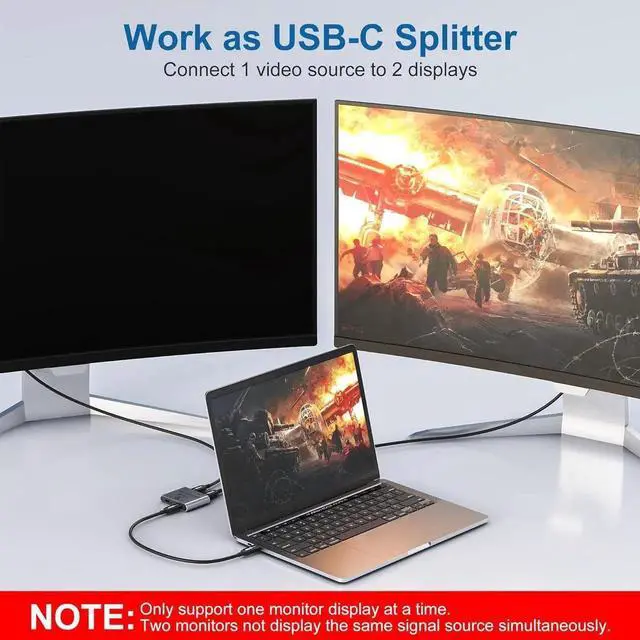
USB C Switch with 8K Video Display, 100W PD Charging and 10Gbps Transfer