Your Browsing History
Meet Your Seller
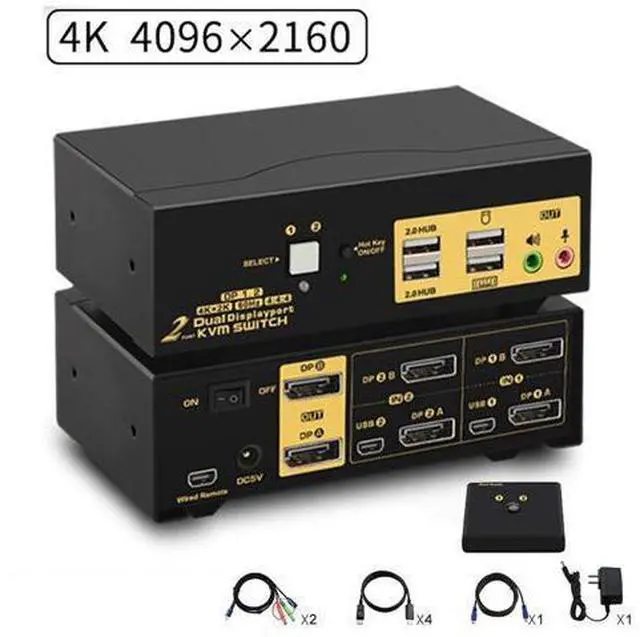
2 Port Dual Monitor Displayport KVM Switch, DP KVM Switch with Audio, with USB 2.0 Hub and Cables Support Hotkey Switching Resolution Up to 4096x2160 @60Hz 4:4:4
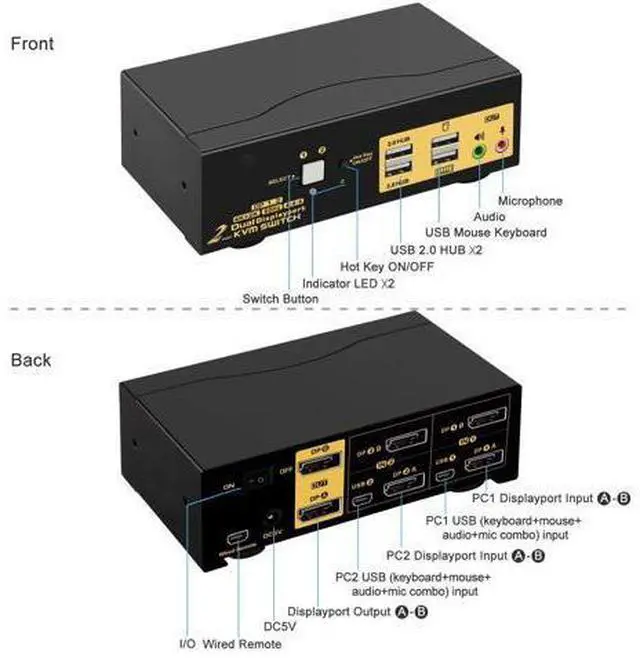
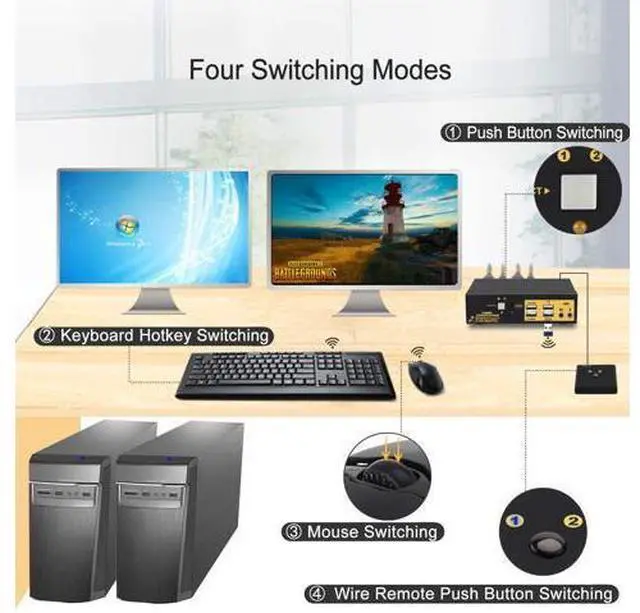
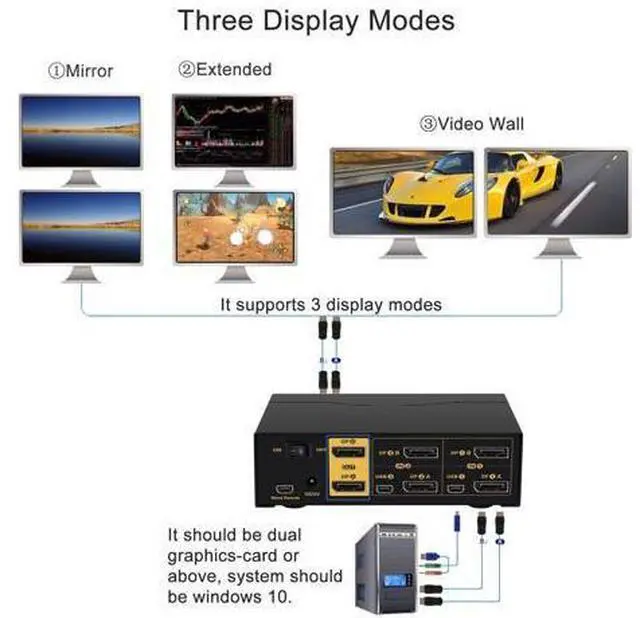
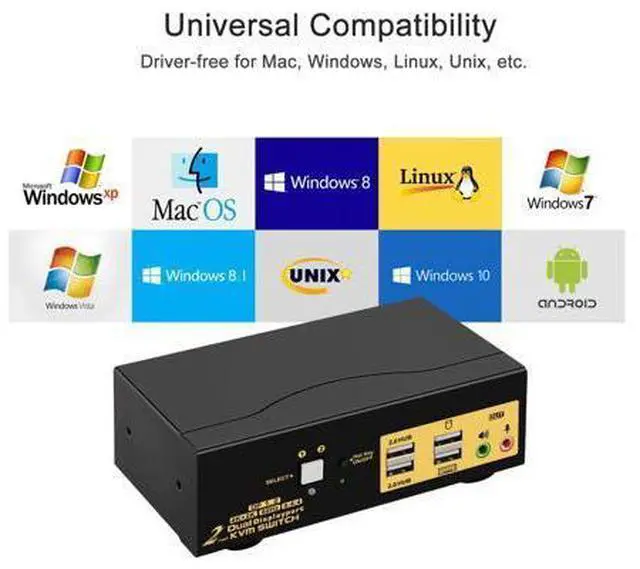
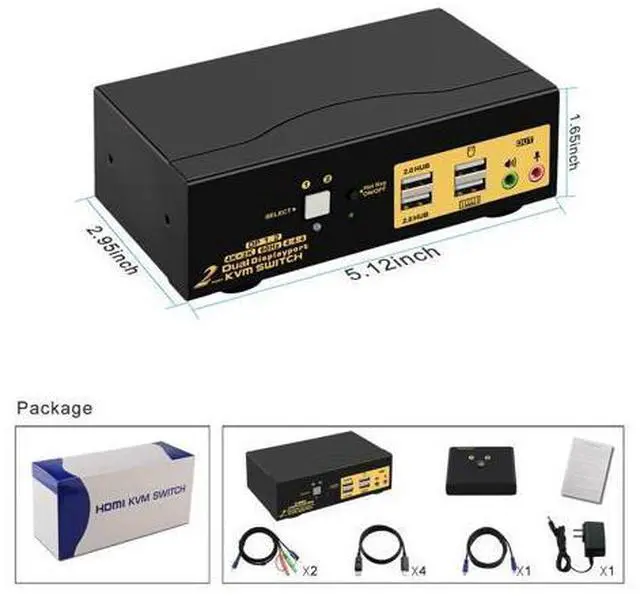
- KVM Switch 2 Port Displayport: one USB set of keyboard, mouse and 2 monitor controls 2 multi graphic-card displayport interface computers. With audio and microphone output, 2 pcs USB 2.0 hub, 2 kits 4.9ft(1.5m) cables and a wired-remote.; Dual Displayport KVM support Four Switching Way: manual button switching, mouse switching, keyboard hot-key switching and wired-remote switching.; Monitor Switches Support Three Display Modes: extended display, mirror display and video wall display. Drive-free for Windows 10/7/2000/XP/Vista, Linux, Mac, Debian, Ubuntu, Fedora, Raspbian and Ubuntu.; Ultra HD 4K Visual Enjoyment: max resolution up to 4096x2160@60Hz 4:4:4, compatible 3840x2160@60hz, 1080P, 1080P 3D, 1080I, 720P, 576P, 576I, 480P, 480I.; Supports HDCP 2.2, HDR10. Supports 16:9 widescreen and 21:9 ultra-wide monitors. Support auto detection, auto scan, waking up, with memory function in case of power-down. High quality with metal housing, not easy Not easy to slide.
+
+
Overview
Specs
Reviews
Any questions? Our AI beta will help you find out quickly.
Try me now
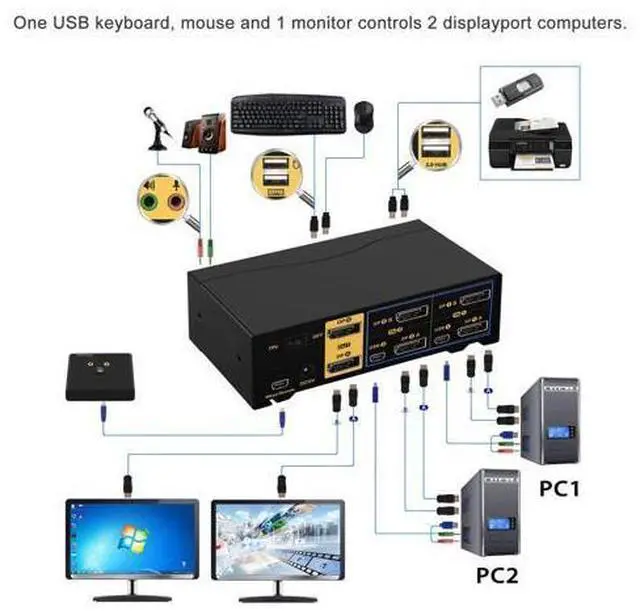
Displayport KVM 4K Dual Monitor KVM Displayport Switch 4K USB Display Port KVM Switches One USB set of keyboard, mouse and 2 monitor controls 2 multi graphic-card displayport interface computers. With audio and microphone output.
(Tips: this KVM switch is DP 1.2 60Hz version, it doesn't compatible DP 1.4 version, 100Hz, 120Hz, 144Hz devices). Metal body, not easy to slide. Installation Step;
1. Power off all devices;
2. Connect your computers to the KVM Switch by USB and displayport cables.
3. Plug your mouse and keyboard to correspondent USB mouse and keyboard port on front panel;
4. Connect your monitors to output port of the KVM switch by displayport cables;
5. Plug speaker or microphone into KVM switch if needed;
6. Turn on KVM switch;
7. Boot your computers.
Tips:
1. For MAC and Linux system, mouse/keyboard maybe out of control, you
can make this operate: click right [CTRL] 2 times, then click [F2], at last click [Enter]. (whole operate time should not over 2s), could solve the issue.
2. For the keyboard and mouse freeze, you
can make this operate: click right [CTRL] 2 times, then click [ESC] 3 times, at last click [Enter]. (whole operate time should not over 2s), could solve the issue. KVM Switch with Display Port Support HDCP 2.2, HDR10, compatible with all 16:9 widescreen and 21:9 ultrawide monitors. Max resolution up to 4096x2160@60Hz 4:4: 4, compatible downgrade resolution. KVM with DP Support auto detection, auto scan, waking up, with memory function in case of pow

(Tips: this KVM switch is DP 1.2 60Hz version, it doesn't compatible DP 1.4 version, 100Hz, 120Hz, 144Hz devices). Metal body, not easy to slide. Installation Step;
1. Power off all devices;
2. Connect your computers to the KVM Switch by USB and displayport cables.
3. Plug your mouse and keyboard to correspondent USB mouse and keyboard port on front panel;
4. Connect your monitors to output port of the KVM switch by displayport cables;
5. Plug speaker or microphone into KVM switch if needed;
6. Turn on KVM switch;
7. Boot your computers.
Tips:
1. For MAC and Linux system, mouse/keyboard maybe out of control, you
can make this operate: click right [CTRL] 2 times, then click [F2], at last click [Enter]. (whole operate time should not over 2s), could solve the issue.
2. For the keyboard and mouse freeze, you
can make this operate: click right [CTRL] 2 times, then click [ESC] 3 times, at last click [Enter]. (whole operate time should not over 2s), could solve the issue. KVM Switch with Display Port Support HDCP 2.2, HDR10, compatible with all 16:9 widescreen and 21:9 ultrawide monitors. Max resolution up to 4096x2160@60Hz 4:4: 4, compatible downgrade resolution. KVM with DP Support auto detection, auto scan, waking up, with memory function in case of pow
Warranty & Returns
Warranty, Returns, And Additional Information
Warranty
- Please contact the Seller directly for warranty information. Warranty information may also be found on the Manufacturer's website.
- CONTACT
Return Policies
- Return for refund within: 30 days
- Return for replacement within: 30 days
- This item is covered by NovaStar Tech Return Policy
Manufacturer Contact Info
- For a directory of all our manufacturers, please click below.
- Manufacturers Directory
LOADING...