Your Browsing History
Meet Your Seller
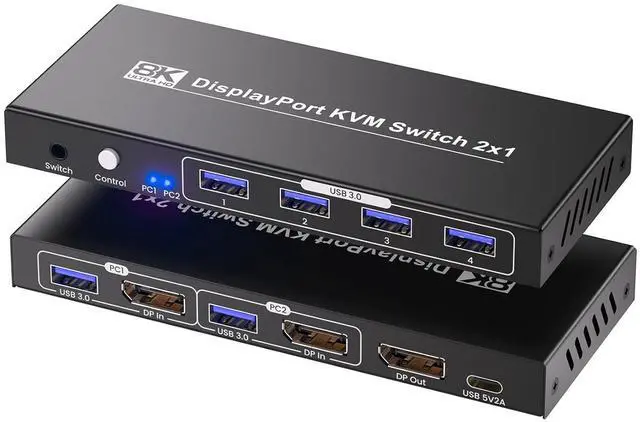
Displayport KVM Switch 1 Monitor 2 Computers, 8K@60Hz 4K@120Hz 2 Port DP KVM Switch with 4 Port USB 3.0 Hub for 2 Computers Share 1 Set of Keyboard, Mouse and 1 Monitor
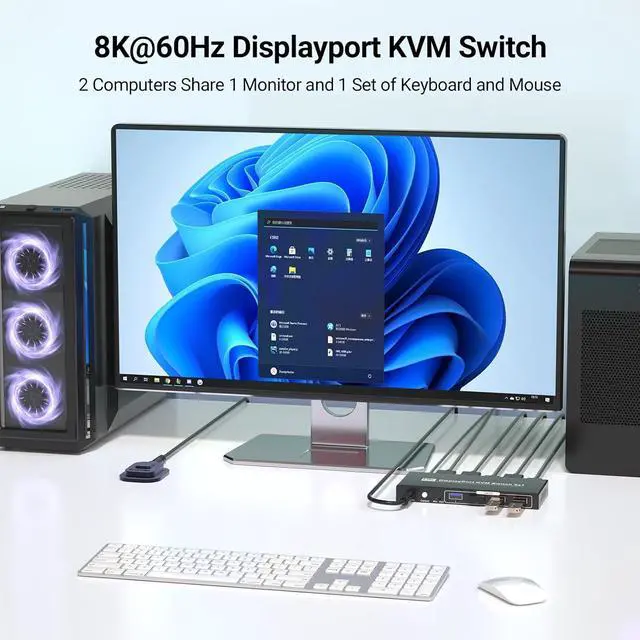
- Displayport KVM Switch 1 Monitor 2 ComputersThis 2 port KVM switch allows users to control 2 computers with a single set of keyboard, mouse, and 1 monitor setup, ensuring crisp visuals and fast data transfer rates.
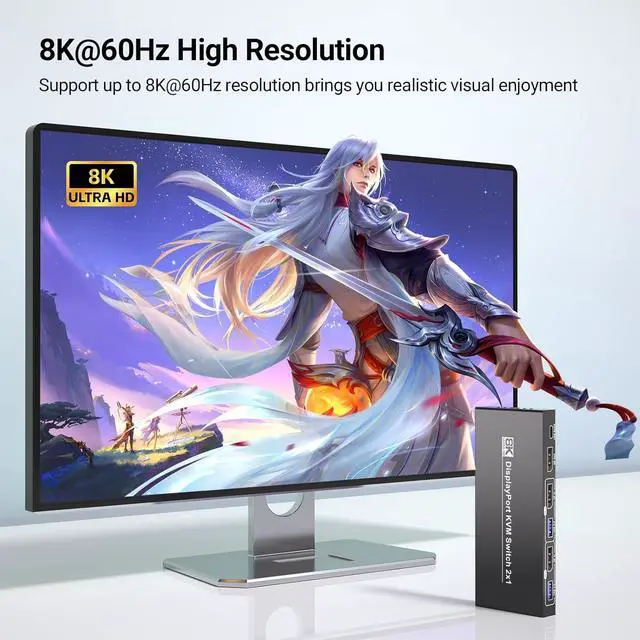
- 8K@60Hz & 4K@120Hz Ultra-HD SupportThis versatile KVM switcher is engineered to deliver stunning visual clarity for your single monitor. Supporting resolutions up to 8K@60Hzand 4K@120Hz, it ensures crisp, vibrant displays for tasks ranging from professional work to high-speed gaming or 4K video editing. Important Note: To unlock this ultra-HD performance, confirm your computers, monitor, and DisplayPort cables all support these advanced resolutions.
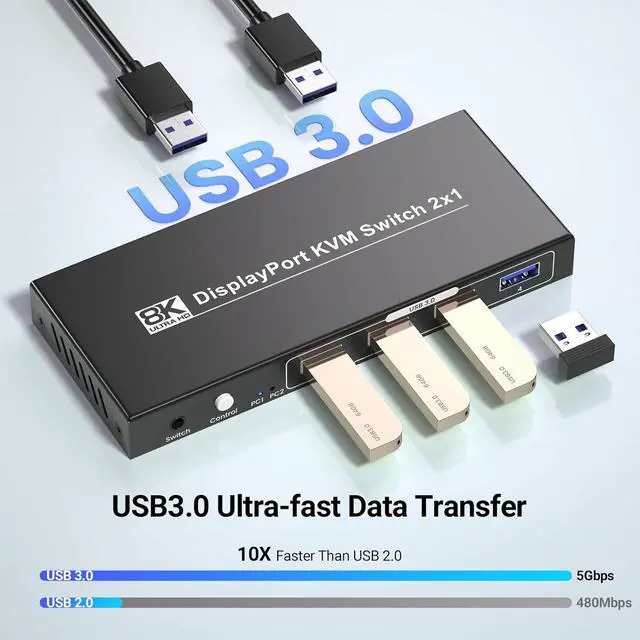
- Fast USB 3.0 Connectivity for Dual ComputersThe dual port KVM switch goes beyond display control by enabling shared access to peripherals. With a built-in 4-port USB 3.0 hub, it allows two computers to seamlessly use the same keyboard, mouse, printer, external drives, and webcams. Enjoy blazing-fast data transfer speeds
+
+
Overview
Specs
Reviews
Any questions? Our AI beta will help you find out quickly.
Try me now
Managing two computers often means dealing with a mess of peripheralsbut not anymore. This DP KVM Switch 1 monitor 2 computers eliminates the hassle of juggling multiple keyboards, mice, and monitors. Connect two PCs to one display, then take charge of both systems using a single keyboard and mouse. Whether youre a creative professional editing content across devices, a gamer switching between gaming and streaming setups, or a home office user balancing work and personal devices, this KVM switcher makes cross-device control easy, straightforward, and highly efficient.
Why Choose This DisplayPort KVM Switches?
1. 8K@60Hz/4K@120Hz support for future-proof ultra-HD performance
2. USB 3.0 hub to share peripherals between two computers
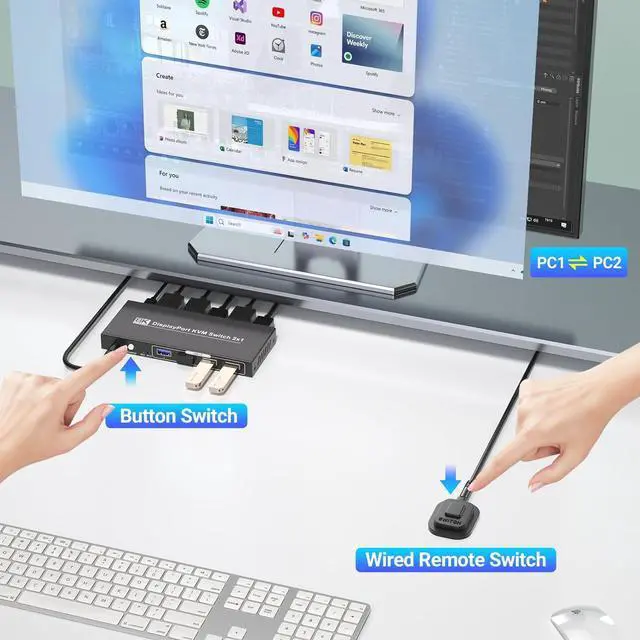
3. Dual switching modes(front panel or external kit) for flexibility
4. Plug-and-play operation with universal OS compatibility
5. Compact form factor to simplify your desktop setup
Note:
1. Please use USB cables to connect the USB ports of PC1 & PC 2 and the KVM switches, otherwise the 4 USB 3.0 port on the front of the KVM will not work.
2. No hotkey switching.
3. Please note that for optimal results, ensure your computers, monitors, and cables also support 8K and high refresh rates.
Featuring support for 8K@60Hz and 4K@120Hz resolutions, this dual port KVM switch delivers crystal-clear, vivid imagery thats perfect for graphic design, gaming, video editing, or everyday work.
Remember: For full ultra HD performance, your PCs, monitor, and DP cables must support 8K and high refresh rates.
The integrated 4-port USB 3.0 hub ensures rapid 5Gbps data transfer, making it easy to share USB accessories (keyboards, mice, printers, external drives, webcams) between your two computers. Its also compatible with USB 2.0 devices, so you wont have to replace your existing peripherals.
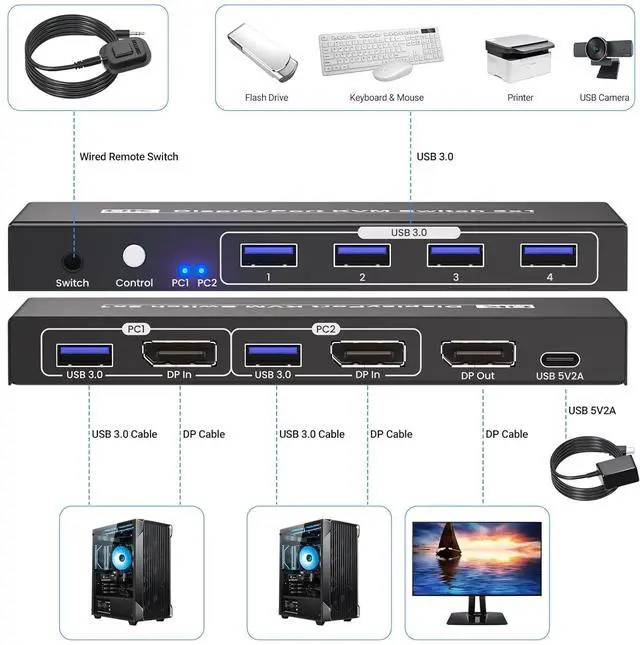
1. Connect Computers to the KVM Switch: Plug one end of each DP cable into the DP output ports of Computer 1 and Computer 2 respectively. Plug the other ends into the "PC1 DP IN" and "PC2 DP IN" ports on the KVM Switch.
2. Connect the Monitor to the KVM Switch: Use a DP cable to connect the " DP OUT" port on the KVM Switch to the DP input port of your monitor.
3. Use the included USB cables to connect each computer and the "USB In" ports of the 2 computer KVM switch.
4. Connect Keyboard and Mouse: Plug your keyboard and mouse into the USB ports on the KVM Switch. If using a wireless keyboard/mouse, insert their USB receiver into one of these USB ports.
5. Power On the Devices: First turn on the monitor, then turn on both computers.
Toggle between computers effortlessly using either the front-panel push buttons or the included external switching control kit.
Switching between PCs is quick and straightforwarduse the front-panel push buttons or the external switching kit (no hotkey switching required). No more fumbling with cables or disrupting your workflowjust instant, seamless transitions.
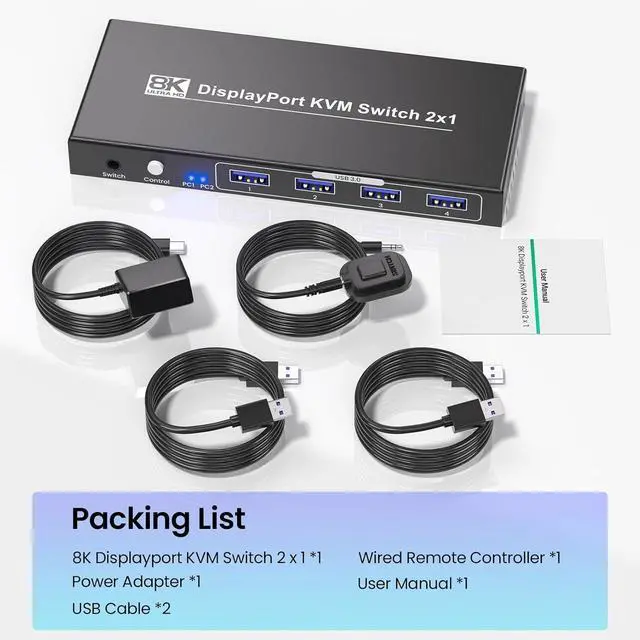
1. DP KVM Switcher
2. User Manual
3. External Controller
4. USB 3.0 Cables
5. Power Adapter
See More DisplayPort 1.4 2 Port KVM Switch with 4-Port USB 3.0 Hub - Effortless Control for 2 PCs & 1 Monitor Elevate Your Workflow with The 2 Port KVM Switch Designed for Modern Ultra-HD Displays and Dual-computer Setups Unprecedented 8K@60Hz & 4K@120Hz Visual Fidelity Integrated 4-Port USB 3.0 Hub for Peripheral Sharing Step-by-Step Connection 8K@60Hz/4K@120Hz 2 Port KVM Switch with USB 3.0 Hub and Dual Switching Modes Button Switching Mode External controller Switching Mode Package List

Why Choose This DisplayPort KVM Switches?
1. 8K@60Hz/4K@120Hz support for future-proof ultra-HD performance
2. USB 3.0 hub to share peripherals between two computers
3. Dual switching modes(front panel or external kit) for flexibility
4. Plug-and-play operation with universal OS compatibility
5. Compact form factor to simplify your desktop setup
Note:
1. Please use USB cables to connect the USB ports of PC1 & PC 2 and the KVM switches, otherwise the 4 USB 3.0 port on the front of the KVM will not work.
2. No hotkey switching.
3. Please note that for optimal results, ensure your computers, monitors, and cables also support 8K and high refresh rates.
Featuring support for 8K@60Hz and 4K@120Hz resolutions, this dual port KVM switch delivers crystal-clear, vivid imagery thats perfect for graphic design, gaming, video editing, or everyday work.
Remember: For full ultra HD performance, your PCs, monitor, and DP cables must support 8K and high refresh rates.
The integrated 4-port USB 3.0 hub ensures rapid 5Gbps data transfer, making it easy to share USB accessories (keyboards, mice, printers, external drives, webcams) between your two computers. Its also compatible with USB 2.0 devices, so you wont have to replace your existing peripherals.
1. Connect Computers to the KVM Switch: Plug one end of each DP cable into the DP output ports of Computer 1 and Computer 2 respectively. Plug the other ends into the "PC1 DP IN" and "PC2 DP IN" ports on the KVM Switch.
2. Connect the Monitor to the KVM Switch: Use a DP cable to connect the " DP OUT" port on the KVM Switch to the DP input port of your monitor.
3. Use the included USB cables to connect each computer and the "USB In" ports of the 2 computer KVM switch.
4. Connect Keyboard and Mouse: Plug your keyboard and mouse into the USB ports on the KVM Switch. If using a wireless keyboard/mouse, insert their USB receiver into one of these USB ports.
5. Power On the Devices: First turn on the monitor, then turn on both computers.
Toggle between computers effortlessly using either the front-panel push buttons or the included external switching control kit.
Switching between PCs is quick and straightforwarduse the front-panel push buttons or the external switching kit (no hotkey switching required). No more fumbling with cables or disrupting your workflowjust instant, seamless transitions.
1. DP KVM Switcher
2. User Manual
3. External Controller
4. USB 3.0 Cables
5. Power Adapter
See More DisplayPort 1.4 2 Port KVM Switch with 4-Port USB 3.0 Hub - Effortless Control for 2 PCs & 1 Monitor Elevate Your Workflow with The 2 Port KVM Switch Designed for Modern Ultra-HD Displays and Dual-computer Setups Unprecedented 8K@60Hz & 4K@120Hz Visual Fidelity Integrated 4-Port USB 3.0 Hub for Peripheral Sharing Step-by-Step Connection 8K@60Hz/4K@120Hz 2 Port KVM Switch with USB 3.0 Hub and Dual Switching Modes Button Switching Mode External controller Switching Mode Package List
Warranty & Returns
Warranty, Returns, And Additional Information
Warranty
- Please contact the Seller directly for warranty information. Warranty information may also be found on the Manufacturer's website.
- CONTACT
Return Policies
- Return for refund within: 30 days
- Return for replacement within: 30 days
- This item is covered by PrimeVolt’Shop Return Policy
Manufacturer Contact Info
- For a directory of all our manufacturers, please click below.
- Manufacturers Directory
LOADING...