Your Browsing History
Meet Your Seller
USB C & Dual HDMI KVM Switch 2 Monitors Laptop & Desktop Docking Station | 4K@60Hz Dual Monitor for 1 Laptop and 1 PC, PD 100W Charging, with Type-C 3.1 Gen 2 Cable & Wired Remote
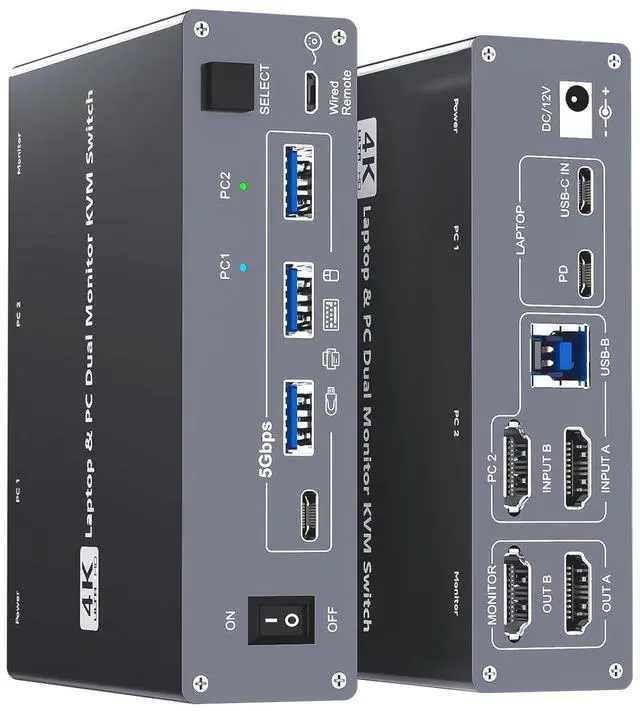
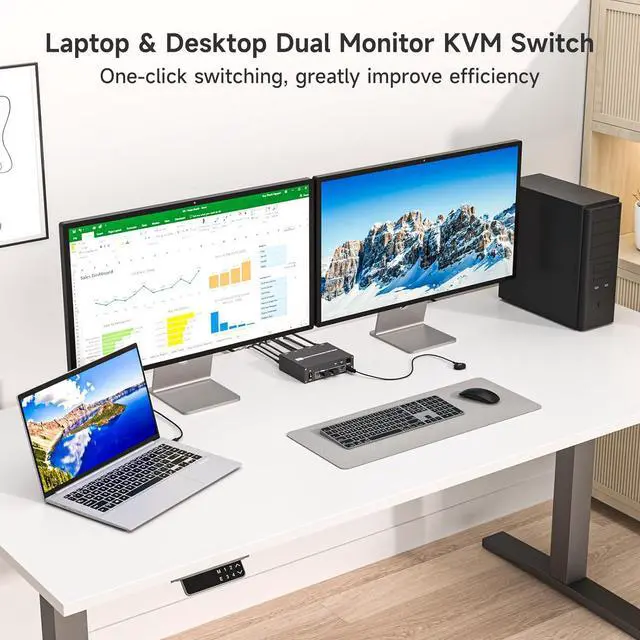
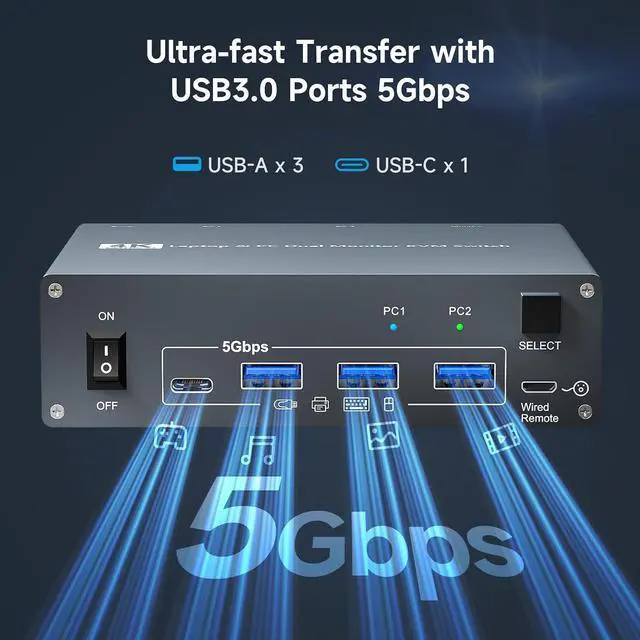
- 2-in-1 USB-C Docking Station with Dual Monitor KVM SwitchThis dual monitor KVM switch combines a full-featured USB-C docking station with a 2-computer 2-monitor KVM switchergiving you the ultimate workspace hub. It expands your USB-C laptop to dual 4K HDMI displays and adds a 4-port USB 3.0 hub, while letting you one-click switch between your laptop and desktop PC to share 2 monitors and all connected peripherals. Perfect for home office setups and professional workstations, this laptop desktop KVM switch saves you the cost of duplicate monitors and accessories, eliminates cable clutter, and keeps your desk clean, organized, and highly productive
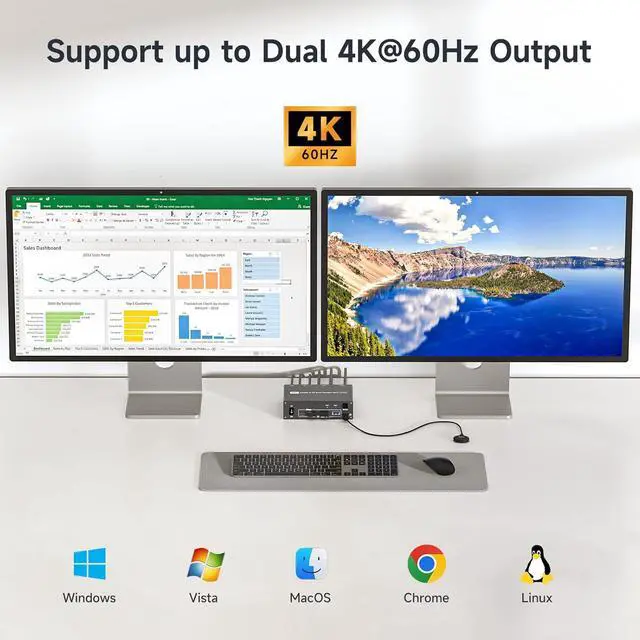
- Crystal-Clear 4K@60Hz Dual Display with High Refresh Rate SupportThis 4K 2 monitors dual monitor KVM switch delivers dual 4K@60Hz output with true 4:4:4 color accuracy, ensuring razor-sharp text, vivid colors, and fluid motion. It also supports 2K@120Hz, 2560×1440@120Hz/60Hz, and 1920×1080@144Hz/120Hz, making it versatile enough for bot
+
+
Overview
Specs
Reviews
Any questions? Our AI beta will help you find out quickly.
Try me now
The 2-in-1 USB-C Docking Station with Dual Monitor KVM Switch is mainly designed to toggle between one work laptop and personal desktopsharing two 4K monitors, one set of keyboard mouse, and all your essential USB devices without repeated plugging and unplugging.
1Dual 4K@60Hz Visuals25Gbps USB Data3100W PD Charging4Broad Compatibility5One-Click Control Connection Guide:
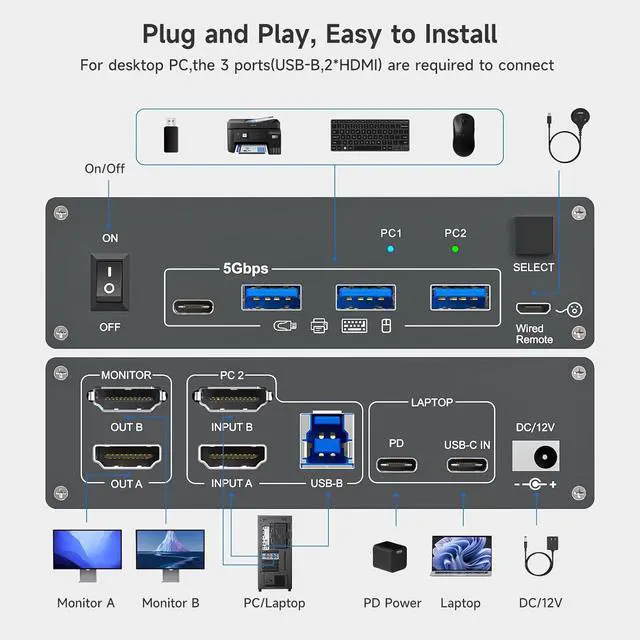
Step 1 Connect your USB-C laptop to the USB-C IN port on the docking KVM using a USB-C 3.1 Gen 2 cable.
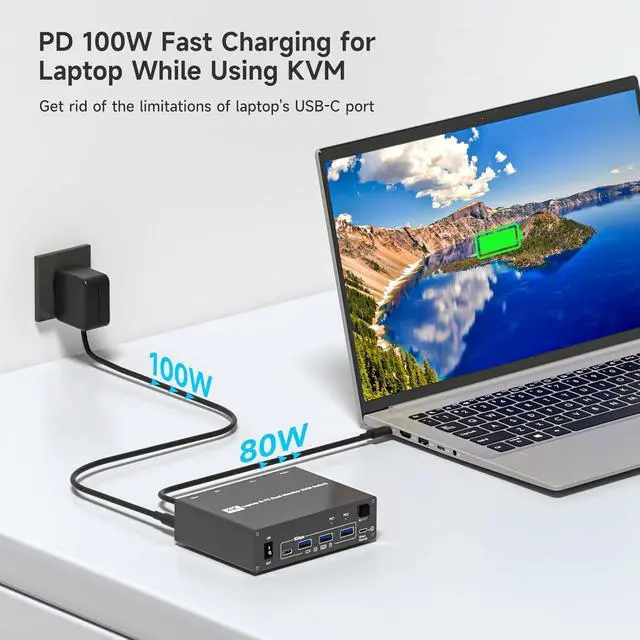
Step 2 Plug your laptop's original 100W charger into the PD port on the KVM docking station to enable power pass-through charging.
Step 3 On your desktop PC, attach 2 HDMI cables and 1 USB-B cable to the corresponding inputs on the dual monitor KVM switch (labeled INPUT A, INPUT B, and USB-B).
Step 4 Connect your two monitors to the KVM's display outputs (labeled OUT A and OUT B) for instant dual 4K display recognition.
Step 5 Plug your keyboard, mouse, USB drive, and other peripherals into the USB 3.0 ports on the dock.
Step 6 Insert the wired remote switch into the remote port to enable one-click computer toggling from your desk.
Step 7 Finally, connect the included DC 12V/1A power adapter to supply external power to the 2-computer KVM switch, ensuring stable, uninterrupted operation throughout the day.
Important Note: (1) To properly charge your laptop, please use a 100W laptop charging cable and connect the power cord from the outlet to the "PD" port of the KVM switch; Never plug the charging cable directly into the laptop's power port; (2) For some laptops that only support the proprietary PD protocol, such as Dell, a low battery charging warning may appear. Don't worry, your laptop will still charge normally. To resolve this annoying message, you can try the following two methods: 1. Uncheck the box for Enable Adapter Warnings (to stop BIOS warnings); 2. Go to Settings > Bluetooth & devices > USB and uncheck "Show a notification if this PC is charging slowly over USB"
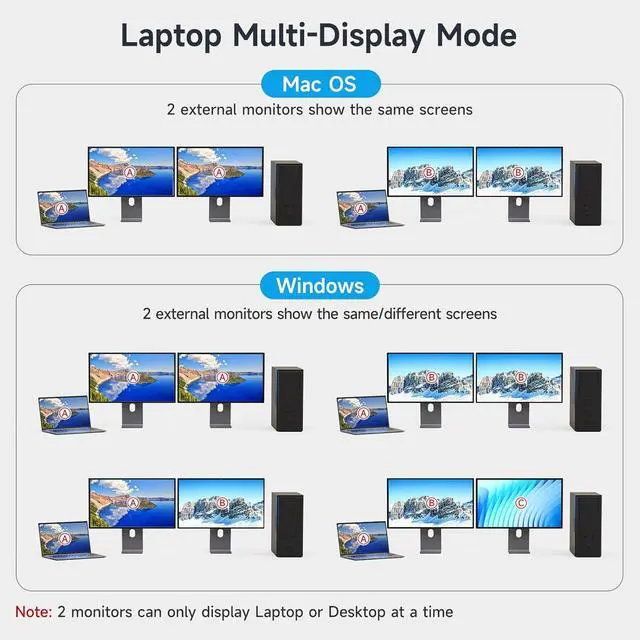
The Ultimate 2-in-1 Workspace Hub Docking Station + KVM Switch, All in One Supported Display Modes Depend on Laptop's OS Plug and Play, Easy to Install With vs. Without USB-C Docking Dual Monitor KVM Switch See the Difference

1Dual 4K@60Hz Visuals25Gbps USB Data3100W PD Charging4Broad Compatibility5One-Click Control Connection Guide:
Step 1 Connect your USB-C laptop to the USB-C IN port on the docking KVM using a USB-C 3.1 Gen 2 cable.
Step 2 Plug your laptop's original 100W charger into the PD port on the KVM docking station to enable power pass-through charging.
Step 3 On your desktop PC, attach 2 HDMI cables and 1 USB-B cable to the corresponding inputs on the dual monitor KVM switch (labeled INPUT A, INPUT B, and USB-B).
Step 4 Connect your two monitors to the KVM's display outputs (labeled OUT A and OUT B) for instant dual 4K display recognition.
Step 5 Plug your keyboard, mouse, USB drive, and other peripherals into the USB 3.0 ports on the dock.
Step 6 Insert the wired remote switch into the remote port to enable one-click computer toggling from your desk.
Step 7 Finally, connect the included DC 12V/1A power adapter to supply external power to the 2-computer KVM switch, ensuring stable, uninterrupted operation throughout the day.
Important Note: (1) To properly charge your laptop, please use a 100W laptop charging cable and connect the power cord from the outlet to the "PD" port of the KVM switch; Never plug the charging cable directly into the laptop's power port; (2) For some laptops that only support the proprietary PD protocol, such as Dell, a low battery charging warning may appear. Don't worry, your laptop will still charge normally. To resolve this annoying message, you can try the following two methods: 1. Uncheck the box for Enable Adapter Warnings (to stop BIOS warnings); 2. Go to Settings > Bluetooth & devices > USB and uncheck "Show a notification if this PC is charging slowly over USB"
The Ultimate 2-in-1 Workspace Hub Docking Station + KVM Switch, All in One Supported Display Modes Depend on Laptop's OS Plug and Play, Easy to Install With vs. Without USB-C Docking Dual Monitor KVM Switch See the Difference
Warranty & Returns
Warranty, Returns, And Additional Information
Warranty
- Please contact the Seller directly for warranty information. Warranty information may also be found on the Manufacturer's website.
- CONTACT
Return Policies
- Return for refund within: 30 days
- Return for replacement within: 30 days
- This item is covered by PrimeVolt’Shop Return Policy
Manufacturer Contact Info
- For a directory of all our manufacturers, please click below.
- Manufacturers Directory
LOADING...