Your Browsing History
Meet Your Seller
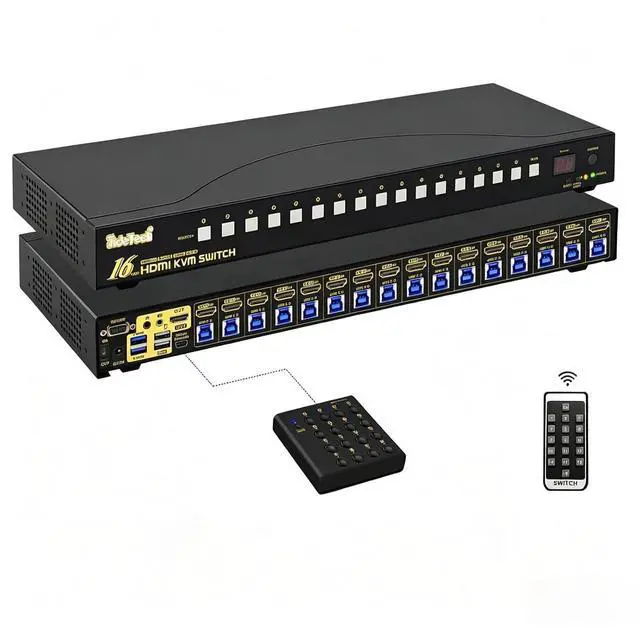
JideTech 16 Port HDMI KVM Switch 4K@60Hz, USB 3.0, HDCP 2.1 & EDID, Control 16 Computers via One Monitor Keyboard Mouse, Hotkey Switching, 1U Rack Mount, Windows Mac Linux Unix
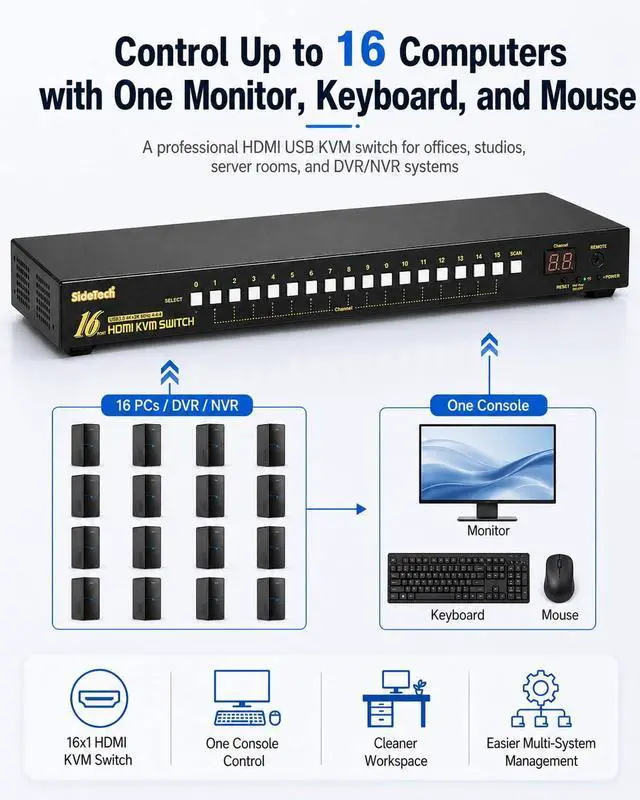
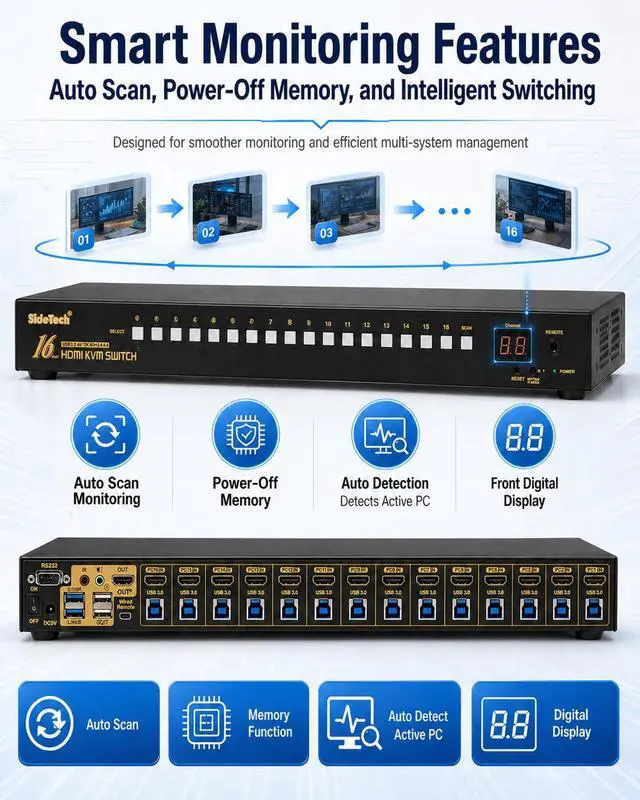
- Control 16 Computers with One Console:Manage up to 16 HDMI computers, DVRs, or NVR systems using a single monitor, keyboard, and mouse setup. Ideal for server rooms, security monitoring centers, studios, office workstations, and IT rack environments.
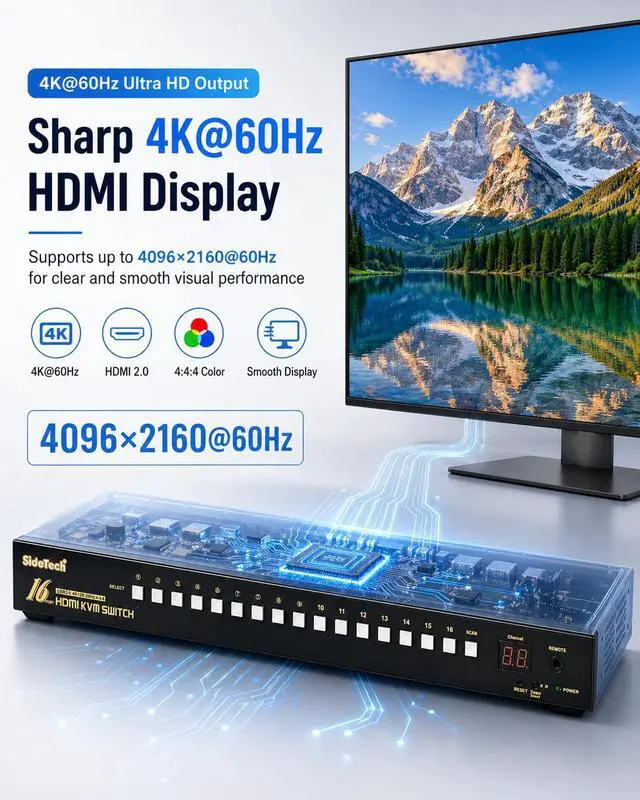
- True 4K@60Hz Ultra HD Video Output:Supports crystal-clear 4K@60Hz HDMI output with smooth and stable image transmission. Perfect for professional applications such as monitoring systems, engineering workstations, broadcasting, and high-resolution visual tasks.
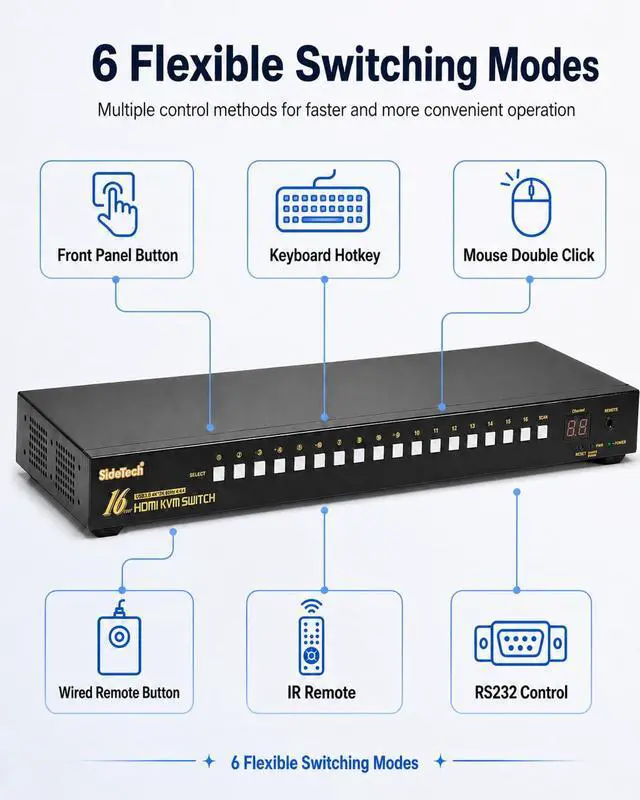
- Multiple Fast Switching Modes:Features 6 convenient switching methods including front panel push buttons, keyboard hotkeys, mouse switching, wired remote button, IR remote control, and RS232 command control for flexible operation.
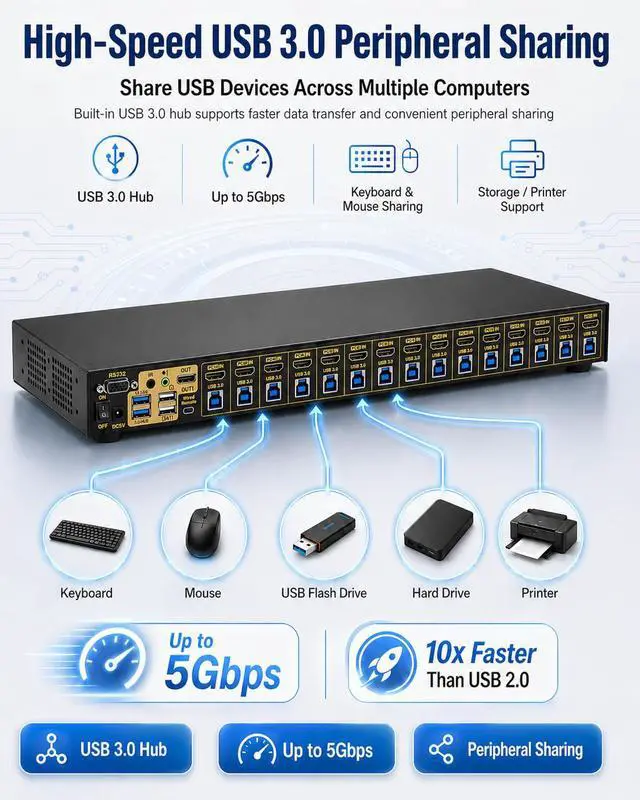
- USB 3.0 Hub with Audio & Microphone Support:Built-in USB 3.0 hub supports data transfer speeds up to 5Gbps for external drives, keyboards, and USB devices. Includes independent audio and microphone ports for multimedia and communication applicat
+
+
Overview
Specs
Reviews
Any questions? Our AI beta will help you find out quickly.
Try me now
Installation Step
1. Connect the KVM switch and computers by HDMI cables, and USB 3.0 cables that come with the KVM switch;
2. connect the KVM switch and monitor by HDMI cable;
3. plug the keyboard into the keyboard slot, plug the mouse into the mouse slot of the KVM switch, plug wired remote push-button switch/other USB devices/headset/IR remote into the KVM switch if needed;
Package include:
1 x 16 Port KVM switch + 16 x HDMI Cables + 16 x USB 3.0 cables + 1 x DC 5V 2A Power adapter + 1 x User manual + 1 x wire remote push button + 1 x IR remote + 2 x rack mount hook
Tips:
1. IR remote not include battery, you need buy it separately (battery specification is CR2025 3V).
2. The KVM switch comes with a DC5V 2A power adapter, we suggest you plug it into the KVM switch and AC socket, to avoid damaging your devices cause the power supply is not stable.
Compatible System:
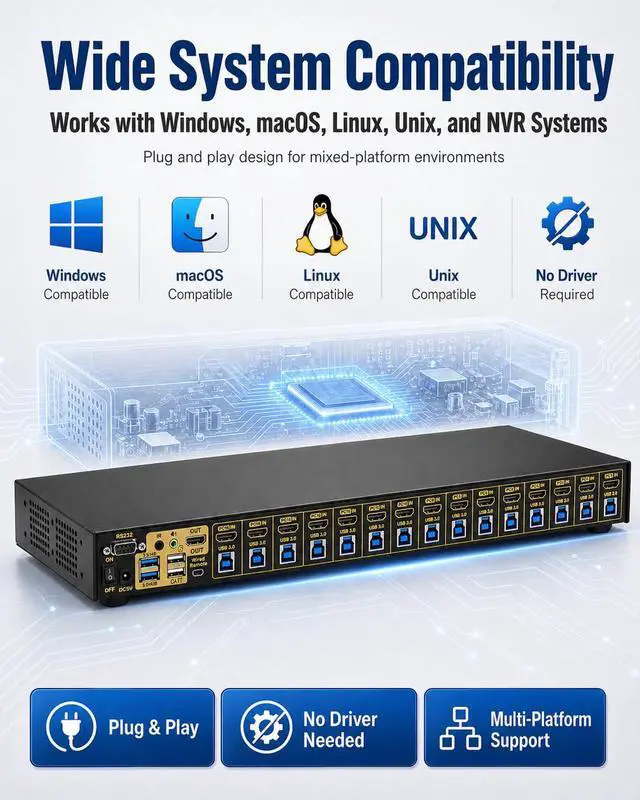
Windows Series, Mac, IOS, Unix, Linux, Dos, Netware
1 * 16 Port KVM switch
16 * HDMI Cables
16 * USB 3.0 cables
1 *DC 5V 2A Power adapter
1 * User manual
1 * wire remote push button
1 *IR remote
2 * rack mount hook
It is perfect for standard 1U height and 19-inch Cabinet/Rack Design if you maybe use Cabinet/Rack.
With 2 Pcs Rack Ears and some screws.
Support 4K@60Hz, 2K@120Hz and backward compatible with lower resolutions.Adaptive to different resolutions of different devices without manual setting.
HDCP stands for high bandwidth digital content protection, a copy protection procedure that excludes the possibility of capturing digital data in the middle of the data stream between the source and the display.
It can be used for products that are compatible with the HDCP scheme, such as DVD players, satellite and cable HDTV set top boxes, etc.
RS232 switching: switch to any port through RS232 control (according to your own platform, enter the corresponding serial port code for control)
This USB3.0 KVM switch has 2 USB 3.0 ports, supports 5Gbps data transfer speed, and can transfer files in seconds, giving you the best use experience.
Questions & Answers:
1. How to reset the KVM switch? (You can reset the KVM switch when you meet USB disconnect or monitor issue)
Step 1. Turn off the KVM switch and all of your computers/laptops, then unplug all the cables;
Step 2. Plug the DC5V 2A power adapter into the KVM switch and AC socket, and turn on the KVM switch (There is an o/f button on the back);
Step 3. Plug the keyboard into the keyboard slot of the KVM switch;
Step 4. Click right [CTRL] on the keyboard 2 times, then click [ESC] 3 times, at last click [ENTER]. (The whole operation time should not be over 2s after you hear a beep sound, that shows operated successfully);
Step 5. Plug USB 3.0 cables, and HDMI cables into the KVM switch and computers, plug HDMI cable into the KVM switch and your monitor; plug the mouse into the mouse slot of the KVM switch; plug other USB devices into the USB 3.0 Hub of the KVM switch if needed;
Step 6. Turn on your computers.
2. How to turn off the Beep sound? (Beep sound default turn on, you can turn it on or turn it off by the step)
You need to keep the HOTKEY ON/OFF key turned on(when it turns on, its LED light), plug the keyboard into the keyboard slot, and make this operate: click right [CTRL] on the keyboard 2 times, then click [B], at last click [ENTER]. (Whole time should not be over 2s, that shows operated successfully when you hear a beep sound.)
3. My gaming keyboard and mouse can't work properly.
The hotkey function default turns on.
For gaming/mechanical/unified keyboard/mouse, that may be have a compatible issue, if they can't work properly, we suggest you turn off HOTKEY ON/OFF key(when it turns off, its LED light turns off). Or you can plug your keyboard/mouse into USB 3.0 Hub port, and then solve the issue.
JideTech 16x1

1. Connect the KVM switch and computers by HDMI cables, and USB 3.0 cables that come with the KVM switch;
2. connect the KVM switch and monitor by HDMI cable;
3. plug the keyboard into the keyboard slot, plug the mouse into the mouse slot of the KVM switch, plug wired remote push-button switch/other USB devices/headset/IR remote into the KVM switch if needed;
Package include:
1 x 16 Port KVM switch + 16 x HDMI Cables + 16 x USB 3.0 cables + 1 x DC 5V 2A Power adapter + 1 x User manual + 1 x wire remote push button + 1 x IR remote + 2 x rack mount hook
Tips:
1. IR remote not include battery, you need buy it separately (battery specification is CR2025 3V).
2. The KVM switch comes with a DC5V 2A power adapter, we suggest you plug it into the KVM switch and AC socket, to avoid damaging your devices cause the power supply is not stable.
Compatible System:
Windows Series, Mac, IOS, Unix, Linux, Dos, Netware
1 * 16 Port KVM switch
16 * HDMI Cables
16 * USB 3.0 cables
1 *DC 5V 2A Power adapter
1 * User manual
1 * wire remote push button
1 *IR remote
2 * rack mount hook
It is perfect for standard 1U height and 19-inch Cabinet/Rack Design if you maybe use Cabinet/Rack.
With 2 Pcs Rack Ears and some screws.
Support 4K@60Hz, 2K@120Hz and backward compatible with lower resolutions.Adaptive to different resolutions of different devices without manual setting.
HDCP stands for high bandwidth digital content protection, a copy protection procedure that excludes the possibility of capturing digital data in the middle of the data stream between the source and the display.
It can be used for products that are compatible with the HDCP scheme, such as DVD players, satellite and cable HDTV set top boxes, etc.
RS232 switching: switch to any port through RS232 control (according to your own platform, enter the corresponding serial port code for control)
This USB3.0 KVM switch has 2 USB 3.0 ports, supports 5Gbps data transfer speed, and can transfer files in seconds, giving you the best use experience.
Questions & Answers:
1. How to reset the KVM switch? (You can reset the KVM switch when you meet USB disconnect or monitor issue)
Step 1. Turn off the KVM switch and all of your computers/laptops, then unplug all the cables;
Step 2. Plug the DC5V 2A power adapter into the KVM switch and AC socket, and turn on the KVM switch (There is an o/f button on the back);
Step 3. Plug the keyboard into the keyboard slot of the KVM switch;
Step 4. Click right [CTRL] on the keyboard 2 times, then click [ESC] 3 times, at last click [ENTER]. (The whole operation time should not be over 2s after you hear a beep sound, that shows operated successfully);
Step 5. Plug USB 3.0 cables, and HDMI cables into the KVM switch and computers, plug HDMI cable into the KVM switch and your monitor; plug the mouse into the mouse slot of the KVM switch; plug other USB devices into the USB 3.0 Hub of the KVM switch if needed;
Step 6. Turn on your computers.
2. How to turn off the Beep sound? (Beep sound default turn on, you can turn it on or turn it off by the step)
You need to keep the HOTKEY ON/OFF key turned on(when it turns on, its LED light), plug the keyboard into the keyboard slot, and make this operate: click right [CTRL] on the keyboard 2 times, then click [B], at last click [ENTER]. (Whole time should not be over 2s, that shows operated successfully when you hear a beep sound.)
3. My gaming keyboard and mouse can't work properly.
The hotkey function default turns on.
For gaming/mechanical/unified keyboard/mouse, that may be have a compatible issue, if they can't work properly, we suggest you turn off HOTKEY ON/OFF key(when it turns off, its LED light turns off). Or you can plug your keyboard/mouse into USB 3.0 Hub port, and then solve the issue.
JideTech 16x1
Warranty & Returns
Warranty, Returns, And Additional Information
Warranty
- Please contact the Seller directly for warranty information. Warranty information may also be found on the Manufacturer's website.
- CONTACT
Return Policies
- Return for refund within: 30 days
- Return for replacement within: 30 days
- This item is covered by PrimeVolt’Shop Return Policy
Manufacturer Contact Info
- For a directory of all our manufacturers, please click below.
- Manufacturers Directory
LOADING...