Your Browsing History
Meet Your Seller
KVM Switch HDMI 2 Port, JCHICI 4K@60Hz USB KVM Switcher for 2 Computers Share 1 HD Monitor and a Set of Keyboard Mouse Printer U Disk
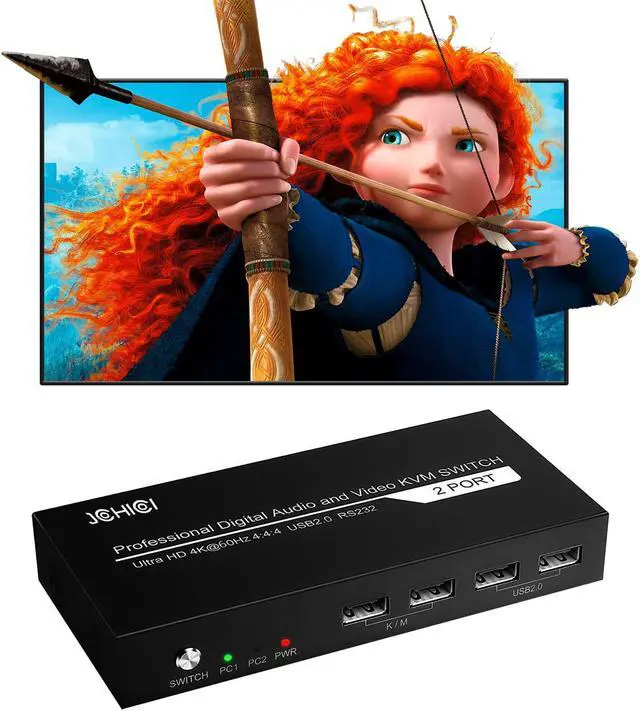
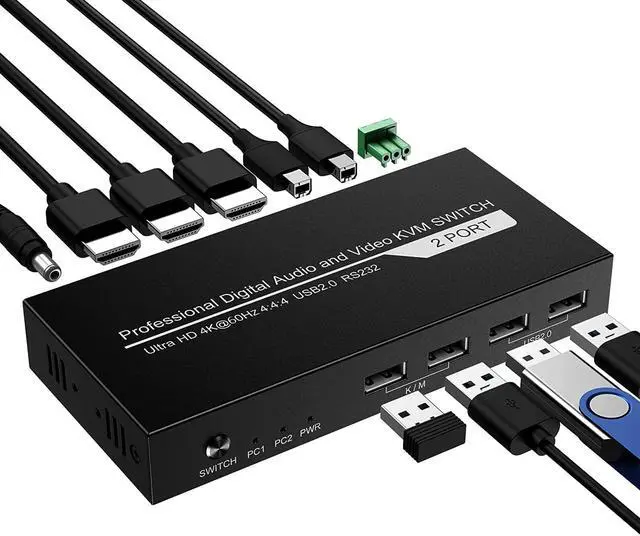
- 2 Input and 1 OutputUsing 1 set of keyboard, mouse and monitor to control 2 computer devices. Say goodbye to cluttered desks and hello to convenience and comfort.
- 4K@60Hz 4:4:4Experience ultra-HD 4K visuals with stunning realism and detail at up to 60Hz/3D 4:4:4 resolution, thanks to HDR10 technology and Dolby Atmos support. With this KVM switch, you'll enjoy an unparalleled viewing and gaming experience.
- 5 Switching ModesSwitching between devices has never been easier, thanks to our 5 simple modes: buttons switch, mouse switch, keyboard hotkey switch, RS232 control. and automatic timed switching. The HDMI switch's automatic timed switching makes connecting multiple devices a breeze.
- Button Switch & Signal Lights Button switch: allowing you to quickly switch to the device you need without wasting time. 2 signal indicators: one of which lights up, will let you quickly know which input source is working.That's awesome!
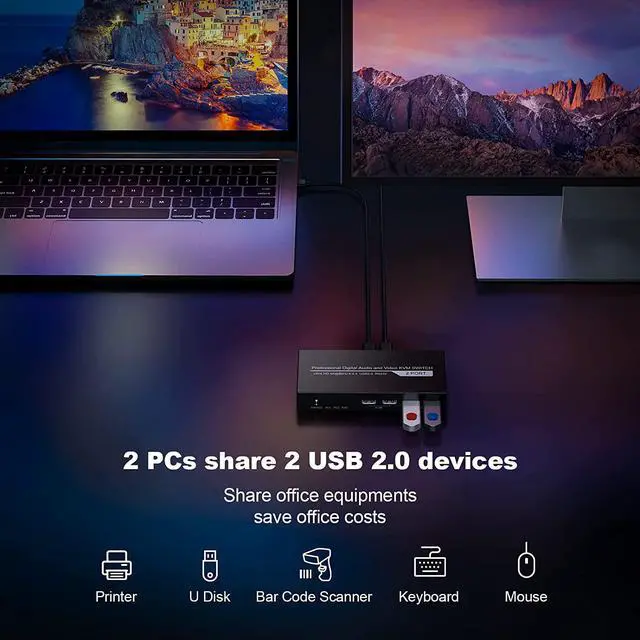
- USB & KVM FunctionUSB Function: 2 USB 2.0
+
+
Overview
Specs
Reviews
Any questions? Our AI beta will help you find out quickly.
Try me now
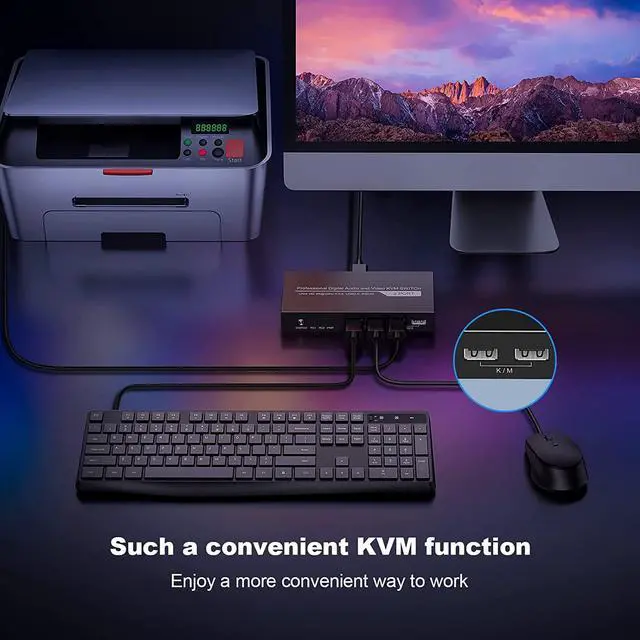
1 .With KVM function, controls 2 devices through a set of keyboard and mouse at the same time.
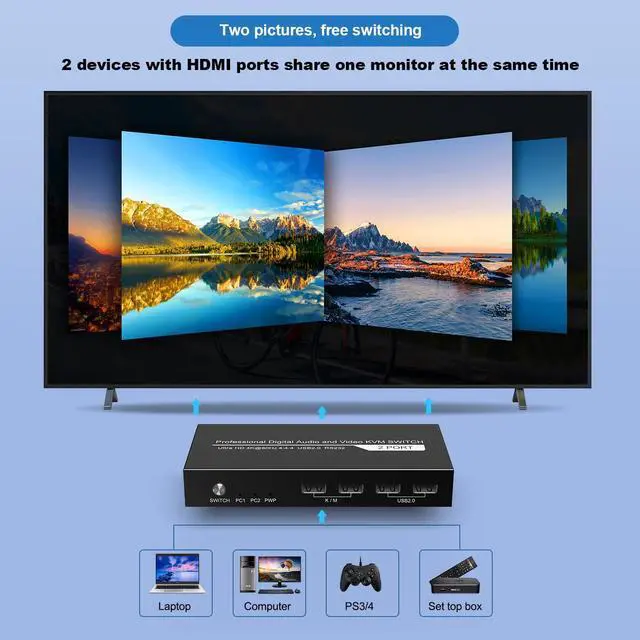
2. The 2-way HDMI input sources support various combinations, such as 2PCs, a TV box and a PS3/4 combination,etc. Which greatly saves your desktop space and beautifies your working environment.
Watching movies or playing games on big screen with family, so gorgeous!
4 Simple Ways To Switch .Choose the most habitual switch mode to save study costs.
Best part of all, the panal button can help you to switch the device which you want quickly and easily.
Warm tips:
When the hotkey doesn't work, it may cause by these points:
1, The product have 4hotkey modes, but remember that 4modes hotkey can't user at same time ! need switch next mode, then could use.
2. If you have inadvertently change another hotkey. Please try the 4 modes to confirm which mode you changed.
try these 4 modes:
1, Double Scroll , then press 2Double Caps then press "" 3.Double "Num" then press "" 4. Press "Ctrl" and "Shift" and "1"
BTW ,no matter what mode, you press * and 1/2/3/4 also could swicth (press "*" don't loose, then press "1" at the same time)
Warm tips:
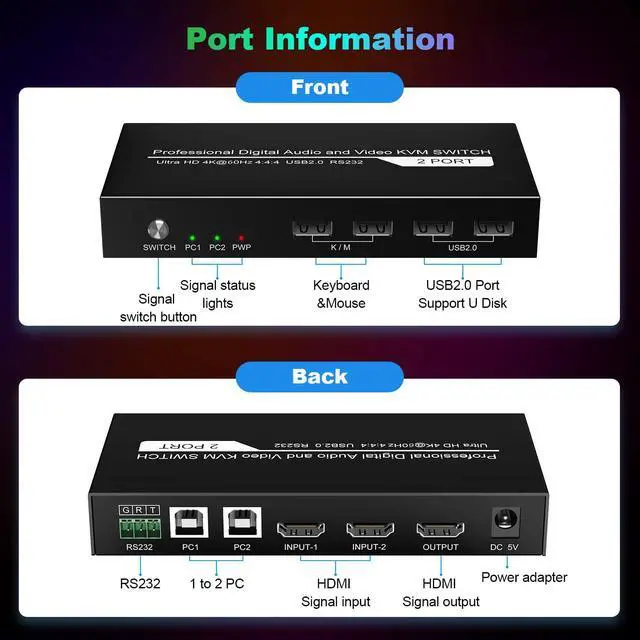
1. If you want to switch by keyboard hotkey, please make sure to plug the keyboard and mouse into the dedicated K/M interface to ensure that it works normally.
Packing List:
1 * 2x1 HDMI KVM Switch
1 * USB power line
2 * USB Cables
1 * User manual
1.Easy to setup and operate. Just connect your input and output devices via our HDMI KVM switcher and then enjoy your movies, games......So stunning :)
2.Available to use keyboard without any delay after switch input sources.
Warm tips:
1. Please make sure to connect the printer, U disk, barcode scanner and other USB devices to the "USB 2.0" ports. Cannot be plugged into the "K/M" port, otherwise it will not work.
Q: Does this HDMI KVM switch supports to connect wireless keyboard and mouse with 2.4G receiver?
A: Sure! Our KVM switcher supports basic mouse and keyboard, wireless mouse keyboard with 2.4G receiver, mechanical keyboard and gaming keyboard, except wireless Bluetooth keyboard and mouse.
Q: Connected the keyboard and mouse to the KVM interface, but it doesnt work, whats the matter?
A: It may be caused by the following points, pls check them:
1.Our product doesnt support wireless Bluetooth keyboard and mouse, pls make sure if you are using Bluetooth.(support wireless mouse keyboard with 2.4G receiver)
2.The computer needs to be connected to the USB-B port corresponding to the HDMI port at the same time. For example, the correct connection for PC1 should be to the "HDMI1" and "PC1" ports, if the "HDMI1" and "PC2" ports are connectedthe keyboard and mouse will not work.
3.Please check if the USB cable is damaged.
4.The HDMI KVM switch requires the USB driver to work, pls make sure your computer has installed the USB driver.
5.If the above points are fine you can try to connect the keyboard and mouse to the USB2.0 port.
Q: Why the mouse macro and keyboard macro doesnt work when my mouse is connected to the KVM port?
A: It may be the compatibility problem of different brands, pls connect the keyboard and mouse to the USB2.0 interface, so that the keyboard macro and mouse macro can be used normally.

2. The 2-way HDMI input sources support various combinations, such as 2PCs, a TV box and a PS3/4 combination,etc. Which greatly saves your desktop space and beautifies your working environment.
Watching movies or playing games on big screen with family, so gorgeous!
4 Simple Ways To Switch .Choose the most habitual switch mode to save study costs.
Best part of all, the panal button can help you to switch the device which you want quickly and easily.
Warm tips:
When the hotkey doesn't work, it may cause by these points:
1, The product have 4hotkey modes, but remember that 4modes hotkey can't user at same time ! need switch next mode, then could use.
2. If you have inadvertently change another hotkey. Please try the 4 modes to confirm which mode you changed.
try these 4 modes:
1, Double Scroll , then press 2Double Caps then press "" 3.Double "Num" then press "" 4. Press "Ctrl" and "Shift" and "1"
BTW ,no matter what mode, you press * and 1/2/3/4 also could swicth (press "*" don't loose, then press "1" at the same time)
Warm tips:
1. If you want to switch by keyboard hotkey, please make sure to plug the keyboard and mouse into the dedicated K/M interface to ensure that it works normally.
Packing List:
1 * 2x1 HDMI KVM Switch
1 * USB power line
2 * USB Cables
1 * User manual
1.Easy to setup and operate. Just connect your input and output devices via our HDMI KVM switcher and then enjoy your movies, games......So stunning :)
2.Available to use keyboard without any delay after switch input sources.
Warm tips:
1. Please make sure to connect the printer, U disk, barcode scanner and other USB devices to the "USB 2.0" ports. Cannot be plugged into the "K/M" port, otherwise it will not work.
Q: Does this HDMI KVM switch supports to connect wireless keyboard and mouse with 2.4G receiver?
A: Sure! Our KVM switcher supports basic mouse and keyboard, wireless mouse keyboard with 2.4G receiver, mechanical keyboard and gaming keyboard, except wireless Bluetooth keyboard and mouse.
Q: Connected the keyboard and mouse to the KVM interface, but it doesnt work, whats the matter?
A: It may be caused by the following points, pls check them:
1.Our product doesnt support wireless Bluetooth keyboard and mouse, pls make sure if you are using Bluetooth.(support wireless mouse keyboard with 2.4G receiver)
2.The computer needs to be connected to the USB-B port corresponding to the HDMI port at the same time. For example, the correct connection for PC1 should be to the "HDMI1" and "PC1" ports, if the "HDMI1" and "PC2" ports are connectedthe keyboard and mouse will not work.
3.Please check if the USB cable is damaged.
4.The HDMI KVM switch requires the USB driver to work, pls make sure your computer has installed the USB driver.
5.If the above points are fine you can try to connect the keyboard and mouse to the USB2.0 port.
Q: Why the mouse macro and keyboard macro doesnt work when my mouse is connected to the KVM port?
A: It may be the compatibility problem of different brands, pls connect the keyboard and mouse to the USB2.0 interface, so that the keyboard macro and mouse macro can be used normally.
Warranty & Returns
Warranty, Returns, And Additional Information
Warranty
- Please contact the Seller directly for warranty information. Warranty information may also be found on the Manufacturer's website.
- CONTACT
Return Policies
- Return for refund within: 30 days
- Return for replacement within: 30 days
- This item is covered by PrimeVolt’Shop Return Policy
Manufacturer Contact Info
- For a directory of all our manufacturers, please click below.
- Manufacturers Directory
LOADING...