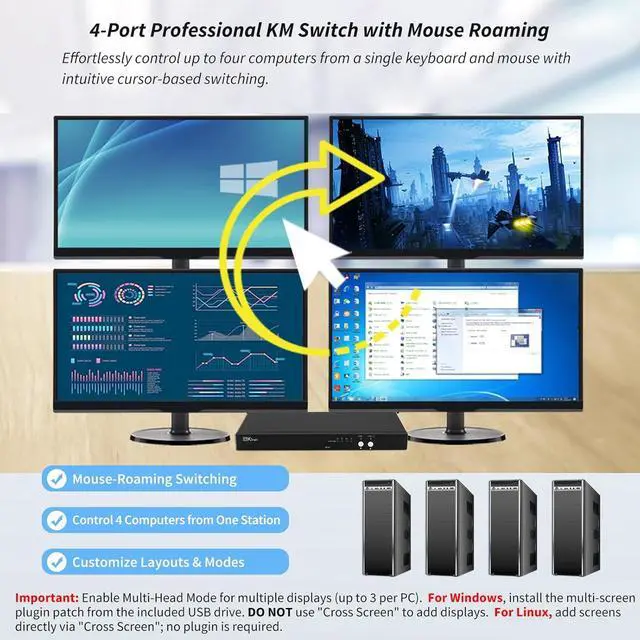
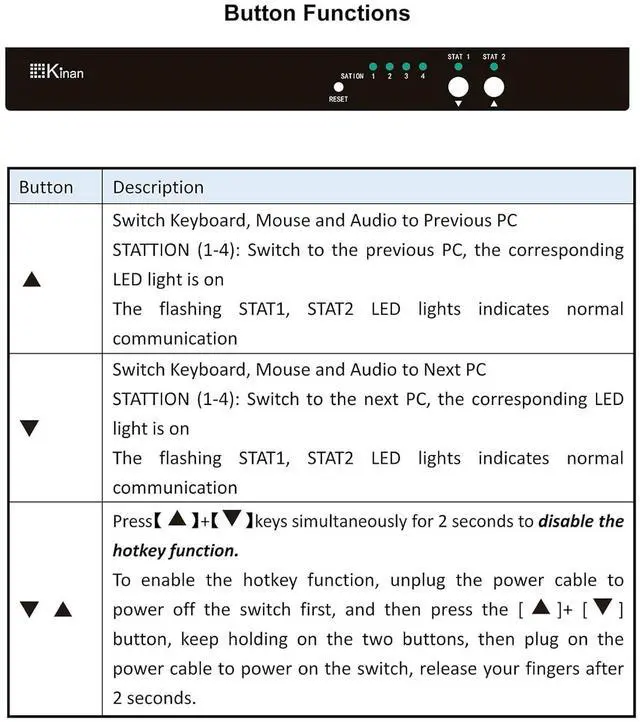
Control 4 PCs with one keyboard & mouse. Move mouse cursor between screens to switch. Or use hotkeys/buttons. Independent audio switching. Supports up to 3 displays per PC.
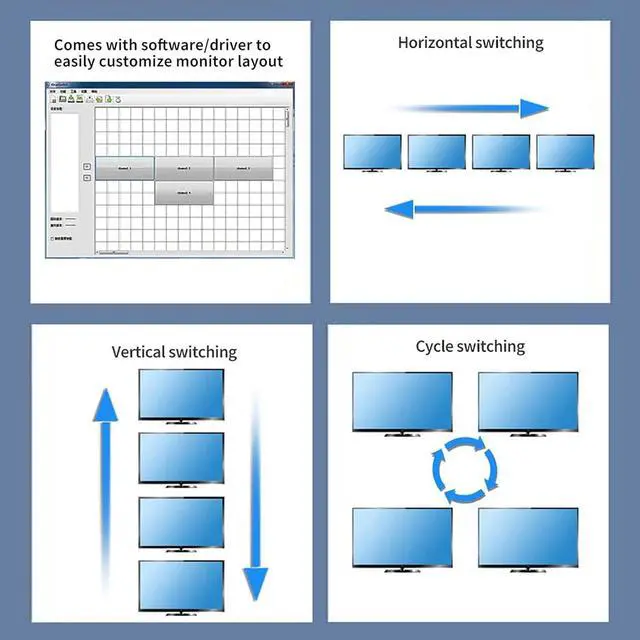
Customize with included management software (USB drive).
Support USB 2.0 HUB.
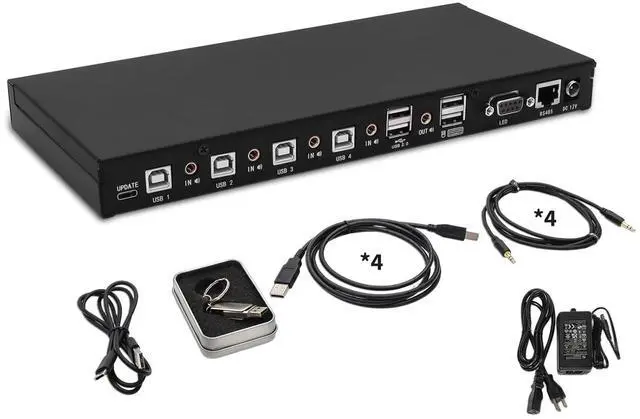
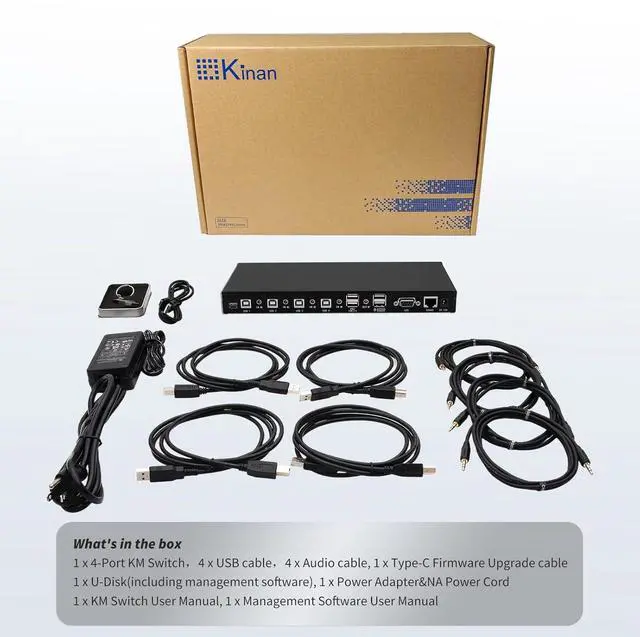
Cables included.
Mouse Cursor Switching
Front Panel Buttons Switching
Keyboard Hotkeys Switching
Customizable layouts via included software.
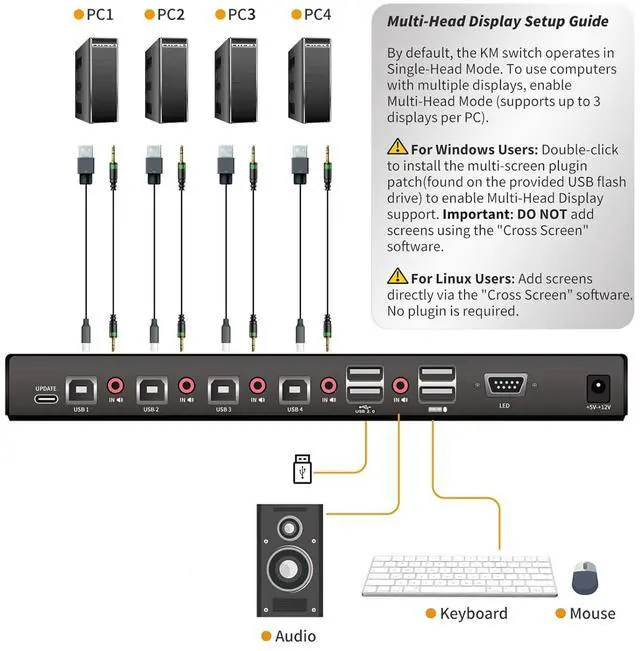
Multi-Head Display Setup: WindowsInstall the multi-screen plugin patch; Linuxadd screens in software.
By default, the KM switch operates in Single-Head Mode. To use computers with multiple displays, enable Multi-Head Mode (supports up to 3 displays per PC).
For Windows: Install the "Kinan Multi-Screen Support" plugin patch from the included USB drive. DO NOT use "Cross Screen" to add displays.
For Linux : Add screens directly via "Cross Screen"; no plugin is required.
Q: One of my computers is connected to two monitors, but the mouse cursor cannot be moved to the secondary screen.
A: This KM switch operates in single-head display mode by default. You are currently in multi-head display mode and need to configure it as follows:
For Windows: Install the "Kinan Multi-Screen Support" plugin patch. Simply install it with a double-clickno extra steps needed. DO NOT add a secondary screen in the "Cross Screen" software. If you have already added one, delete it before installing the plugin patch.
For Linux: Add Screens via the "Cross Screen" software: Right-click the Channel icon (e.g., Channel 1) > Select Add Screen.No plugin patch is required.
Q: How many computers can this KM switch support? A: It supports up to 4 computers, and each computer can connect up to 3 screens. Please follow the correct steps to set up the multi-head display mode.
Q: When I move the mouse cursor up or down from the center of the screen, it switches to the next screen instead of switching only when the cursor reaches the edge of the screen. A: You need to configure the switching direction in the "Cross Screen" software. Please refer to the software manual for detailed steps.
Q: Can't switch between computers. A: 1. Power off the device, unplug all cables, then plug them back in. 2. Use the panel buttons to switch ports and check if the keyboard and mouse respond on the corresponding port. Also check whether the front panel indicator light changes with the mouse sliding direction. If not, make sure the mouse is plugged into the dedicated USB port. 3.Double-click the mouse wheel to enable or disable the KM switching function.
Q: No response from mouse and keyboard.
A: 1.Unplug all cables, then reconnect them one by one. Make sure each connection is secure and not loose.
2. Re-plug the keyboard and mouse, or try replacing them with standard office USB keyboard and mouse (no macro functions) to see if that restores functionality. 3.Check if your PC's Device Manager has recognized the KM switch driver (under "Mice and other pointing devices").
1 x 4-Port KM Switch with USB Hub, 4 x USB cable, 4 x Audio cable, 1 x Type-C Firmware Upgrade cable, 1 x U-Disk(including management software)
1 x Power Adapter&NA Power Cord, 1 x KM Switch User Manual, 1 x Management Software Manual
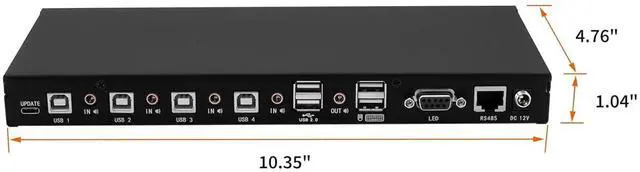
Computer Connections 4 Port selection Panel buttons, Hotkey, Mouse Connectors Console: 1 x double-layer USB type A for Keyboard/Mouse; 1 x Min Stereo Audio for Speaker (out); PC ports: 4 x USB type B for Keyboard/Mouse; 4 x Min Stereo Audio for Speaker (in) USB 2.0 Port 1 x double-layer USB type A Upgrade Port 1 x USB-C Power 5V- 12V DC Power Consumption 3W Operating Temperature 0-50 Humidity 0-80%RH, Non-condensing Main Material Metal Weight 0.9kg Product dimension (W × D × H) 10.35" x 4.76" x 1.04" NOTE Double-clicking the middle mouse button enables or disables the switching function. See More 4-Port KM Switch with Mouse Roaming, Audio, USB 2.0 Hub, Multi-Monitor Supp





 here!
here!