Your Browsing History
Meet Your Seller
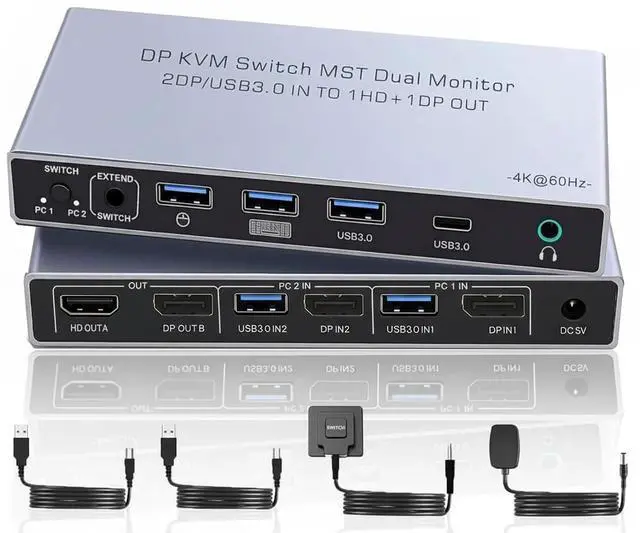
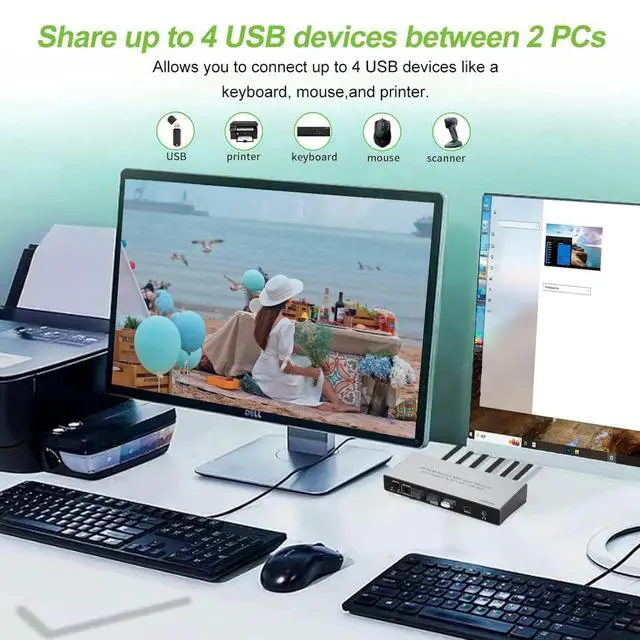
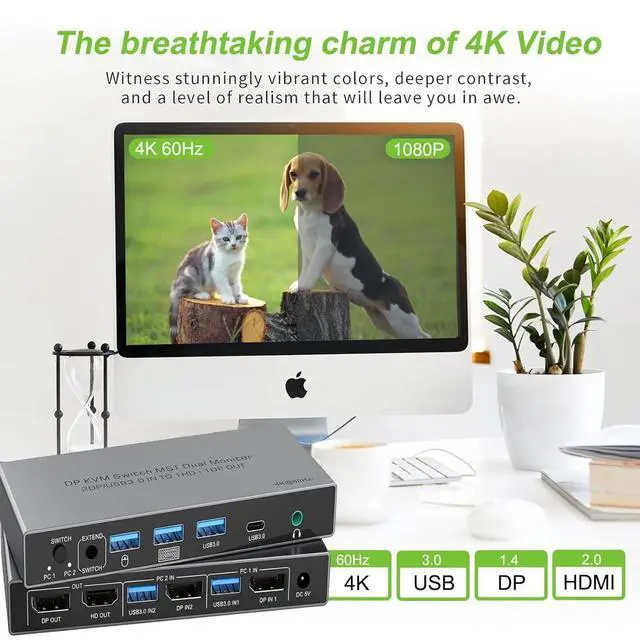
Dual Monitor Displayport KVM Switch 2 Monitors 2 Computers 4K 60Hz HDMI+DP 4 USB3.0 KVM Switcher 2DP in HDMI+DisplayPort Output KVM Switcher for 2 PC Sharing Keyboard Mouse Mic and Audio Output (Gray)
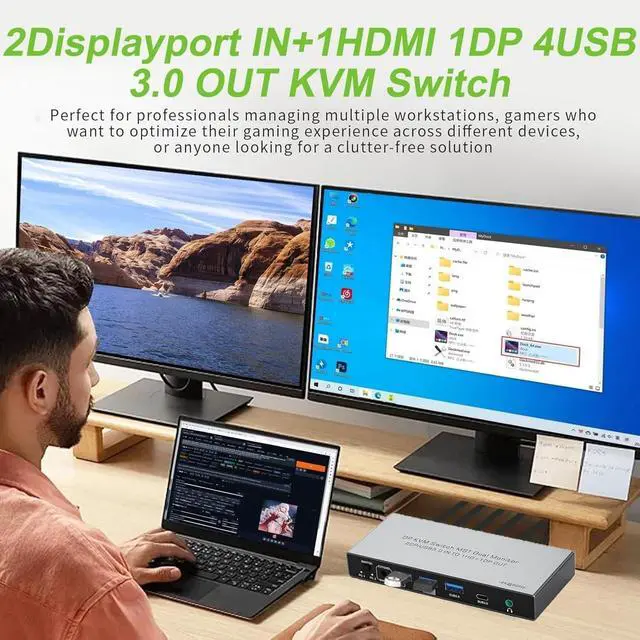
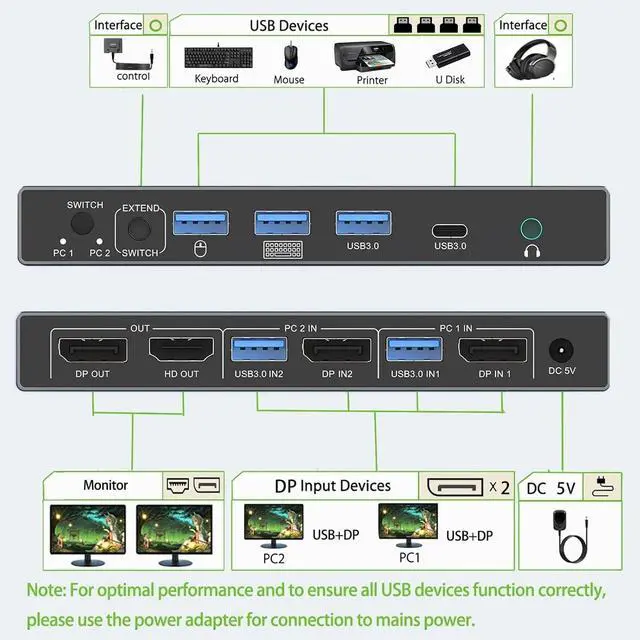
- Dual Monitor KVM Switch DisplayPortThis DisplayPort KVM switch allows you to connect two computers and seamlessly manage two monitors with just one keyboard and mouse. Our kvm switch displayport boosts productivity through instant PC switching,designed for both professional workstations and home offices( Note: You can connect two computers simultaneously, but only one can be the active source at a time;The two DisplayPort inputs cannot work simultaneously,such as DP IN1 in PC1 IN is connected, DP IN2 in PC2 IN will not work
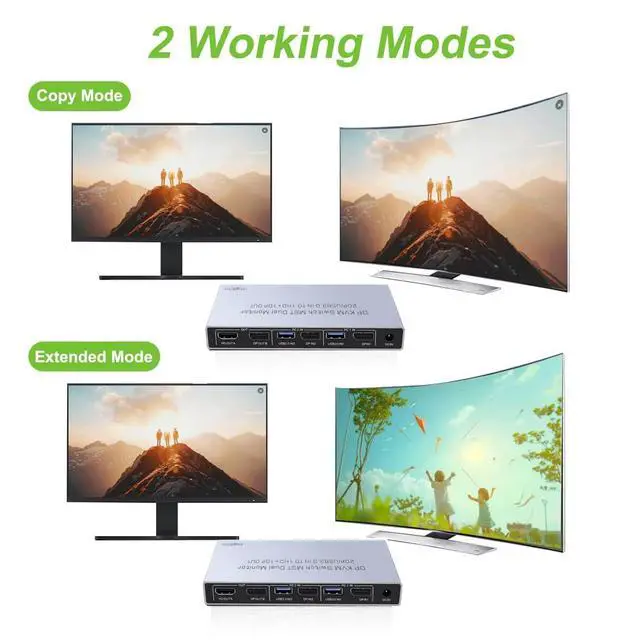
- Dual Monitor KVM Switcher support Mirror & Extend Supports 2 monitors with mirror or extended mode. Switch easily via your PC for efficient multitasking. The specific display mode must be set on the input computer.
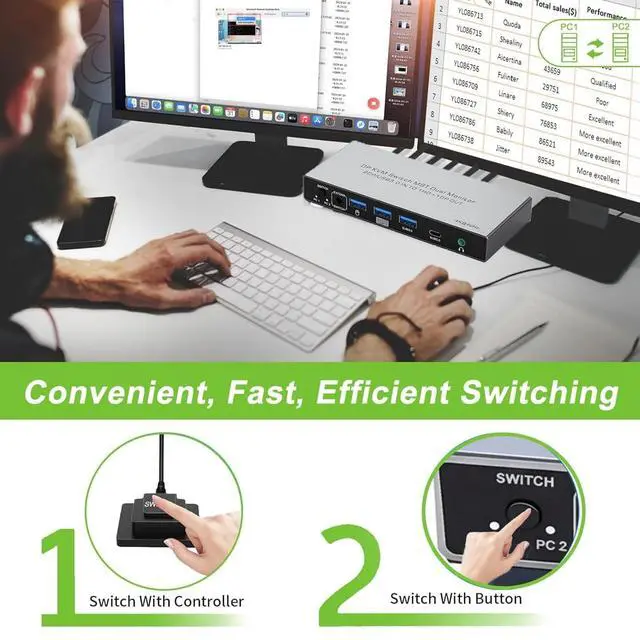
- Flexible Switching Options for ConvenienceSwitch seamlessly between 2 computers with the switching button or the included wired remote. The one-touch button provides quick access, while the wired controller can be placed outside your main work ar
+
+
Overview
Reviews
Any questions? Our AI beta will help you find out quickly.
Try me now
1.Dual-Screen Support Required: Ensure that each of your computers independently supports dual-screen output.
2.Computer Port Requirements: Each computer must have 1 DisplayPort video output and 1 USB-A port (for connecting the KVM control cable).
3.Connection Method (Critical): For Each Computer: You must connect 1 DP cable (to DP IN) + 1 USB-A cable (to the corresponding USB IN). For Each Monitor: Connect 1 HDMI or DP cable (to HDMI OUT or DP OUT).
4.Display Logic: Both monitors will simultaneously display the signal from the same computer. It is not possible to have one monitor show PC1 and the other show PC2.
5.Power Connection: To ensure proper functionality, you must power the KVM switch using the included power adapter.
Q1: Does this KVM switch 2 monitors 2 computers have a hotkey switching function?
A1: No, it does not have a hotkey switching function. However, it comes with an extended remote switch button that can extend up to 1 meter, allowing you to hide the KVM switch and still easily switch between computers.
Q2: Is an external power supply necessary for this Displayport KVM switch?
A2: For optimal performance, especially in dual-monitor configurations, an external power source is recommended. While the KVM switch can operate via USB power alone, connecting it to an external supply enhances stability and reliability, particularly when multiple devices are in use.
Q3: My computer only has a USB-C port instead of HDMI; what should I do?
A3: Youll need a USB-C to HDMI adapter. Likewise, for any other non-HDMI outputs, ensure you use high-quality adapters that convert effectively to HDMI to ensure full compatibility with the KVM switch and prevent signal degradation.
Q4: What happens if I connect only one HDMI port from my PC to the KVM switch 2 monitors 2 computers?
A4: If only one HDMI port is connected, the switch will display content on just one monitor, not both. To achieve a dual monitor setup, you must connect both HDMI inputs from the PC to the KVM switch.
Precautions for Dual Monitor KVM Switch 2 Monitors 2 Computers (Dual DisplayPort Input, HDMI + DP Output)

2.Computer Port Requirements: Each computer must have 1 DisplayPort video output and 1 USB-A port (for connecting the KVM control cable).
3.Connection Method (Critical): For Each Computer: You must connect 1 DP cable (to DP IN) + 1 USB-A cable (to the corresponding USB IN). For Each Monitor: Connect 1 HDMI or DP cable (to HDMI OUT or DP OUT).
4.Display Logic: Both monitors will simultaneously display the signal from the same computer. It is not possible to have one monitor show PC1 and the other show PC2.
5.Power Connection: To ensure proper functionality, you must power the KVM switch using the included power adapter.
Q1: Does this KVM switch 2 monitors 2 computers have a hotkey switching function?
A1: No, it does not have a hotkey switching function. However, it comes with an extended remote switch button that can extend up to 1 meter, allowing you to hide the KVM switch and still easily switch between computers.
Q2: Is an external power supply necessary for this Displayport KVM switch?
A2: For optimal performance, especially in dual-monitor configurations, an external power source is recommended. While the KVM switch can operate via USB power alone, connecting it to an external supply enhances stability and reliability, particularly when multiple devices are in use.
Q3: My computer only has a USB-C port instead of HDMI; what should I do?
A3: Youll need a USB-C to HDMI adapter. Likewise, for any other non-HDMI outputs, ensure you use high-quality adapters that convert effectively to HDMI to ensure full compatibility with the KVM switch and prevent signal degradation.
Q4: What happens if I connect only one HDMI port from my PC to the KVM switch 2 monitors 2 computers?
A4: If only one HDMI port is connected, the switch will display content on just one monitor, not both. To achieve a dual monitor setup, you must connect both HDMI inputs from the PC to the KVM switch.
Precautions for Dual Monitor KVM Switch 2 Monitors 2 Computers (Dual DisplayPort Input, HDMI + DP Output)
Warranty & Returns
Warranty, Returns, And Additional Information
Warranty
- Please contact the Seller directly for warranty information. Warranty information may also be found on the Manufacturer's website.
- CONTACT
Return Policies
- Return for refund within: 30 days
- Return for replacement within: 30 days
- This item is covered by PrimeVolt’Shop Return Policy
Manufacturer Contact Info
- For a directory of all our manufacturers, please click below.
- Manufacturers Directory
LOADING...