Your Browsing History
Meet Your Seller
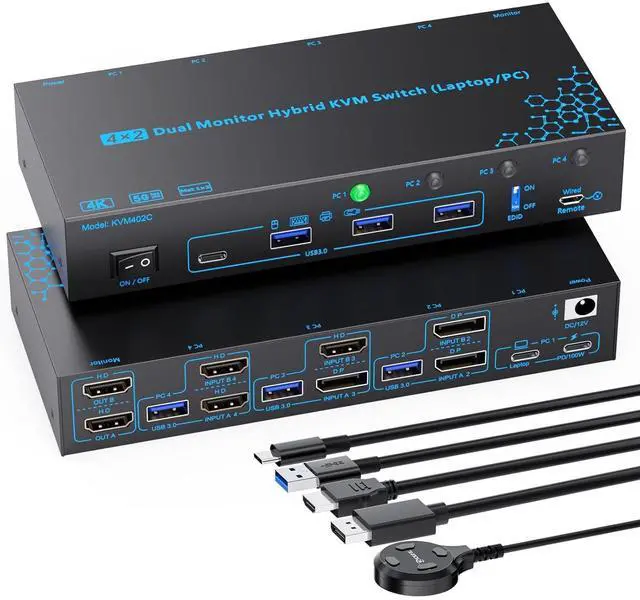
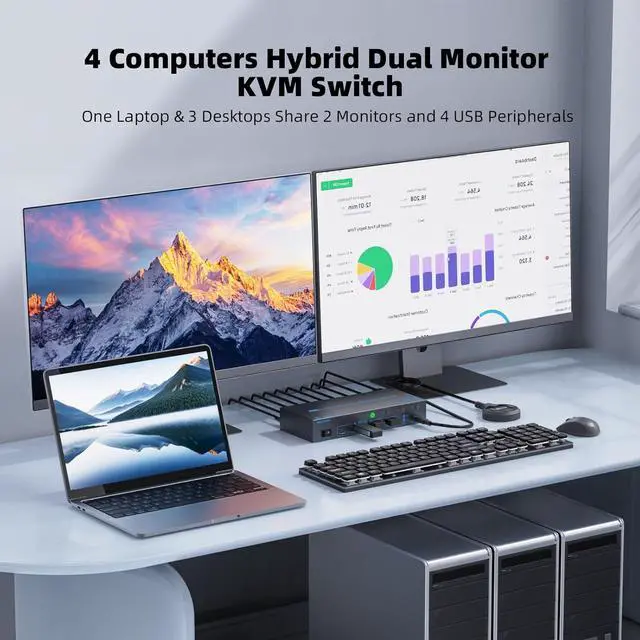
2 Monitors 4 Computers KVM Switch Laptop and Desktop 4 Port Hybrid USB-C Docking & Dual Displayport & DP HDMI & Dual HDMI 4K@60Hz KVM Switch with EDID Emulator, Support PD 100W Charging
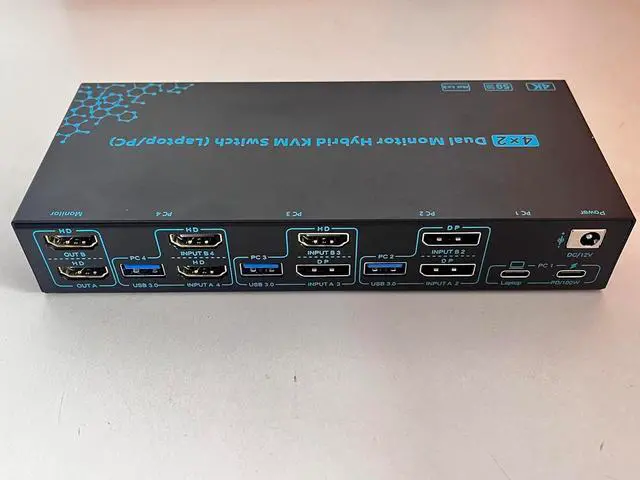
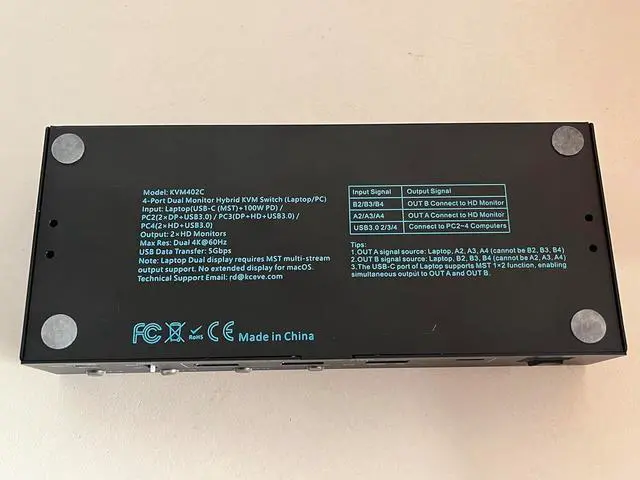
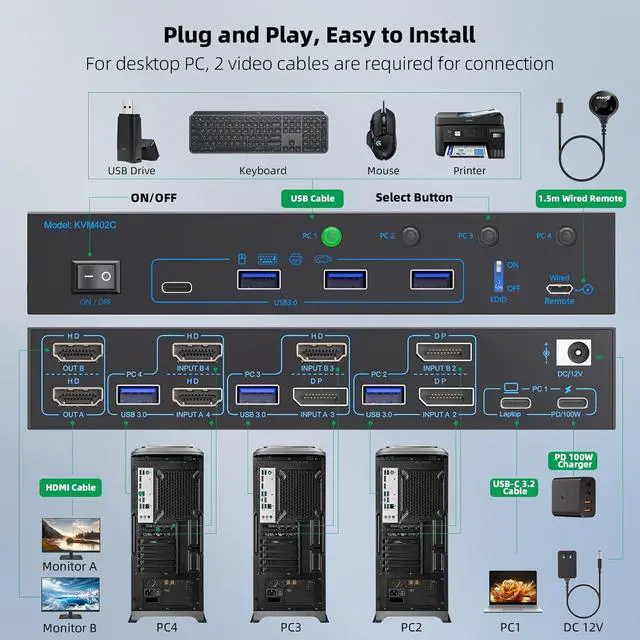
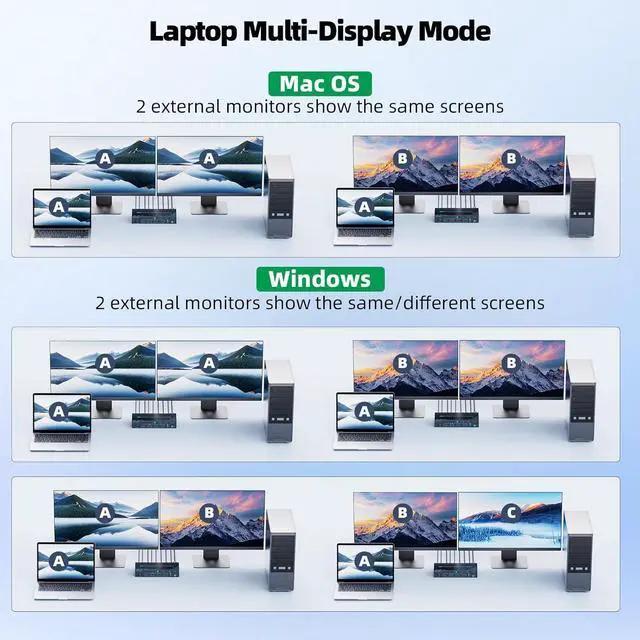
- 4 Port Hybrid Dual Monitor KVM Switch 4 Computers The hybrid 4 computers dual monitor KVM switch accepts 4 different interfaces combination at once : USB-C : DP + DP : DP + HDMI : HDMI + HDMI); Easily one-click switching between one laptop and three desktops to share 2 monitors and 4 USB 3.0 peripherals. No matter how computers video ports are combinated, this laptop and desktop KVM switch connects all of them with ease. : For desktops, each PC requires 2 video cables connected to the relevant ports on the dual monitor KVM switch to get 2 screens output
- Crystal Clear Dual 4K@60Hz EnjoymentThe 2 monitors 4 port laptop and desktop KVM switch supports up to dual 4K(3840*2160)@60Hz, 2560*1440@60Hz/120Hz, 1920*1080@60Hz/120Hz/144Hz, whether youre working from home, hosting a video conference, editing media, or teaching online images stay sharp and fluid. The perfect dual monitor 4 PC KVM switch for multitaskers
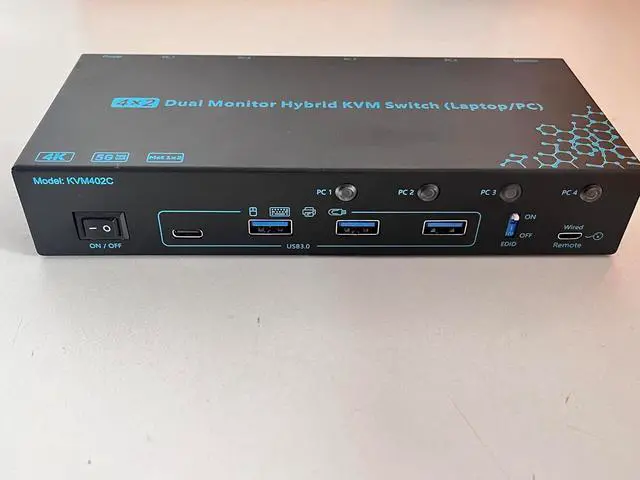
- Optional EDID ON/OFF & PD 100W Fast Charging
+
+
Overview
Reviews
Any questions? Our AI beta will help you find out quickly.
Try me now
Connect Steps:
Step 1. Connect one USB-C 3.1 Gen 2 cable from the USB-C laptop to the Laptop port on the laptop USB type-c docking station.
Step 2. Plug original PD100W laptop power cable from socket into the PC1--PD/100W port on the 2 monitors laptop PC KVM switch.
Step 3. Connect 2*Displayport 1.4 & 1* USB 3.0 cables from PC2 to "INPUT A2, INPUT B2, and USB 3.0 (PC2) " separately
Step 4. Connect 1*Displayport 1.4 & 1* HDMI 2.0 & 1* USB 3.0 cables from PC3 to "INPUT A3, INPUT B3, and USB 3.0 (PC3) " separately
Step 5. Connect 2* HDMI 2.0 & 1* USB 3.0 cables from PC4 to "INPUT A4, INPUT B4, and USB 3.0 (PC4) " separately
Step 6. Connect 2 monitors to "OUT A" & "OUT B" seperately
Step 7. Plug USB peripherals like keyboard mouse into the USB port on the front of the 2 monitors 4 computers KVM switch ; Plug the 12V power cable into "DC/12V" to supply external power for more stable performance
Step 8. Insert the 1.5M wired remote controller; then turn on the 2 monitors laptop and desktop USB-C docking KVM switch
1Dual 4K@60Hz Enjoyment25Gbps Data Transfer3Wide Compatibility4Flexible Switching Ways5PD 100W Charging Laptop 2 Monitors 4 Computers 4 Port Hybrid USB-C Docking Laptop & Desktop KVM Switch Easy to Install, No Driver Required Dedicated Enable / Disable EDID Dial Effortlessly Extending Workspace Without Frequent Connect and Disconnect

Step 1. Connect one USB-C 3.1 Gen 2 cable from the USB-C laptop to the Laptop port on the laptop USB type-c docking station.
Step 2. Plug original PD100W laptop power cable from socket into the PC1--PD/100W port on the 2 monitors laptop PC KVM switch.
Step 3. Connect 2*Displayport 1.4 & 1* USB 3.0 cables from PC2 to "INPUT A2, INPUT B2, and USB 3.0 (PC2) " separately
Step 4. Connect 1*Displayport 1.4 & 1* HDMI 2.0 & 1* USB 3.0 cables from PC3 to "INPUT A3, INPUT B3, and USB 3.0 (PC3) " separately
Step 5. Connect 2* HDMI 2.0 & 1* USB 3.0 cables from PC4 to "INPUT A4, INPUT B4, and USB 3.0 (PC4) " separately
Step 6. Connect 2 monitors to "OUT A" & "OUT B" seperately
Step 7. Plug USB peripherals like keyboard mouse into the USB port on the front of the 2 monitors 4 computers KVM switch ; Plug the 12V power cable into "DC/12V" to supply external power for more stable performance
Step 8. Insert the 1.5M wired remote controller; then turn on the 2 monitors laptop and desktop USB-C docking KVM switch
1Dual 4K@60Hz Enjoyment25Gbps Data Transfer3Wide Compatibility4Flexible Switching Ways5PD 100W Charging Laptop 2 Monitors 4 Computers 4 Port Hybrid USB-C Docking Laptop & Desktop KVM Switch Easy to Install, No Driver Required Dedicated Enable / Disable EDID Dial Effortlessly Extending Workspace Without Frequent Connect and Disconnect
Warranty & Returns
Warranty, Returns, And Additional Information
Warranty
- Please contact the Seller directly for warranty information. Warranty information may also be found on the Manufacturer's website.
- CONTACT
Return Policies
- Return for refund within: 30 days
- Return for replacement within: 30 days
- This item is covered by PrimeVolt’Shop Return Policy
Manufacturer Contact Info
- For a directory of all our manufacturers, please click below.
- Manufacturers Directory
LOADING...