

Your Browsing History
- Free 30-day Returns
$115.99
Meet Your Seller
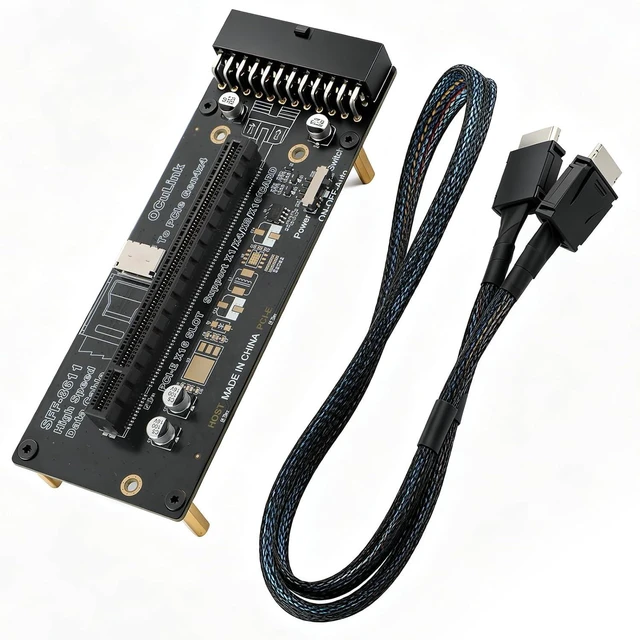
OCuLink eGPU Dock, PCIe 4.0 x4 64Gbps Bandwidth,SFF-8612 to PCIe x16 Adapter, with Oculink Cable 60cm, for NUC, MINI PC,Graphics Cards
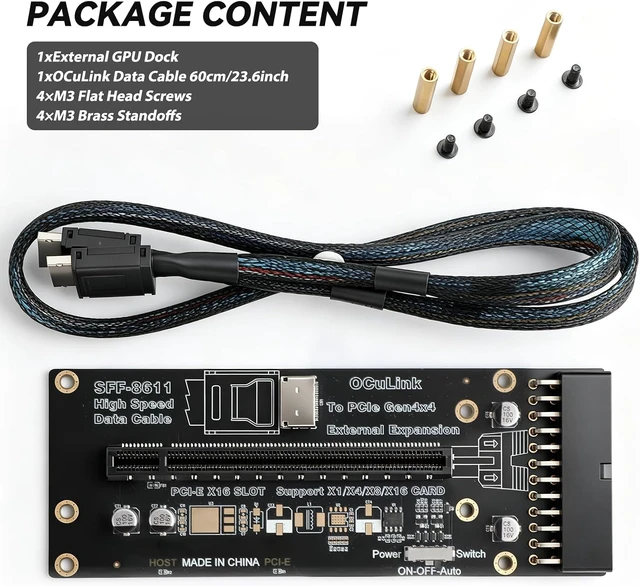
- Package Include: 1PCS OCuLink SFF-8612 to PCIe x16 Dock, 1PCS SFF-8611 60cm/19.7 inch Male-to-Male Cable. Note: This dock only works with the matched attached OCuLink cable. The cable is custom-designed exclusively for this dock and incompatible with ordinary third-party cables on the market
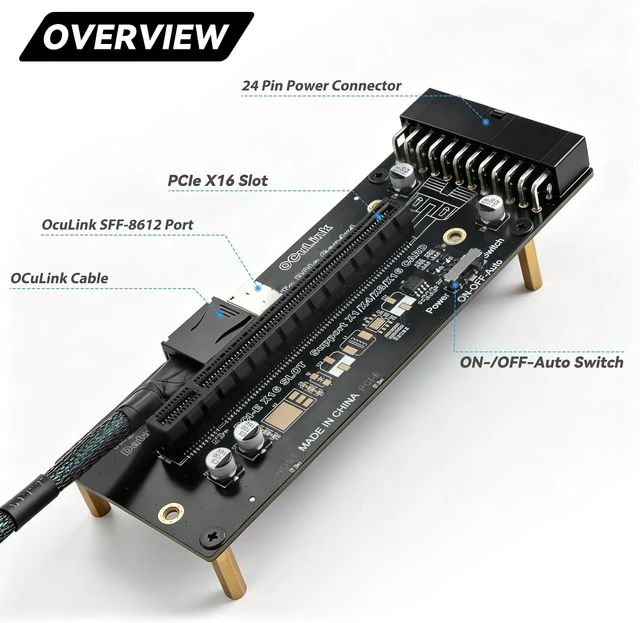
- PCIe Gen4 x4 Full Bandwidth Transmission: Equipped with dedicated SFF-8612 OCuLink interface, supporting PCIe 4.0 x4 transmission with a theoretical bandwidth up to 64Gbps. The PCIe x16 slot is compatible with x1/x4/x8/x16 PCIe devices such as external graphics cards, meeting high-speed data transfer demands for GPU docking
- Universal 24Pin ATX Power Supply Support: Comes with standard 24Pin power input port, widely compatible with ATX, mATX and FLEX small chassis power supplies. We recommend selecting a PSU at least 100W higher than the power draw of your PCIe device for stable operation under full load
- 3-Mode Power Switch: Built-in ON/OFF/AUTO toggle switch. The AUTO mode enables synchronous power on/off with your host PC; switch to ON/OFF to control the dock power manually as needed, bringing flexible power management.
- This product is not a hot-swappable device. Always power off all devices before connecting or disconnecting the dock, PCIe card, OCuLink cable, or power cable
+
+
Overview
Specs
Reviews
Any questions? Ask CelesteSM will help you find out quickly.
Try me now
VERY Important Notes
- Only use the included OCuLink cable for this dock. This cable is custom-made exclusively for the dock; other cables are not compatible with this dock;
- This product does not support hot swapping. Always power off all devices before connecting or disconnecting the dock, PCIe card, OCuLink cable, or power cable.
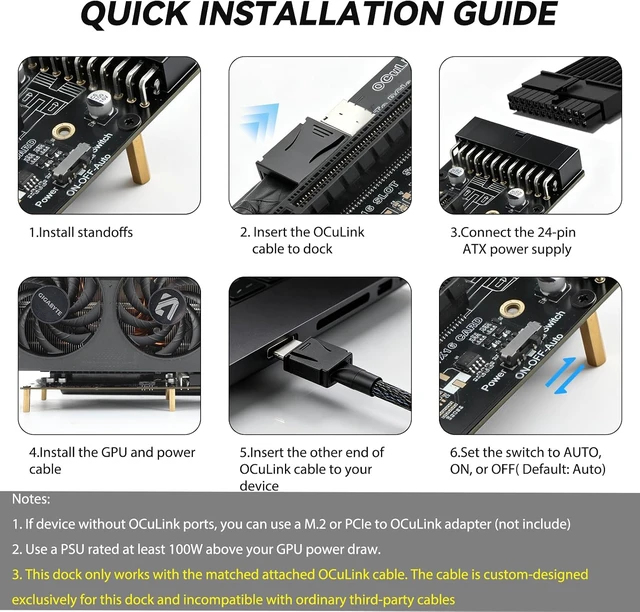
- Install brass standoffs under the dock
- Connect the OCuLink cable to the dock
- Connect the 24-pin ATX power supply
- Connect the PCIe device to the dock
- Connect the other end of OCuLink cable to host system
- Set the switch to AUTO, ON, or OFF
- Power on the host system and power supply
- Install the required drivers for the PCIe device
- Confirm that the device is recognized in the operating system
- Device compatibility with the dock (if use M.2 to Oculink Adapter card, please confirm whether M.2 slot has PCIe lanes and if BIOS configuration is required);
- Adequate power supply;
- Latest graphics driver is installed.
Warranty & Returns
Warranty, Returns, And Additional Information
Warranty
- Please contact the Seller directly for warranty information. Warranty information may also be found on the Manufacturer's website.
- CONTACT
Return Policies
- Return for refund within: 30 days
- Return for replacement within: 30 days
- This item is covered by DAOWO Tech Return Policy
Manufacturer Contact Info
- For a directory of all our manufacturers, please click below.
- Manufacturers Directory
LOADING...